---
title: "Team & District Dashboard"
url: "https://books.playgoventure.com/13/gvsharingaccounts/351/team-district-dashboard"
---
# Team & District Dashboard
The **Team & District Dashboard** is a feature available with certain GoVenture programs for K-12 schools or districts with teams of instructors. The Dashboard makes it easy for multiple instructors at the same or different schools or organizations to manage and share instructor and student access to GoVenture.
## 1. District/Team Setup
- The Dashboard includes a unique 8-digit numeric District KEY that looks like this — `12345678`
- The District KEY is given to instructors and curriculum personnel to personally log in and CREATE ACCOUNTS for GoVenture. The District KEY should be kept private and only given to authorized personnel, **never to students or anyone else**. All instructors in your school or district use the same District KEY.
- The District Administrator should create an account on GoVenture and then [contact GoVenture](https://goventure.net/contact) (using the same account email) to request District Admin privileges for access to the Dashboard. Having a District Administrator is not required but is a useful feature for you.
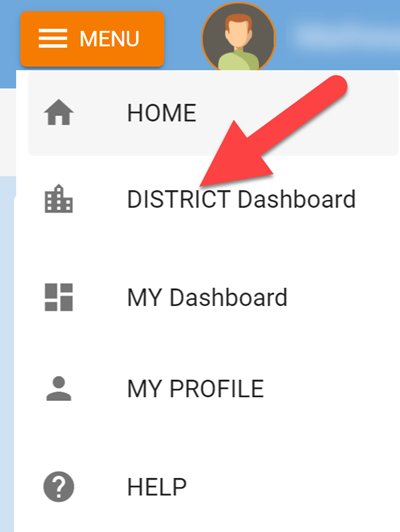
- District Administrators can access the Dashboard using the MENU button.
 - To prevent unauthorized people from creating accounts, Districts may add one or more email domains to an **ALLOW LIST**.
- GoVenture requires instructors to use email addresses for USERNAMES.
- An email address must match the ALLOW LIST and District KEY provided, otherwise account creation will fail.
- The ALLOW LIST may include any combination of domains (`@myschool.edu`) and/or specific emails (`smith@gmail.com`). Use of specific emails reduces the likelihood of unauthorized accounts being created but may require more effort to maintain.
- If an unauthorized person creates a GoVenture account, they can and should be promptly removed using the Dashboard. Authorized accounts can also be monitored and removed using the Dashboard.
- To prevent unauthorized people from creating accounts, Districts may add one or more email domains to an **ALLOW LIST**.
- GoVenture requires instructors to use email addresses for USERNAMES.
- An email address must match the ALLOW LIST and District KEY provided, otherwise account creation will fail.
- The ALLOW LIST may include any combination of domains (`@myschool.edu`) and/or specific emails (`smith@gmail.com`). Use of specific emails reduces the likelihood of unauthorized accounts being created but may require more effort to maintain.
- If an unauthorized person creates a GoVenture account, they can and should be promptly removed using the Dashboard. Authorized accounts can also be monitored and removed using the Dashboard.
## 2. Instructor Setup
Copy and send one of these directions to your instructors based on the GoVenture product you are using — replace the blank with your District Key.
### 2.1 ENTREPRENEUR, HEALTH, JOB INTERVIEW, TYPING, DIGITAL MARKETING, PROJECT MANAGEMENT, LEADER| LIFE & MONEY
Here is how to create your instructor account for **GoVenture**:
_**Do NOT share this with students!**_
District KEY __________________
(1) Go to PlayGoVenture.com and follow the links to CREATE ACCOUNT using your DISTRICT KEY above.
(2) Once your account is created, log in and click the GoVenture product name then click INSTRUCTOR RESOURCES to view the Instructor Guide — it has everything you need.
**NOTE**: If you attempt to create an account and receive a message that your email is already in use, contact GoVenture to transfer your current account to your district as this will allow you to continue using your current account instead of creating a new one. If you prefer to use two separate accounts, you may do so by using a different email address to sign up.
### 2.2 LIFE & MONEY
Here is how to create your instructor account for **GoVenture LIFE & MONEY**
_**Do NOT share this with students!**_
District KEY __________________
Using your DISTRICT KEY above, follow the _Start Here_ directions in the Instructor Guide — https://books.playgoventure.com/7/gvlmig
**NOTE**: If you attempt to create an account and receive a message that your email is already in use, contact GoVenture to transfer your current account to your district as this will allow you to continue using your current account instead of creating a new one. If you prefer to use two separate accounts, you may do so by using a different email address to sign up.
## 3. Student Setup
- Instructors log in to GoVenture to create student accounts as they need them — follow the directions in the **Instructor Guide** for your GoVenture program.
- When an instructor creates a student account, a unique USERNAME is generated for the student. The USERNAME is a multi-digit number that is automatically generated — the instructor cannot choose the number but can edit it after it is generated. Note that the instructor does not need to build or upload a roster.
- The instructor provides the USERNAME to the student and directs the student to log in to the GoVenture website (using the same URL as the instructor).
- GoVenture will determine if this is a new USERNAME being used for the first time and prompt the student to set a PASSWORD and their name or student ID or pseudonym (if maximum privacy is preferred). No personally identifiable information is required of students. But, it is important that students use a unique identifier that allows the instructor to know who they are for monitoring and grading purposes. Alternatively, the instructor can manually record student names with their assigned USERNAMES.
- The student uses their personal USERNAME and PASSWORD to log in to GoVenture.
- Instructors can reset student PASSWORDS if needed.
## 4. Account Management
- A District (or Team) is assigned start and end dates for a subscription to GoVenture. When the end date is exceeded, all instructor and student accounts will be disabled. This end date supersedes all other subscription end dates.
- A District is assigned a maximum number of instructor accounts and student accounts that can be active at any one time (concurrently). The maximum number of active student accounts is for all users in the same District — all instructors in the same district draw from the same pool of student accounts (specific limits cannot be assigned to individual instructors). If your District has access to multiple GoVenture products on the same Dashboard, then the total number of instructor and student accounts allowed applies to all products together, not each individually.
- Instructors and District Managers can **DISABLE** individual student accounts when they are no longer needed (such as at the end of the semester or year, or if a student drops out). Disabling a student account reduces the number of active student accounts, thereby providing for another student account to be activated. Disabled accounts do not count towards the maximum number of concurrent accounts allowed. Disabling a student account retains all student progress and results, allowing the account to be activated again at any time.
- Instructors and District Managers can **DELETE** individual student accounts. Doing so permanently erases all student progress and results and the same student account cannot be activated again.
- Instructors and District Managers can **EDIT** instructor and student accounts.
- Instructor accounts can be reassigned to new instructors.
- A student account that is created by an instructor but never actually used by a student will not count towards the maximum number of student accounts allowed. (Used means a student has set a password.)
### Student Account Visibility
- Instructors can view the student accounts they have created but cannot view the student accounts created by other instructors — unless they have administrator access to the Dashboard where all student accounts are listed.
- If a Dashboard provides access to more than one GoVenture product, when an Instructor creates a student account, that same student account will be visible under all the accessible GoVenture products, and a student only needs the one student account login to be able to play all of the GoVenture products — the student does not require separate logins to play different products. But, students do require a Group Number to join and play each specific GoVenture product.
## 5. Reporting
View student Performance Reports using your Instructor Dashboard or District Dashboard.
## 6. Account Sharing
Two types of account sharing are available:
- **View Groups and Student Reports** — allows an instructor account to view Groups and student Performance Reports from one or more other instructor accounts. View only, no changes allowed.
- **Full Access** — allows an instructor account to fully access one or more other instructor accounts (including changing profile, username email, and password).
- Share settings are controlled through the Dashboard and cannot be set or changed by individual users.
_Account sharing is not available for GoVenture Life & Money (Personal Finance)._