---
title: "GoVenture SPORTS & ENTERTAINMENT | Instructor Guide"
author: ""
url: "https://books.playgoventure.com/19/gvsportsig"
---
# 👉1. Start Here
- **GoVenture Sports & Entertainment Management** simulation is included as a module within the **GoVenture Entrepreneur Advanced** and **GoVenture Digital Marketing** simulations.
- If you have access to one of these simulations, you can play and assign the simulation to students. To do so, create a new **Group** and choose the _Sports & Entertainment_ activity.
- This **Instructor Guide** describes how to manage and assess student performance in the **Sports & Entertainment Management** simulation — which uses a different approach than the other modules available in the **Entrepreneur** and **Digital Marketing** simulations.
- Refer to the Instructor Guides for the other products for details on how to create and manage student accounts and Groups.
## Business or Marketing Focus?
- If your curriculum focus is **business**, the **Entrepreneur** simulation combined with the **Sports & Entertainment** simulation provides you with a comprehensive training experience for students. You may want to start with the _Lemonade Stand_ and _Kiosk_ simulations for business foundations before you assign the **Sports & Entertainment** simulation.
- If your curriculum focus is **marketing**, the **Digital Marketing** simulation combined with the **Sports & Entertainment** simulation provides you with a comprehensive training experience for students. Start with the **Sports & Entertainment** simulation then assign the _Marketing Simulation_ — you may want to direct students to choose the Athletic Shoe option to maintain the sports theme. After that, you may want to assign the Content Creator for students to create marketing materials for their sport or shoe. And then assign the _Advertising Simulation_ to round out the training.
- Note that you do not have to assign the modules noted above — they are only an option for deeper learning.
## Demo & Tutorial Video
# 2. Learning Resources
## 2.1 Sport & Entertainment Management Simulation
Product details are at
GoVenture.net/sports
Students can play the Simulation once an instructor gives them a Group number to join. Instructors can use the _Play As Student_ feature to play as a student — but you must first create a _Group_ to play.
## 2.2 Instructor Guide and Website #
This document you are reading now and an Instructor Dashboard (website) for monitoring student progress and performance.
## 2.3 User Guide
A guide for students that can be accessed from the Dashboard — User Guide
## 2.4 Demo & Tutorial Video
Video to watch before playing the Simulation — available in the Simulation, in the User Guide, and in this Instructor Guide section 1.
## 2.5 Book & Glossary

View BookYou must be logged in to view the PDF
The book can be used as a learning resource on its own or as a reference when playing the Simulation. Includes a full glossary of terms. The book is also available to students in the User Guide
## 2.6 Strategy Journal
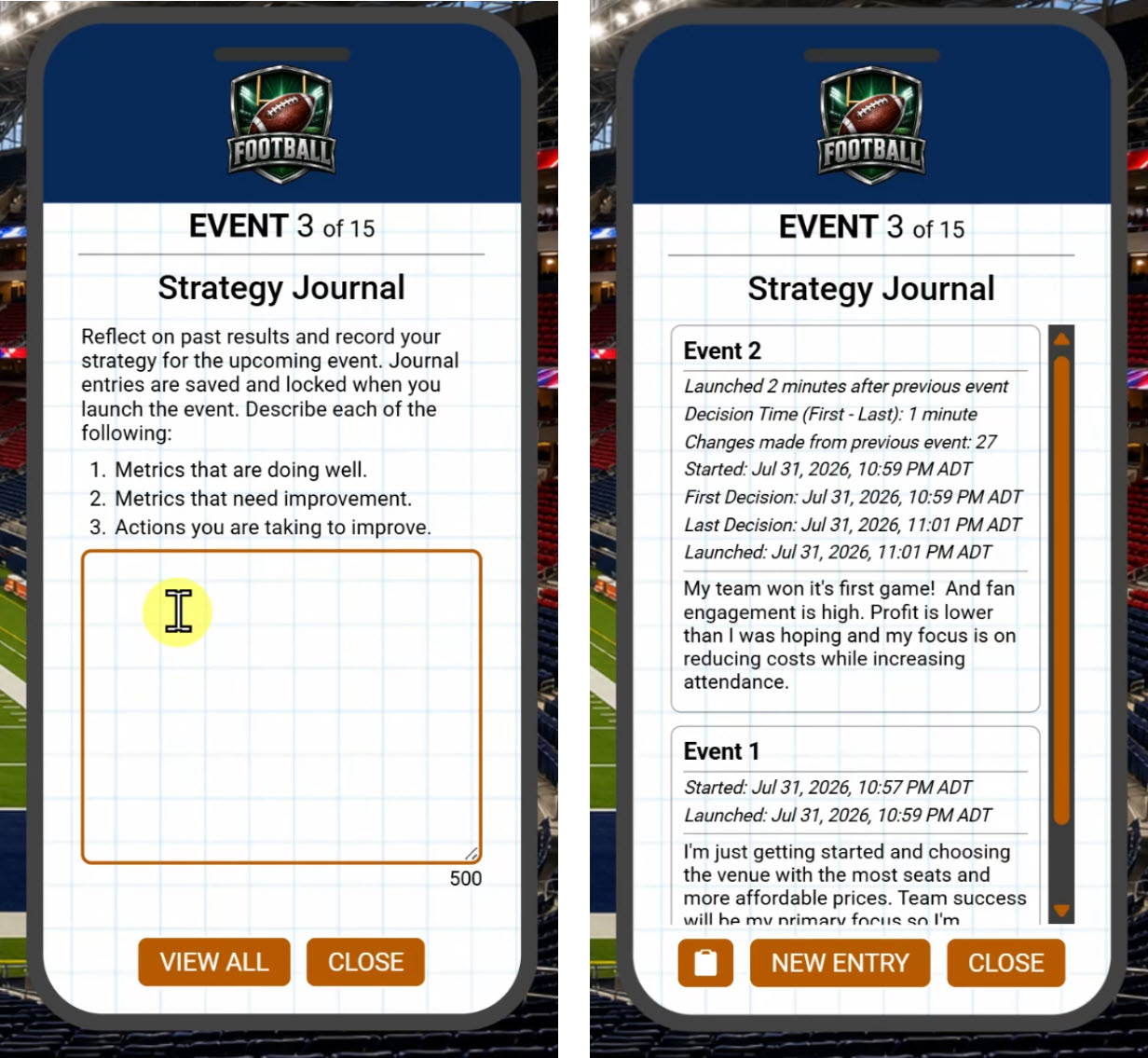 - The Strategy Journal is a structured reflection activity that helps develop critical thinking and decision-making skills. The Strategy Journal is an optional feature integrated into the simulation. Instructors should inform students if completing the journal is required.
- Before each event, the Strategy Journal prompts students to review previous results, identify strengths and areas for improvement, and record the actions they plan to take. Each event entry is limited to 500 characters of text (approximately 80 words).
- By documenting strategic thinking throughout the simulation, students learn to evaluate performance, make evidence-based decisions, and continuously improve management skills.
- Because students must explain their reasoning throughout the simulation, the Strategy Journal encourages authentic learning and reduces reliance on AI-generated responses. Past journal entries cannot be edited, providing evidence of original work, while timestamps document the time spent making decisions.
- See section 4 for assessment recommendations.
- The Strategy Journal is a structured reflection activity that helps develop critical thinking and decision-making skills. The Strategy Journal is an optional feature integrated into the simulation. Instructors should inform students if completing the journal is required.
- Before each event, the Strategy Journal prompts students to review previous results, identify strengths and areas for improvement, and record the actions they plan to take. Each event entry is limited to 500 characters of text (approximately 80 words).
- By documenting strategic thinking throughout the simulation, students learn to evaluate performance, make evidence-based decisions, and continuously improve management skills.
- Because students must explain their reasoning throughout the simulation, the Strategy Journal encourages authentic learning and reduces reliance on AI-generated responses. Past journal entries cannot be edited, providing evidence of original work, while timestamps document the time spent making decisions.
- See section 4 for assessment recommendations.
## 2.7 Student Experience Report
- Students prepare written, live, or video presentations or reports on their experience playing the simulation and business decisions and strategy. This encourages students to reflect on their simulation experience and what they learned, and then organize and present their thoughts.
- You can assign this activity twice — (1) The first time for students to document their experience with the sport they managed in the simulation; (2) The second time for a sport or organization of their own choosing, which they have to research.
- A report template is available in Google Slides, which you can download, edit, and send to students (using your school LMS or other method).
- Click here to view the template (do not share this link with students).
## 2.8 How Students Can Use AI With GoVenture Simulations
View Activity
# 3. Duration of Play & Curriculum Planning
* Nine sports and entertainment options are available to play: Basketball,
Football, Baseball, Soccer, Hockey, Cricket, Boxing, Mixed Martial Arts,
Wrestling. Students choose their preference inside the simulation. Note that the latter three options ("combat sports") have slightly different presentation due to the nature of those businesses.
* The simulation can be completed over multiple sessions on any schedule. Estimated completion time is 2–3 hours when the _Strategy Journal_ is required, or approximately 1 hour without it.
* Consider playing the simulation multiple times to give students opportunities to enhance their learning and improve their performance. Repetition is very effective with simulation-based learning. Always create a new Group for each simulation.
* _Book_ with _glossary_ provides additional learning as does the _Student Experience Report_.
# 4. Assessment
## 4.1 Monitoring Student Progress & Performance
* Student progress and performance are tracked automatically and detailed reports are instantly available on the Instructor Dashboard under **Groups & Reports**.
* Instructors can view and compare summary results for all students in a Group. Clicking a student name displays a detailed **Performance Report** for the student.
* Assessment is fully automated as described below.
## 4.2 Grading
To convert the GoVenture assessment into a course grade, compare the estimated hours required for each GoVenture activity to the total number of course hours, including homework. Then assign a grade percentage that reflects this proportion.
- For example, if your course requires 60 total hours and the GoVenture simulation and related activities take 6 hours, you might assign it at least 10% of the total course grade.
- If a GoVenture activity carries more weight or importance than other course components, consider assigning it a proportionally higher grade percentage.
## 4.3 Performance SCORE — Metrics & Weights
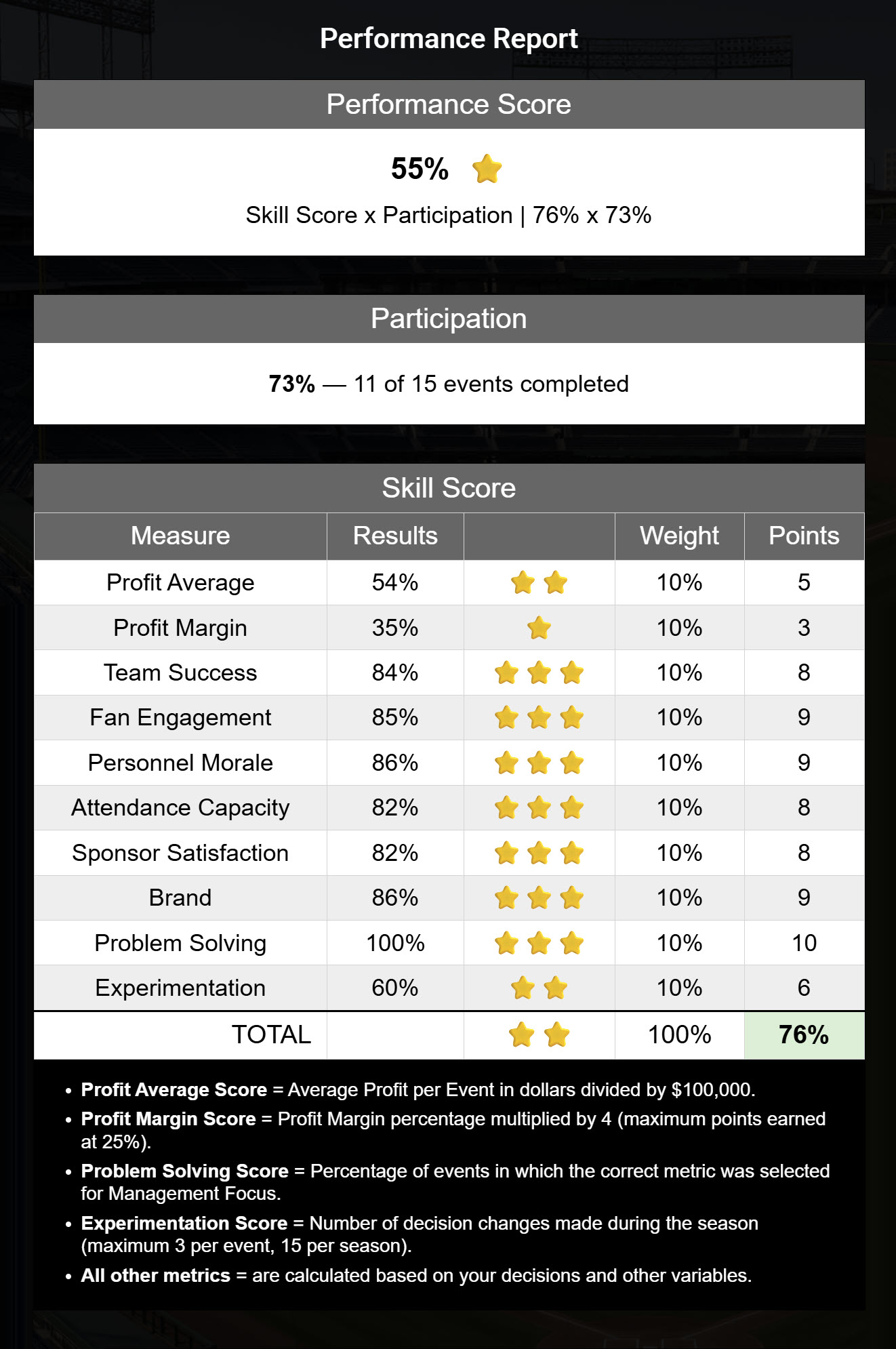
Assessment is fully automated and summarized in a **Performance Score** (0 to 100%) that is weighted across multiple metrics:
Performance Score = Skill Score x Participation
* _Participation_ is a significant metric because it rewards students for putting in the time and effort to complete the activity. Students who do not fully complete the simulation will have a low _Performance Score_.
* _Skill_ is a holistic measurement of success using 10 metrics — see details below.
* Each simulation (by Group) that students play is assigned a unique score.
## 4.4 Performance Report
* The _Performance Report_ provides a detailed view of student activity, but the only item that is needed by instructors for assessment is the _Performance Score_.
* Students can see their own reports in real time, but not those of other students.
## 4.5 Strategy Journal
- See section 2.6 for details on the Strategy Journal.
- It is highly recommended that instructors make the Strategy Journal a required activity. The journal enhances learning, encourages critical thinking, and provides evidence of student work and effort. If assigned, consider splitting the grade between the Strategy Journal and the Performance Score, such as 50% each
- Assessment is manual and requires reviewing journal entries. However, AI can be used to assist with evaluating the written responses and analyzing the available data to help assess the authenticity of the content.
- Each journal entry includes the information in the table below to help assess student work and effort.
| Item | Evaluation | Caution |
| :---: | :--- | :--- |
| **Time Between Events** | Shorter times between events may indicate less time spent planning and reflecting. | Students may leave the simulation open and idle, which can overstate the amount of time spent. |
| **Changes from Previous Events** | Meaningful changes may indicate experimentation and strategic adjustment. | Changes may also result from random selections rather than thoughtful decision-making. |
| **Decision Time** | The time from the first decision to the last decision made during an event. Short decision times may indicate limited planning or reflection. | Students may plan decisions ahead of time and then enter them quickly. |
| **Started** | Timestamp showing when the event became available for planning, such as when the simulation was opened or the previous event was completed. | - |
| **Launched** | Timestamp showing when the **LAUNCH EVENT** button was clicked. | - |
# Join Our Educator Community
 # Questions?
Reply to our latest email or submit our help form
# Questions?
Reply to our latest email or submit our help form