---
title: "1. Start Here"
url: "https://books.playgoventure.com/2/gvenig/18/1-start-here"
---
# 👉Start Here
Instructors — get started quickly by watching the **videos** or following the **step-by-step** directions — both are below.
## ▶️ Play The Game
If you are not ready to set up GoVenture Entrepreneur and just want to **play the game yourself** right now, click here to play the trial version. This version allows you to briefly play and quickly progress through all three business levels — _Lemonade Stand_, _Kiosk Business_, and _Full Business_. Or you can continue following this Instructor Guide and set up GoVenture just as you would for your students.
## 📽️ Watch Videos
1️⃣ Watch this 2-minute video on how to create your Instructor Account, set up Simulations, and onboard students. This video is for _Online Subscriptions_ not _Perpetual_ or _SUITE Licenses_.
2️⃣ Watch this video to discover GoVenture Entrepreneur and the many resources available to include in your curriculum.
3️⃣ Video demos of all three business levels are included further in this Instructor Guide and in the User Guide
## 📋 Step-by-Step Directions
These directions are for _Online Subscriptions_, not _Perpetual_ or _SUITE Licenses_.
1. Watch the **videos** above.
2. To unlock a GoVenture product, you need a **Subscription Key**. Then follow one of these directions —
* **If you already have a login** for PlayGoVenture.com, click the following link to unlock your product — PlayGoVenture.com/Subscription
* **To create a new account**, go to PlayGoVenture.com and follow the links to CREATE ACCOUNT.
3. **Log in** with your username and password to review the Instructor Dashboard (website). The Subscription Key is now expired and no longer needed.
3. If you don’t want to spend time setting up GoVenture and just want to **play the game yourself** right now, click here to play the trial version. This version allows you to briefly play and quickly progress through all three business levels — _Lemonade Stand_, _Kiosk Business_, and _Full Business_. Or you can continue following this Instructor Guide and set up GoVenture just as you would for your students.
4. Create a **Microlearning Collection** — 145 microlearning modules introduce business concepts using video, knowledge checks, and quizzes.
5. Create a **Group** to keep student performance results separated by class, school, region, or any other grouping that you prefer.
6. If you want to play the game click **Play as Student** in the Groups menu.
7. **Student Accounts**
- K-12 Teachers: Use your GoVenture website to generate usernames for each of your students under _Manage Students_ and give usernames to your students. See section 3.3 for more details and a Slide Deck you can use to onboard your students.
- College and Nonprofit Instructors: You may purchase Subscription Keys (access for students) at GoVenture.net/prices, or direct your students to purchase their own Subscription Keys at BuyGoVenture.com. See section 3.3 for more details and a Slide Deck and Syllabus you can use to onboard your students.
8. Give students your Group Number and describe your expectations for them.
9. Monitor student Performance Reports using your instructor dashboard.
10. Review the Upgrade Log to be aware of any new features and modifications being made to the program — view document
_**Details for all the steps above are described further in this document.**_
## 🌐 If you have a Perpetual or SUITE License
Expand this section — click the black triangle
The features available to you depend on the type of license that you have, as follows:
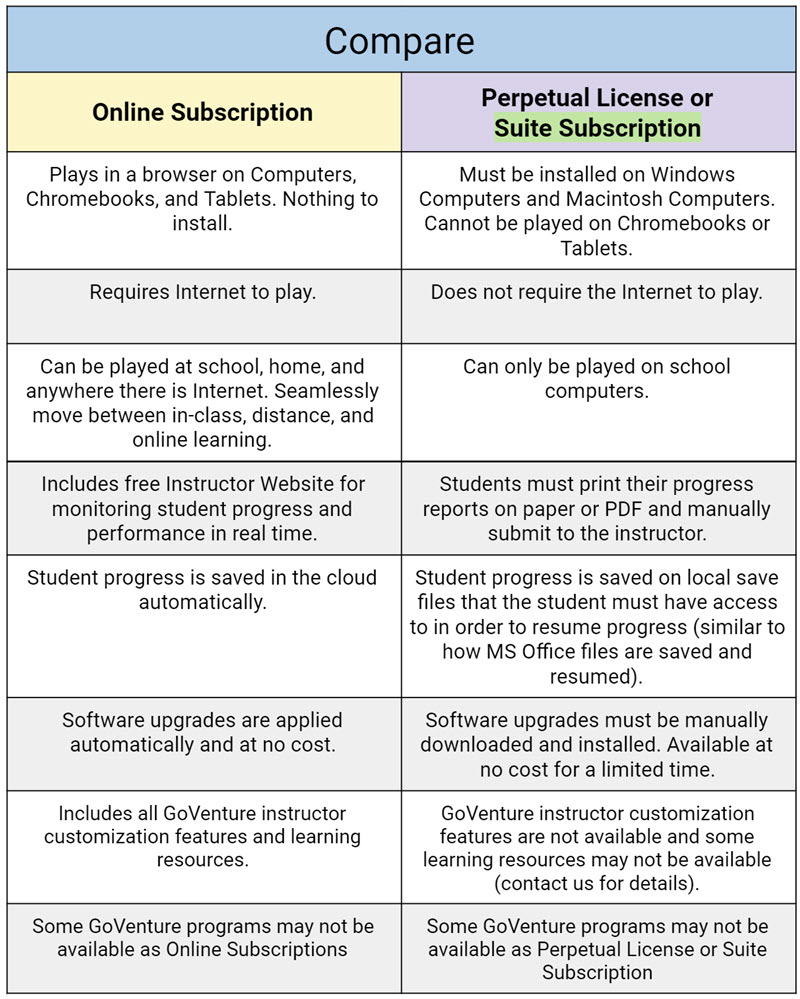
- Online Subscription plays from the cloud in a browser on computers, Chromebooks, and tablets. Deliver your curriculum in person, online, or at a distance. All features described in this document are available with this version.
- Perpetual or SUITE version is installed and plays on Windows and Macintosh computers in your school or organization. This version does not have an instructor website, Microlearning, or the option to adjust Simulation settings. There are no student login accounts. Students save their progress on their computers and manually submit reports to the instructor.
Comparison Table