---
title: "12. Accounting Features"
url: "https://books.playgoventure.com/2/gvenig/25/12-accounting-features"
---

# 12 Accounting Features
<hr style="margin: 0;">
GoVenture is ideal for enabling students to directly experience accounting in action. Several features are available to enhance accounting concepts, including a **manual accounting** option where students must post their double-entry transactions. Details below.

But first, watch CWU instructors share their experience with teaching accounting using GoVenture — _Higher exam scores. Better understanding of the value of accounting.  Student success better than imagined._

<iframe src="https://player.vimeo.com/video/843266638" style="border: none; display: block; margin: auto; aspect-ratio:16/9; height:auto; width:80%;" allow="autoplay; fullscreen; picture-in-picture"></iframe>
<div align="center">
<a href="https://player.vimeo.com/video/843266638" target="_blank"_><u>Watch Full Screen</u></a>
</div>

<hr style="margin: 0;">
## 12.1 Accrual or Cash Basis

*   Accounting in _Lemonade Stand_ is cash basis.
    
*   Accounting in _Kiosk Business_ is accrual basis, but functions like cash basis. All payables are immediately paid from cash when incurred and receivables are immediately received in cash when earned.
    
*   Accounting in _Full Business_ is accrual basis. The player chooses when to pay payables. Receivables are automatically and immediately received in cash when earned.
    
<hr style="margin: 0;">
## 12.2 Startup Costs as Assets

*   The _Kiosk Business_ includes purchase of a kiosk and costs for Startup Services, while the _Full Business_ includes leasehold costs and startup documents, services, and related costs. These costs are capitalized and appear as an asset on the Balance Sheet instead of an expense on the Income Statement. The asset account used is _Property, Equipment, Startup._
    
*   This approach is intended to simplify business profit by not starting each business with negative profit. _Full Business_ starts with a small negative profit due to rent expense.
    
*   Depreciation and taxes are not currently used in the Simulation.
    
<hr style="margin: 0;">
## 12.3 Automatic vs Manual Accounting

*   Video of the _Manual Accounting_ option instructos can turn on in Kiosk Business:
    <iframe src="https://player.vimeo.com/video/512101897" style="border: none; display: block; margin: auto; aspect-ratio:16/9; height:auto; width:80%;" allow="autoplay; fullscreen; picture-in-picture"></iframe>
<div align="center">
<a href="https://player.vimeo.com/video/512101897" target="_blank"_><u>Watch Full Screen</u></a>
</div>

*   _Lemonade Stand_, _Kiosk Business_, and _Full Business_, by default, all use automatic accounting where accounting transactions are automatically posted and reports are generated for students to view.
    
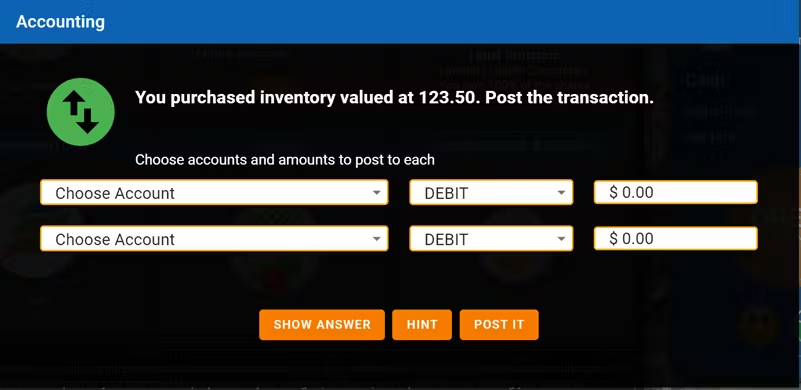
*   **Kiosk** Business includes an option for _**Manual Accounting**_ — this is selected in Group settings. With _Manual Accounting_, students are required to post double-entry accounting transactions as they happen — see screenshot below. Students must immediately post each transaction correctly, otherwise they cannot continue playing. _Note that this feature is only available in the Online version of GoVenture, not the locally installed version._
<br>

<img src = "https://books.playgoventure.com/u/32b19488d458d9af3f0ff813fb92b8945da2173065bbfd23c6e992f5c65bcdefcbe203e7fafc3a3892bf30ff0e491bd79a49e67ede1dc4397021e24cfbde756f0401769307273eddbb1b80abfe4372e09ec7d18173387cf194d3a1391fd117c638b01ae2-1uzJoE.avif" style="width: 80%; display: block; margin: auto;">
    
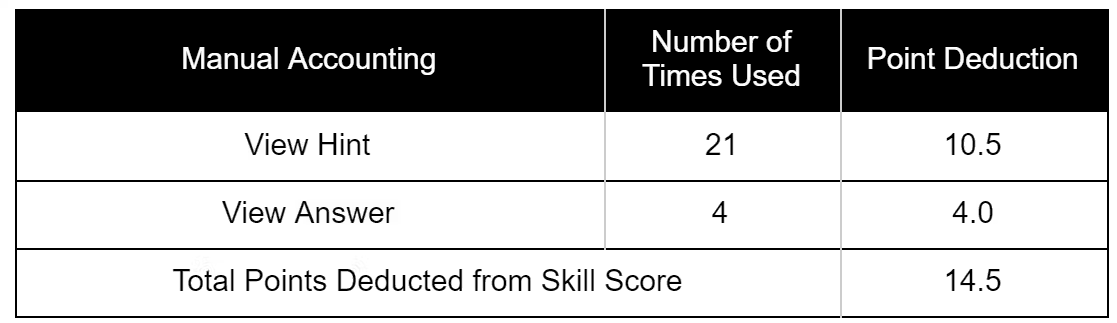
*   Options to _Show Hint_ and _Show Answer_ are provided to assure that students will not get stuck. To deter students from using these help options too frequently, points are deducted from the Skill Score each time a student uses _Show Hint_ (minus 0.5 points) or _Show Answer_ (minus 1.0 points).  The table below appears in the student _Performance Report_ when manual accounting is turned on.

<img src = "https://books.playgoventure.com/u/a1ad1354c882c5562c57860506cd4488f143d4cf297050627247458a6d7007d67eb8f66e905e27a2d98ef8ba9f29670565d51ee07a95bac77d11974a11f504d30128e7049df68c0ad83a75e916094a3b91541aa4b8a450656d5c9103674970bf77d1fa66-Lmg2vf.avif" style="width: 80%; display: block; margin: auto;">
    
*   _Manual Accounting_ provides students with meaningful practice and repetition to learn and understand accounting debits and credits as they apply to a business. Students also have access to a _General Journal_ and other financial reports.
    
*   If you choose to use _Manual Accounting_, you should allow students to play the _Kiosk Business_ with _Automatic Accounting_ before starting a new Kiosk Business with _Manual Accounting_.
    
*   The Accounting option can be changed between _Automatic_ and _Manual_ at any time by using _Edit Group Settings_. Note that if students have the simulation open when the change is made, they should be instructed to refresh their browsers or to close and open their Simulation window for the new settings to take effect.
    
*   Below are the Accounting window and the list of transactions that trigger it. If a student is operating multiple kiosks, only a single entry is made for all kiosks at the same time (not multiple entries for each kiosk).
    
*  List of transactions — several are repeated.
  
<table>
  <tr>
    <th>Transaction</th>
    <th>Timing</th>
  </tr>
  <tr>
    <td>Startup Financing</td>
    <td>Startup</td>
  </tr>
  <tr>
    <td>Startup Services</td>
    <td>Startup</td>
  </tr>
  <tr>
    <td>Buy Kiosk</td>
    <td>When purchased</td>
  </tr>
  <tr>
    <td>Buy Inventory</td>
    <td>When purchased</td>
  </tr>
  <tr>
    <td>Pay Employees</td>
    <td>End of day</td>
  </tr>
  <tr>
    <td>Sales & COGS</td>
    <td>End of day</td>
  </tr>
  <tr>
    <td>Inventory Spoilage</td>
    <td>End of day</td>
  </tr>
  <tr>
    <td>Signage & Appearance</td>
    <td>End of day purchased</td>
  </tr>
  <tr>
    <td>Advertising</td>
    <td>End of day purchased</td>
  </tr>
  <tr>
    <td>Product Quality</td>
    <td>End of day purchased</td>
  </tr>
  <tr>
    <td>Mobile Kiosk Transportation</td>
    <td>End of day moved</td>
  </tr>
</table>

<hr style="margin: 0;">
## 12.4 Financial Statements | Excel Activity

An Excel spreadsheet is available for instructors to assign to students as a supplemental learning activity. The spreadsheet requires a student to build a **Balance Sheet** and **Income Statement** using the **General Ledger** or **Trial Balance** of the business played in the Simulation. 

Once completed, the student can save and submit the Excel spreadsheet to the instructor to validate completion of the activity.  Direct students to send you the file as they would other documents.

The activity takes about **1 hour** of time to complete and it can be assigned multiple times.

📝 <a href="https://app.box.com/s/pa3lv60d5uy69jsyzzg87ldcb0ireisy" target="_blank"_><u>Download the Excel XLSX file</u></a>

**To assign this activity, follow these steps**:

1.  Identify the specific **Group** number for students to use. Use a simulation with the _Balance Sheet_ and _Income Statement_ turned OFF (hidden) — this is a setting that can be set when creating or editing a simulation (instructors can use EDIT GROUP SETTINGS to show or hide the report at any time).
    
2.  Identify the specific **Simulation Day(s)** in the simulation to use — the spreadsheet can accommodate up to 6 periods.  Note that Simulation Day results are cumulative from Day 1.
    
3.  Identify the **Due Date** for the activity to be completed.
    
4.  Give students directions on how to submit the completed Excel file back to you.
    
5.  Download the Excel file and make it available to students.
    

**Additional notes**

*   This is a personally-customized learning activity because it requires students to use financial numbers from their own businesses. Each student will have different numbers.
    
*   Instructors may choose to grade the activity by validating the numbers manually by comparing them to the financial statements found in the student’s _Performance Report_.  
    
*   The Excel spreadsheet is protected so that students can only input the required numbers.
    
<hr style="margin: 0;">
## 12.5 Ratio Analysis | Excel Activity

An Excel spreadsheet is available for instructors to assign to students as a supplemental learning activity. The spreadsheet requires a student to build a **Balance Sheet** and **Income Statement** using numbers from the business played in the Simulation. The student must then use those numbers to complete a number of **financial ratios**.  The spreadsheet is programmed to immediately identify correct and incorrect answers and the student can make unlimited attempts to answer correctly. 

Once completed, the student can save and submit the Excel spreadsheet to the instructor to validate completion of the activity. Direct students to send you the file as they would other documents.

The activity takes about **1 hour** of time to complete and it can be assigned multiple times.

📝 <a href="https://app.box.com/s/aj4i4s911ko1b8nkbd2r9hnin3ylhtva" target="_blank"_><u>Download the Excel XLSX file</u></a>

**To assign this activity, follow these steps:**

1.  Identify the specific **Group** number for the student to use.
    
2.  Identify the specific **Simulation Day(s)** in the simulation to use. Note that Simulation Day results are cumulative from Day 1.
    
3.  Identify the **Due Date** for the activity to be completed.
    
4.  Give students directions on how to submit the completed Excel file back to you. 
    
5.  Download the Excel file and make it available to students.
    

**Additional notes**

*   This is a personally-customized learning activity because it requires students to use financial numbers from their own businesses. Each student will have different numbers and the spreadsheet is programmed to identify correct answers for the ratios. But, note that the spreadsheet does not validate the numbers used to build the Balance Sheet and Income Statement. While not necessary, Instructors may choose to validate these numbers manually by comparing them to the financial statements found in the GoVenture student Performance Report_._
    
*   Instructors can grade students based on the number of correct answers submitted. The **Instructions & Results** worksheet makes it easy for instructors to view this information at a glance. This method of grading takes less than one minute per student.
    
*   The Excel spreadsheet is protected so that students can only input the required numbers and so students cannot see the formulas for the correct answers. However, protecting an Excel spreadsheet is not foolproof and students can find tools to overcome this security.
    
*   It is advisable that students use Microsoft Excel to open the spreadsheet, as using another application may cause unpredictable behavior with the built-in formulas and settings.
    
<hr style="margin: 0;">
## 12.6 Report Visibility

*   Instructors can choose to hide specific reports so that students cannot see them when playing.  
    
*   For example, you may hide the _Balance Sheet_ and _Income Statement_ and have students build their own from data in the _General Ledger_.

<hr style="margin: 0;">
