---
title: "7. Onboarding Students"
url: "https://books.playgoventure.com/5/gvceoig/76/7-onboarding-students"
---
# 7. Onboarding Students
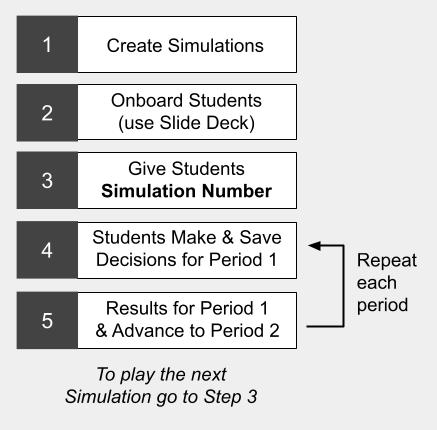 Use one or more of the resources and activities below to prepare your students to play GoVenture CEO.
## 7.1 Student Accounts
Determine how students will access GoVenture — see _Student Accounts_ section for details.
## 7.2 Student Directions SLIDES
 - Present the Student-Directions SLIDES to students on a big screen or online meeting, or make them available for self-directed viewing.
- The slides explain everything that students need to know about what GoVenture CEO is and how to get a Subscription Key.
- This slide deck is available on your Instructor Dashboard and requires minor customizations before you make it available to students. View Slides
- Present the Student-Directions SLIDES to students on a big screen or online meeting, or make them available for self-directed viewing.
- The slides explain everything that students need to know about what GoVenture CEO is and how to get a Subscription Key.
- This slide deck is available on your Instructor Dashboard and requires minor customizations before you make it available to students. View Slides
## 7.3 Tutorial VIDEOS
- Direct students to watch the TUTORIAL VIDEO (30 min) that is available when they log in to GoVenture CEO and in the USER GUIDE and on GoVentureCEO.com
- The USER GUIDE also includes these two videos that will prepare students for success:
- BASIC STRATEGY TUTORIAL VIDEO (6 min)
- PRODUCT PRICING TUTORIAL VIDEO (4 min)
## 7.4 Practice Simulation
Playing a practice simulation is highly recommended to assure student success by achieving these three objectives:
1. To become familiar with the simulation interface.
2. To practice making and saving decisions by the set deadlines.
3. To experiment with making business decisions and their consequences.
There are two types of practice simulations that you can offer, or do both: _Student Play_ and/or _Instructor-Led Play_.
### 7.4.1 Student Play — _highly recommended_
- Have students play a short practice simulation during class time or on their own time.
- It is advisable to GRADE this simulation based only on PARTICIPATION. This will motivate students to complete the activity, making them better prepared for the assessed simulations to follow.
- Individual play is much better than team play for practice as it requires students to learn the fundamentals without relying on teammates.
- Setting the Strategy Journal to _required_ is recommended.
### 7.4.2 Instructor-Led Play — _optional but helpful_
- The instructor plays a simulation against computer competitors while explaining the decisions being made as students watch. Progress through a few periods of the simulation, reviewing results and reports.
- The session can be held in a classroom setting with GoVenture on a big screen, or during an online meeting with screen sharing. This can accommodate any size audience from a few to thousands.
- The session can be as short as 15-minutes, or last much longer if you choose.
- To make the session more interactive, the instructor can play the role of CEO and request advice from the students who act as the management team. You may also consider assigning CEO duties to a different student each period for an added dynamic.
### 7.4.3 Instructor-Led Play
- OPTIONAL — With both practice options described above, the instructor may consider showing students the simulation SETTINGS. Students will be introduced to business terminology and discover the parameters and ranges of possibilities for decision-making in the simulation. This is optional because it reveals hidden settings that some instructors may prefer that students discover on their own through experimentation.
- Note that experimentation can only work if a simulation is set to played for enough periods to allow for sufficient results and analysis — usually 8 or more periods.
- To view simulation SETTINGS, log in to your instructor website and in the ACTIONS tile, choose VIEW SETTINGS.