---
title: "4. Student Accounts & Onboarding"
url: "https://books.playgoventure.com/8/gvlig/166/4-student-accounts-onboarding"
---
# 4. Student Accounts & Onboarding
## 4.1 Student Accounts
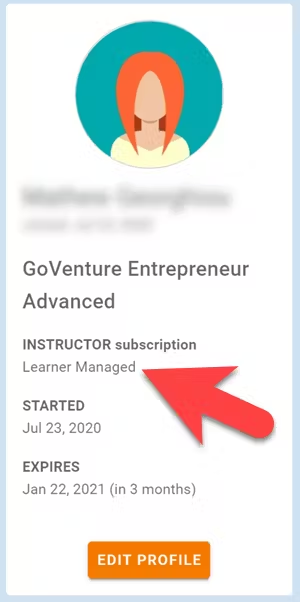
Identify the type of account that applies to you and review the details below. Your type is displayed on your Instructor Dashboard as shown below.
* **Learner Managed** — College, Nonprofit, Business
-or-
* **Instructor Managed** — Primarily for K-12 Schools
### 4.1.1 _Learner Managed_ — primarily for colleges, universities, nonprofits, and businesses
* Students create and manage their own personal login accounts.
* Students create accounts with a **Subscription Key** — a 32 digit number that looks like this: 12345678-12345678-12345678-12345678.
* Students can purchase their own Subscription Keys or organizations can purchase them for students using any combination of these three options:
* Purchase keys individually or in bulk using a credit card or PayPal at BuyGoVenture.com
* Buy with a Purchase Order using our Order Form at GoVenture.net/prices
* Sell through a bookstore — review the information at
GoVenture.net/bookstore
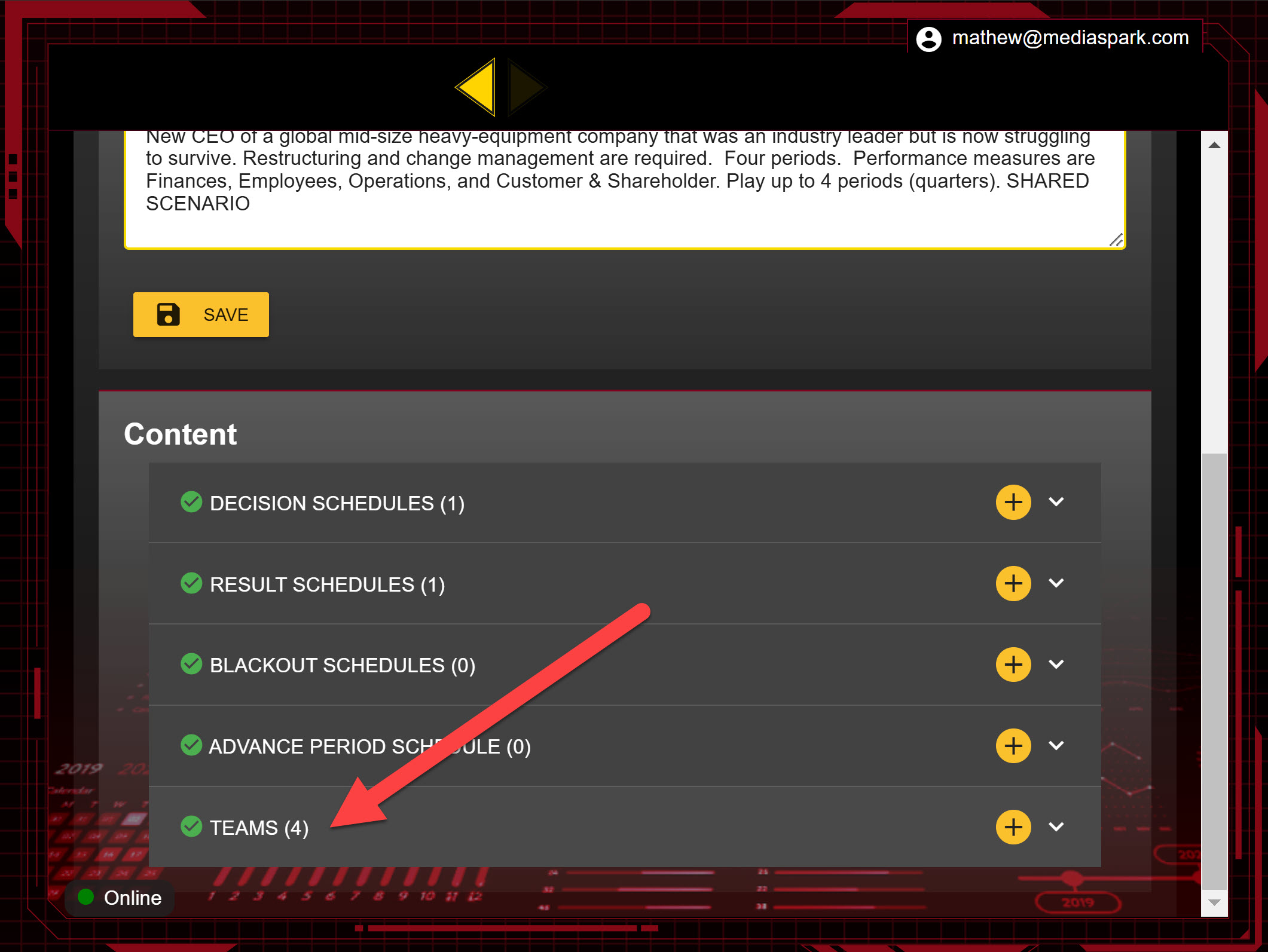
* Give students the **Simulation Number** you want them to play and your **student roster** will build automatically as students join your Simulation. You do not have to input student names, emails, or any other information — it's all automated. However, if you want students to play in **teams**, you must create teams under EDIT > TEAMS in order to get the team Simulation numbers.
* When students join your Simulation Number, you will see their names under EDIT > TEAMS
* Use this Slide Deck to introduce students to GoVenture — copy this content into your own course content and customize it to fit your approach.
### 4.1.2 _Instructor Managed_ — primarily for K-12 schools
* Use this Slide Deck to introduce students to GoVenture — copy this content into your own course content and customize it to fit your approach.
* Instructor Managed subscriptions do not require students to create full accounts on GoVenture. Students do not have to disclose personally-identifiable information. Instructors do not need to input a student roster.
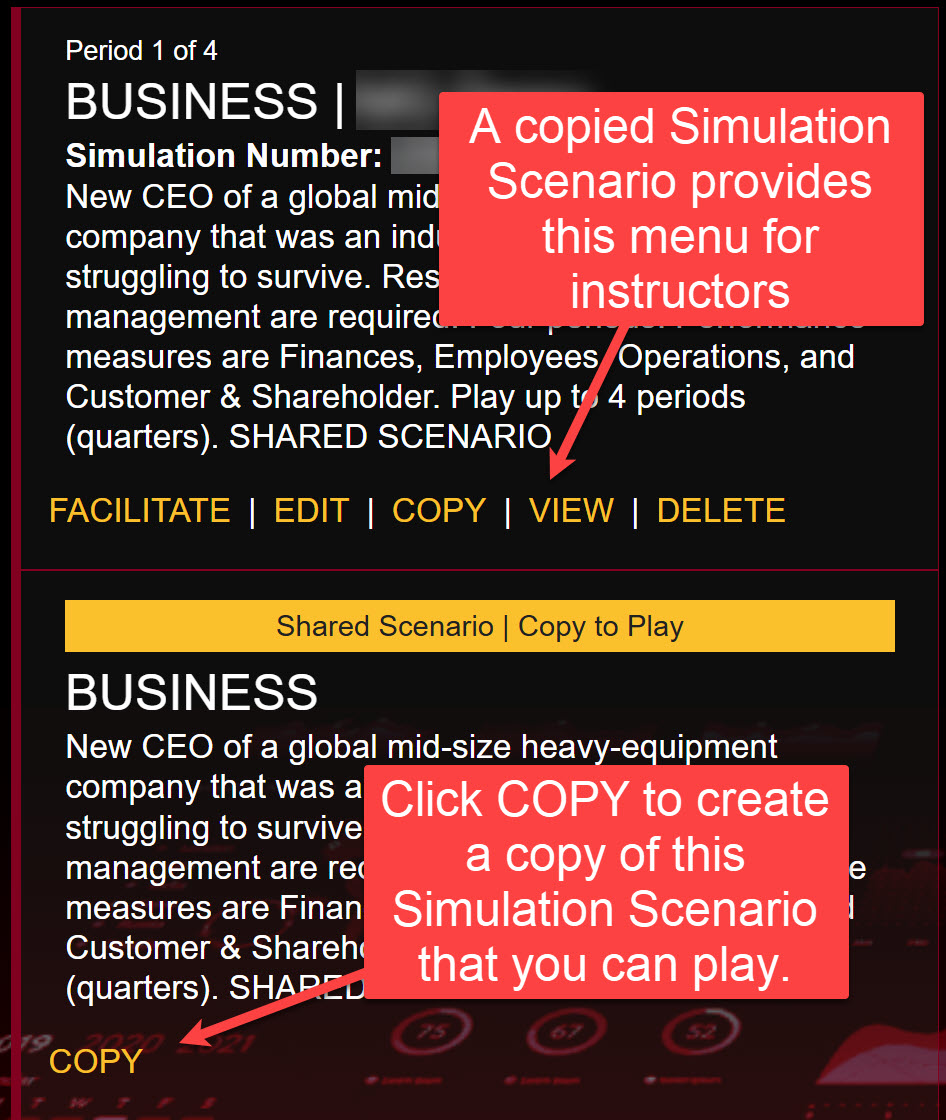
* Instructors create student accounts. This can be done after you have copied a Simulation Scenario to play. This provides you with a menu of options for setting up and monitoring the Simulation Scenario.
 * Use the Instructor Dashboard to **create student accounts** under EDIT > TEAMS. One unique login account must be created for each student or each team of students to play the selected Simulation Scenario. You choose the USERNAME and PASSWORD for each — it is recommended to keep both simple and easy to spell.
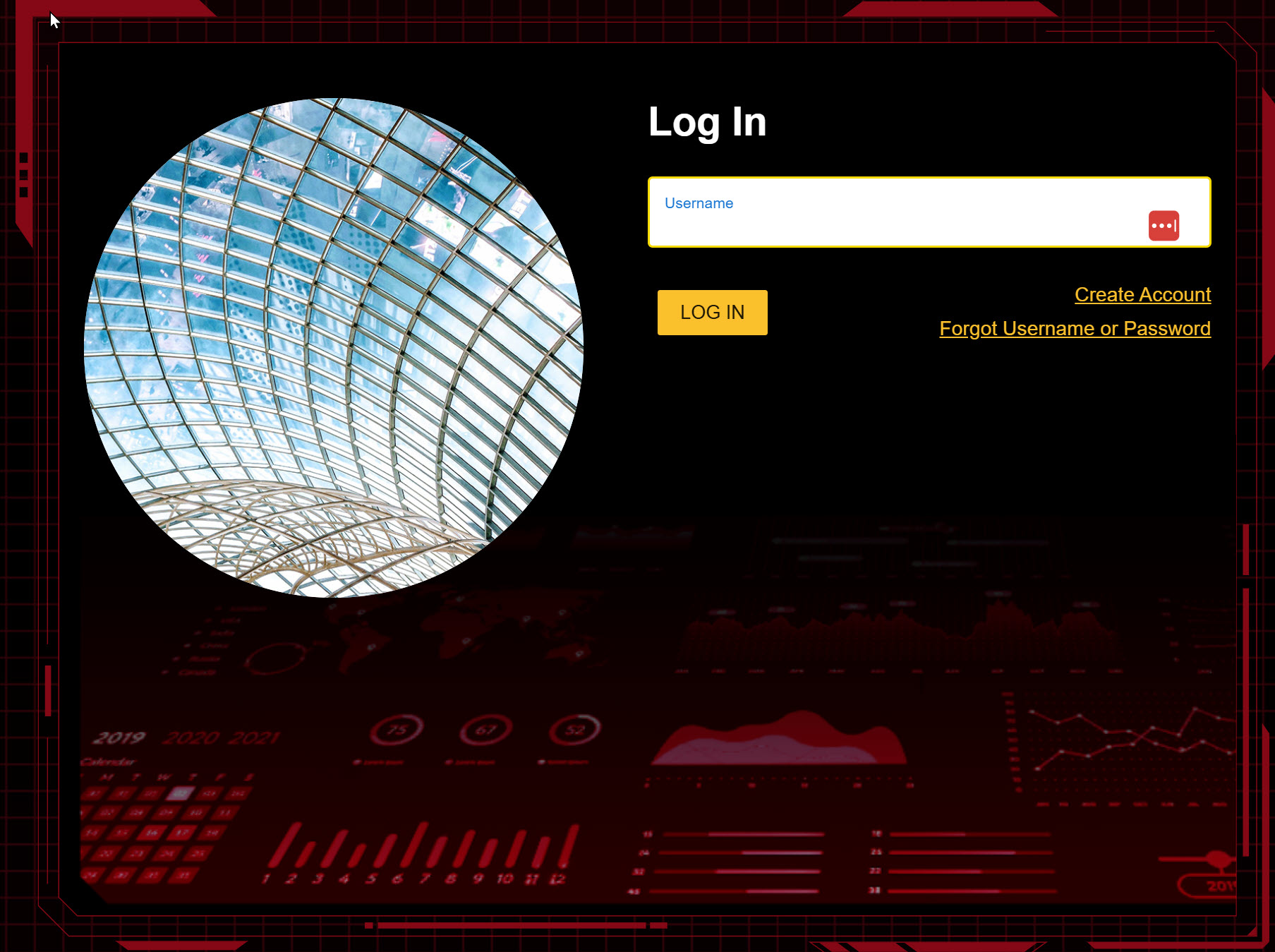
 * The instructor provides the USERNAME, PASSWORD, and SIMULATION NUMBER to the student or team of students and directs them to log in to the GoVenture Leader website at **GoVentureLeader.com**. Note that this is _**not**_ the same website the instructor uses (PlayGoVenture.com).