---
title: "GoVenture JOB INTERVIEW & SUCCESS | Instructor Guide"
author: ""
url: "https://books.playgoventure.com/10/gvjiig"
---
# 👉1. Start Here
1. Watch the 2-minute **video** above.
2. To unlock a GoVenture product, you need a **Subscription Key**. Then follow one of these directions —
* **If you already have a login** for PlayGoVenture.com, click the following link to unlock your product — PlayGoVenture.com/Subscription
* **To create a new account**, go to PlayGoVenture.com and follow the links to CREATE ACCOUNT.
3. **Log in** with your username and password to review the Instructor Dashboard (website). The Subscription Key is now expired and no longer needed.
5. Click **Groups & Reports** then create a new **Group** to keep student performance results separated by class, school, region, or any other grouping that you prefer.
6. If you want to play the game click **Play as Student**.
7. **Student Accounts**
- K-12 Teachers: Use your GoVenture website to generate usernames for each of your students under _Manage Students_. See section 4 for details.
- College and Nonprofit Instructors: You may purchase Subscription Keys (access for students) or direct students to purchase their own. See section 4 for details.
8. Give students your Group Number and describe your expectations for them.
9. Monitor student Performance Reports using your instructor dashboard.
_**Details for all the steps above are described further in this document.**_


 # Questions?
Reply to our latest email or submit our help form
# Questions?
Reply to our latest email or submit our help form
# 2. Your Instructor Account
## 2.1 Instructor Account
* To unlock a GoVenture product, you need a **Subscription Key**. Then follow one of these directions —
* **If you already have a login** for PlayGoVenture.com, click the following link to unlock your product — PlayGoVenture.com/Subscription
* **To create a new account**, go to PlayGoVenture.com and follow the links to CREATE ACCOUNT.
* Log in with your username and password to review the Instructor Dashboard (website). The Subscription Key is now expired and no longer needed.
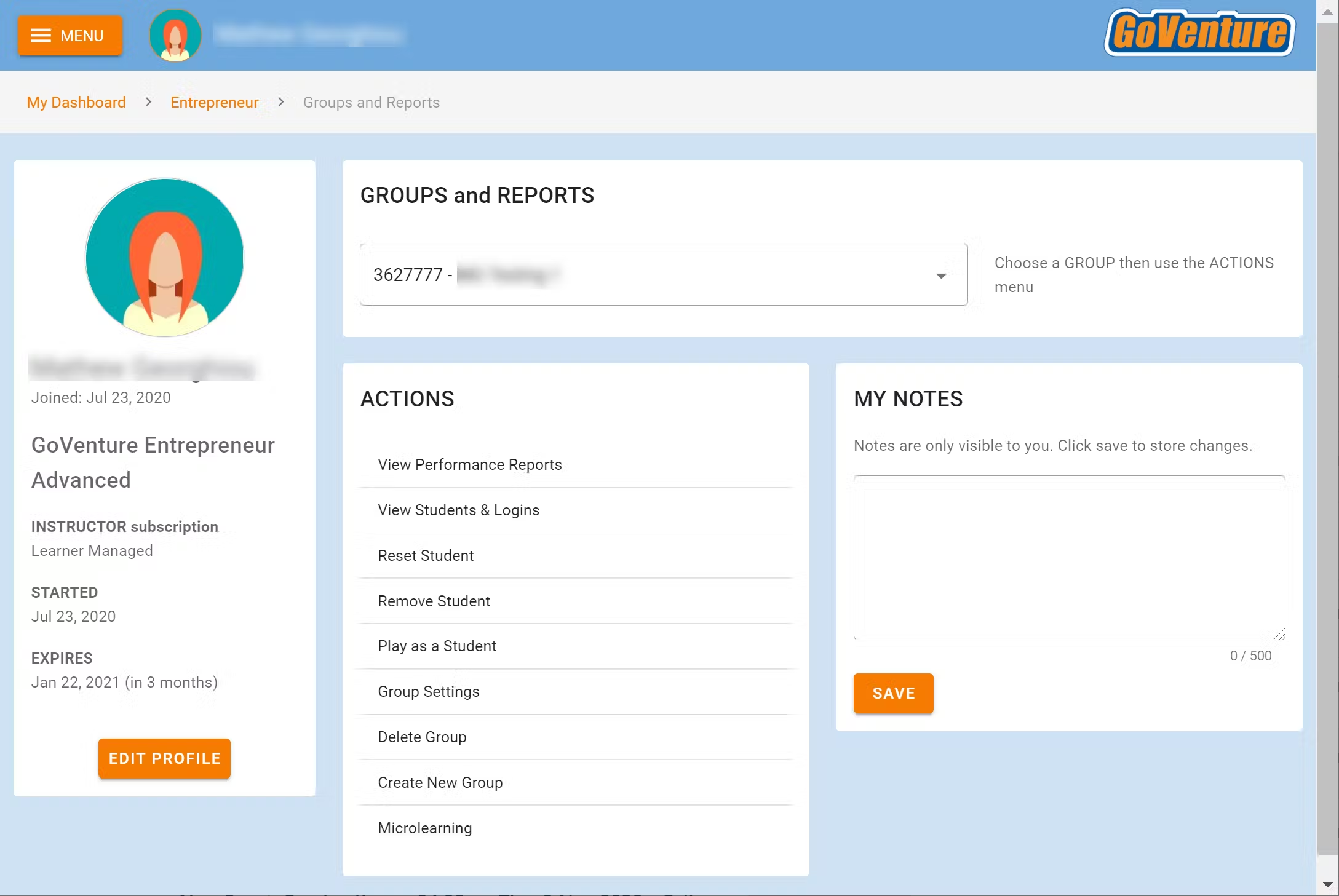
* The Instructor Dashboard allows you to create Groups, monitor student progress and performance, and play GoVenture as a student.
Screenshot of the Instructor Dashboard (website)
## 2.2 Sharing Instructor Accounts
Instructors can share access to their accounts with other instructors or colleagues.
View Sharing Options
# 3. Learning Resources
## 3.1 Job Interview Simulation
Students practice the job interview process, including researching the job, getting dressed, transportation, and answering questions. Product details are at
GoVenture.net/ji
Students can play the Simulation once an instructor gives them a Group number to join. Instructors can use the _Play As Student_ feature to play as a student — but you must first create a _Group_ to play.
## 3.2 Job Success Simulation
Engages students in various job scenarios to practice how to act professionally and make smart decisions on the job. Product details are at
GoVenture.net/ji
Students can play the Simulation once an instructor gives them a Group number to join. Instructors can use the _Play As Student_ feature to play as a student — but you must first create a _Group_ to play.
## 3.3 Instructor Guide and Website #
This document you are reading now and an Instructor Dashboard (website) for monitoring student progress and performance.
## 3.4 User Guide
A guide for students that can be accessed from the Dashboard — User Guide
## 3.5 Demo & Tutorial Video
The _Job Interview_ Tutorial Video is in the User Guide. Students should watch this video before playing.
The _Job Success_ Tutorial Video is in the simulation and students are required to watch it. The same video is in the User Guide.
# 4. Student Accounts & Onboarding
## 4.1 Student Accounts
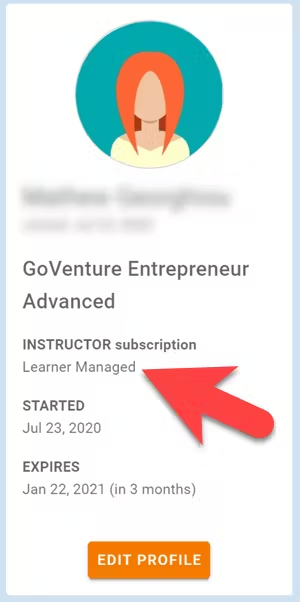
Identify the type of account that applies to you and review the details below. Your type is displayed on your Instructor Dashboard as shown below.
* **Learner Managed** — College, Nonprofit, Business
-or-
* **Instructor Managed** — Primarily for K-12 Schools
### 4.1.1 _Learner Managed_ — primarily for colleges, universities, nonprofits, and businesses
* Students create and manage their own personal login accounts.
* Students create accounts with a **Subscription Key** — a 32 digit number that looks like this: 12345678-12345678-12345678-12345678.
* Students can purchase their own Subscription Keys or organizations can purchase them for students using any combination of these three options:
* Purchase keys individually or in bulk using a credit card or PayPal at BuyGoVenture.com
* Buy with a Purchase Order using our Order Form at GoVenture.net/prices
* Sell through a bookstore — review the information at
GoVenture.net/bookstore
* Give students the **Group** number you want them to play and your **student roster** will build automatically as students join your Group. You do not have to input student names, emails, or any other information — it's all automated.
* Use this Slide Deck to introduce students to GoVenture — copy this content into your own course content and customize it to fit your approach (do not give students the link to this document).
### 4.1.2 _Instructor Managed_ — primarily for K-12 schools
* Watch the **video** above or follow the directions below to see how student accounts work.
* Use this Slide Deck to introduce students to GoVenture — copy this content into your own course content and customize it to fit your approach (do not give students the link to this document).
* Instructor Managed subscriptions do not require students to create full accounts on GoVenture. Students do not have to disclose personally-identifiable information.
* Instructors do not need to input a student roster. This will be done automatically by GoVenture.
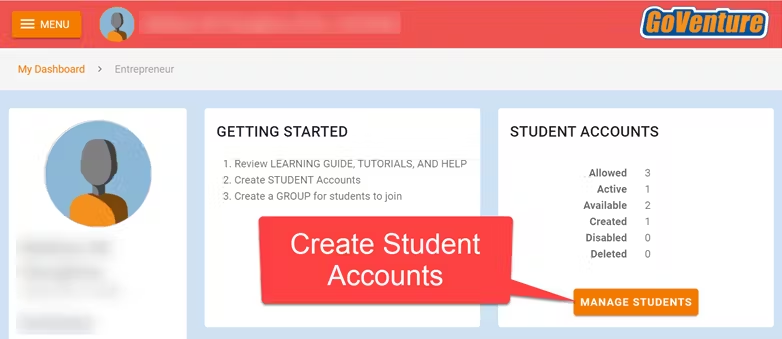
* Use the Instructor Dashboard to **create student accounts**.
 * When an instructor creates a student account, a unique USERNAME is generated for the student. The USERNAME is a multi-digit number that is automatically generated — the instructor cannot choose the number (but can edit it after it is created). Instructors do not have to set the student PASSWORD (but can change it if needed).
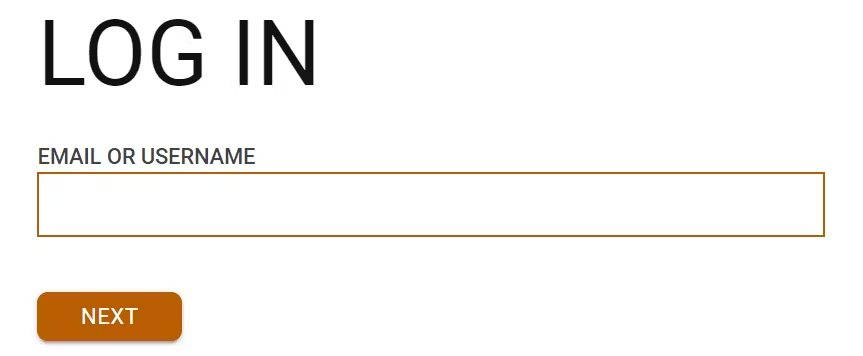
* The instructor provides the USERNAME to the student and directs the student to log in to the GoVenture website at PlayGoVenture.com. Students should _**not**_ use the Create Account option.
* When an instructor creates a student account, a unique USERNAME is generated for the student. The USERNAME is a multi-digit number that is automatically generated — the instructor cannot choose the number (but can edit it after it is created). Instructors do not have to set the student PASSWORD (but can change it if needed).
* The instructor provides the USERNAME to the student and directs the student to log in to the GoVenture website at PlayGoVenture.com. Students should _**not**_ use the Create Account option.
 * Use this spreadsheet to share usernames with students — click the link to view the document then choose FILE > DOWNLOAD for your own copy to edit.
* GoVenture will determine if this is a new USERNAME being used for the first time and prompt the student to set a PASSWORD and their name or student ID or pseudonym (if maximum privacy is preferred).
* No personally-identifiable information is required of students. But, it is important that students use a unique identifier that allows the instructor to know who they are for monitoring and grading purposes.
* Use this spreadsheet to share usernames with students — click the link to view the document then choose FILE > DOWNLOAD for your own copy to edit.
* GoVenture will determine if this is a new USERNAME being used for the first time and prompt the student to set a PASSWORD and their name or student ID or pseudonym (if maximum privacy is preferred).
* No personally-identifiable information is required of students. But, it is important that students use a unique identifier that allows the instructor to know who they are for monitoring and grading purposes.
Alternatively, the instructor can manually record student names with their assigned USERNAMES. _NOTE: If you direct students to enter their full names, you may want to consider directing them to enter their last names first (such as "Smith John" or "Smith, John") so that your Performance Reports can be sorted by last name._
* From now on, the student uses their personal USERNAME and PASSWORD to log in to GoVenture.
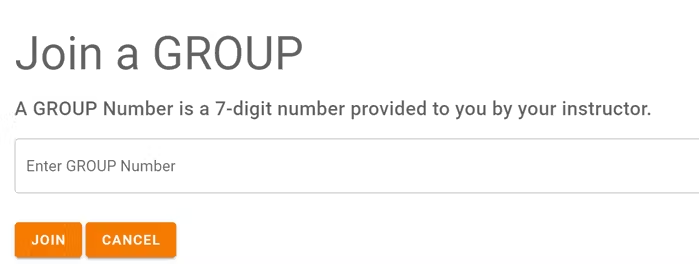
* Once a student logs in to GoVenture, they have access to the User Guide, resources, and other help information. But, students need to join a GROUP Number to play the Simulation. Instructors must provide students a GROUP Number to join.
 **Disable, Delete, Edit Student Accounts**
* Instructors can reset student PASSWORDS if needed.
* Your school or District is assigned a maximum number of instructor accounts and student accounts that can be active at any one time (concurrently).
* Instructors can DISABLE individual student accounts when they are no longer needed (such as at the end of the semester or year, or if a student drops out). Disabling a student account reduces the number of active student accounts, thereby providing room for another student account to be activated. Disabled accounts do not count towards the maximum number of concurrent accounts allowed. Disabling a student account retains all student progress and results, allowing the account to be activated again at any time.
* Instructors can DELETE individual student accounts. Doing so permanently erases all student progress and results and the same student account cannot be activated again.
* Instructors can EDIT student accounts.
* A student account that is created by an instructor but never actually used by a student will not count towards the maximum number of student accounts allowed. (Used means a student has set a password.)
**Disable, Delete, Edit Student Accounts**
* Instructors can reset student PASSWORDS if needed.
* Your school or District is assigned a maximum number of instructor accounts and student accounts that can be active at any one time (concurrently).
* Instructors can DISABLE individual student accounts when they are no longer needed (such as at the end of the semester or year, or if a student drops out). Disabling a student account reduces the number of active student accounts, thereby providing room for another student account to be activated. Disabled accounts do not count towards the maximum number of concurrent accounts allowed. Disabling a student account retains all student progress and results, allowing the account to be activated again at any time.
* Instructors can DELETE individual student accounts. Doing so permanently erases all student progress and results and the same student account cannot be activated again.
* Instructors can EDIT student accounts.
* A student account that is created by an instructor but never actually used by a student will not count towards the maximum number of student accounts allowed. (Used means a student has set a password.)
# 5. Groups
## 5.1 Creating Groups
* For students to begin playing the Simulation, the instructor must create a new **Group**. Groups allow you to keep student performance results separated by class, school, region, or any other grouping that you prefer. Students can join multiple Groups.
* Use the Instructor Dashboard to create a Group.
* Follow the on-screen directions to choose your Group settings.
* Copy and share the 7-digit Group number with your students. Students will **join** your Group and be able to play the Simulation. Instructors can also use the Group Number to play as a student.
* When students join your Group number, they will automatically appear on your Instructor Dashboard. **Rostering is automated** so you do not have to input student names or other information.
* Students cannot play the Simulation until an instructor provides them with a Group Number — you must give students a Group Number. Students can log in to view the Tutorial Video and User Guide before they receive a Group Number. This allows you to get students set up with their login accounts in advance of having them do a specific activity.
* Instructors can play the Simulation as a student by clicking PLAY AS A STUDENT. It is highly recommended that instructors play GoVenture for a few minutes to experience the options available in the program.
## 5.2 Group Settings
* You must create different Groups for students to play the _Job Interview_ simulation and the _Job Success_ simulation.
* Students can access all of the _Job Interviews_ in the same Group.
* Students can access all of the _Job Success Scenarios_ in the same Group.
* When creating a Group, various options may be available.
## 5.3 Monitoring Students
* When students join a Group number, their progress and performance will appear on the Instructor Dashboard under _Groups & Reports > View Performance Reports_
* A summary table is provided with student names that can be clicked to view full details for each individual student.
# 6. Duration of Play & Curriculum Planning
## 6.1 Job Interview Simulation
* 20 _Job Interviews_ are available to play and instructors can choose to have students play any or all of them.
* A _Job Interview_ must be played in one session — it is not saved unless fully completed.
* The average amount of time it takes to thoughtfully complete one _Job Interview_ ranges from 15 to 30 minutes.
**List of Job Interviews**
1. Cook
1. Veterinary Worker
1. Sales and Marketing
1. Auto Detailer
1. Cashier
1. Stockroom Clerk
1. Landscaping Laborer
1. Pizza Delivery Person
1. Mover
1. Waiter/Waitress
1. Retail Sales Associate
1. Website Designer
1. Construction Laborer
1. Kitchen Assistant
1. Customer Service
1. Coffee Shop Worker
1. Amusement Park Attendant
1. Painter
1. Farm Worker
1. Roofer
## 6.2 Job Success Simulation
* 36 _Job Interview Scenarios_ are available to play.
* Each Scenario only takes 2 minutes to complete.
* Scenarios are randomly ordered for each student — there is no option to set the order. Instructors should have students complete all of the scenarios in one or more sessions.
* Student progress is continually saved as they play.
* A student cannot replay the same scenario. To allow students to repeat scenarios, you must create a new Group for them to play.
* **Performance Score** is based on the quality of the advice given and ranges from 36% (if all scenarios are completed) to 100%. Scenarios cannot be completed until the best advice is provided. Providing the best advice on the first attempt earns the highest score:
* 1st attempt earns 3 points
* 2nd attempt earns 2 points
* 3rd attempt earns 1 point
**List of Scenarios**
**Communication & Interpersonal Skills**
- Unhappy Customer
- Angry Customer
- Rude Customer
- Workplace Gossip
- Late Email Replies
- Presenting Ideas
- Giving Constructive Feedback
- Receiving Constructive Feedback
- Interacting with Difficult Coworkers
- Angry With Employer - Social Media
- Angry With Customer - Outside of Work
**Professionalism & Workplace Conduct**
- Not Feeling Well, Not Going to Work
- Telling Jokes at Work
- Overuse of Office Supplies
- Company Equipment Care
- Excessive Phone Use
- Workplace Hygiene
- Confidential Information
- Workplace Honesty
- Workplace Dress Code
- Company Policy
- Workplace Harassment
**Performance & Productivity**
- Late for Work, Missed Bus
- Bad Performance Review
- Overloaded with Tasks
- Leaving Work Early
- Meeting Deadlines
- Remote Work Challenges
- Workplace Innovation
**Career Development & Job Related**
- Quit My Job - Social Media
- Quit My Job - Find a New One?
- Job Dissatisfaction - Should I Quit?
- Asking for a Raise
- Asking for Time Off
**Workplace Safety & Legal Issues**
- Coworker Theft
- Workplace Injuries
# 7. Saving and Resuming Progress
## 7.1 Job Interview Simulation
* Students must fully complete an entire _Job Interview_ in one session — progress is not saved.
* A student can only play one _Job Interview_ at a time (within the same Group).
* Once a student completes a _Job Interview_, a _Performance Report_ is saved for the instructor to view.
* A student can restart any _Job Interview_, even if it has already been completed, and the latest results will overwrite the older results.
## 7.2 Job Success Simulation
* Student progress is continually saved as they play the simulation.
* A student can only play one _Job Success Scenario_ at a time (within the same Group). Each scenario only takes a few minutes to complete.
* As a student completes each _Job Success Scenario_, a _Performance Report_ is updated for the instructor to view.
* A student cannot replay the same _Job Success Scenario_. To allow students to repeat scenarios, you must create a new Group for them to play.
# 8. Assessment
## 8.1 Monitoring Student Progress & Performance
* Student progress and performance are tracked automatically and detailed reports are instantly available on the Instructor Dashboard under **Groups & Reports**.
* Instructors can view and compare summary results for all students in a Group. Clicking a student name displays a detailed **Performance Report** for the student.
* Assessment is fully automated as described below.
## 8.2 Job Interview Simulation
### 8.2.1 Performance SCORE — Metrics & Weights
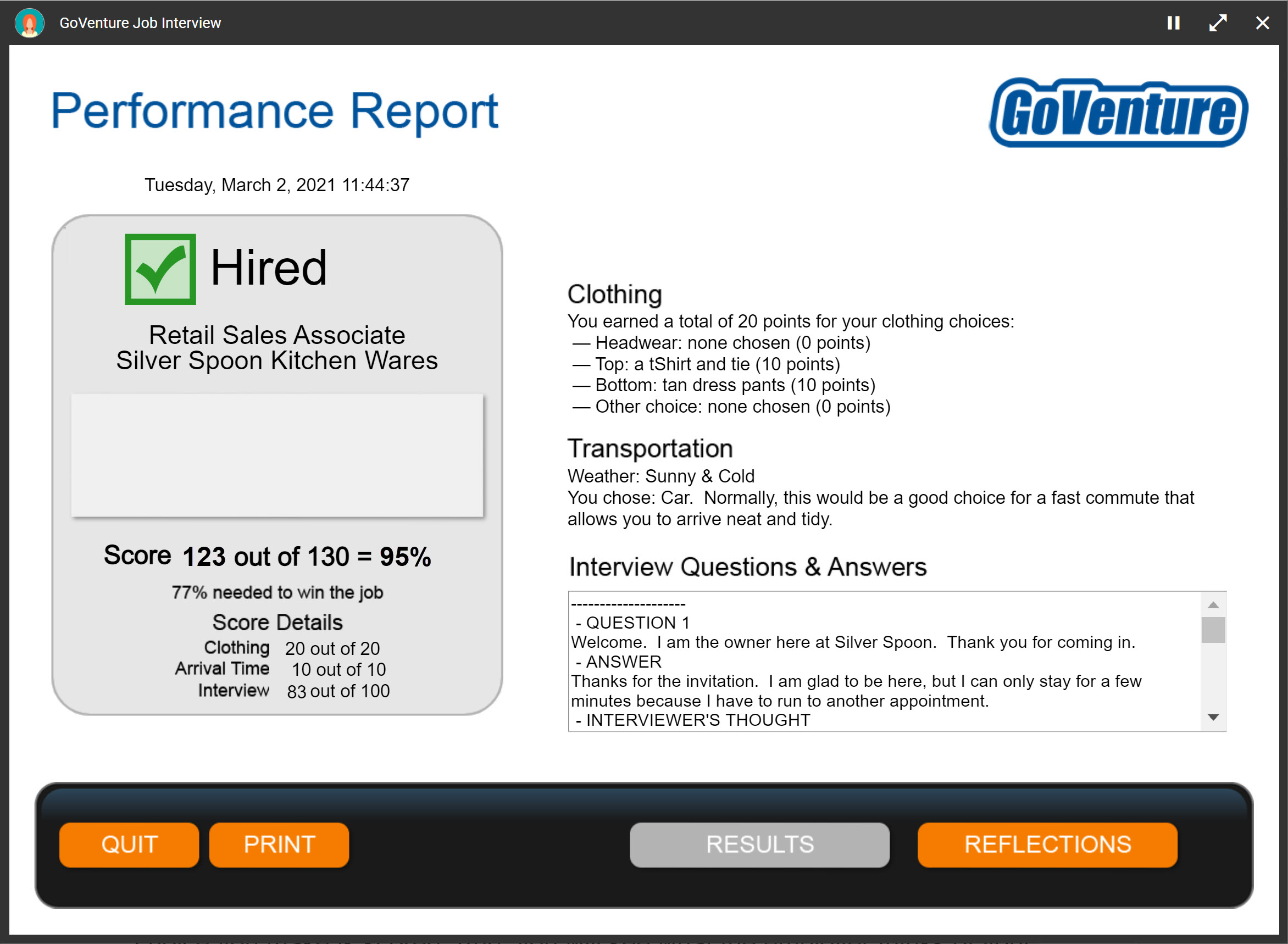
Assessment is fully automated and summarized in a **Performance Score** (0 to 100%) that is weighted across multiple metrics:
Clothing — 16%
Arrival Time — 7%
Interview — 77%
* Each _Job Interview_ (by Group) that students play is assigned a unique score.
### 8.2.2 Performance Report
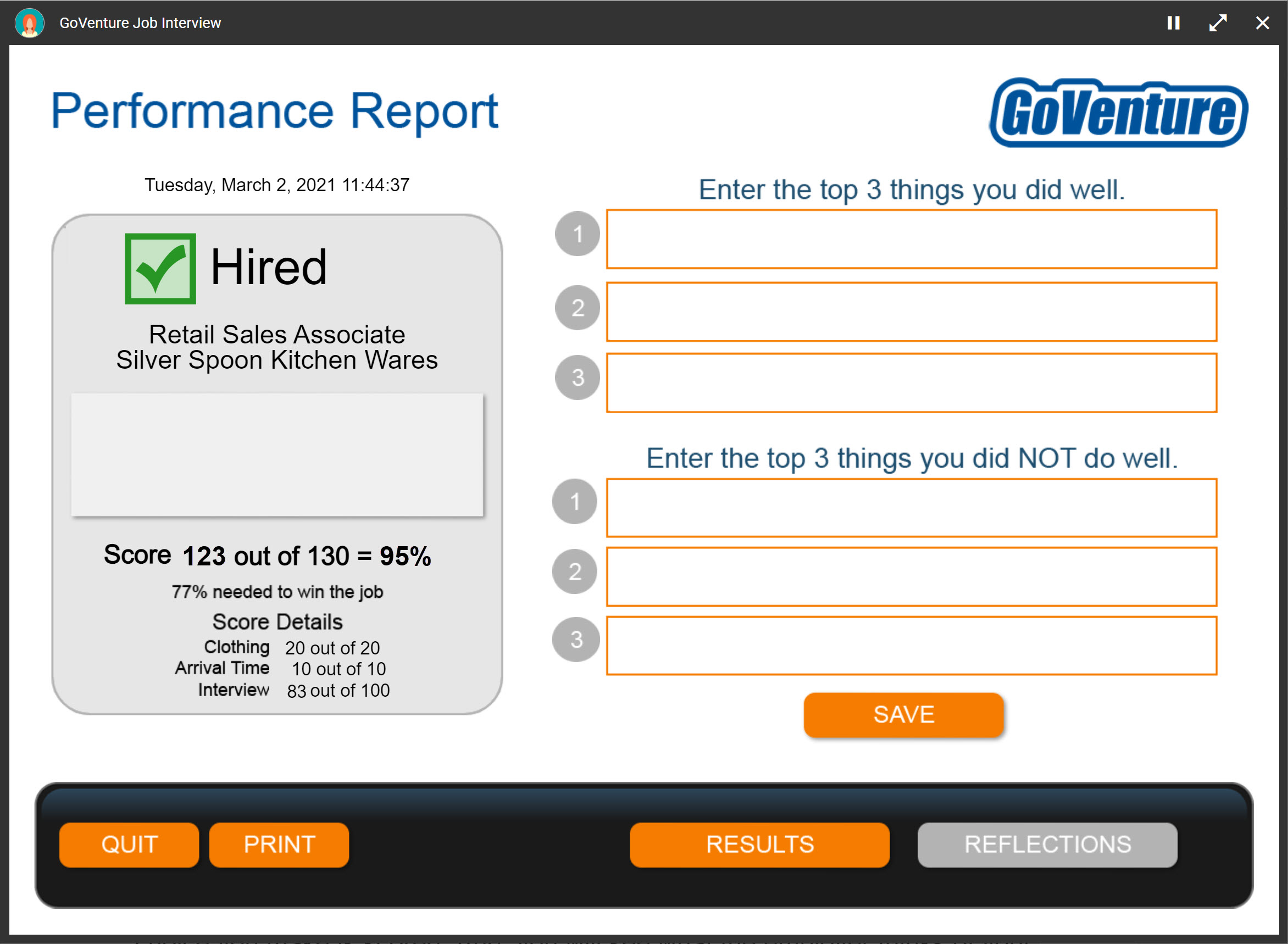
* The _Performance Report_ provides a detailed view of student activity, but the only item that is needed by instructors for assessment is the _Performance Score_.
* Students can see their own reports in real time, but not those of other students.
## 8.3 Job Success Simulation
### 8.3.1 Performance SCORE — Metrics & Weights
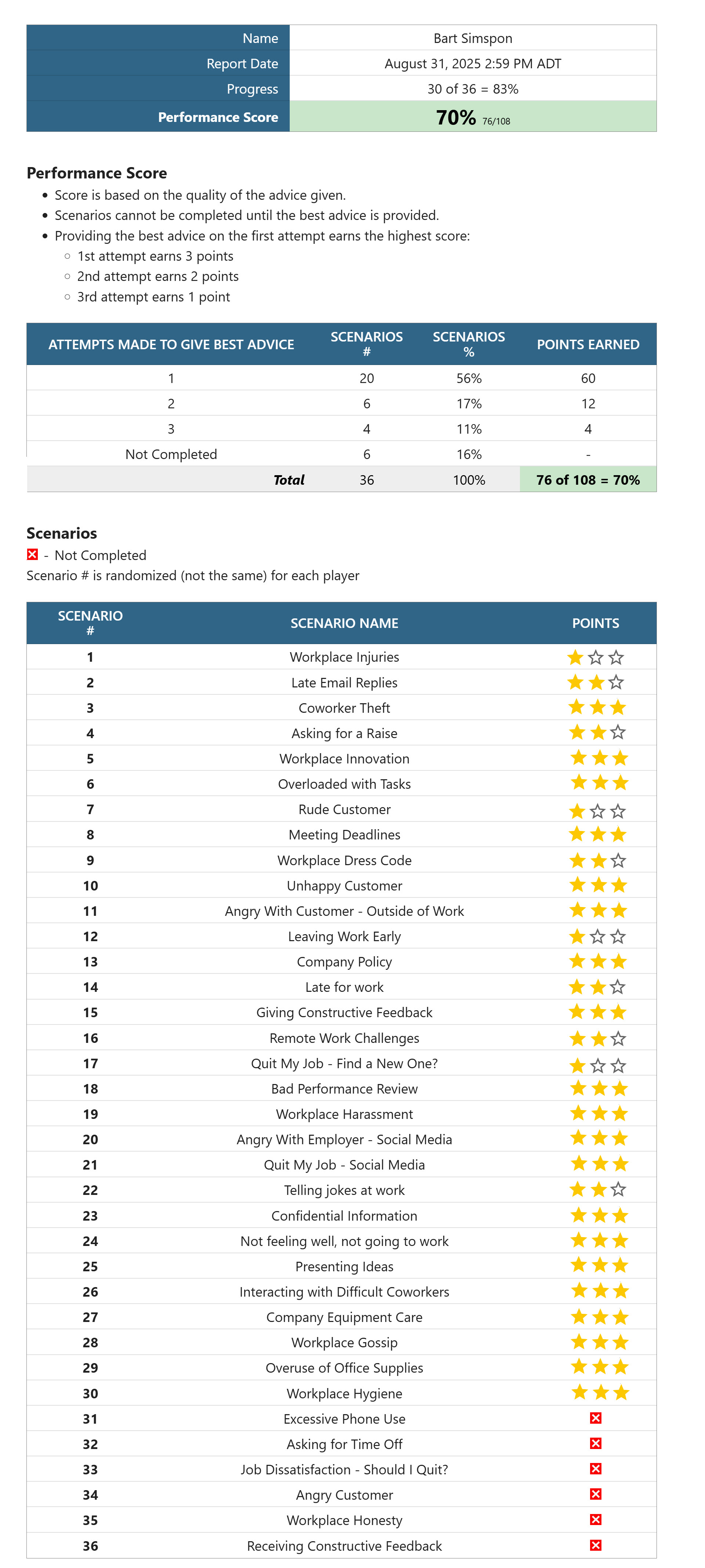
Assessment is fully automated and summarized in a **Performance Score** (0 to 100%).
- Score is based on the quality of the advice given.
- Scenarios cannot be completed until the best advice is provided.
- Students can make multiple attempts to choose the best advice.
- Providing the best advice on the first attempt earns the highest score:
- 1st attempt earns 3 points
- 2nd attempt earns 2 points
- 3rd attempt earns 1 point
### 8.3.2 Performance Report
* The _Performance Report_ provides a detailed view of student activity, but the only item that is needed by instructors for assessment is the _Performance Score_.
* Students can see their own reports in real time, but not those of other students.
# Join Our Educator Community
# Questions?
Reply to our latest email or submit our help form