---
title: "GoVenture TYPING | Instructor Guide"
author: ""
url: "https://books.playgoventure.com/12/gvtig"
---
# 👉1. Start Here
1. Watch the 2-minute **video** above.
2. To unlock a GoVenture product, you need a **Subscription Key**. Then follow one of these directions —
* **If you already have a login** for PlayGoVenture.com, click the following link to unlock your product — PlayGoVenture.com/Subscription
* **To create a new account**, go to PlayGoVenture.com and follow the links to CREATE ACCOUNT.
3. **Log in** with your username and password to review the Instructor Dashboard (website). The Subscription Key is now expired and no longer needed.
5. Click **Groups & Reports** then create a new **Group** to keep student performance results separated by class, school, region, or any other grouping that you prefer.
6. If you want to play the game click **Play as Student**.
7. **Student Accounts**
- K-12 Teachers: Use your GoVenture website to generate usernames for each of your students under _Manage Students_. See section 4 for details.
- College and Nonprofit Instructors: You may purchase Subscription Keys (access for students) or direct students to purchase their own. See section 4 for details.
8. Give students your Group Number and describe your expectations for them.
9. Monitor student Performance Reports using your instructor dashboard.
_**Details for all the steps above are described further in this document.**_


 # Questions?
Reply to our latest email or submit our help form
# Questions?
Reply to our latest email or submit our help form
# 2. Your Instructor Account
## 2.1 Instructor Account
* To unlock a GoVenture product, you need a **Subscription Key**. Then follow one of these directions —
* **If you already have a login** for PlayGoVenture.com, click the following link to unlock your product — PlayGoVenture.com/Subscription
* **To create a new account**, go to PlayGoVenture.com and follow the links to CREATE ACCOUNT.
* Log in with your username and password to review the Instructor Dashboard (website). The Subscription Key is now expired and no longer needed.
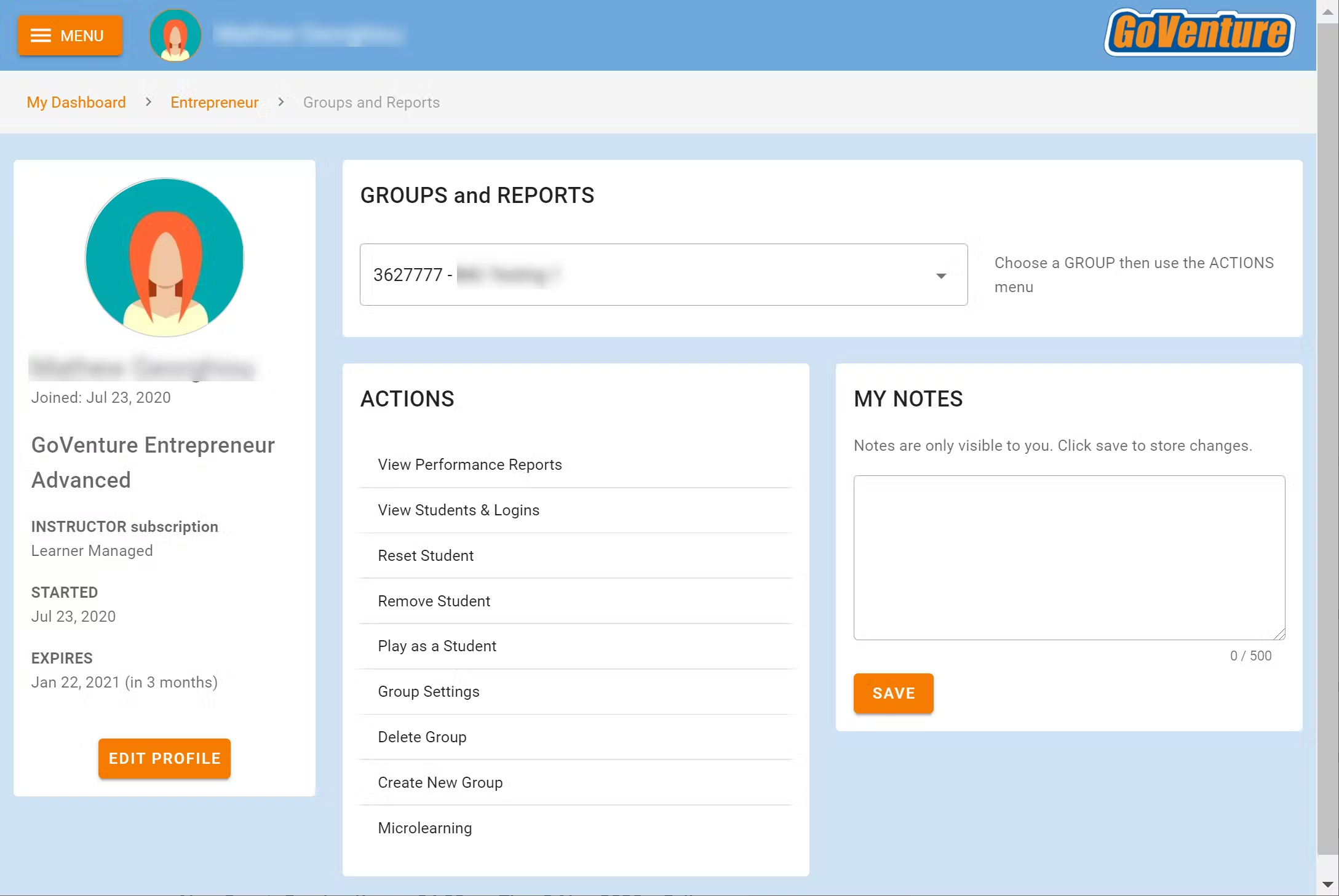
* The Instructor Dashboard allows you to create Groups, monitor student progress and performance, and play GoVenture as a student.
Screenshot of the Instructor Dashboard (website)
## 2.2 Sharing Instructor Accounts
Instructors can share access to their accounts with other instructors or colleagues.
View Sharing Options
# 3. Learning Resources
## 3.1 Typing Game
Product details are at
GoVentureTyping.com
Students can play once an instructor gives them a Group number to join. Instructors can use the _Play As Student_ feature to play as a student — but you must first create a _Group_ to play.
## 3.2 Instructor Guide and Website #
This document you are reading now and an Instructor Dashboard (website) for monitoring student progress and performance.
## 3.3 User Guide
A guide for students that can be accessed from the Dashboard — User Guide
## 3.4 Demo & Tutorial Video
Video to watch before playing — available in the User Guide
## 3.5 Basic Training & Keyboard Fundamentals
Video to watch before playing — available in the User Guide
# 4. Student Accounts & Onboarding
## 4.1 Student Accounts
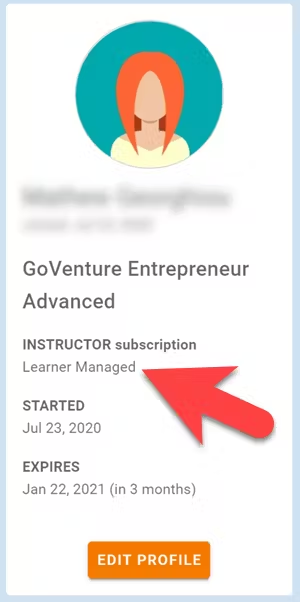
Identify the type of account that applies to you and review the details below. Your type is displayed on your Instructor Dashboard as shown below.
* **Learner Managed** — College, Nonprofit, Business
-or-
* **Instructor Managed** — Primarily for K-12 Schools
### 4.1.1 _Learner Managed_ — primarily for colleges, universities, nonprofits, and businesses
* Students create and manage their own personal login accounts.
* Students create accounts with a **Subscription Key** — a 32 digit number that looks like this: 12345678-12345678-12345678-12345678.
* Students can purchase their own Subscription Keys or organizations can purchase them for students using any combination of these three options:
* Purchase keys individually or in bulk using a credit card or PayPal at BuyGoVenture.com
* Buy with a Purchase Order using our Order Form at GoVenture.net/prices
* Sell through a bookstore — review the information at
GoVenture.net/bookstore
* Give students the **Group** number you want them to play and your **student roster** will build automatically as students join your Group. You do not have to input student names, emails, or any other information — it's all automated.
* Use this Slide Deck to introduce students to GoVenture — copy this content into your own course content and customize it to fit your approach (do not give students the link to this document).
### 4.1.2 _Instructor Managed_ — primarily for K-12 schools
* Watch the **video** above or follow the directions below to see how student accounts work.
* Use this Slide Deck to introduce students to GoVenture — copy this content into your own course content and customize it to fit your approach (do not give students the link to this document).
* Instructor Managed subscriptions do not require students to create full accounts on GoVenture. Students do not have to disclose personally-identifiable information.
* Instructors do not need to input a student roster. This will be done automatically by GoVenture.
* Use the Instructor Dashboard to **create student accounts**.
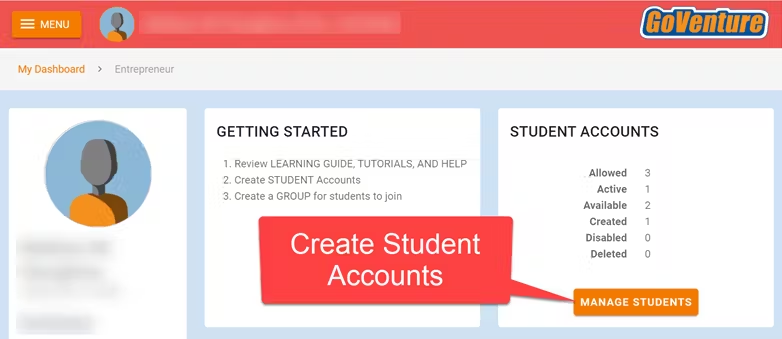 * When an instructor creates a student account, a unique USERNAME is generated for the student. The USERNAME is a multi-digit number that is automatically generated — the instructor cannot choose the number (but can edit it after it is created). Instructors do not have to set the student PASSWORD (but can change it if needed).
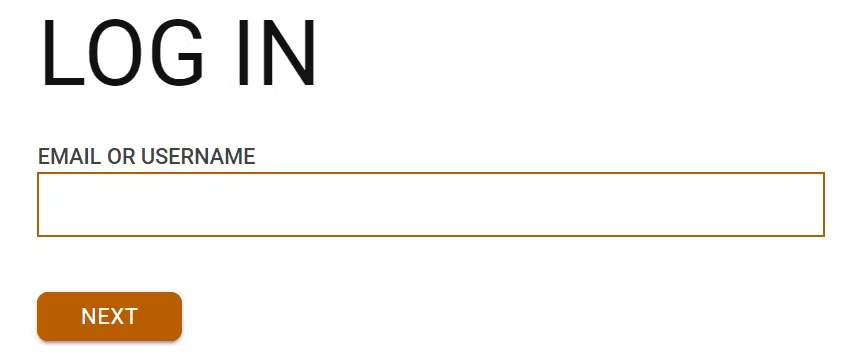
* The instructor provides the USERNAME to the student and directs the student to log in to the GoVenture website at PlayGoVenture.com. Students should _**not**_ use the Create Account option.
* When an instructor creates a student account, a unique USERNAME is generated for the student. The USERNAME is a multi-digit number that is automatically generated — the instructor cannot choose the number (but can edit it after it is created). Instructors do not have to set the student PASSWORD (but can change it if needed).
* The instructor provides the USERNAME to the student and directs the student to log in to the GoVenture website at PlayGoVenture.com. Students should _**not**_ use the Create Account option.
 * Use this spreadsheet to share usernames with students — click the link to view the document then choose FILE > DOWNLOAD for your own copy to edit.
* GoVenture will determine if this is a new USERNAME being used for the first time and prompt the student to set a PASSWORD and their name or student ID or pseudonym (if maximum privacy is preferred).
* No personally-identifiable information is required of students. But, it is important that students use a unique identifier that allows the instructor to know who they are for monitoring and grading purposes.
* Use this spreadsheet to share usernames with students — click the link to view the document then choose FILE > DOWNLOAD for your own copy to edit.
* GoVenture will determine if this is a new USERNAME being used for the first time and prompt the student to set a PASSWORD and their name or student ID or pseudonym (if maximum privacy is preferred).
* No personally-identifiable information is required of students. But, it is important that students use a unique identifier that allows the instructor to know who they are for monitoring and grading purposes.
Alternatively, the instructor can manually record student names with their assigned USERNAMES. _NOTE: If you direct students to enter their full names, you may want to consider directing them to enter their last names first (such as "Smith John" or "Smith, John") so that your Performance Reports can be sorted by last name._
* From now on, the student uses their personal USERNAME and PASSWORD to log in to GoVenture.
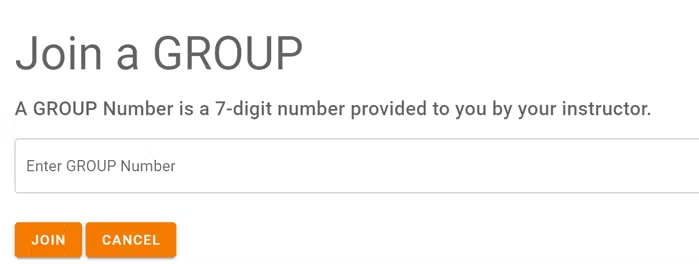
* Once a student logs in to GoVenture, they have access to the User Guide, resources, and other help information. But, students need to join a GROUP Number to play the Simulation. Instructors must provide students a GROUP Number to join.
 **Disable, Delete, Edit Student Accounts**
* Instructors can reset student PASSWORDS if needed.
* Your school or District is assigned a maximum number of instructor accounts and student accounts that can be active at any one time (concurrently).
* Instructors can DISABLE individual student accounts when they are no longer needed (such as at the end of the semester or year, or if a student drops out). Disabling a student account reduces the number of active student accounts, thereby providing room for another student account to be activated. Disabled accounts do not count towards the maximum number of concurrent accounts allowed. Disabling a student account retains all student progress and results, allowing the account to be activated again at any time.
* Instructors can DELETE individual student accounts. Doing so permanently erases all student progress and results and the same student account cannot be activated again.
* Instructors can EDIT student accounts.
* A student account that is created by an instructor but never actually used by a student will not count towards the maximum number of student accounts allowed. (Used means a student has set a password.)
**Disable, Delete, Edit Student Accounts**
* Instructors can reset student PASSWORDS if needed.
* Your school or District is assigned a maximum number of instructor accounts and student accounts that can be active at any one time (concurrently).
* Instructors can DISABLE individual student accounts when they are no longer needed (such as at the end of the semester or year, or if a student drops out). Disabling a student account reduces the number of active student accounts, thereby providing room for another student account to be activated. Disabled accounts do not count towards the maximum number of concurrent accounts allowed. Disabling a student account retains all student progress and results, allowing the account to be activated again at any time.
* Instructors can DELETE individual student accounts. Doing so permanently erases all student progress and results and the same student account cannot be activated again.
* Instructors can EDIT student accounts.
* A student account that is created by an instructor but never actually used by a student will not count towards the maximum number of student accounts allowed. (Used means a student has set a password.)
# 5. Groups
## 5.1 Creating Groups
* For students to begin playing, the instructor must create a new **Group**. Groups allow you to keep student performance results separated by class, school, region, or any other grouping that you prefer. Students can join multiple Groups.
* Use the Instructor Dashboard to create a Group.
* Follow the on-screen directions to choose your Group settings.
* Copy and share the 7-digit Group number with your students. Students will **join** your Group and be able to play. Instructors can also use the Group Number to play as a student.
* When students join your Group number, they will automatically appear on your Instructor Dashboard. **Rostering is automated** so you do not have to input student names or other information.
* To allow students to play more than one instance of the game, you must create a new Group for each.
* Students cannot play until an instructor provides them with a Group Number — you must give students a Group Number. Students can log in to view the Tutorial Video and User Guide before they receive a Group Number. This allows you to get students set up with their login accounts in advance of having them do a specific activity.
* Instructors can play as a student by clicking PLAY AS A STUDENT. It is highly recommended that instructors play for a few minutes to experience the options available in the program.
## 5.2 Group Settings
* To have students play a different instance of the game, create a new Group. You to control when students are allowed to move from one Group to the other by witholding the Group numbers until you are ready for them to play.
* When creating a Group, various options may be available.
## 5.3 Monitoring Students
* When students join a Group number, their progress and performance will appear on the Instructor Dashboard under _Groups & Reports > View Performance Reports_
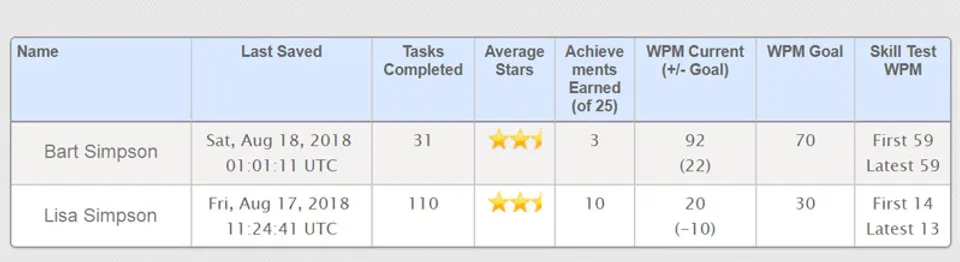
* A summary table is provided with student names that can be clicked to view full details for each individual student.
# 6. Duration of Play & Curriculum Planning
## 6.1 Duration of Play
- GoVenture can be played for any amount of time over multiple days, weeks, or months. Progress can be saved and resumed at any time. It’s flexible to fit your curriculum needs.
- The entire game consists of 32 main LEVELS and 16 bonus LEVELS. Each LEVEL consists of 9 DRILLS and 1 CHALLENGE. The bonus levels train on numbers and special characters.
- Based on the numbers above, there are 320 activities for the main LEVELS. Each activity takes an average of 1 minute, for a total of 7 hours of time, if the student does not have to repeat levels to improve speed.
- The 16 bonus LEVELS consist of 160 activities for an additional 3 hours of time, or more.
- Time can be extended by many hours by requiring students to achieve 2 or 3 stars on every DRILL and CHALLENGE and by increasing the Words-Per-Minute GOAL.
## 6.2 Curriculum Details
- Review the Curriculum Details Spreadsheet
- Determine assessment requirements and share with students.
- Direct students to begin by watching these two videos in the User Guide:
- Tutorial Video
- Basic Training & Keyboard Fundamentals
# 7. Saving and Resuming Progress
* Student progress is automatically saved online.
* Students can quit and resume their progress at any time.
* Students will automatically continue from where they stopped playing.
* Groups settings provide instructors the option of allowing students to **reset** their games. Resetting restarts a game from the beginning — all progress for that game in the specific Group is deleted (but has no effect on other Groups the student may be playing). Instructors can use the Dashboard to reset a student at any time, even if the student is not give the option to reset their own Simulation.
# 8. Assessment
## 8.1 Monitoring Student Progress & Performance
* Student progress and performance are tracked automatically and detailed reports are instantly available on the Instructor Dashboard under **Groups & Reports**.
* Instructors can view and compare summary results for all students in a Group. Clicking a student name displays a detailed **Performance Report** for the student.
* Assessment is fully automated as described below.
## 8.2 Student Performance
Student performance is based on the following three factors:
1. **Achieving the Words-Per-Minute GOAL**. Students cannot progress through the game unless they demonstrate the minimum required speed level needed. The minimum required speed level gradually increases as the student progresses to higher levels, with the highest levels requiring the preset Words-Per-Minute GOAL.
2. **LEVELS completed**. Students cannot jump to higher levels unless they have completed lower levels successfully. Students can repeat levels to improve their performance results.
3. **STARS earned** for each DRILL, CHALLENGE, and LEVEL. Passing a level by meeting the minimum speed or accuracy requirements earns 1 STAR. 3 STARS are earned for maximum performance. 2 STARS for in-between performance.
All of the performance data above is available to the instructor to monitor in real time. Students can set their own Words-Per-Minute GOAL in the game, but instructors should provide guidance on what is expected. Instructors can monitor student settings to confirm that expected goals are set and achieved.
## 8.3 Words-Per-Minute Goal
- Instructors should direct students to either start a NEW game or RESUME a previously-started game.
- Provide students with a Words-Per-Minute (WPM) GOAL to use in the SKILL TEST.
- This WPM GOAL will be used to pace and assess students in the drills and challenges.
- Each student can set a unique WPM Goal and instructors can monitor the set WPM GOAL in the student Performance Reports.
- The WPM GOAL can be changed by repeating the SKILL TEST.
- Each game (by Group) that students play can be assigned a unique WPM Goal.
## 8.4 Accuracy
- GoVenture Typing is focused on achieving a Words-Per-Minute GOAL, but in order to do so, accuracy is equally important.
- Each time a mistake a made, the student must use BACKSPACE to delete the mistake and retype.
- Each DRILL and CHALLENGE has a time requirement where losing time to correct mistakes reduces the likelihood of success.
## 8.4 Competition
- GoVenture Typing does not have head-to-head multiplayer competition, but you can hold competitions by comparing student performance results.
- Awarding prizes to the winners is always a great motivator. Prizes should be announced at the beginning of the competition and could be simple inexpensive gifts or even extra marks.
## 8.5 Performance Report
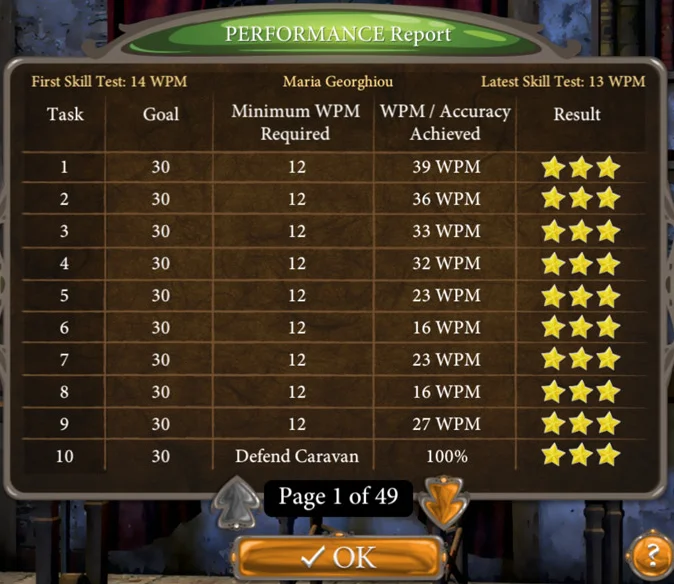
* The _Performance Report_ provides a detailed view of student activity, but the only item that is needed by instructors for assessment is the _Performance Score_.
* Students can see their own reports in real time, but not those of other students.
**Performance Report Viewed By Student**
**Group Summary Report Viewed By Instructor**
**Performance Report Viewed By Instructor**

# Join Our Educator Community
# Questions?
Reply to our latest email or submit our help form