---
title: "GoVenture ENTREPRENEUR| Instructor Guide"
author: ""
url: "https://books.playgoventure.com/2/gvenig"
---

# 👉Start Here

Instructors — get started quickly by watching the **videos** or following the **step-by-step** directions — both are below.

<hr style="margin: 0;">

## ▶️ Play The Game
If you are not ready to set up GoVenture Entrepreneur and just want to **play the game yourself** right now, <a href="https://playgoventure.com/trial/en/" target="_blank"_><u>click here to play the trial version</u></a>. This version allows you to briefly play and quickly progress through all three business levels — _Lemonade Stand_, _Kiosk Business_, and _Full Business_. Or you can continue following this Instructor Guide and set up GoVenture just as you would for your students.

<hr style="margin: 0;">

## 📽️ Watch Videos

1️⃣ Watch this 2-minute video on how to create your Instructor Account, set up Simulations, and onboard students. This video is for _Online Subscriptions_ not _Perpetual_ or _SUITE Licenses_.

<iframe src="https://player.vimeo.com/video/486963559" style="border: none; display: block; margin: auto; aspect-ratio:16/9; height:auto; width:70%;" allow="autoplay; fullscreen; picture-in-picture"></iframe>

<div align="center">
<a href="https://player.vimeo.com/video/486963559" target="_blank"_><u>Watch Full Screen</u></a>
</div>

2️⃣ Watch this video to discover GoVenture Entrepreneur and the many resources available to include in your curriculum.

<iframe src="https://player.vimeo.com/video/1125585279" style="border: none; display: block; margin: auto; aspect-ratio:16/9; height:auto; width:90%;" allow="autoplay; fullscreen; picture-in-picture"></iframe>

<div align="center">
<a href="https://player.vimeo.com/video/1125585279" target="_blank"_><u>Watch Full Screen</u></a>
</div>

3️⃣ Video demos of all three business levels are included further in this Instructor Guide and in the <a href="https://playgoventure.com/help/entrepreneur" target="_blank"_><u>User Guide</u></a>
<br><br>
<hr style="margin: 0;">
## 📋 Step-by-Step Directions

These directions are for _Online Subscriptions_, not _Perpetual_ or _SUITE Licenses_.

1. Watch the **videos** above.

2. To unlock a GoVenture product, you need a **Subscription Key**. Then follow one of these directions —   
   * **If you already have a login** for PlayGoVenture.com, click the following link to unlock your product — <a href="https://playgoventure.com/subscription" target="_blank"_>PlayGoVenture.com/Subscription</a><br><br>
   * **To create a new account**, go to <a href="http://playgoventure.com" target="_blank"_><u>PlayGoVenture.com</u></a> and follow the links to CREATE ACCOUNT. 
<br>
  
3. **Log in** with your username and password to review the Instructor Dashboard (website). The Subscription Key is now expired and no longer needed.

3. If you don’t want to spend time setting up GoVenture and just want to **play the game yourself** right now, <a href="https://playgoventure.com/trial/en/" target="_blank"_><u>click here to play the trial version</u></a>. This version allows you to briefly play and quickly progress through all three business levels — _Lemonade Stand_, _Kiosk Business_, and _Full Business_. Or you can continue following this Instructor Guide and set up GoVenture just as you would for your students.
4. Create a **Microlearning Collection** — 145 microlearning modules introduce business concepts using video, knowledge checks, and quizzes. 
5. Create a **Group** to keep student performance results separated by class, school, region, or any other grouping that you prefer. 
6. If you want to play the game click **Play as Student** in the Groups menu.
7. **Student Accounts**
 - <b>K-12 Teachers</b>: Use your GoVenture website to generate usernames for each of your students under _Manage Students_ and give usernames to your students. See section 3.3 for more details and a Slide Deck you can use to onboard your students.
<p></p>
 - <b>College and Nonprofit Instructors</b>:  You may purchase Subscription Keys (access for students) at <a href="https://goventure.net/prices" target="_blank"_><u>GoVenture.net/prices</u></a>, or direct your students to purchase their own Subscription Keys at <a href="https://buygoventure.com" target="_blank"_><u>BuyGoVenture.com</u></a>. See section 3.3 for more details and a Slide Deck and Syllabus you can use to onboard your students.
8. Give students your Group Number and describe your expectations for them.
9. Monitor student Performance Reports using your instructor dashboard.
10. Review the Upgrade Log to be aware of any new features and modifications being made to the program — <a href="https://coda.io/@mediaspark/goventure-upgrade-log" target="_blank"_><u>view document</u></a>

_**Details for all the steps above are described further in this document.**_

<br><br>

<hr style="margin: 0;">
## 🌐 If you have a Perpetual or SUITE License 

<details>

<summary><b>Expand this section</b> — click the black triangle </summary>
<br>
The features available to you depend on the type of license that you have, as follows:
<ul>
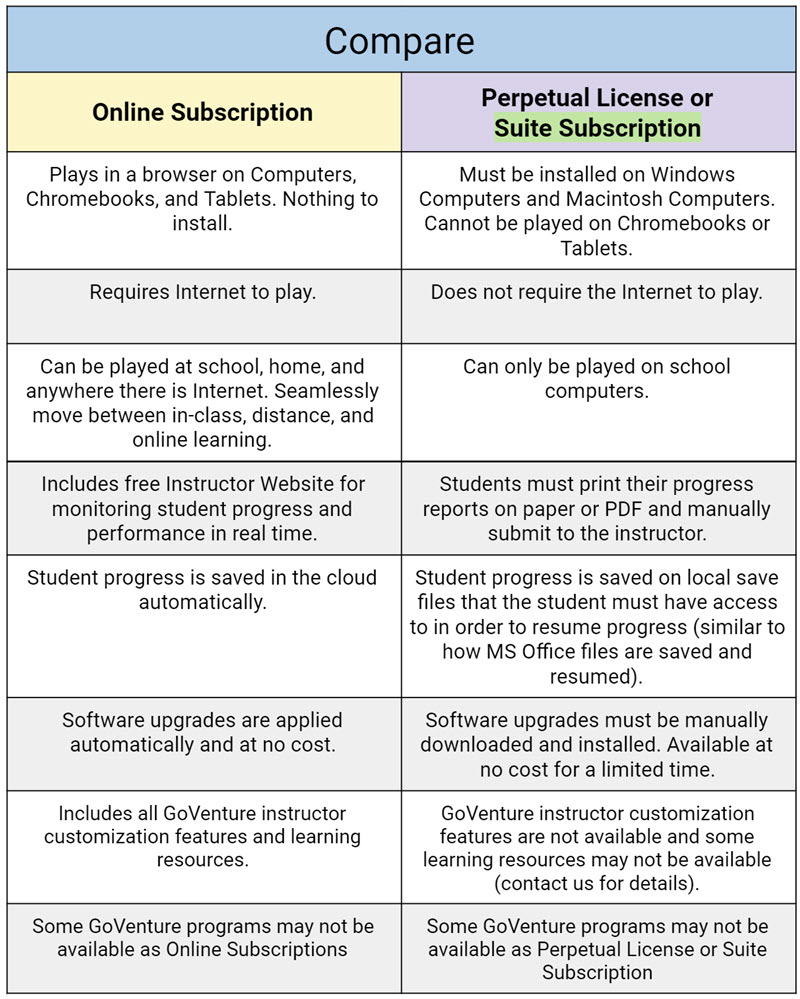
<li> <b>Online Subscription</b> plays from the cloud in a browser on computers, Chromebooks, and tablets. Deliver your curriculum in person, online, or at a distance. All features described in this document are available with this version.</li>
<br>
<li> <b>Perpetual or SUITE</b> version is installed and plays on Windows and Macintosh computers in your school or organization. This version does not have an instructor website, Microlearning, or the option to adjust Simulation settings. There are no student login accounts. Students save their progress on their computers and manually submit reports to the instructor.</li>
</ul>

<b>Comparison Table</b>
<img src = "https://books.playgoventure.com/u/gv-comparison-chart-2021-08-11_12-01-40-L95xSX.jpg" style="width: 75%; display: block; margin: auto;">

</details>
<hr style="margin: 0;">

<a href="https://www.formstack.com/forms/mediaspark-contact" target="_blank"><img src = "https://books.playgoventure.com/u/help-with-setup-Ia4PqI.png" style="width: 100%; display: block; margin: auto;"></a>

<a href="https://goventure.net/certification" target="_blank"><img src = "https://books.playgoventure.com/u/certification-banner-IVzSrn.png" style="width: 100%; display: block; margin: auto;"></a>

<a href="https://skool.com/teachingsuperhero" target="_blank"><img src = "https://books.playgoventure.com/u/teaching-superhero-gv-website-high-res-v3Zs8a.png" style="width: 100%; display: block; margin: auto;"></a>

# Questions?
Reply to our latest email or <a href="https://www.formstack.com/forms/mediaspark-contact" target="_blank"_><u>submit our help form</u></a>

<hr style="margin: 0;">

# 2. Resources
<hr style="margin: 0;">
<img src = "https://books.playgoventure.com/u/d2f9feb463b31a27beb0fe6b7f30ca8f6bc187f6449c9e86b7a917811400c18059367d46f14ee423a1c6100294af1cb5a07fdaf9cc5adfa03f475c61337e6e0e55f3799662fa001f73c73dbee133761690a2cf88aab1f96673c890c8b81a103a2126137d-UxLECP.avif" style="width: 50%; display: block; margin: auto;">

## 2.1 Product Description

GoVenture Entrepreneur is the most realistic small business startup and operations simulation in the world. Start with a Lemonade Stand, level up to a Kiosk, Food Truck, and Full Business to build a business from the ground up. Ideal for players of all ages and levels. GoVenture Entrepreneur can be used to enhance your current course or training or to build an entirely new course — everything instructors and students need is included to meet or exceed national and regional learning standards. To find out more about GoVenture and other educational games and simulations, visit 
<a href="https://GoVenture.net" target="_blank"_><u>GoVenture.net</u></a>


<hr style="margin: 0;">
## 2.2 Instructor Guide and Website

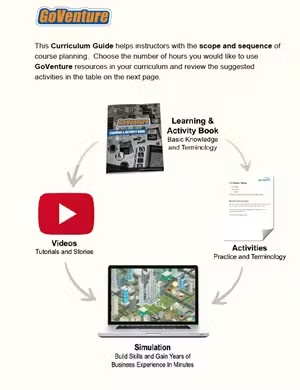
This document you are reading now and an Instructor Dashboard (website) for monitoring and assessing student performance. Also includes a **Curriculum Planning Guide** with scope and sequence options (see section 10).

<img src = "https://books.playgoventure.com/u/abc7673dc35745989065b35486c734c529df097ea79aaad42165e39baa74bfebd2420e67c4d4fcf876750953985ae776504017fe4b2c5336f8b53e385de1b1a744bb8721a9daa062f85a185f4062580638f2acae7cdca60fea660b1813fe6035e985631c-FrJdWd.avif" style="width: 30%; display: block; margin: auto;">

<hr style="margin: 0;">
## 2.3 Business Simulation
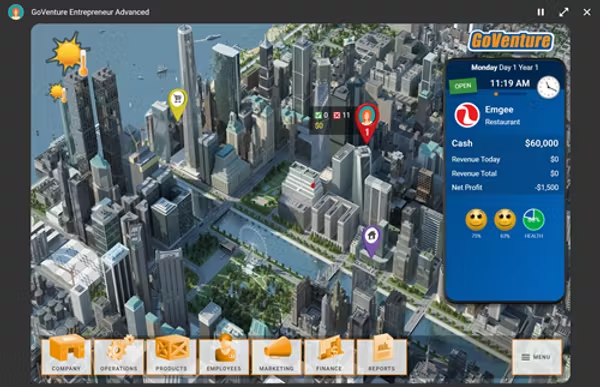
Highly realistic small business startup and operations simulation where students gain years of business experience in minutes.

<img src = "https://books.playgoventure.com/u/9d7460fa18a069e67acaf89eb26d3c9507046e377692407b95443c6867bbcc7820f140d32f664cf613243407b6fc9018ce65e48715150792aebeac67adb1c3965548b5c0ca3d422a547371b2673c38e1331621df804c1e5d460d723eec7007ec618e6e79-n1coqt.avif" style="width: 50%; display: block; margin: auto;">

<hr style="margin: 0;">
## 2.4 Microlearning & Skill Assessment
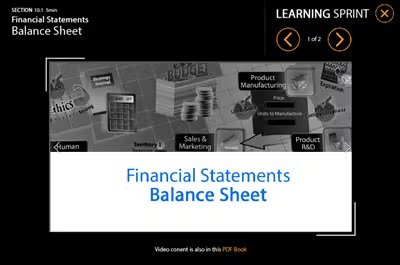
Over 100 microlearning modules that introduce business concepts using video, knowledge checks, and quizzes.

<img src = "https://books.playgoventure.com/u/f88a93e34a90cef4b91c4327e18aa2eccf23902f5ceab47f010cc131fab6740cde3197d075d45ff0595dc3858153b33efc241347c69580ea0bb30c6702f631e0c44e302ee7dbb338597a348bbf0acc7b4aedb0dacba5ac9c4dfe574e506695a585ab63dd-5wchAE.avif" style="width: 50%; display: block; margin: auto;">

<hr style="margin: 0;">
## 2.5 Learning & Activity Book
**Business Superhero** is a 240-page book that helps students learn the fundamental concepts of business and entrepreneurship, including a glossary of over 100 terms. Provided as Adobe PDF. Students can use the book as a reference for topics they need help with, or read it from cover to cover to gain practical business wisdom. The Microlearning Modules use the same content from this book. <a href="https://playgoventure.com/instructor/17" target="_blank"_><u>View Book & Glossary</u></a> (must be logged in).

<div style="text-align: center;">
    <img src="https://books.playgoventure.com/u/21f1ba1b8cded7e48d9c20fcbd2f61769dabba2c86f8cc074cc667495721bacfda8cab0bc44e50581486e58eb76c734fca30d309ef3a68bb84881fc8018d2effd54d4af94f8ee701f3e6b59a0ef458c14694cc43478da5462763659a66392cf7a1d39e58-1-gaoRlf.avif" style="width: 22%; display: inline-block; margin: 0 10px;">
    <img src="https://books.playgoventure.com/u/business-glossary-thumb-uNPKDD.png" style="width: 22%; display: inline-block; margin: 0 10px;">
</div>

<hr style="margin: 0;">
## 2.6 Lessons and Activities
Over 50 lesson plans and activities designed to bring business education alive in the classroom. Provided in two _Adobe PDF_ formats— a format for printing on paper and a format that can be completed with a computer, Chromebook, or tablet.

<img src = "https://books.playgoventure.com/u/6e3e1d742b82a7cd29f42f6813b47d511102e32237735ed70d019bf0d1e3e6cbcbfbd4fdbc3dba6c35053acede28928a576a25033ab977e3beb34b194a3c6720e96d897e923be7af5a1e9e39714cd10396cb2d37c9cac9c63d400b9cb5451091ddb3ebe3-1YnaEI.avif" style="width: 30%; display: block; margin: auto;">

**Printable-Book Version** — 
<a href="https://playgoventure.com/instructor/17" target="_blank"_><u>View Education Bundle</u></a> (must be logged in) — this version includes the answer sheets for instructors

**Fillable-Form Version** —
<details>
<summary><b>Expand this section</b> — click the black triangle </summary>
<hr style="margin: 0;">
<h3 style="font-size: 1.5em; margin-bottom: 0.5em;">Fillable-Form Version</h3>

<p style="font-weight: bold;">Activities as Fillable PDF Forms</p>

<ul>
  <li>Most of the activities in the <em>Education Bundle</em> are also available as fillable PDF forms.</li>
  <li>Instead of printing the activities, you can have students complete them online with a computer, Chromebook, or tablet.</li>
  <li>Students can download and send the completed file to you by using your preferred file sharing method.</li>
</ul>
<hr style="margin: 0;">
<p style="font-weight: bold;">Directions for Instructors</p>

<ol>
  <li>Do NOT share this document with students as it is for instructors only.</li><br>
  <li>Decide which activities you want students to complete. You may find it easier to browse the printable-book version to identify the activities you want to use. Copy the activity links from the table below and send to students using email or other communication method.</li><br>
  <li>Provide students with the directions below and be sure to fill in the missing blank with directions on how you want students to send you the completed activity file — you may want them to email you the file or upload to a shared drive, etc.</li>
</ol>

<p style="font-style: italic;">NOTE: The Crossword activities are best completed using the free <em>Adobe Acrobat Reader</em> instead of with an Internet browser because some of the boxes may not align well when using an Internet browser.</p>
<hr style="margin: 0;">
<p style="font-weight: bold;">Directions for Students</p>

<ol>
  <li>Click a link to open the activity in your browser.</li><br>
  <li>Enter your answers in the blue/green form fields.</li><br>
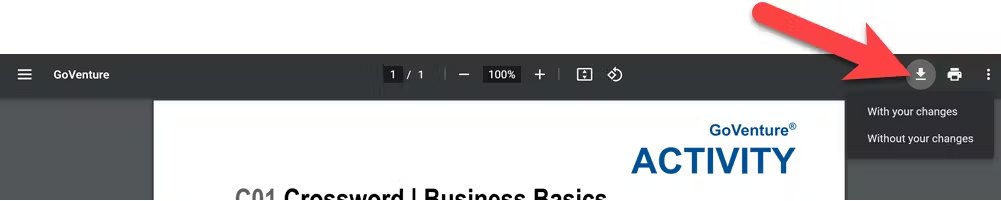
  <li>Click the download icon and choose <em>With your changes,</em> as shown in the screenshot below.</li><br>
  <li>This will download the activity file with your answers to your computer.</li><br>
  <li>Share the activity file with your teacher by _____________________________</li>
</ol>

<p style="text-align: center;">
  <img src="https://books.playgoventure.com/u/fe40688f814d6c611a9bc9629dc91b20a40cc9dbd01601f6ab27d695cc3b32c671b887864dc25e5b5807a09411c8ae6802b3f27b43465e81d45a2373c28788842753319fa3283b649e65c7e6e34ae4ee4107228c81b355dade338ee0be299ef154e295ed-pFS0Js.avif" style="width: 80%; display: block; margin: auto;">
</p>
<br>
<hr style="margin: 0;">
<b>Activity PDF Links </b>
<table>
  <thead>
    <tr>
      <th>Type of Activity</th>
      <th>Activity Number</th>
      <th>Link to Share with Students</th>
    </tr>
  </thead>
  <tbody>
    <!-- Practice activities -->
    <tr><td>Practice</td><td>P01</td><td><a href="https://api.playgoventure.com/files/account/activities/activities_P01.pdf" target="_blank">https://api.playgoventure.com/files/account/activities/activities_P01.pdf</a></td></tr>
    <tr><td>Practice</td><td>P02</td><td><a href="https://api.playgoventure.com/files/account/activities/activities_P02.pdf" target="_blank">https://api.playgoventure.com/files/account/activities/activities_P02.pdf</a></td></tr>
    <tr><td>Practice</td><td>P03</td><td><a href="https://api.playgoventure.com/files/account/activities/activities_P03.pdf" target="_blank">https://api.playgoventure.com/files/account/activities/activities_P03.pdf</a></td></tr>
    <tr><td>Practice</td><td>P04</td><td><a href="https://api.playgoventure.com/files/account/activities/activities_P04.pdf" target="_blank">https://api.playgoventure.com/files/account/activities/activities_P04.pdf</a></td></tr>
    <tr><td>Practice</td><td>P05</td><td><a href="https://api.playgoventure.com/files/account/activities/activities_P05.pdf" target="_blank">https://api.playgoventure.com/files/account/activities/activities_P05.pdf</a></td></tr>
    <tr><td>Practice</td><td>P06</td><td><a href="https://api.playgoventure.com/files/account/activities/activities_P06.pdf" target="_blank">https://api.playgoventure.com/files/account/activities/activities_P06.pdf</a></td></tr>
    <tr><td>Practice</td><td>P07</td><td><a href="https://api.playgoventure.com/files/account/activities/activities_P07.pdf" target="_blank">https://api.playgoventure.com/files/account/activities/activities_P07.pdf</a></td></tr>
    <tr><td>Practice</td><td>P08</td><td><a href="https://api.playgoventure.com/files/account/activities/activities_P08.pdf" target="_blank">https://api.playgoventure.com/files/account/activities/activities_P08.pdf</a></td></tr>
    <tr><td>Practice</td><td>P09</td><td><a href="https://api.playgoventure.com/files/account/activities/activities_P09.pdf" target="_blank">https://api.playgoventure.com/files/account/activities/activities_P09.pdf</a></td></tr>
    <tr><td>Practice</td><td>P10</td><td><a href="https://api.playgoventure.com/files/account/activities/activities_P10.pdf" target="_blank">https://api.playgoventure.com/files/account/activities/activities_P10.pdf</a></td></tr>
    <tr><td>Practice</td><td>P11</td><td><a href="https://api.playgoventure.com/files/account/activities/activities_P11.pdf" target="_blank">https://api.playgoventure.com/files/account/activities/activities_P11.pdf</a></td></tr>
    <tr><td>Practice</td><td>P12</td><td><a href="https://api.playgoventure.com/files/account/activities/activities_P12.pdf" target="_blank">https://api.playgoventure.com/files/account/activities/activities_P12.pdf</a></td></tr>
    <tr><td>Practice</td><td>P13</td><td><a href="https://api.playgoventure.com/files/account/activities/activities_P13.pdf" target="_blank">https://api.playgoventure.com/files/account/activities/activities_P13.pdf</a></td></tr>
    <tr><td>Practice</td><td>P14</td><td><a href="https://api.playgoventure.com/files/account/activities/activities_P14.pdf" target="_blank">https://api.playgoventure.com/files/account/activities/activities_P14.pdf</a></td></tr>
    <tr><td>Practice</td><td>P15</td><td><a href="https://api.playgoventure.com/files/account/activities/activities_P15.pdf" target="_blank">https://api.playgoventure.com/files/account/activities/activities_P15.pdf</a></td></tr>
    <tr><td>Practice</td><td>P16</td><td><a href="https://api.playgoventure.com/files/account/activities/activities_P16.pdf" target="_blank">https://api.playgoventure.com/files/account/activities/activities_P16.pdf</a></td></tr>
    <tr><td>Practice</td><td>P17</td><td><a href="https://api.playgoventure.com/files/account/activities/activities_P17.pdf" target="_blank">https://api.playgoventure.com/files/account/activities/activities_P17.pdf</a></td></tr>
    <tr><td>Practice</td><td>P18</td><td><a href="https://api.playgoventure.com/files/account/activities/activities_P18.pdf" target="_blank">https://api.playgoventure.com/files/account/activities/activities_P18.pdf</a></td></tr>
    <tr><td>Practice</td><td>P19</td><td><a href="https://api.playgoventure.com/files/account/activities/activities_P19.pdf" target="_blank">https://api.playgoventure.com/files/account/activities/activities_P19.pdf</a></td></tr>
    <tr><td>Definition</td><td>D01</td><td><a href="https://api.playgoventure.com/files/account/activities/activities_D01.pdf" target="_blank">https://api.playgoventure.com/files/account/activities/activities_D01.pdf</a></td></tr>
    <tr><td>Definition</td><td>D02</td><td><a href="https://api.playgoventure.com/files/account/activities/activities_D02.pdf" target="_blank">https://api.playgoventure.com/files/account/activities/activities_D02.pdf</a></td></tr>
    <tr><td>Definition</td><td>D03</td><td><a href="https://api.playgoventure.com/files/account/activities/activities_D03.pdf" target="_blank">https://api.playgoventure.com/files/account/activities/activities_D03.pdf</a></td></tr>
    <tr><td>Definition</td><td>D04</td><td><a href="https://api.playgoventure.com/files/account/activities/activities_D04.pdf" target="_blank">https://api.playgoventure.com/files/account/activities/activities_D04.pdf</a></td></tr>
    <tr><td>Definition</td><td>D05</td><td><a href="https://api.playgoventure.com/files/account/activities/activities_D05.pdf" target="_blank">https://api.playgoventure.com/files/account/activities/activities_D05.pdf</a></td></tr>
    <tr><td>Definition</td><td>D06-07</td><td><a href="https://api.playgoventure.com/files/account/activities/activities_D06-07.pdf" target="_blank">https://api.playgoventure.com/files/account/activities/activities_D06-07.pdf</a></td></tr>
    <tr><td>Definition</td><td>D08-09</td><td><a href="https://api.playgoventure.com/files/account/activities/activities_D08-09.pdf" target="_blank">https://api.playgoventure.com/files/account/activities/activities_D08-09.pdf</a></td></tr>
    <tr><td>Definition</td><td>D10-11</td><td><a href="https://api.playgoventure.com/files/account/activities/activities_D10-11.pdf" target="_blank">https://api.playgoventure.com/files/account/activities/activities_D10-11.pdf</a></td></tr>
    <tr><td>Definition</td><td>D12-13</td><td><a href="https://api.playgoventure.com/files/account/activities/activities_D12-13.pdf" target="_blank">https://api.playgoventure.com/files/account/activities/activities_D12-13.pdf</a></td></tr>
    <tr><td>Definition</td><td>D14-15</td><td><a href="https://api.playgoventure.com/files/account/activities/activities_D14-15.pdf" target="_blank">https://api.playgoventure.com/files/account/activities/activities_D14-15.pdf</a></td></tr>
    <tr><td>Definition</td><td>D16-17</td><td><a href="https://api.playgoventure.com/files/account/activities/activities_D16-17.pdf" target="_blank">https://api.playgoventure.com/files/account/activities/activities_D16-17.pdf</a></td></tr>
    <tr><td>Definition</td><td>D18-19</td><td><a href="https://api.playgoventure.com/files/account/activities/activities_D18-19.pdf" target="_blank">https://api.playgoventure.com/files/account/activities/activities_D18-19.pdf</a></td></tr>
    <tr><td>Unscramble</td><td>U01</td><td><a href="https://api.playgoventure.com/files/account/activities/activities_U01.pdf" target="_blank">https://api.playgoventure.com/files/account/activities/activities_U01.pdf</a></td></tr>
    <tr><td>Unscramble</td><td>U02</td><td><a href="https://api.playgoventure.com/files/account/activities/activities_U02.pdf" target="_blank">https://api.playgoventure.com/files/account/activities/activities_U02.pdf</a></td></tr>
    <tr><td>Unscramble</td><td>U03</td><td><a href="https://api.playgoventure.com/files/account/activities/activities_U03.pdf" target="_blank">https://api.playgoventure.com/files/account/activities/activities_U03.pdf</a></td></tr>
    <tr><td>Unscramble</td><td>U04</td><td><a href="https://api.playgoventure.com/files/account/activities/activities_U04.pdf" target="_blank">https://api.playgoventure.com/files/account/activities/activities_U04.pdf</a></td></tr>
    <tr><td>Unscramble</td><td>U05</td><td><a href="https://api.playgoventure.com/files/account/activities/activities_U05.pdf" target="_blank">https://api.playgoventure.com/files/account/activities/activities_U05.pdf</a></td></tr>
    <tr><td>Unscramble</td><td>U06-07</td><td><a href="https://api.playgoventure.com/files/account/activities/activities_U06-07.pdf" target="_blank">https://api.playgoventure.com/files/account/activities/activities_U06-07.pdf</a></td></tr>
    <tr><td>Unscramble</td><td>U08-09</td><td><a href="https://api.playgoventure.com/files/account/activities/activities_U08-09.pdf" target="_blank">https://api.playgoventure.com/files/account/activities/activities_U08-09.pdf</a></td></tr>
    <tr><td>Unscramble</td><td>U10-11</td><td><a href="https://api.playgoventure.com/files/account/activities/activities_U10-11.pdf" target="_blank">https://api.playgoventure.com/files/account/activities/activities_U10-11.pdf</a></td></tr>
    <tr><td>Unscramble</td><td>U12-13</td><td><a href="https://api.playgoventure.com/files/account/activities/activities_U12-13.pdf" target="_blank">https://api.playgoventure.com/files/account/activities/activities_U12-13.pdf</a></td></tr>
    <tr><td>Unscramble</td><td>U14-15</td><td><a href="https://api.playgoventure.com/files/account/activities/activities_U14-15.pdf" target="_blank">https://api.playgoventure.com/files/account/activities/activities_U14-15.pdf</a></td></tr>
    <tr><td>Unscramble</td><td>U16-17</td><td><a href="https://api.playgoventure.com/files/account/activities/activities_U16-17.pdf" target="_blank">https://api.playgoventure.com/files/account/activities/activities_U16-17.pdf</a></td></tr>
    <tr><td>Unscramble</td><td>U18-19</td><td><a href="https://api.playgoventure.com/files/account/activities/activities_U18-19.pdf" target="_blank">https://api.playgoventure.com/files/account/activities/activities_U18-19.pdf</a></td></tr>
    <tr><td>Crossword</td><td>C01</td><td><a href="https://api.playgoventure.com/files/account/activities/activities_C01.pdf" target="_blank">https://api.playgoventure.com/files/account/activities/activities_C01.pdf</a></td></tr>
    <tr><td>Crossword</td><td>C02-03</td><td><a href="https://api.playgoventure.com/files/account/activities/activities_C02-03.pdf" target="_blank">https://api.playgoventure.com/files/account/activities/activities_C02-03.pdf</a></td></tr>
    <tr><td>Crossword</td><td>C04</td><td><a href="https://api.playgoventure.com/files/account/activities/activities_C04.pdf" target="_blank">https://api.playgoventure.com/files/account/activities/activities_C04.pdf</a></td></tr>
    <tr><td>Crossword</td><td>C05-07</td><td><a href="https://api.playgoventure.com/files/account/activities/activities_C05-07.pdf" target="_blank">https://api.playgoventure.com/files/account/activities/activities_C05-07.pdf</a></td></tr>
    <tr><td>Crossword</td><td>C08-11</td><td><a href="https://api.playgoventure.com/files/account/activities/activities_C08-11.pdf" target="_blank">https://api.playgoventure.com/files/account/activities/activities_C08-11.pdf</a></td></tr>
    <tr><td>Crossword</td><td>C12-14</td><td><a href="https://api.playgoventure.com/files/account/activities/activities_C12-14.pdf" target="_blank">https://api.playgoventure.com/files/account/activities/activities_C12-14.pdf</a></td></tr>
    <tr><td>Crossword</td><td>C15-16</td><td><a href="https://api.playgoventure.com/files/account/activities/activities_C15-16.pdf" target="_blank">https://api.playgoventure.com/files/account/activities/activities_C15-16.pdf</a></td></tr>
    <tr><td>Crossword</td><td>C17-19</td><td><a href="https://api.playgoventure.com/files/account/activities/activities_C17-19.pdf" target="_blank">https://api.playgoventure.com/files/account/activititivities/activities_C17-19.pdf">Download</a></td></tr>
</table>
</details>

<hr style="margin: 0;">
## 2.7 How Students Can Use AI With GoVenture Simulations

<a href="https://books.playgoventure.com/15/aiactivity" target="_blank">View Activity</a>


<hr style="margin: 0;">
## 2.8 Videos
Videos to enhance student learning — curated from around the world.
<a href="https://playgoventure.com/video/entrepreneur" target="_blank"_><u>View Videos</u></a> (must be logged in)

<img src = "https://books.playgoventure.com/u/ed9ac652e85f4d6168e33f2e93655326c2d255ba0d24d9aa7cf638a393cb5a47a98f1fb73541e693521f21c66f05696208180baf068b326501b15717d0be11370c9d6668ce3a48226c2368f2bec7cb53a77eb9cda5fbe5220e2706d8a7df8dd7b142056c-5uodpS.avif" style="width: 40%; display: block; margin: auto;">

<hr style="margin: 0;">
## 2.9 Assessment
Multiple assessment options allow instructors to perfectly match their grading and performance preferences.

<img src = "https://books.playgoventure.com/u/62aaf5e316810fd1154268779ed348afb0dd35844eb698549aa3b75f072d438b06abd45502a3e6dd0e3d5632d1b5c79f8ff505d753355af64e66d6ac9e0b4eb0046833a4e3bef67e4d586757f2d3e29d31355c9f9d10e40283fa6a323de8bb74e62fabe9-vra6aU.avif" style="width: 50%; display: block; margin: auto;">

<hr style="margin: 0;">
## 2.10 Award Certificates
Printable certificates for rewarding learner achievement. <br>
<a href="https://www.goventure.net/en" target="_blank"_><u>View Award Certificates</u></a><br>
<p></p>
Or explore our <a href="https://goventure.net/certification" target="_blank">GoVenture Certification</a> program where we award your students with validated certificates (no cost).


<img src = "https://books.playgoventure.com/u/3c01586ca5e0a3f27b2b1bcdacf495a9b3655cc596009b67a173930901d35fc3196ad1622e7b37a89f90fa6c727ec080f689817d9feedd73693a0cff730db0d5fb04eab994046fc2b3e73e99251305062e7d78259a72c4075a4cd768069e7abb5bbb0c79-JeLx20.avif" style="width: 50%; display: block; margin: auto;">

<hr style="margin: 0;">
## 2.11 User Guide
<a href="https://playgoventure.com/help/entrepreneur" target="_blank"_><u>View User Guide</u></a>

<img src = "https://books.playgoventure.com/u/de8afa0b42fdd4c8edebfc3285edd00725b8bbc911d58a7388c66be97231372f615cf1a40bec423d64bb795fddd9b73bdf06f841bb4a05f28c3c495973f4660efd99bc0c3aba8c3108462612e75fd2700717c9e2c62cb3bd3cd46f95dcc7dbb10613e5ac-fPA4zu.avif" style="width: 35%; display: block; margin: auto;">

<hr style="margin: 0;">
## 2.12 Global Leaderboards
Student Simulation results are automatically compared to the best in the world and may appear on the global leaderboards. See section 6.8 for details. 

<img src = "https://books.playgoventure.com/u/76628202841bcbb6bab62c20f4996ce0a053e6d69f239e687ec10dc1e21cc169d9175f487128d5291ba216b6f23bb58a6f8070367b86679d9809701cfd23fbdfaa62667e41938930a32d01eb03a7f940ccadacf1966759910d95f037dfb08c26a69ee660-9YaDjT.avif" style="width: 50%; display: block; margin: auto;">
<hr style="margin: 0;">

# 3. Instructor & Student Accounts & Onboarding
<hr style="margin: 0;">
**Section 3.3** includes a **Slide deck** and **Syllabus** for instructors to use to onboard students.
<hr style="margin: 0;">
## 3.1 Your Instructor Account
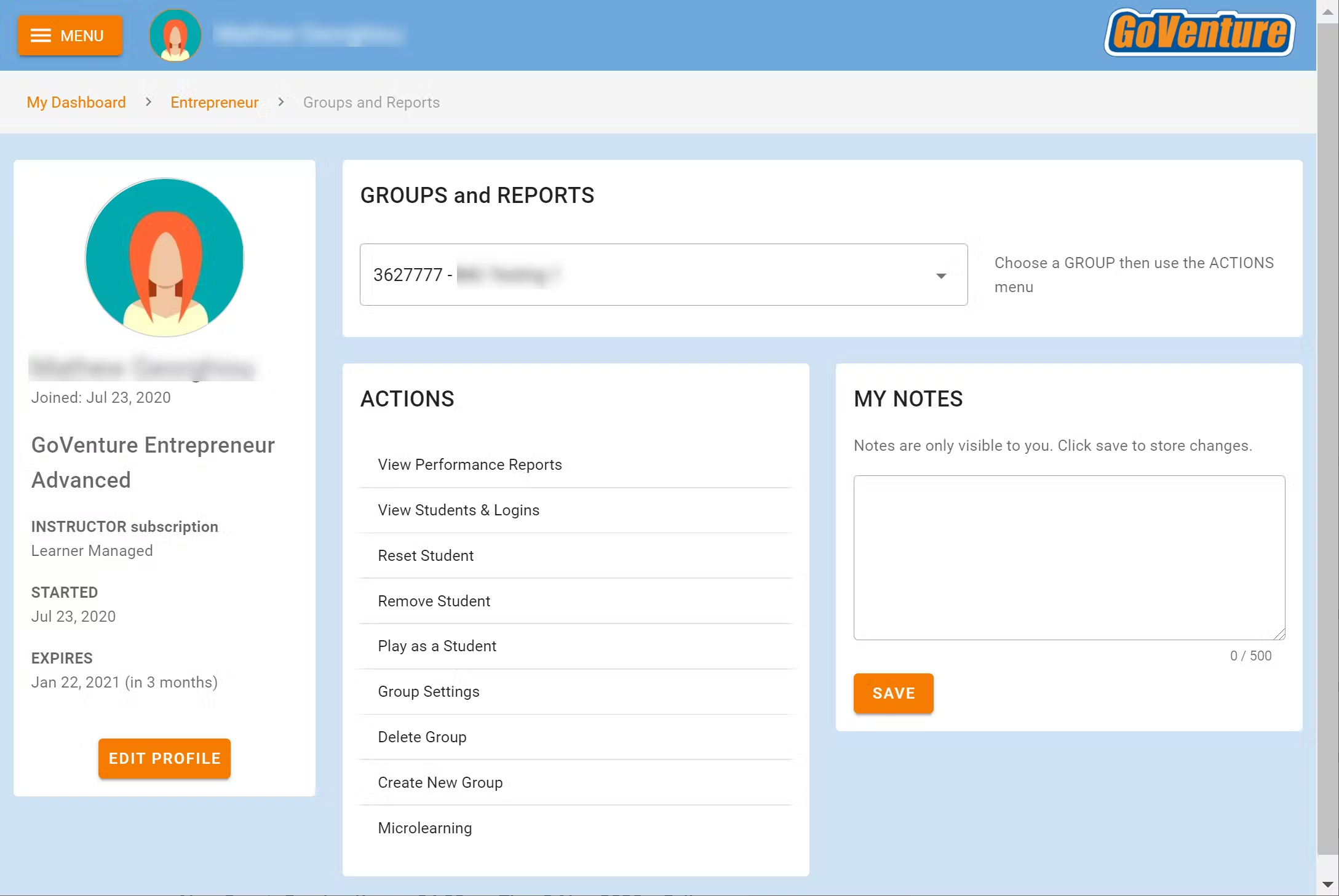
* Once you create your Instructor Account (see Section 1), log in to review the Instructor Dashboard (website).
    
* The Instructor Dashboard allows you to create Groups, monitor student progress and performance, and play GoVenture as a student.

_Screenshot of the Instructor Dashboard (website) with options for managing a Group_
<img src = "https://books.playgoventure.com/u/d4ed79f3b1019114d5bbc3b28d47aad96fb166848438f54001c09ebdaf1709303926712c9f8a836dbf31b209c1914ddd7a937c31d146a067149dcd4b3edee6050755fe3c07d4d98e69294be765d2a120b3b4efc59ddf2661e6c6822a1d0fa55aa5e7d809-RYHFcI.avif" style="width: 50%; display: block; margin: auto;">
<hr style="margin: 0;">
## 3.2 Sharing Instructor Accounts
Instructors can share access to their accounts with other instructors or colleagues. 

<a href="https://books.playgoventure.com/13/gvsharingaccounts" target="_blank"_><u>View Sharing Options</u></a>
<hr style="margin: 0;">
## 3.3 Student Accounts
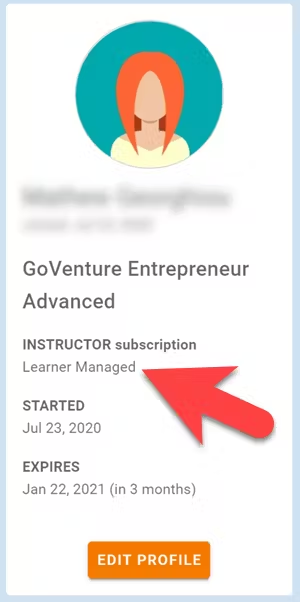
Identify the type of account that applies to you and review the details below.  Your type is displayed on your instructor dashboard as shown below.

* **Learner Managed** — College, Nonprofit, Business
* **Instructor Managed** — Primarily for K-12 Schools
* **Perpetual or SUITE**

<img src = "https://books.playgoventure.com/u/b0be532ba1a18324f71e7f6d63d616f33fa7ba4dc7658e1fd617a4cbcef7ddff9f0aead410fd2c5daa904bab273092c3eeff78ab6bc69105137b0751d80894141cd96a785caa6d4f3fa5a1d5ccf502c9276eaee129f9c179d05ad166f26590f104a115b2-I8pLQB.avif" style="width: 30%; display: block; margin: auto;">

<hr style="margin: 0;">
### 3.3.1 _Learner Managed_ account — primarily for colleges, universities, nonprofits, and businesses

* Students create and manage their own personal login accounts.  
* Students create accounts with a **Subscription Key** — a 32 digit number that looks like this:  12345678-12345678-12345678-12345678.
    
* Students can purchase their own Subscription Keys or organizations can purchase them for students using any combination of these three options:
    
    *   Purchase keys individually or in bulk using a credit card or PayPal at <a href="https://buygoventure.com" target="_blank"_><u>BuyGoVenture.com</u></a>
        
    *   To buy with a Purchase Order, use our Order Forms at <a href="https://goventure.net/prices" target="_blank"_><u>GoVenture.net/prices</u></a>
        
    *   To sell through a bookstore, review the information at 
<a href="https://GoVenture.net/bookstore" target="_blank"_><u>GoVenture.net/bookstore</u></a>
        
* Give students the **Group** number you want them to play and your **student roster** will build automatically as students join your Group. You do not have to input student names, emails, or any other information — it's all automated.
    
* <a href="https://docs.google.com/presentation/d/1speqyBTRKht-PO82XGQR_WEosyZJnWPnz1LvcdKihFc/edit?usp=sharing" target="_blank"_><u>Use this Slide Deck</u></a> or the <b>Sample Syllabus</b> (section 11) to introduce students to GoVenture — copy this content into your own course content and customize it to fit your approach (do not give students links to this document).
    
<br>
<hr style="margin: 0;">
### 3.3.2 _Instructor Managed_ account  — primarily for K-12 schools

<iframe src="https://player.vimeo.com/video/687193210" style="border: none; display: block; margin: auto; aspect-ratio:16/9; height:auto; width:70%;" allow="autoplay; fullscreen; picture-in-picture"></iframe>
<div align="center">
<a href="https://player.vimeo.com/video/687193210" target="_blank"_><u>Watch Full Screen</u></a>
</div>

*   Watch the **video** above or follow the directions below to see how student accounts work.
    
*  <a href="https://docs.google.com/presentation/d/1G0ur3S48iTPpn9ioiVlY5oxyLuhSPWdrvYyd6_HwfX8/edit?usp=sharing" target="_blank"_><u>Use this Slide Deck</u></a> to introduce students to GoVenture.
    
*   Instructor Managed subscriptions do not require students to create full accounts on GoVenture. Students do not have to disclose personally-identifiable information.

* Instructors do not need to input a student roster.  This will be done automatically by GoVenture.
    
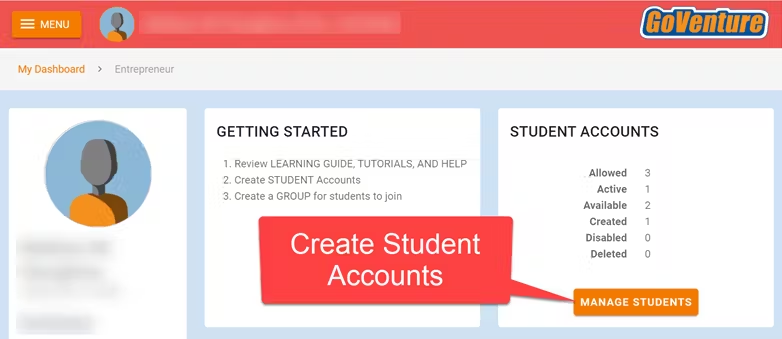
*   Instructors use the GoVenture dashboard to **create student accounts** as they need them.

<img src = "https://books.playgoventure.com/u/6bfcbf6d2000b45b16008847bc4e8829e0f6f0fd5b9483ec7abebc6958f9d2e2393f63fbd66b5e792521c88f69aa84a7a7d0fe59790ad3ad67b5c9e419dafbe65cd1a3f966f8885a56e824910839796f65ae4f9d3beb9f3cd7d1c7974b9a4c1abc691c8d-tXsCW7.avif" style="width: 50%; display: block; margin: auto;">

*  When an instructor creates a student account, a unique USERNAME is generated for the student. The USERNAME is a multi-digit number that is automatically generated — the instructor cannot choose the number (but can edit it after it is created). Instructors do not have to set the student PASSWORD (but can change it if needed).
    
*   The instructor provides the USERNAME to the student and directs the student to log in to the GoVenture website at PlayGoVenture.com. Students should _**not**_ use the Create Account option.

<img src = "https://books.playgoventure.com/u/4a0c188efc4f07184458213c4239289733b1c746b02bb2c7d6da95853bc09323fc9c7dbd80ad558c398fc5d9708c2263b1c577d6bf56609b38997495da6fefffae6e6bafadd8b0a60b5c08872cefd2481f6b5489cf1a4ca1d1ef4dc630e33122c1f089e9-a0KsBZ.avif" style="width: 50%; display: block; margin: auto;">

* <a href="https://docs.google.com/spreadsheets/d/1mHEpBxwmC5eRphvWzH0POQa1Y-9TbQvbzD4afZAnJ60/edit?usp=sharing" target="_blank"_><u>Use this spreadsheet</u></a> to share usernames with students — click the link to view the document then choose FILE > DOWNLOAD for your own copy to edit.

*   GoVenture will determine if this is a new USERNAME being used for the first time and prompt the student to set a PASSWORD and their name or student ID or pseudonym (if maximum privacy is preferred).
    
*   No personally-identifiable information is required of students. But, it is important that students use a unique identifier that allows the instructor to know who they are for monitoring and grading purposes. <br> <br>Alternatively, the instructor can manually record student names with their assigned USERNAMES. _NOTE: If you direct students to enter their full names, you may want to consider directing them to enter their last names first (such as "Smith John" or "Smith, John") so that your Performance Reports can be sorted by last name._
    
* From now on, the student uses their personal USERNAME and PASSWORD to log in to GoVenture.  

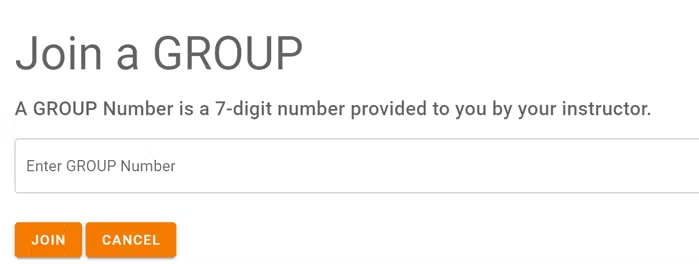
*   Once a student logs in to GoVenture, they have access to the User Guide, resources, and other help information. But, students need to join a GROUP Number to play the Simulation. Instructors must provide students a GROUP Number to join.

<img src = "https://books.playgoventure.com/u/62cbbb5868c3ef259da2f01a34810d0f04be7eb0957b53da381eced9db8fc17983bfa1ea3cd924525e2913046fab52da7efab331fe2d956022a81a032b661fe0e9515ed2853750b13f3ba1291107d26481a419ffaf1b2ae52e889d4313568fac281a6ac8-xmsKtD.avif" style="width: 50%; display: block; margin: auto;">
    

**Disable, Delete, Edit Student Accounts**
   
*   Instructors can reset student PASSWORDS if needed.
    
*   Your school or District is assigned a maximum number of instructor accounts and student accounts that can be active at any one time (concurrently).
    
*   Instructors can DISABLE individual student accounts when they are no longer needed (such as at the end of the semester or year, or if a student drops out). Disabling a student account reduces the number of active student accounts, thereby providing room for another student account to be activated. Disabled accounts do not count towards the maximum number of concurrent accounts allowed. Disabling a student account retains all student progress and results, allowing the account to be activated again at any time.
    
*   Instructors can DELETE individual student accounts. Doing so permanently erases all student progress and results and the same student account cannot be activated again.
    
*   Instructors can EDIT student accounts.
    
*   A student account that is created by an instructor but never actually used by a student will not count towards the maximum number of student accounts allowed.  (Used means a student has set a password.)
    
<br>
<hr style="margin: 0;">
### 3.3.3 _Perpetual_ or _SUITE_ Licenses

*   With this type of license, GoVenture is installed on school computers.  Internet is not used.

*   There are no instructor accounts and no student accounts— no logins.
    
*   The GoVenture software runs from the computer on which it is installed, not online.
    
*   Student progress is saved on the computer hard drive, shared network drive, or USB drive. Students must maintain access to the save file location in order to resume progress.
    
*   Students should choose SAVE LOCATIONS that are unique or private to them, so that only they can access their own save files.
    
**Three Save Slots**

*   Each student can have up to 3 simulations running at the same time.  There are 3 save slots that can be used to save those simulations. 

*  Each save slot can store any of the 3 business types — Lemonade Stand, Kiosk, or Full Business.  This means a student can save 3 Lemonade Stand simulations at the same time or 2 Lemonade Stands and 1 Kiosk, etc.

* To access the save slot for a specific business type, choose that specific business type on the business type selection screen. You will then see options to resume a saved simulation for that specific business type. You can also delete other saved business types if you want to free up a save slot to use with the currently selected business type.

**How Saving Works**

When a student launches GoVenture, they will be presented with this message:

*   Your progress will be stored in a save file in the folder that you choose on the local computer, network drive, or external drive.
    
*   When you quit and restart this program, this same folder will be used to find the save file and resume your progress. Do not delete the save file or your progress will be lost. If you move the save file or folder, you will be prompted to choose the new location.
    
*   This save location will be stored in your Windows or macOS login profile. If this computer is shared by other people, you should choose a folder that is private to you. You should also log out of Windows or macOS when finished using the computer so that someone else does not use your save file.
    
*   If you play more than one GoVenture program, you will be prompted to choose a save location for each program. You may choose the same save location (separate save files will be created for each).
    

**Technical Details — How to force GoVenture to prompt for a new save location**

You do not need to follow these directions unless a student save file has been moved by mistake.

*   Quit GoVenture.
    
*   When a student selects a save location, GoVenture stores the path to this location in the appdata folder.  
    
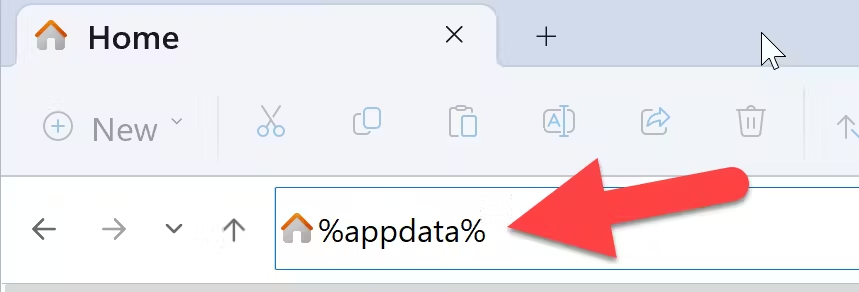
*   To find the appdata folder for the user that is currently logged in to Windows, open Windows File Explorer and type **%appdata%** in the address bar then press \[enter\].

<img src = "https://books.playgoventure.com/u/43cdd4760d7b2ac0266d6b76652808e7a562c0e01e7501338b4e76750f0da58b0bc98e54a558d2561dff68b5f6b62af60c675ed8d150c1f75625fd539614bb98db98aa9f6f1dc1dd1c09d3359573f423becd9ce65e01f6695393b12a1077827bf07fa337-nukpcF.avif" style="width: 50%; display: block; margin: auto;">
    
*   Find the folder with the same name as the GoVenture program you are using and double click it to open the folder.
    
*   Find and delete file **Settings\_x.x.x**  — _the x.x.x will be the latest version number._
    
*   With the Settings file deleted, running GoVenture will prompt you to enter a new save location.  If the save location you choose has a previously-saved Simulation file, then GoVenture will resume that file.
<hr style="margin: 0;">

# 4. Groups

<hr style="margin: 0;">
## 4.1 Creating Groups

* For students to begin playing the Simulation, the instructor must create a **Group**. Groups allow you to keep student performance results organized by class, school, region, or any other grouping that you prefer. Students can join multiple groups.

* Use the Instructor Dashboard to create a Group. Instructors have the option to focus students on specific activities.

 *   Follow the on-screen directions to choose your Group settings.
<br><br>
    
 *   Copy and share the 7-digit Group number with your students. Students will **join** your Group and be able to play the Simulation.  Instructors can also use the Group Number to play as a student.
<br><br>

 * When students join your Group number, they will automatically appear on your Instructor Dashboard. **Rostering is automated** so you do not have to input student names or other information.
<br>
    
*   Students cannot play the Simulation until an instructor provides them with a Group number. You must give students a Group number. Students can log in to view the **Business Superhero Book** and the **User Guide** before they receive a Group number. This allows you to get students set up with their login accounts in advance of having them do a specific activity.
    
*   Instructors can play the Simulation as a student by clicking PLAY AS A STUDENT. It is highly recommended that instructors play GoVenture for a few minutes to experience the options available in the program.
    
*   See additional information in section _**6.3 Types of Businesses & Products**_
    
<hr style="margin: 0;">
## 4.2 Group Settings

*   When creating a Group, you must choose the **business type** to include — _Lemonade Stand_, _Kiosk Business_, or _Full Business_. See additional information in section _**6.3 Types of Businesses & Products**_
    
*   To have students play a different business type, create a new Group — do not edit an existing Group to change business type. For example, to have students play _Lemonade Stand_, _Kiosk Business_, and _Full Business_, you have to create three Groups and will have three different Group numbers that you can share with students. You to control when students are allowed to move from one business type to the other by witholding the Group numbers until you are ready for them to play.
    
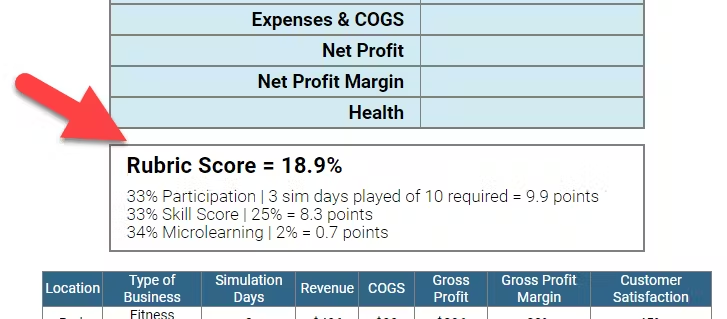
*   When creating a Group, you have the option to include a Microlearning Collection, Rubric Score, and more.

<hr style="margin: 0;">

## 4.3 Monitoring Students

*   When students join a Group number, their progress and performance will appear on the Instructor Dashboard under _Groups & Reports > View Performance Reports_

* A summary table is provided with student names that can be clicked to view full details for each individual student.

<hr style="margin: 0;">

# 5. Microlearning
<hr style="margin: 0;">

## 5.1 Microlearning Modules
<img src = "https://books.playgoventure.com/u/microlearning-2025-05-15_16-42-21-iHaTuc.png" style="width: 75%; display: block; margin: auto;">

* Microlearning Modules are designed to teach students fundamental concepts and terminology. This saves instructors from having to lecture on these topics or provide other resources like textbooks.

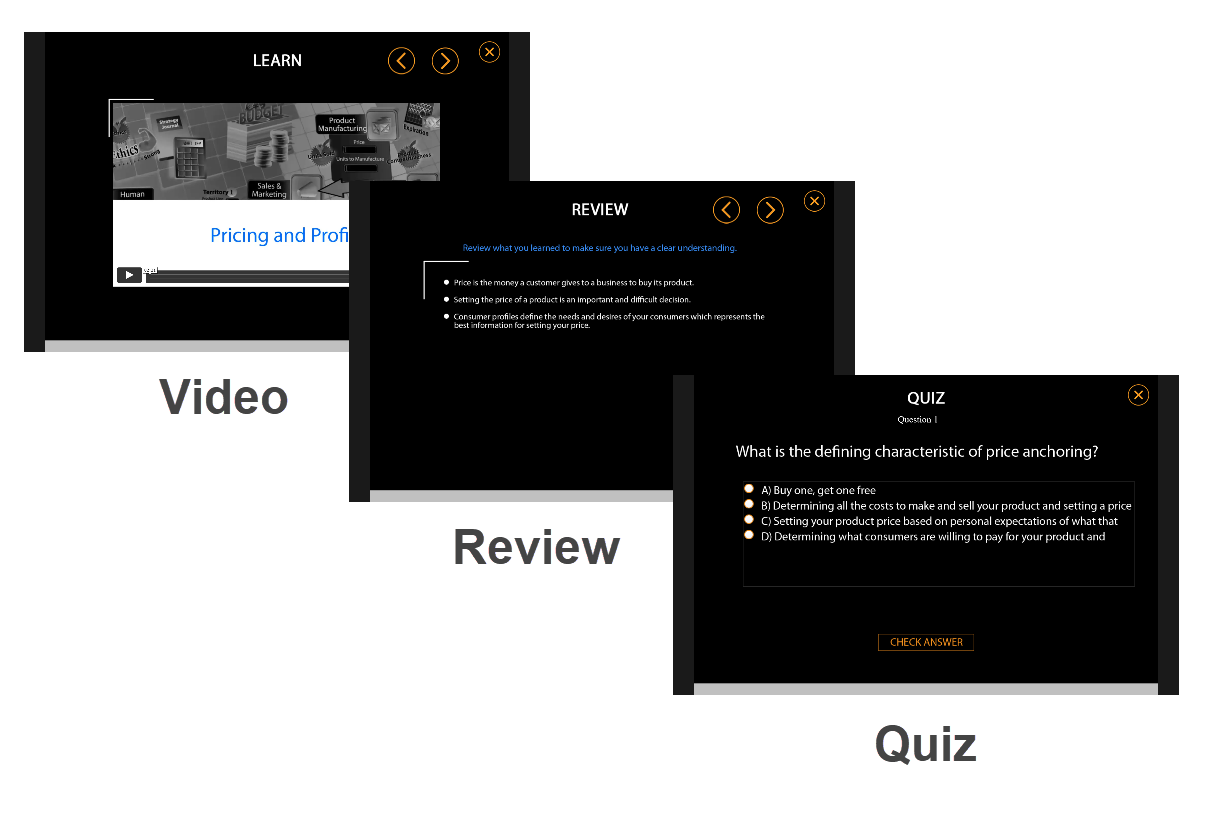
* A Microlearning Module starts with a brief video explanation of the topic (1-3 minutes) followed by a single review slide with bulleted text, followed by a multiple choice quiz to validate that the concept is understood.  One module takes 3 to 5 minutes to complete.

* The entire set of 145 microlearning modules includes nearly 5 hours of video plus 2 hours of review and quizzes.  The same content is included in the Business Superhero Book (PDF).  

* Instructors can choose which modules to include and mark them as optional or required. Each module is only a few minutes in duration, ending with 2 to 5 multiple-choice quiz questions. Assessment is automated. Students earn 1 star for completing a microlearning module with 1 mistake made on the quiz questions for that module, or 2 stars if no mistakes made. 0 stars are earned otherwise.  2 stars are scored with 1 point while 1 star is 0.7 points. Students are allowed to repeat modules to maximize their score (but only the latest score is registered regardless of outcome).
     
* Instructors can monitor student progress and performance on the Instructor Dashboard (Website).

* To set up Microlearning, you must first create a Microlearning Collection, where you choose the topics you want to include, and then assign that Collection to a Group (under Group Settings).

<br>
<hr style="margin: 0;">
## 5.2 List of Microlearning Topics
    
<details>

<summary><b>Expand this section to see all 145</b> — click the black triangle </summary>
<p></p>

<table>
  <thead>
    <tr>
      <th>#</th>
      <th>Module</th>
    </tr>
  </thead>
  <tbody>
    <tr>
      <td>1</td>
      <td>Business Basics</td>
    </tr>
    <tr>
      <td>1.1</td>
      <td>Businesses and Products</td>
    </tr>
    <tr>
      <td>1.2</td>
      <td>Stores and Resellers</td>
    </tr>
    <tr>
      <td>1.3</td>
      <td>Customers and Consumers</td>
    </tr>
    <tr>
      <td>1.4</td>
      <td>Business Creation</td>
    </tr>
    <tr>
      <td>1.5</td>
      <td>Profit Versus Not-For-Profit</td>
    </tr>
    <tr>
      <td>1.6</td>
      <td>Business, Company, and Corporation</td>
    </tr>
    <tr>
      <td>2</td>
      <td>Management and Entrepreneurship</td>
    </tr>
    <tr>
      <td>2.1</td>
      <td>Managing a Business</td>
    </tr>
    <tr>
      <td>2.2</td>
      <td>Entrepreneurship</td>
    </tr>
    <tr>
      <td>2.3</td>
      <td>Why Entrepreneurship?</td>
    </tr>
    <tr>
      <td>2.4</td>
      <td>Who Can Be an Entrepreneur?</td>
    </tr>
    <tr>
      <td>2.5</td>
      <td>Success in Entrepreneurship</td>
    </tr>
    <tr>
      <td>2.5.1</td>
      <td>Profit Versus Not-For-Profit</td>
    </tr>
    <tr>
      <td>2.5.2</td>
      <td>Revenue</td>
    </tr>
    <tr>
      <td>2.5.3</td>
      <td>Equity</td>
    </tr>
    <tr>
      <td>2.5.4</td>
      <td>Market Share</td>
    </tr>
    <tr>
      <td>2.5.5</td>
      <td>Brand, Reach, and Growth</td>
    </tr>
    <tr>
      <td>2.5.6</td>
      <td>Customer Satisfaction and Loyalty</td>
    </tr>
    <tr>
      <td>2.5.7</td>
      <td>Employee Morale</td>
    </tr>
    <tr>
      <td>2.5.8</td>
      <td>Time in Business in Community</td>
    </tr>
    <tr>
      <td>2.5.9</td>
      <td>Personal Wealth</td>
    </tr>
    <tr>
      <td>2.5.10</td>
      <td>Stress and Personal Time</td>
    </tr>
    <tr>
      <td>2.5.11</td>
      <td>Freedom, Learning, and Satisfaction</td>
    </tr>
    <tr>
      <td>2.6</td>
      <td>Managing Risk</td>
    </tr>
    <tr>
      <td>2.7</td>
      <td>Upside and Downside</td>
    </tr>
    <tr>
      <td>2.8</td>
      <td>Experience and Decision Making</td>
    </tr>
    <tr>
      <td>3</td>
      <td>Ownership</td>
    </tr>
    <tr>
      <td>3.1</td>
      <td>Business Ownership</td>
    </tr>
    <tr>
      <td>3.2</td>
      <td>Buying Ownership in a Business</td>
    </tr>
    <tr>
      <td>3.3</td>
      <td>Private Versus Public Company</td>
    </tr>
    <tr>
      <td>4</td>
      <td>Startup</td>
    </tr>
    <tr>
      <td>4.1</td>
      <td>The Idea</td>
    </tr>
    <tr>
      <td>4.2</td>
      <td>Business Model</td>
    </tr>
    <tr>
      <td>4.3</td>
      <td>Mission, Vision, and Values</td>
    </tr>
    <tr>
      <td>4.4</td>
      <td>Business Name</td>
    </tr>
    <tr>
      <td>4.5</td>
      <td>Logo</td>
    </tr>
    <tr>
      <td>4.6</td>
      <td>Legal Structure</td>
    </tr>
    <tr>
      <td>4.7</td>
      <td>Seed Financing</td>
    </tr>
    <tr>
      <td>4.8</td>
      <td>Sources of Financing</td>
    </tr>
    <tr>
      <td>4.9</td>
      <td>Due Diligence</td>
    </tr>
    <tr>
      <td>4.10</td>
      <td>Confidentiality</td>
    </tr>
    <tr>
      <td>4.11</td>
      <td>Business Location</td>
    </tr>
    <tr>
      <td>4.12</td>
      <td>Site Selection</td>
    </tr>
    <tr>
      <td>4.13</td>
      <td>Equipment Selection</td>
    </tr>
    <tr>
      <td>4.14</td>
      <td>Permits and Licenses</td>
    </tr>
    <tr>
      <td>4.15</td>
      <td>Intellectual Property</td>
    </tr>
    <tr>
      <td>4.16</td>
      <td>Business Advisors</td>
    </tr>
    <tr>
      <td>5</td>
      <td>Business Plan</td>
    </tr>
    <tr>
      <td>5.1</td>
      <td>Overview</td>
    </tr>
    <tr>
      <td>5.2</td>
      <td>Purpose</td>
    </tr>
    <tr>
      <td>5.3</td>
      <td>Format</td>
    </tr>
    <tr>
      <td>5.4</td>
      <td>Key Topics</td>
    </tr>
    <tr>
      <td>6</td>
      <td>Market Demand</td>
    </tr>
    <tr>
      <td>6.1</td>
      <td>Marketing</td>
    </tr>
    <tr>
      <td>6.2</td>
      <td>Market Demand</td>
    </tr>
    <tr>
      <td>6.3</td>
      <td>Potential Revenue</td>
    </tr>
    <tr>
      <td>6.4</td>
      <td>Competition</td>
    </tr>
    <tr>
      <td>6.5</td>
      <td>Product Differentiation</td>
    </tr>
    <tr>
      <td>7</td>
      <td>Pricing and Profit</td>
    </tr>
    <tr>
      <td>7.1</td>
      <td>Pricing and Profit</td>
    </tr>
    <tr>
      <td>7.2</td>
      <td>Price</td>
    </tr>
    <tr>
      <td>7.3</td>
      <td>Gross and Net Profit</td>
    </tr>
    <tr>
      <td>7.4</td>
      <td>Calculating Costs</td>
    </tr>
    <tr>
      <td>7.5</td>
      <td>Cost-Plus and Market Pricing</td>
    </tr>
    <tr>
      <td>7.6</td>
      <td>Selling Price Versus Retail Price</td>
    </tr>
    <tr>
      <td>7.7</td>
      <td>Price Expectation</td>
    </tr>
    <tr>
      <td>8</td>
      <td>Consumer Profiles</td>
    </tr>
    <tr>
      <td>8.1</td>
      <td>Consumer Needs</td>
    </tr>
    <tr>
      <td>8.2</td>
      <td>Demographics and Psychographics</td>
    </tr>
    <tr>
      <td>8.3</td>
      <td>4 Ps of Marketing</td>
</tr>
  <tr>
    <td>8.4</td>
    <td>Consumer Psychographics</td>
  </tr>
  <tr>
    <td>8.5</td>
    <td>Consumer Groups</td>
  </tr>
  <tr>
    <td>8.6</td>
    <td>Targeting Consumer Groups</td>
  </tr>
  <tr>
    <td>8.7</td>
    <td>Price is Always a Concern</td>
  </tr>
  <tr>
    <td>8.8</td>
    <td>Market Size</td>
  </tr>
  <tr>
    <td>8.9</td>
    <td>Market Data</td>
  </tr>
  <tr>
    <td>9</td>
    <td>Strategy</td>
  </tr>
  <tr>
    <td>9.1</td>
    <td>Strategy</td>
  </tr>
  <tr>
    <td>9.2</td>
    <td>The 4 Steps</td>
  </tr>
  <tr>
    <td>9.3</td>
    <td>Business Strategy Tips</td>
  </tr>
  <tr>
    <td>10</td>
    <td>Inventory Management</td>
  </tr>
  <tr>
    <td>10.1</td>
    <td>Inventory</td>
  </tr>
  <tr>
    <td>10.2</td>
    <td>Producing Too Few Units</td>
  </tr>
  <tr>
    <td>10.3</td>
    <td>Producing Too Many Products</td>
  </tr>
  <tr>
    <td>10.4</td>
    <td>Forecasting</td>
  </tr>
  <tr>
    <td>11</td>
    <td>Sales and Marketing</td>
  </tr>
  <tr>
    <td>11.1</td>
    <td>Sales Versus Marketing</td>
  </tr>
  <tr>
    <td>11.2</td>
    <td>Market</td>
  </tr>
  <tr>
    <td>11.3</td>
    <td>Customer Types</td>
  </tr>
  <tr>
    <td>11.4</td>
    <td>Sales Methods</td>
  </tr>
  <tr>
    <td>11.5</td>
    <td>Promotion</td>
  </tr>
  <tr>
    <td>11.6</td>
    <td>Brand</td>
  </tr>
  <tr>
    <td>11.7</td>
    <td>Territories</td>
  </tr>
  <tr>
    <td>11.8</td>
    <td>Inventory Distribution</td>
  </tr>
  <tr>
    <td>11.9</td>
    <td>Currency</td>
  </tr>
  <tr>
    <td>11.10</td>
    <td>Advertising</td>
  </tr>
  <tr>
    <td>12</td>
    <td>Human Resources</td>
  </tr>
  <tr>
    <td>12.1</td>
    <td>Employees</td>
  </tr>
  <tr>
    <td>12.2</td>
    <td>Hiring</td>
  </tr>
  <tr>
    <td>12.3</td>
    <td>Managing</td>
  </tr>
  <tr>
    <td>12.4</td>
    <td>Hiring and Severance Costs</td>
  </tr>
  <tr>
    <td>12.5</td>
    <td>Salary and Benefits</td>
  </tr>
  <tr>
    <td>12.6</td>
    <td>Employee Morale</td>
  </tr>
  <tr>
    <td>12.7</td>
    <td>Productivity</td>
  </tr>
  <tr>
    <td>12.8</td>
    <td>Turnover</td>
  </tr>
  <tr>
    <td>13</td>
    <td>Ethics</td>
  </tr>
  <tr>
    <td>13.1</td>
    <td>Business Ethics</td>
  </tr>
  <tr>
    <td>14</td>
    <td>Financing</td>
  </tr>
  <tr>
    <td>14.1</td>
    <td>Business Financing</td>
  </tr>
  <tr>
    <td>14.2</td>
    <td>Debt Financing</td>
  </tr>
  <tr>
    <td>14.3</td>
    <td>Applying for a Loan</td>
  </tr>
  <tr>
    <td>14.4</td>
    <td>Loan Example</td>
  </tr>
  <tr>
    <td>14.5</td>
    <td>Equity Financing</td>
  </tr>
  <tr>
    <td>14.6</td>
    <td>Equity Example</td>
  </tr>
  <tr>
    <td>14.7</td>
    <td>Share Price</td>
  </tr>
  <tr>
    <td>14.8</td>
    <td>Earnings Per Share</td>
  </tr>
  <tr>
    <td>14.9</td>
    <td>Dilution</td>
  </tr>
  <tr>
    <td>14.10</td>
    <td>Profit</td>
  </tr>
  <tr>
    <td>14.11</td>
    <td>Sources of Financing</td>
  </tr>
  <tr>
    <td>15</td>
    <td>Currency</td>
  </tr>
  <tr>
    <td>15.1</td>
    <td>Global Currencies</td>
  </tr>
  <tr>
    <td>15.2</td>
    <td>Exchange Rate</td>
  </tr>
  <tr>
    <td>15.3</td>
    <td>Impact of Exchange Rates</td>
  </tr>
  <tr>
    <td>15.4</td>
    <td>Reducing Risk</td>
  </tr>
  <tr>
    <td>16</td>
    <td>Accounting</td>
  </tr>
  <tr>
    <td>16.1</td>
    <td>Business Accounting</td>
  </tr>
  <tr>
    <td>16.2</td>
    <td>Double-Entry Bookkeeping</td>
  </tr>
  <tr>
    <td>16.3</td>
    <td>Accounts</td>
  </tr>
  <tr>
    <td>16.4</td>
    <td>Debits and Credits</td>
  </tr>
  <tr>
    <td>16.5</td>
    <td>Cash Versus Accrual Accounting</td>
  </tr>
  <tr>
    <td>16.6</td>
    <td>Accounts Payable & Receivable</td>
  </tr>
  <tr>
    <td>16.7</td>
    <td>Buying and Selling Products</td>
  </tr>
  <tr>
    <td>16.8</td>
    <td>Order Form</td>
  </tr>
  <tr>
    <td>16.9</td>
    <td>Purchase Order</td>
  </tr>
  <tr>
    <td>16.10</td>
    <td>Bill and Invoice</td>
  </tr>
  <tr>
    <td>16.11</td>
    <td>Receipt</td>
  </tr>
  <tr>
    <td>16.12</td>
    <td>Financial Statements</td>
  </tr>
  <tr>
    <td>16.13</td>
    <td>General Ledger</td>
  </tr>
  <tr>
    <td>16.14</td>
    <td>Accounting Standards</td>
  </tr>
  <tr>
    <td>17</td>
    <td>Cash Flow and Budget</td>
  </tr>
  <tr>
    <td>17.1</td>
    <td>Importance of Cash</td>
  </tr>
  <tr>
    <td>17.2</td>
    <td>Cash Flow</td>
  </tr>
  <tr>
    <td>17.3</td>
    <td>Cash Flow Statement</td>
  </tr>
  <tr>
    <td>17.4</td>
    <td>Budget and Cash</td>
  </tr>
  <tr>
    <td>17.5</td>
    <td>Over and Under Spending</td>
  </tr>
  <tr>
    <td>18</td>
    <td>Income Statement</td>
  </tr>
  <tr>
    <td>18.1</td>
    <td>Financial Statements</td>
  </tr>
  <tr>
    <td>18.2</td>
    <td>Revenue and Expenses</td>
  </tr>
  <tr>
    <td>18.3</td>
    <td>Net Profit and Gross Profit</td>
  </tr>
  <tr>
    <td>18.4</td>
    <td>COGS and COS</td>
  </tr>
  <tr>
    <td>18.5</td>
    <td>Other Income</td>
  </tr>
  <tr>
    <td>18.6</td>
    <td>Period</td>
  </tr>
  <tr>
    <td>18.7</td>
    <td>Retained Earnings</td>
  </tr>
  <tr>
    <td>18.8</td>
    <td>Relationship to Balance Sheet</td>
  </tr>
  <tr>
    <td>19</td>
    <td>Balance Sheet</td>
  </tr>
  <tr>
    <td>19.1</td>
    <td>Financial Statements</td>
  </tr>
  <tr>
    <td>19.2</td>
    <td>Assets and Liabilities</td>
  </tr>
  <tr>
    <td>19.3</td>
    <td>Business Value</td>
  </tr>
  <tr>
    <td>19.4</td>
    <td>Equity</td>
  </tr>
  <tr>
    <td>19.5</td>
    <td>Increasing Equity</td>
  </tr>
  <tr>
    <td>19.6</td>
    <td>Balance</td>
  </tr>
  <tr>
    <td>19.7</td>
    <td>Dividends and Retained Earnings</td>
  </tr>
  <tr>
    <td>19.8</td>
    <td>Period</td>
  </tr>
</table>

</details>
<br>
<hr style="margin: 0;">
## 5.3 Microlearning Collection
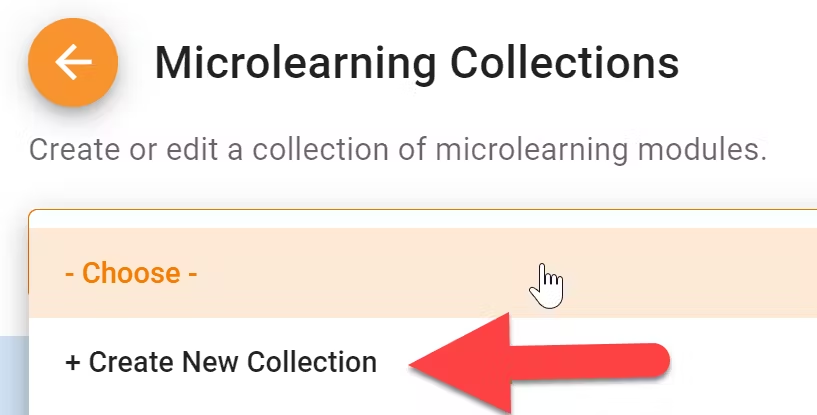
* To set up Microlearning, you must first create a **Microlearning Collection**, where you choose the topics you want to include, and then assign that Collection to a **Group** (under Group Settings).

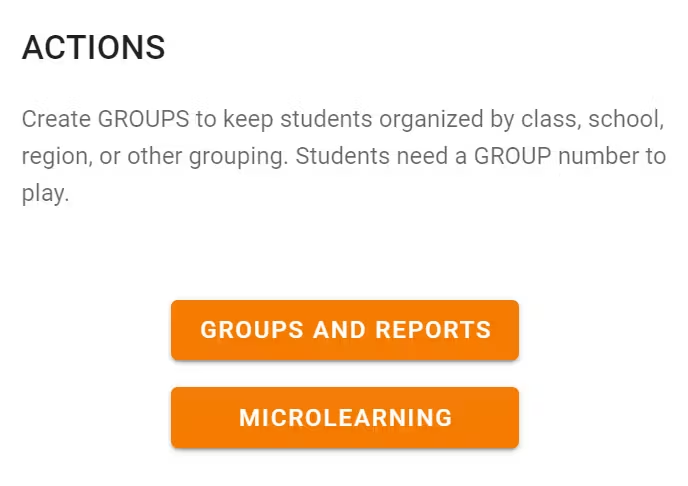
*   Use the Instructor Website to create a Microlearning Collection. Click Microlearning in the ACTIONS tile on the main dashboard page.

<img src = "https://books.playgoventure.com/u/dbca0949b388ec056eb03d24ab785f7ffab29a871fc792e669a05af68601b8cd54f661ff491eb13f942a9616dfc78e52e94f5f372af7f8aac3d367a66841e4f2246704bfbdd8947c25e52e9872d49a1ea1e2cec38b871c91fee5ad2a68e451480beeeb89-ufDvX4.avif" style="width: 50%; display: block; margin: auto;">
    

Then click **Create New Collection**

<img src = "https://books.playgoventure.com/u/056b0caed7585da017b0ed090f0719588486bdc7be53eff01b596956eab12ad1151de10f78dfa5f885171db4e673918cdc5d29d25ac4841454ae10400d6e4d0bc4459bb5cfb722c7977569a99762d23d28a24f0ac67131f04f2bd15fb2a354449323df80-1OhIQM.avif" style="width: 50%; display: block; margin: auto;">

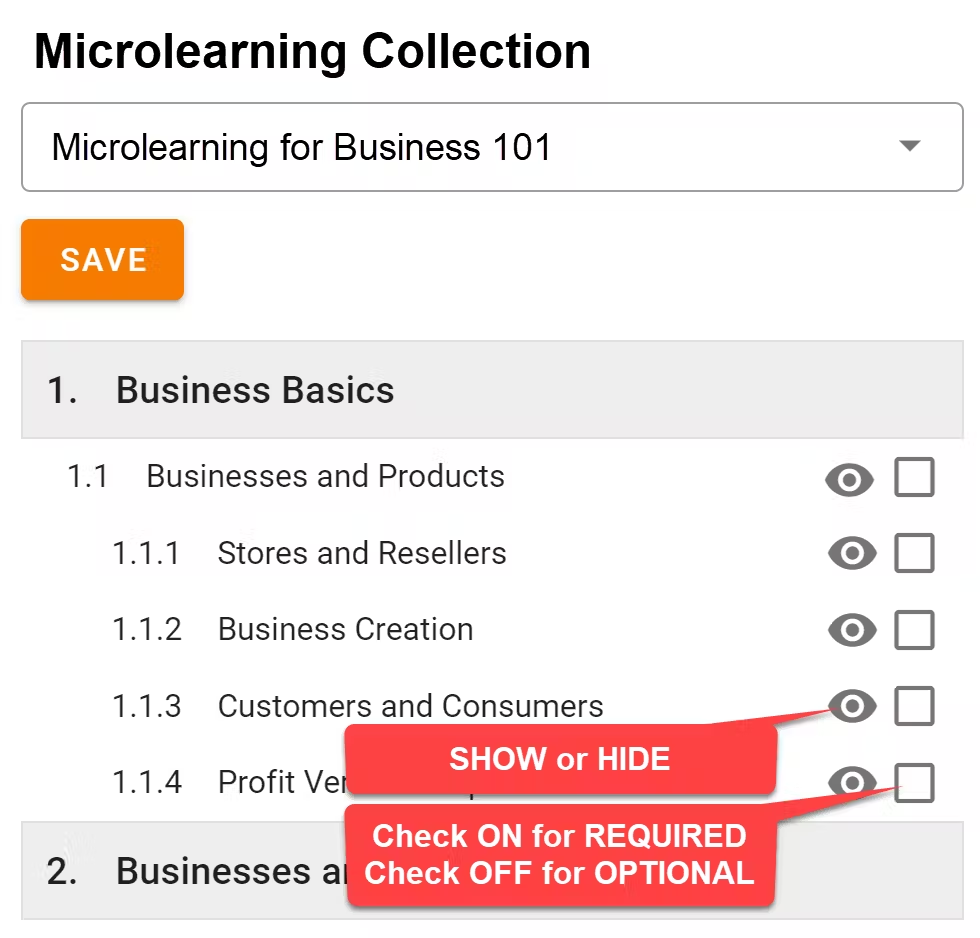
*   A **Microlearning Collection** allows you to choose specific microlearning modules that you want to show or hide for your students. For example, you may want to show the _Business Basic_ modules and hide the_ Accounting_ modules. You can also choose to show individual modules as optional or required, and you can grade students based on their scores. You can create any number of Microlearning Collections with different settings for each.

<img src = "https://books.playgoventure.com/u/3fd6b3f28b5b279be94aaaa0873fc3ad88a32fb93e07f7922481d2e9c222e88903e04d38b491383a7d12ed47876d5c21422ce83ac968cb94d902b7f35c91c83709244412fbb52b48ed60d991aac7b8c1209c3e5f101e96c8e141a225902d745db72fe833-H0HR99.avif" style="width: 50%; display: block; margin: auto;">

*   Completion percentage and scores shown in the _Performance Report_ are  based on the modules set to be _**visible**_ or _**required**_ (you choose this setting). Hidden modules will not be included. For example, if you set 50 modules visible and 100 hidden, students will only be scored on the 50 so a student completing all 50 will earn a 100% completion percentage.
    
*   Setting a module to **required** will show an icon next to the module to identify it as required. 
    
*   To view a microlearning module, go to the screen shown above and click the orange number link.
    
*   **Pacing — Showing and hiding modules as your course progresses.**  Some instructors prefer to control student pacing by showing microlearning modules at specific times during a course schedule. You can change the selected microlearning modules at any time, allowing you to add or remove modules during play. If you do make a change, student Performance Reports will be updated automatically the next time a student plays one Simulation Day in the game. This triggers a save which updates the Performance Reports. Alternatively, students can click the SAVE button under MENU.
    
<hr style="margin: 0;">
## 5.4 Assigning to a Group

<img src = "https://books.playgoventure.com/u/7651837f1d0c9ca68d987d682e00e526385bf76a23ce4fb5e4c8bd6eb8ecb28cb0ae878fd8ee4649ed7a1e9dec45aa7d465a484af702eee2d6434066de6cc6625eec65e0ff1e9e5532c4cf0ac905a8cd5300a7ce3ce0785efd06311cc1e73ca8952399f5-R3PR5d.avif" style="width: 50%; display: block; margin: auto;">

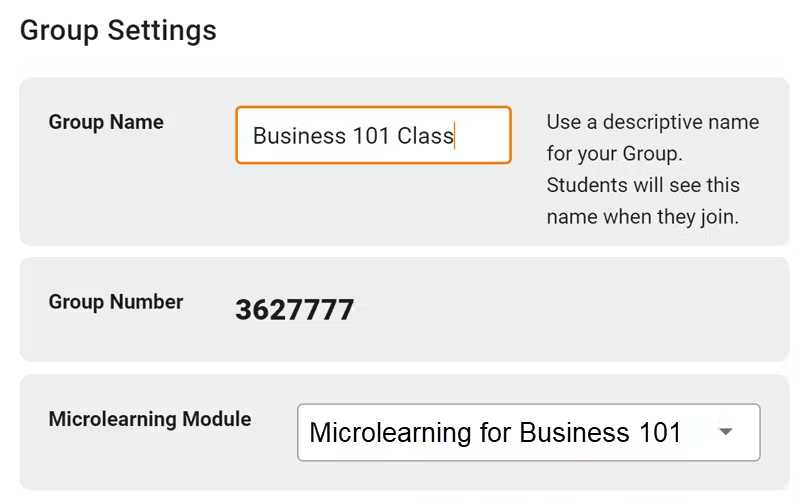
*   Once you have created a Microlearning Collection, you can assign it to one or more Groups (under Group Settings). Instructors have the option to create different Microlearning Collections for different groups of students.
    
*   **You can choose to assign the same Microlearning Collection to multiple Groups.** This allows students to continue their Microlearning as they move from one business Simulation to another, without having to repeat modules that were completed previously. For example, if a student completes module 1.1 in Group _Lemonade Stand_, this same module will appear completed in Group _Kiosk _and Group _Full Business_ — if those Groups have been assigned the same Microlearning Collection.
    
*   _Note— When using the same Microlearning Collection across multiple Groups, use the Microlearning results from the Group in which students have most recently played_.  _Microlearning results shown in Groups students stopped playing may only show the Microlearning results as of when the student stopped playing, even though they may have continued making progress under another Group_.
    
<hr style="margin: 0;">
## 5.5 Student Access and Grading
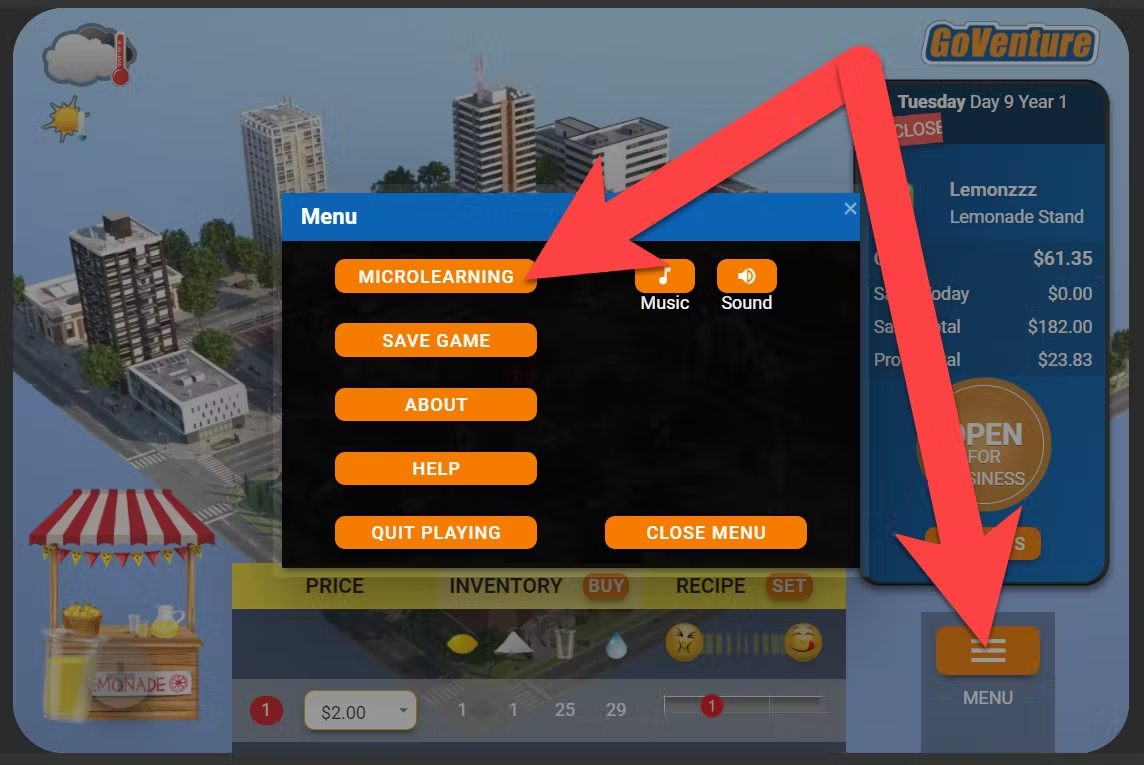
*   Students can access Microlearning while playing the Simulation by using **MENU > Microlearning** as shown below.

<img src = "https://books.playgoventure.com/u/3eeb2010b117518577f997e2c2096a3f129d371f3addc251c6577a279f89be9fd37cbb9ff4267f1da51ccc148a58dbd452bef0fc515b5b961181854edabb4ccfc6f8332be77a5c958052b86214031b1fa33d0058693e486a6f840c50772d3a22b5c72907-b2MkeD.avif" style="width: 50%; display: block; margin: auto;">
    
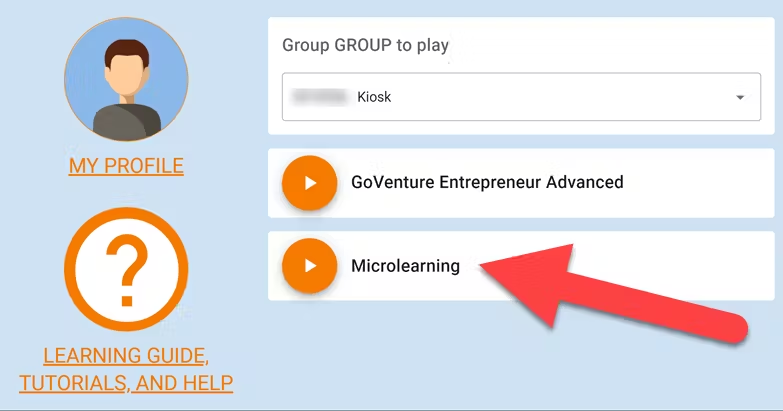
*   Students may also access Microlearning using a button that appears on their **GoVenture dashboard** before they launch the Simulation. This button will appear after they have joined a Group Number and started playing the Simulation. 

<img src = "https://books.playgoventure.com/u/4025d418b2d8fc33ba73bc82b13d3adb645dc7a417f6da73945b53175431e4acc25bc6a6c2388c96a0f4c7b44f0a726fe22d75ece9337628ebf4ef9ad3ec5da27d3fd356168f90676d0d9a91b99526ba699b2852e704a40d5b70f2a33e395b3420d7d47f-agu72f.avif" style="width: 50%; display: block; margin: auto;">
    

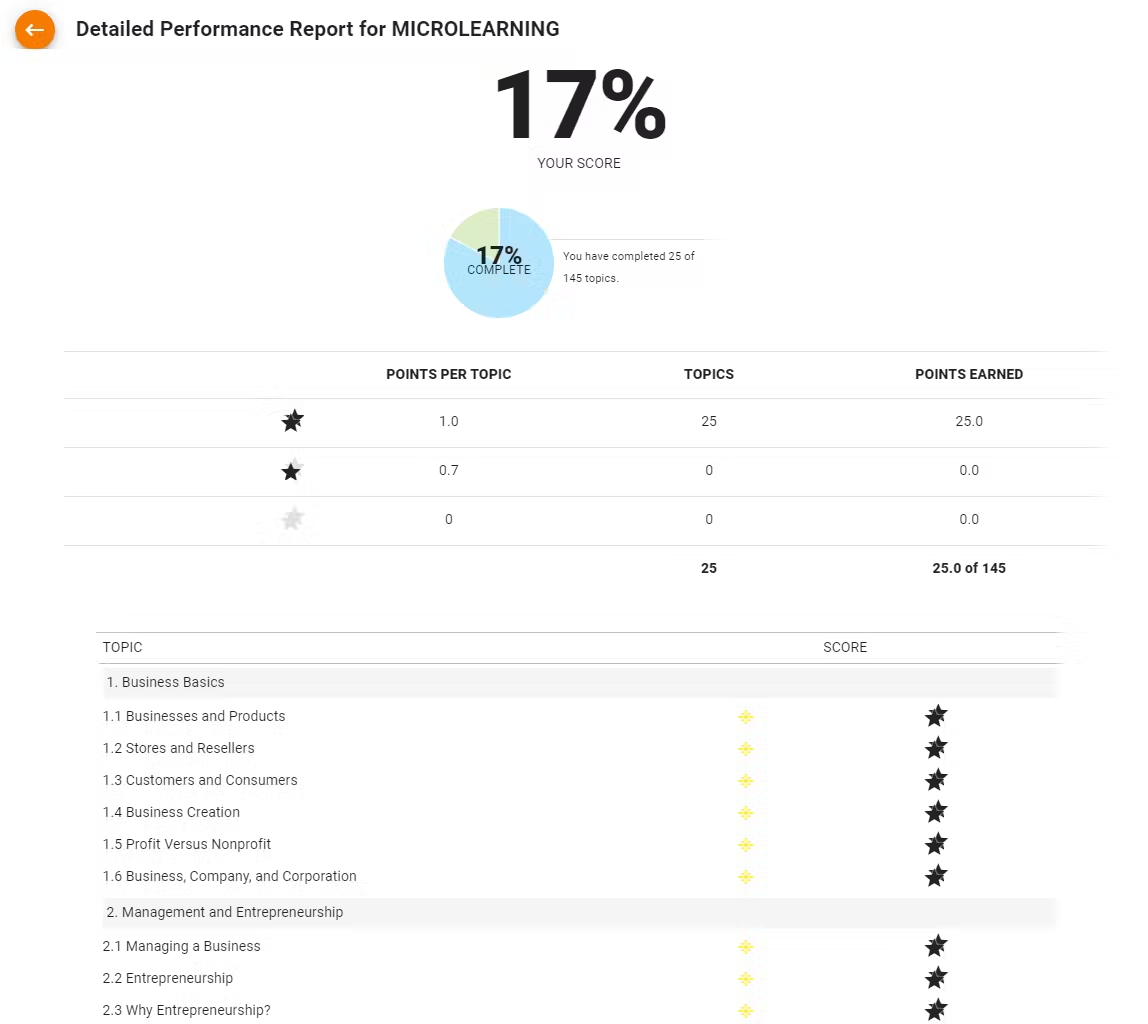
*   Students earn 1 star for completing a microlearning module with 1 mistake made on the quiz questions for that module, or 2 stars if no mistakes made. 0 stars are earned otherwise.  
    
*   2 stars are scored with 1 point while 1 star is 0.7 points.

<img src = "https://books.playgoventure.com/u/7ca17545ba1ec48578f7b2f180d20bff8f2e953bac7cc69548014fb9c09eade41964a267c064fdc0e1dba469caf6b1748b62e550b18b2d553cd34c2ca7f1b4149a6316b5fb85699bf000fdd43dffa0dec0955854ff6159065530ab68e7d26d173d3b8c1b-UzTL8v.avif" style="width: 50%; display: block; margin: auto;">

* Students are allowed to rewatch the videos and retake the quizzes to maximize their score.  Allowing multiple attempts is by design and cannot be disabled.  This promotes better learning and less testing anxiety for students when they are trying to learn basic concepts and terminology.  Playing the Simulation is where students primarily demonstrate their focus and skill and should be the core focus of assessment.
    

**Important Notes:**
    
If you make a change to a Microlearning Collection, your students will not see the change until they do one of these actions:

 *  Log in to GoVenture again.

     -or-
    
 *  Refresh GoVenture (refresh the Internet browser while playing the Simulation or doing Microlearning).

_The acion below is no longer required as of Jan 2025_       
~~To make sure your instructor dashboard displays the most recent Microlearning results, direct your students to take one of these actions: ~~
~~*   While playing the Simulation game, click MENU then SAVE.~~

~~   -or-  ~~

~~*   Advance the Simulation game by one simulated day — reports are automatically updated after a student completes each simulated day in the business Simulation (If a student completes Microlearning modules but does not return to continue playing the business Simulation, your instructor dashboard will not update with the latest results until they do or save the Simulation game).~~

<hr style="margin: 0;">

# 6. Gameplay

<hr style="margin: 0;">
## 6.1 Basic and Advanced Versions

* GoVenture Entrepreneur is available in two versions:  BASIC and ADVANCED.
    
* The BASIC version has a lower price and includes the _Lemonade Stand_ and _Kiosk Business_ but does not include the _Full Business_.
    
* All included resources are the same in both versions.

<hr style="margin: 0;">
## 6.2 Video Demos

<iframe src="https://player.vimeo.com/video/610951967" style="border: none; display: block; margin: auto; aspect-ratio:16/9; height:auto; width:70%;" allow="autoplay; fullscreen; picture-in-picture"></iframe>

<div align="center">
<b>Lemonade Stand</b> | 
<a href="https://player.vimeo.com/video/610951967" target="_blank"_><u>Watch Full Screen</u></a>
</div>
<br>
   
<iframe src="https://player.vimeo.com/video/610952094" style="border: none; display: block; margin: auto; aspect-ratio:16/9; height:auto; width:70%;" allow="autoplay; fullscreen; picture-in-picture"></iframe>

<div align="center">
<b>Kiosk Business</b> |
<a href="https://player.vimeo.com/video/610952094" target="_blank"_><u>Watch Full Screen</u></a>
</div>
<br>
<iframe src="https://player.vimeo.com/video/510041667" style="border: none; display: block; margin: auto; aspect-ratio:16/9; height:auto; width:70%;" allow="autoplay; fullscreen; picture-in-picture"></iframe>

<div align="center">
<b>Full Business</b> |
<a href="https://player.vimeo.com/video/510041667" target="_blank"_><u>Watch Full Screen</u></a>
</div>

<br>
<hr style="margin: 0;">
## 6.3 Types of Businesses & Products

Students are able to choose from a number of business types listed below.  Instructors can restrict students to specific business types using Group settings.

### 1️⃣ Lemonade Stand

Starts with one Lemonade Stand and after achieving levels of profitability can open a second and third location.
    

### 2️⃣ Kiosk
7 types of products can be sold. All types provide a similar experience. Starts with one Kiosk and after achieving levels of profitability can start a second location and third is a Mobile Kiosk (or Food Truck).  
<details>
<summary><b>Expand to see list</b> — click the black triangle
</summary>
<ul>
<li>Ice Cream
<li>Tacos
<li>Hot Dogs
<li>Popcorn & Snacks
<li>Clothing
<li>Costume Jewelry
<li>Electronics
</ul>
</details>
<br>

### 3️⃣ Full Business

20 business types are available, categorized by easy, moderate, and difficult.  
<details>
<summary><b>Expand to see list</b> — click the black triangle
</summary>

<table>
    <tr>
        <th colspan="2">Business Type and Level</th>
        <th>Description</th>
        <th>Sell</th>
        <th>Unique Features</th>
    </tr>
    <tr>
        <td colspan="2"><b>Ice-Cream Parlor</b><br> <span style="color:green"><b>Easy</b></span></td>
        <td>Quick service restaurant that sells ice-cream sundaes, cones, and bars. Similar to Baskin Robbins, Ben & Jerry’s, Dairy Queen, and others.</td>
        <td>3 Products<br>5 Inventory Items</td>
        <td>Similar to Kiosk business with only a few products but with the advanced features of Full Business. This is a good practice or entry-level Simulation.</td>
    </tr>
    <tr>
        <td colspan="2"><b>Department Store</b> <span style="color:Purple"><b>Moderate</b></span></td>
        <td>Retail store that sells clothing, jewelry, housewares, toys, electronics, sporting goods, and more. Similar to Walmart, Target, and others.</td>
        <td>31 Products (identical Inventory Items)</td>
        <td>Retail businesses have many products but they do not require any type of assembly or combination of inventory items and they do not degrade in quality over time. This makes inventory management important but easier than food businesses.</td>
    </tr>
    <tr>
        <td colspan="2"><b>Cosmetics Boutique</b> <span style="color:Purple"><b>Moderate</b></span></td>
        <td>Retail store that sells makeup, personal-care products, and more.<br>Similar to L'Oréal, Clinique, and others.</td>
        <td>31 Products (identical Inventory Items)</td>
        <td>Retail businesses have many products but they do not require any type of assembly or combination of inventory items and they do not degrade in quality over time. This makes inventory management important but easier than food businesses.</td>
    </tr>
    <tr>
        <td colspan="2"><b>Fitness Gym</b> <span style="color:Purple"><b>Moderate</b></span></td>
        <td>Fitness gym that offers membership services for fitness classes and equipment. Customers pay a membership fee and may also purchase products. Similar to Planet Fitness, LA Fitness, and others.</td>
        <td>4 Fitness Classes (services), 5 Fitness Equipment (services), 3 Products (same Inventory Items)</td>
        <td>Membership-based pricing for all services. Some services require the business to purchase equipment while others require employees with the proper skill. Product sales are optional, so there is little inventory management.</td>
    </tr>
    <tr>
        <td colspan="2"><b>Automotive Shop</b> <span style="color:Purple"><b>Moderate</b></span></td>
        <td>Retail store and garage that offers automotive repair services and sells automotive parts. Similar to Midas, Meineke, and others.</td>
        <td>30 Products and 13 Services</td>
        <td>Employees are needed to offer automotive repair services but all only require one skill. Any employee can provide all services. Additional employees are needed as the business grows. Specialized skills and equipment are not required to offer the services.</td>
    </tr>
    <tr>
        <td colspan="2"><b>Convenience Store</b> <span style="color:Purple"><b>Moderate</b></span></td>
        <td>Retail store that sells food, snacks, and other convenience items.</td>
        <td>32 Products (identical Inventory Items)</td>
        <td></td>
    </tr>
    <tr>
        <td colspan="2"><b>Online Retail</b> <span style="color:Purple"><b>Moderate</b></span></td>
        <td>Online retail store that specializes in same-day local delivery of common household goods.</td>
        <td>31 Products (identical Inventory Items)</td>
        <td></td>
    </tr>
    <tr>
        <td colspan="2"><b>Coworking Space</b> <span style="color:Purple"><b>Moderate</b></span></td>
        <td>Shared workspace facility that offers membership services to entrepreneurs, content creators, and remote workers seeking flexible office space and related business services. Customers pay a weekly membership fee and may purchase consumable products.</td>
        <td>7 Products and 7 Services</td>
        <td>Membership-based pricing for all services. Some services require the business to purchase equipment while others require employees with the proper skill. Product sales are optional, so there is little inventory management.</td>
    </tr>
    <tr>
        <td colspan="2"><b>Microstay Hotel</b> <span style="color:Purple"><b>Moderate</b></span></td>
        <td>Lodging facility that rents rooms by the hour for individuals seeking brief stays, meetings, meditation, or rest during the day.</td>
        <td>17 Products and 6 Services</td>
        <td>Some services require the business to purchase equipment while others require employees with the proper skill.</td>
    </tr>
    <tr>
        <td colspan="2"><b>Dental Practice</b> <span style="color:Purple"><b>Moderate</b></span></td>
        <td>Healthcare facility that provides oral health treatments, dental procedures, and sells related products.</td>
        <td>6 Products and 11 Services</td>
        <td>Some services require the business to purchase equipment while others require employees with the proper skill.</td>
    </tr>
    <tr>
        <td colspan="2"><b>Barber Shop</b> <span style="color:Purple"><b>Moderate</b></span></td>
        <td>Barber shop that provides haircuts, shaves, and grooming services and sells related products.</td>
        <td>8 Products and 5 Services</td>
        <td>Some services require equipment, others require skilled employees.</td>
    </tr>
    <tr>
        <td colspan="2"><b>Hair Salon</b> <span style="color:Purple"><b>Moderate</b></span></td>
        <td>Salon that provides haircare services, including cutting, styling, coloring, and treatments, and sells related products.</td>
        <td>8 Products and 5 Services</td>
        <td>Some services require equipment, others require skilled employees.</td>
    </tr>
    <tr>
        <td colspan="2"><b>Beauty Salon</b> <span style="color:Red"><b>Difficult</b></span></td>
        <td>Salon that provides haircare and beauty services, including cutting, styling, coloring, manicures, pedicures, waxing, and facials, and sells related products.</td>
        <td>15 Products and 11 Services</td>
        <td>Some services require equipment, others require skilled employees.</td>
    </tr>
    <tr>
        <td colspan="2"><b>Bicycle & Skateboard Shop</b> <span style="color:Red"><b>Difficult</b></span></td>
        <td>Specialized retail store that assembles, sells, and services bicycles and skateboards.</td>
        <td>24 Products and 9 Services</td>
        <td>Some services require equipment, others require skilled employees.</td>
    </tr>
    <tr>
        <td colspan="2"><b>Automotive Center</b> <span style="color:Red"><b>Difficult</b></span></td>
        <td>Retail store and garage with specialized equipment and skills that offers automotive repair services and sells automotive parts.</td>
        <td>8 Products and 6 Services</td>
        <td>Requires specialized skills and equipment, with complex employee management.</td>
    </tr>
    <tr>
        <td colspan="2"><b>Casual Restaurant</b> <span style="color:Red"><b>Difficult</b></span></td>
        <td>Fast casual restaurant that sells hamburgers, wraps, salads, breakfast, desserts, and more.</td>
        <td>13 Products, 17 Inventory Items</td>
        <td>Requires proper inventory management due to perishable ingredients.</td>
    </tr>
    <tr>
        <td colspan="2"><b>Sandwich Restaurant</b> <span style="color:Red"><b>Difficult</b></span></td>
        <td>Quick service restaurant that sells sandwiches, soup, and more.</td>
        <td>13 Products, 17 Inventory Items</td>
        <td>Requires proper inventory management due to perishable ingredients.</td>
    </tr>
    <tr>
        <td colspan="2"><b>Mexican Restaurant</b> <span style="color:Red"><b>Difficult</b></span></td>
        <td>Fast casual restaurant that sells tacos, nachos, quesadillas, deserts, and more.</td>
        <td>13 Products, 17 Inventory Items</td>
        <td>Requires proper inventory management due to perishable ingredients.</td>
    </tr>
    <tr>
        <td colspan="2"><b>Pizzeria</b> <span style="color:Red"><b>Difficult</b></span></td>
        <td>Fast casual restaurant that sells pizzas, chicken wings, salads, and more.</td>
        <td>13 Products, 16 Inventory Items</td>
        <td>Requires proper inventory management due to perishable ingredients.</td>
    </tr>
    <tr>
        <td colspan="2"><b>Cafe</b> <span style="color:Red"><b>Difficult</b></span></td>
        <td>Quick service restaurant that sells coffee, tea, smoothies, pastries, and more.</td>
        <td>13 Products, 15 Inventory Items</td>
        <td>Requires proper inventory management due to perishable ingredients.</td>
    </tr>
</table>

</details>
<br>

###  ❌🔘 Turning Modules OFF and ON
Instructors can turn modules OFF to simplify a business, and then turn them ON when it best matches the timing of your curriculum. Or leave them OFF permanently.

Here is a list of modules that can be turned OFF and ON:
- KIOSK BUSINESS — Marketing
- FULL BUSINESS — Marketing, Loans, Stocks, Employee Training, Employee Benefits.

Note — Once a module is ON, it cannot be turned OFF.
<br><br>
<hr style="margin: 0;">
## 6.4 Tutorials

*  Students can begin playing _Lemonade Stand_ without any preparation or prerequisite. The Simulation includes an in-game tutorial.

* The Simulation is designed to provide natural progression between the three levels of business. It is highly recommended that all three levels be played in sequence and that a level is not skipped.

* Video Tutorials for all three business levels are available in the <a href="https://playgoventure.com/help/entrepreneur" target="_blank"_><u>User Guide</u></a>.  The _Full Business_ level is particularly challenging and a separate **Success Guide** is available in the User Guide.
  
<hr style="margin: 0;">
## 6.5 Saving and Resuming Simulations

### Online Version

*   Student Simulation progress is automatically saved online. Students can quit and resume their Simulations at any time. Students will automatically continue from where they stopped playing.
    
*   If Internet problems arise and saving cannot be done automatically, students will be alerted with a warning message and an option to try saving again.
    

### Offline Version (Perpetual License)

* See section 3.3.3 for details.
    
<hr style="margin: 0;">
## 6.6 Resetting a Simulation

*   A student can play multiple Simulations by joining different Group numbers (if the instructor provides multiple Group numbers).
    
*   To allow a student to restart a Simulation within the same Group number, use the RESET STUDENT option. Resetting a student will delete all progress and performance data for that student, allowing the student to start over. Note that Simulations will always have different results. A Group setting can be set to allow students the ability to reset their own Simulations (caution should be used with this option because student results are deleted with a reset, so it is often better for the instructor to control this feature). 
    
*   If you want to allow a student to play another Simulation without deleting the results of their current Simulation, create a new Group. Groups allow you to keep student performance results organized by class, school, region, or any other grouping that you prefer.
    
<hr style="margin: 0;">
## 6.7 Online and Offline Versions

*   The ONLINE version requires the Internet and can be played from anywhere in the world using a computer, Chromebook, or tablet.
    
*   The OFFLINE version does not require the Internet and can only be played on designated Windows or Macintosh computers (only).  This version does not include the following:
    

 * Microlearning
    
 * Instructor dashboard — students must manually submit their Performance Reports to the instructor by printing on paper or saving as PDF.
    
 * Groups and any settings that allow the instructor to control the Simulation.
    
 * Global leaderboards— players can view the leaderboard but not appear on them.
    
* The ONLINE and OFFLINE versions are not directly compatible and your license identifies the version you have available.
    
<hr style="margin: 0;">
## 6.8 Global & Group Leaderboards

<img src = "https://books.playgoventure.com/u/dd7e0a40d36108263a636c96140b8275ba0798bc4f4ecdd552d888cdb5da5a5d4492d304c0e95e96f000859ad0b90dedd3aedf452b7418a92848c8db60a5a0d6331c5033e59bbb888e17579c20d18ab492424b3c9b0ac5d42a750481704bc28377a2d698-xoN4IW.avif" style="width: 70%; display: block; margin: auto;">

*   Student Simulation results are automatically compared to the best in the world and may appear on the Global Leaderboards.
    
*   Leaderboards are public but student names remain hidden to maintain privacy.
    
*   Students will see their own names on the Leaderboard when they are logged in to GoVenture, like this …
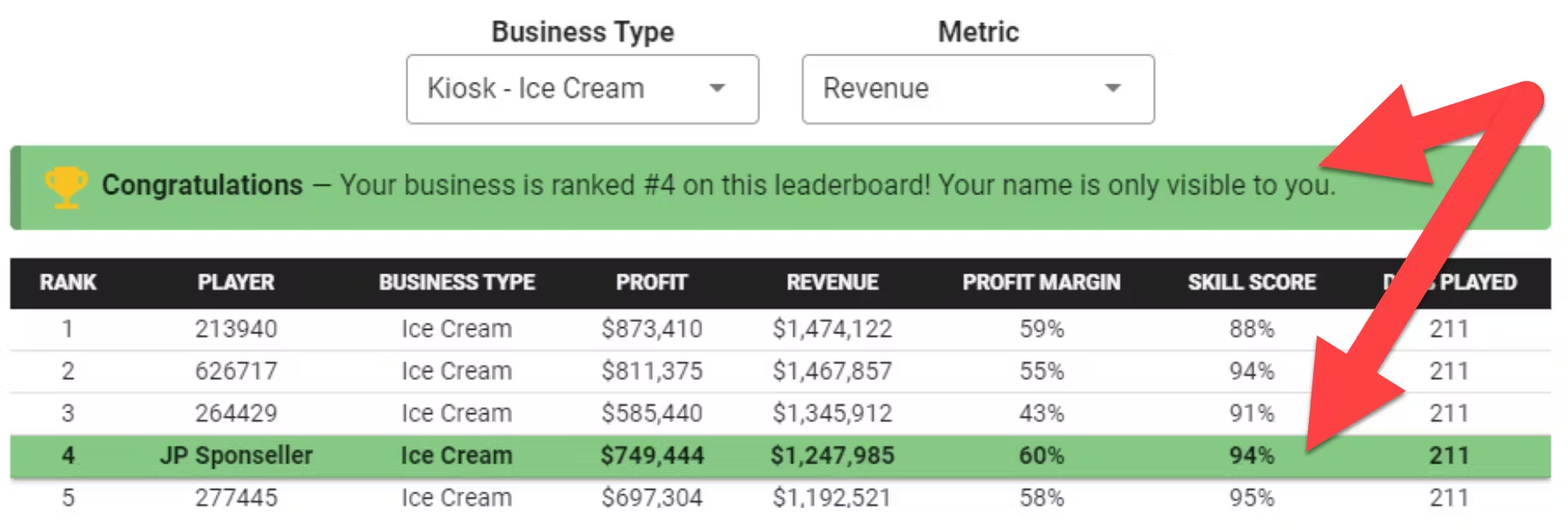

<img src = "https://books.playgoventure.com/u/3252bcc10b51ebb1f40614a0e1e882b4a5392f09b80f5dcee3ecafd31416cd87dc9ca673878927f6a8c845978e0beb00301c6722e17c66c185b5976cfcdacab05da175988dfb6e03e99e5e0fa4e49e0b518e121e8cf16bcb5fdb3fa74df1cb33afa5c976-S3SU4o.avif" style="width: 75%; display: block; margin: auto;">
    
*   Students will be notified that they appear on the Leaderboards on their student dashboard, like this ...
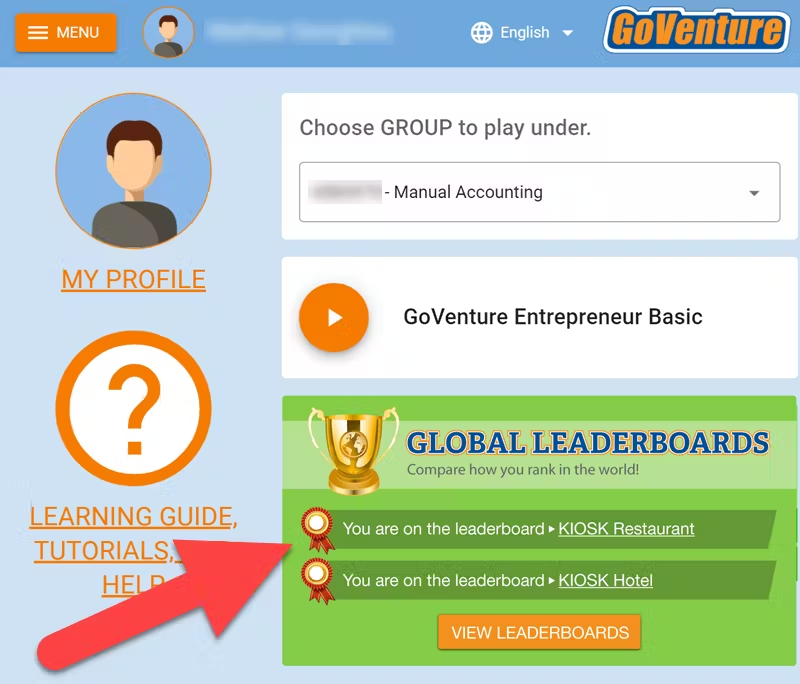

<img src = "https://books.playgoventure.com/u/903970733a8016d7f83ba244761667d80f16c4dedd91d12060d88556ddb9f6572af1a5875f2dcfc122ca489b9d1b290fd5fbd792bcf11108a02e68c957d48ebad1bc842b4452c11ef00a4d49a0ba59a4a7841df0b20cf3a54f79c247593911ec5424c780-UvuJfl.avif" style="width: 75%; display: block; margin: auto;">
    

_New feature coming in the future_— Instructors can see their own students who are on the Leaderboards by viewing the student Performance Reports.

*   Leaderboard rankings are available for Profit, Revenue, Profit Margin, Skill Score, and Days Played.
    
*   Leaderboards are updated once per day at the time shown on the leaderboards.
    
*   Players can only appear once for the same business type and must play at least 60 Simulation Days.
    
*   A high score can only remain on the Leaderboard for up to 6 months. This assures that there will always be new opportunities to appear on the Leaderboards.
    
*   Results from _Entrepreneur Basic_ and _Advanced_ are included and intermingled.
    
*   View and share the Leaderboards with this link    
— <a href="https://playgoventure.com/leaderboards/entrepreneur" target="_blank"><u>playgoventure.com/leaderboards/entrepreneur</u></a>
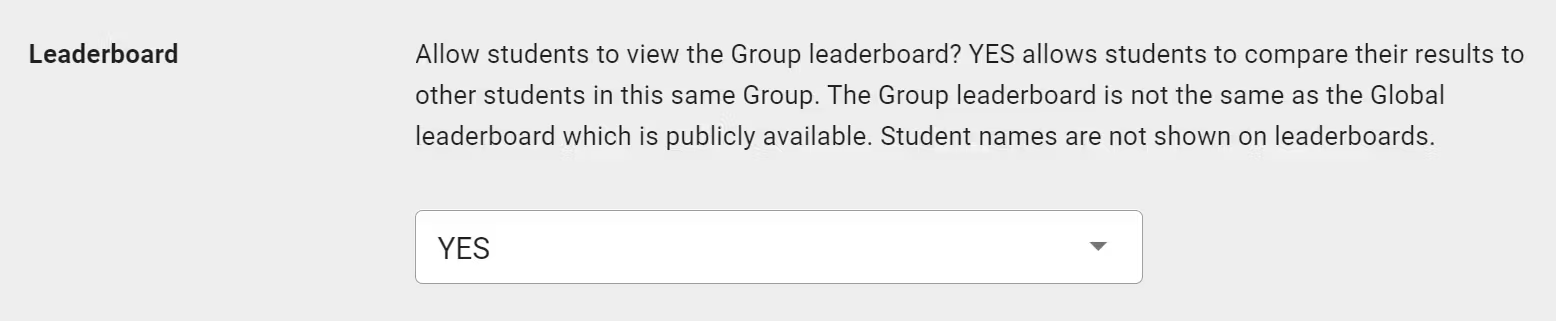

<hr style="margin: 0;">
### Group Leaderboard

*   In Group Settings, instructors can choose to make Group results visible to students. This allows students to compare their performance against each other.

<img src = "https://books.playgoventure.com/u/a114b67d09ff737e9ab51f5a5ab5372ea6c9010fa1a4370e57e346350d026e8b2bd72e3adfbec0c3e75301d5427b74c15a3f683b9ab488a331fdef17937e27066a3fc19df7c988b8b7c325750e150268d5b9cb61b621314970e04e5bae1f7f516ead14a4-OiN0iz.avif" style="width: 90%; display: block; margin: auto;">
    
*   To maintain student privacy, names are not shown on the Leaderboard — but be aware that since the leaderboard is for a specific group of students, it is likely that students may share or discover who they each are.
    
*   Students can view their Group Leaderboard by choosing their Group Number in the Group dropdown (shown below) on the Global Leaderboard website.  Note that Group Numbers only appear in the Group dropdown if the instructor chooses this option in Group Settings (as shown above).


<img src = "https://books.playgoventure.com/u/f5c566fa2e1237fe101b90a882e236d2757939174b435e45ce6dc4bb992df52d07e3addd1ae0357bf5af51625b786f6be8ee0afe2fa61af380c0f7319e4e6914f423f42964e01db1217f624dd9fb58b3a0cd6fb0a44095f0ca507b43d84badda0e11873a-LHkV1Q.avif" style="width: 90%; display: block; margin: auto;">

<hr style="margin: 0;">

# 7. Individual & Team Play
<hr style="margin: 0;">
**GoVenture Entrepreneur** is designed for each student to play on their own, but team play and collaboration can be added using the methods below.
    
*   If students are **physically together**, they can use one device to play together using one student account login. GoVenture treats them as one player. Teams of 2 or 3 are manageable in this way.  A video conferencing app with screen sharing enables students on the same team to play remotely.
    
*   If students are at a distance or together, instructors can assign students to teams and **grade students based on both their individual and combined team results**. This encourages students to help each other to improve their collective performance, while maintaining individual student responsibility for their own personal performance and participation requirements. This same approach can be used for an entire class where a portion of a final grade can be based on the combined results of the entire class, thereby encouraging classmates to help underperformers.
   
*   For suggestions on how to add competition, see section ***9. Assessment***.

* **Team (Peer) Evaluation** — Have students confidentially assess their teammates after the simulation has ended. A guide is available in section 9.7.
<hr style="margin: 0;">

# 8. Instructor Controls
<hr style="margin: 0;">
Instructors can control many settings in the Simulation using Group settings. Watch this video and review the text below.

<iframe src="https://player.vimeo.com/video/734868668" style="border: none; display: block; margin: auto; aspect-ratio:16/9; height:auto; width:70%;" allow="autoplay; fullscreen; picture-in-picture"></iframe>

<div align="center">
<a href="https://player.vimeo.com/video/734868668" target="_blank"_><u>Watch Full Screen</u></a>
</div>

<hr style="margin: 0;">
## 8.1 Play Limits

*   Instructors may optionally limit play to **pace student progress** and allow time to review performance results. Edit group settings at any time to change these limits.
    

<table>
  <tr>
    <td><b>Maximum Simulation Days To Play</b></td>
    <td>Set this to stop students from progressing past a specific number of Simulation Days. This is typically used for three purposes: (1) To keep students from spending too much time in the program so they can focus on other activities; (2) To control pacing so that students do not progress more quickly than desired; (3) To maintain fair assessment by requiring students to play an equal number of Simulation Days (but this is not normally used if a simulation is assessed with 100% Participation, as playing more days provides more learning).</td>
  </tr>
  <tr>
    <td><b>Last Calendar Day Allowed to Play</b></td>
    <td>Set this to stop students from progressing past a specific calendar date (as of 11:59pm in the student's time zone). This is typically used for two purposes: (1) To keep students from spending too much time in the program so they can focus on other activities; (2) To assure that students meet a specific assessment deadline — while providing the instructor time to do the assessment at their convenience.  Note: It is possible for a student to spoof their timezone and push the deadline a few hours past their actual time zone.</td>  
  </tr>
</table>

*  WARNING — Simulations will only register new play limits when the Simulation window is refreshed or closed and opened. This means if a student is currently playing live while you make a change, that change will not register for that student unless they refresh their browser or close and open the Simulation window.
    

<hr style="margin: 0;">
## 8.2 Business Level Settings

*   Instructors can choose which business levels students can play. It is highly recommended that first-time players start with **Lemonade Stand** and progress through the **Kiosk business** before playing the **Full business**. See additional information under _**6.3 Types of Businesses & Products.**_
    
*   This is recommended regardless of the profile of your students (whether new to business or MBA graduates) because the simpler businesses serve as tutorials for the more advanced business. _Full Business_ is very challenging.
    
*   You must set up separate Groups for each business level. Instructors can choose to have students spend less time on the simpler business options using the Level-Up Settings below.
    
<hr style="margin: 0;">
## 8.3 Level-Up Settings


* To move students from _Lemonade Stand_ to _Kiosk Business_to _Full Business_, you must create **separate Groups** for each business level and then give students the Group number for the level you want them to start playing. Set a date deadline and achievement requirements for each level and then give out the next Group number when that date arrives. See below for more information.

* Instructors can control **when students are allowed to level up** in the simulation by choosing the amount of PROFIT or PLAY TIME a student needs to achieve before the advanced features are unlocked. The CALENDAR DATE feature can be used to pace students based on your preferred schedule.
<br><br>
_For example, an instructor can set that a student must achieve $250 in Profit before being allowed to start their 2nd Lemonade Stand. Or, $250 Profit and have played a minimum of 30 Simulation Days. And not before the date of April 21._
      
*  Players are required to pay theses costs to add a second location:
  * Lemonade Stand — $50 for second stand and $50 for third stand.
  * Kiosk Business — $3,000 for second kiosk and $8,000 for third kiosk.
  * Full Business — can only run one location.
    
<br>
<hr style="margin: 0;">
## 8.4 Report Visibility

*   Instructors can choose to hide specific reports so that students cannot see them when playing.  
    
*   For example, you may hide the _Balance Sheet_ and _Income Statement_ and have students build their own from data in the _General Ledger_.
    

<hr style="margin: 0;">

# 9. Assessment
<hr style="margin: 0;">
**GoVenture Entrepreneur** includes multiple assessment options to choose from, enabling instructors to perfectly match their grading and performance preferences. Watch this 12-minute video to discover how to set up GoVenture Entrepreneur for your course and review student assessment methods.

<iframe src="https://player.vimeo.com/video/505356931" style="border: none; display: block; margin: auto; aspect-ratio:16/9; height:auto; width:70%;" allow="autoplay; fullscreen; picture-in-picture"></iframe>
<div align="center">
<a href="https://player.vimeo.com/video/505356931" target="_blank"_><u>Watch Full Screen</u></a>
</div>

<hr style="margin: 0;">
## 9.1 Assessment Methods

<hr style="margin: 0;">
### 9.1.1 Summary
<table style="border-collapse: collapse; width: 100%; border: 1px solid black;">
  <tr>
    <th style="text-align: center; background-color: lightgrey; padding: 10px; border: 1px solid black;">METHOD</th>
    <th style="text-align: center; background-color: lightgrey; padding: 10px; border: 1px solid black;">DESCRIPTION</th>
  </tr>
  <tr>
    <td style="text-align: center; font-weight: bold; padding: 10px; border: 1px solid black;">Simulation PARTICIPATION</td>
    <td style="padding: 10px; border: 1px solid black;">Participation means playing a required number of Simulation Days. Participation is typically the heaviest weighted assessment metric.</td>
  </tr>
  <tr>
    <td style="text-align: center; font-weight: bold; padding: 10px; border: 1px solid black;">Simulation<br>SKILL</td>
    <td style="padding: 10px; border: 1px solid black;">A holistic measure of business success is calculated with a Skill Score.</td>
  </tr>
  <tr>
    <td style="text-align: center; font-weight: bold; padding: 10px; border: 1px solid black;">Competition</td>
    <td style="padding: 10px; border: 1px solid black;">Comparison of student SKILL scores or PROFIT with other students in the same class or cohort.</td>
  </tr>
<tr>
    <td style="text-align: center; font-weight: bold; padding: 10px; border: 1px solid black;">Microlearning</td>
    <td style="padding: 10px; border: 1px solid black;">Completion of required Microlearning Modules and related quiz scores.</td>
  </tr>
<tr>
    <td style="text-align: center; font-weight: bold; padding: 10px; border: 1px solid black;">Student Experience Report or Presentation</td>
    <td style="padding: 10px; border: 1px solid black;">Students prepare written, live, or video presentations or reports on their experience playing the simulation and business decisions and strategy. Or have students evaluate each other's performance. A template is available in section 9.1.2.</td>
  </tr>
<tr>
    <td style="text-align: center; font-weight: bold; padding: 10px; border: 1px solid black;">Team Evaluation</td>
    <td style="padding: 10px; border: 1px solid black;">Award points based on how each student is evaluated by their teammates. You can also have individuals evaluate themselves for self-reflection. See section 7 for how to apply team play and section 9.7 for assessment.
</td>
  </tr>
<tr>
    <td style="text-align: center; font-weight: bold; padding: 10px; border: 1px solid black;">Activities</td>
    <td style="padding: 10px; border: 1px solid black;">Printable activities can be assigned and graded.</td>
  </tr>
  </tr>
</table>
<br>

<hr style="margin: 0;">
### 9.1.2 Details
View the table above with full details.
<details>
<summary><b>Expand this section</b> — click the black triangle</summary>

<table style="border-collapse: collapse; width: 100%; border: 1px solid black;">
  <tr>
    <th style="text-align: center; background-color: lightgrey; padding: 10px; border: 1px solid black;">METHOD</th>
    <th style="text-align: center; background-color: lightgrey; padding: 10px; border: 1px solid black;">DESCRIPTION</th>
  </tr>
  <tr>
    <td style="text-align: center; font-weight: bold; padding: 10px; border: 1px solid black;">Simulation PARTICIPATION</td>
    <td style="padding: 10px; border: 1px solid black;"><b>Participation should be the heaviest weighted assessment metric.</b> Participation means playing a required number of Simulation Days. On average, it takes 1 hour to play 30 Simulation Days for <i>Lemonade Stand</i>, 1.5 hours for <i>Kiosk Business</i>, and 2 hours for <i>Full Business</i>. Play cannot be automated, meaning that students remain engaged by being required to continually make decisions in the simulation.<br><br>Making poor decisions or avoiding decisions will lead to bankruptcy and require the student to start over. A student that keeps the business running for many business days demonstrates, at minimum, a satisfactory level of work and performance. Profitability and other metrics demonstrate the degree or level of business success achieved and can also be used for performance comparisons with other students.</td>
  </tr>
  <tr>
    <td style="text-align: center; font-weight: bold; padding: 10px; border: 1px solid black;">Simulation<br>SKILL</td>
    <td style="padding: 10px; border: 1px solid black;"><b>A holistic measure of business success is calculated with a Skill Score.</b> All key business metrics in the simulation are tracked and reported. Business metrics include Days in Business, Profit, Profit Margin, Cash, Revenue, Expenses, Assets & Liabilities, Equity, Customer Satisfaction, Employee Morale, Health, and more. See below for how SKILL is calculated. See further up in this document how team play can be assessed.</td>
  </tr>
  <tr>
    <td style="text-align: center; font-weight: bold; padding: 10px; border: 1px solid black;">Competition</td>
    <td style="padding: 10px; border: 1px solid black;"><b>If competition is important to you</b>, compare student SKILL score or PROFIT with other students in the same class or cohort. Consider how the Global Leaderboards can be used to further motivate and reward students.</td>
  </>
  </tr>
<tr>
    <td style="text-align: center; font-weight: bold; padding: 10px; border: 1px solid black;">Microlearning</td>
    <td style="padding: 10px; border: 1px solid black;">GoVenture is enhanced with over 100 microlearning modules that introduce business concepts using video and other media supported with knowledge checks and quizzes. Students earn 1 star for completing a microlearning module with 1 mistake made on the quiz questions for that module, or 2 stars if no mistakes made. 0 stars are earned otherwise. A student earning 2 stars on all microlearning modules (chosen by the instructor) will earn 100% while a student earning 1 star on all modules will earn 70%. A mix of stars will earn students a score in between 70% to 100%.</td>
  </>
  </tr>
<tr>
    <td style="text-align: center; font-weight: bold; padding: 10px; border: 1px solid black;">Student Experience Report or Presentation</td>
    <td style="padding: 10px; border: 1px solid black;">Students prepare written, live, or video presentations or reports on their experience playing the simulation and business decisions and strategy. Encourages students to reflect on their simulation experience and what they learned, and then organize and present their thoughts. A report template is available in Google Slides, which you can download, edit, and send to students (using your school LMS or other method). The questions in this template are for the Full Business so you may need to remove some questions if your students only played Kiosk or Lemonade Stand. You may also consider having students evaluate each other's performance. <a href="https://docs.google.com/presentation/d/1rLAMOrt-UluU8lhI2SJ2rK4uLxqsb9IVPPzNwT9lln0/edit?usp=sharing" target="_blank"_><u>Click here to view the template</u></a> (do not share this link with students).</td>
  </>
  </tr>
<tr>
    <td style="text-align: center; font-weight: bold; padding: 10px; border: 1px solid black;">Team Evaluation</td>
    <td style="padding: 10px; border: 1px solid black;">Award points based on how each student is evaluated by their teammates. You can also have individuals evaluate themselves for self-reflection. See section 7 for how to apply team play and section 9.7 for assessment.
</td>
  </tr>
<tr>
    <td style="text-align: center; font-weight: bold; padding: 10px; border: 1px solid black;">Activities</td>
    <td style="padding: 10px; border: 1px solid black;">Printable activities can be assigned and graded.</td>
  </>
  </tr>
<tr>
    <td style="text-align: center; font-weight: bold; padding: 10px; border: 1px solid black;">Test Bank</td>
    <td style="padding: 10px; border: 1px solid black;">Quiz questions aligned with the Business Learning & Activity Book are available to instructors as a Google document (upon request). The Test Bank should only be considered if the Microlearning module is not used.</td>
  </>
  </tr>
</table>

</details>
<br>
<hr style="margin: 0;">
### 9.1.3 Details

If you need to calculate points for grades or transfer them to a learning management system, all reports and data tables in GoVenture can be copied to a spreadsheet — this video shows you how.

<iframe src="https://player.vimeo.com/video/812139091" style="border: none; display: block; margin: auto; aspect-ratio:16/9; height:auto; width:70%;" allow="autoplay; fullscreen; picture-in-picture"></iframe>
<div align="center">
<a href="https://player.vimeo.com/video/812139091" target="_blank"_><u>Watch Full Screen</u></a>
</div>
<br>
<hr style="margin: 0;">
## 9.2 Rubric Score & Sample Assessment Formula

*   **Rubric Score** — Group settings allow you to set a scoring formula, similar to the examples shown below. The Rubric Score will be automatically generated and appear on the _Performance Reports_ available to instructors and students.

<img src = "https://books.playgoventure.com/u/f90da2ea22c0abe85dbfa2751536a8998c978f53815c16e47dae24e28eb6dec8920b70b9e15b9728c23afaa2d506cc9ab038dde8427875d39b3a508e1a85ae1f4dfbafe35a015de82abaa8e9036f5915de4ead41b1833380125703e401c2502cb0c1d8c3-10RxGI.avif" style="width: 70%; display: block; margin: auto;">
    

* The **Rubric Score** can include **Participation**, **Simulation Skill**, and **Microlearning**.
    
*   **Participation** measures the number of Simulation Days played. Example — You assign students to play 60 Simulation Days. A student who plays 60 (or more) will earn 100%, whereas a student that only plays 30 will only earn 50% of the points for Participation.
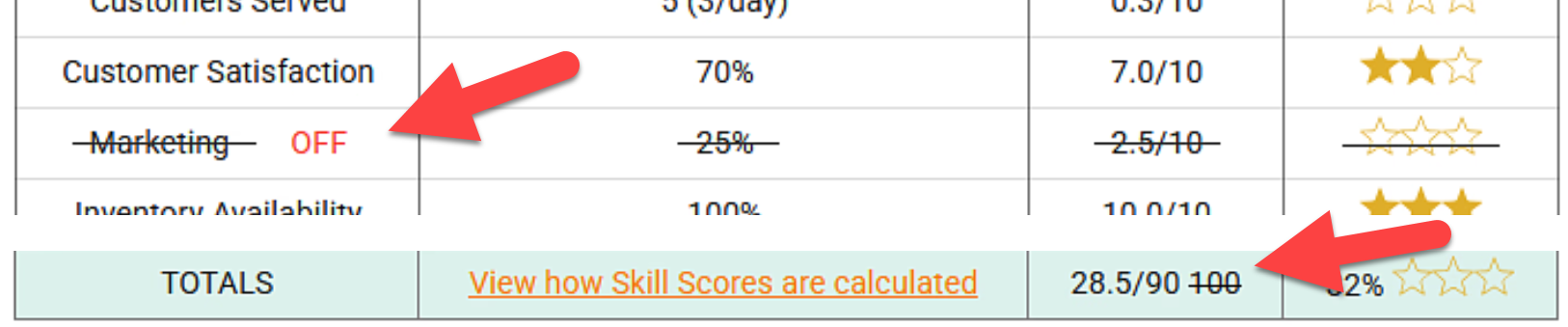
<br><br>With GoVenture Entrepreneur, students who run their businesses successfully without running out of money (going bankrtupt) are demonstrating reasonably good decision making. The simulation cannot be automated, so you are assured that students are fully engaged and putting in the work. They should be rewarded for this.
    
*   **Simulation Skill** rewards students who demonstrate more effort and better business results. This is measured by the student **Skill Score** earned while playing (see section 9.6 for details on the Skill Score).
<br><br>It is recommended that the Rubric Score percentage applied to the Skill Score be no more than 50% of the Simulation Days to be played. Example— If you expect students to play 60 Simulation Days, set the Performance (Skill Score) to 30% or less. The reason for this is that the Skill Score becomes more accurate with the more Simulation Days played.

*   The following formula is recommended for _Lemonade Stand_ and _Kiosk_:
 
<table style="background-color: lightgrey; padding: 10px; border: 1px solid black; width: 100%; height: 100px;">
  <tr>
    <td style="text-align: center; vertical-align: middle;"><b>50% Participation</b><br>(Days Played)</td>
    <td style="text-align: center; vertical-align: middle;">+</td>
    <td style="text-align: center; vertical-align: middle;"><b>50% Performance</b><br>(Skill Score)</td>
  </tr>
</table>
    
*   The following formula is recommended for _Full Business_:
 
<table style="background-color: lightgrey; padding: 10px; border: 1px solid black; width: 100%; height: 100px;">
  <tr>
    <td style="text-align: center; vertical-align: middle;"><b>70% Participation</b><br>(Days Played)</td>
    <td style="text-align: center; vertical-align: middle;">+</td>
    <td style="text-align: center; vertical-align: middle;"><b>30% Performance</b><br>(Skill Score)</td>
  </tr>
</table>

*   The following formula is recommended for _practice_ simulations:
 
<table style="background-color: lightgrey; padding: 10px; border: 1px solid black; width: 100%; height: 100px;">
  <tr>
    <td style="text-align: center; vertical-align: middle;"><b>100% Participation</b><br>(Days Played)</td>
   
  </tr>
</table>

*   **Microlearning** assessment has the following considerations:

 * When playing multiple simulations (multiple Groups), it is best to exclude Microlearning from the Rubric Score so it can be assessed separately. This makes it easier to align grade points with the level of effort.
<br></br>
  * The more modules required, the more time it takes students to complete. Therefore, a higher assessment percentage is typically assigned so that the grade better reflects the level of effort.
<br></br>
  * The automated Microlearning assessment (using quizzes) is not as robust as playing the simulation. Microlearning is intended to provide foundational knowledge, while the simulation assesses skills and competencies.
<br></br>

<hr style="margin: 0;">
## 9.3 Adding Competition


*   An effective way to increase fun and performance is through competition. Use the Skill Score, Net Profit, or other metric to rank students in the same group. Here is one possible measure:
    
    *   Top 10% earn 10 points
        
    *   Top 25% earn 7 points
        
    *   Top 50% earn 5 points
        
    *   Top 75% earn 3 points
        
    *   All others earn 0 points
        
    
*   If you choose to award cash, gifts, or other prizes, we recommend that you choose a larger number of winners for small prizes, rather than a few winners of larger prizes. This will motivate a higher number of participants to do well, while also minimizing any perceived unfairness that could arise with a larger prize.
    
*   Instructors can control **which types of businesses** students may choose for Kiosk and Full Business. This feature is useful if you want consistency or are hosting a competition and prefer that all students choose the same type of business.  Running the same type of business is not required for hosting a competition but maximizes fairness. This is specifically important with Full business where there are businesses types with three levels of difficulty to choose from. Business types are described in section 6.2.
    
*   Consider how the **Global or Group Leaderboards** can be used to further motivate and reward students (see section 6.8).
    

_The above are suggested examples — instructors should use their preferred assessment methods and weightings. Note that formulas like the above must be manually calculated by the instructor using a spreadsheet or other method._

<hr style="margin: 0;">
## 9.4 Performance Report — Summary

*   Each of the three business levels is tracked and scored independently.
    
*   Each student in a Group is listed in summary tables for easy evaluation and comparison — see examples below.

**Lemonade Stand Business**

<table style="width: 100%; border: 1px solid black; border-collapse: collapse;">
  <tr>
    <th style="text-align: center; vertical-align: middle; border: 1px solid black; padding: 10px;">Player & Business Name</th>
    <th style="text-align: center; vertical-align: middle; border: 1px solid black; padding: 10px;">Days Played</th>
    <th style="text-align: center; vertical-align: middle; border: 1px solid black; padding: 10px;">Number of Stands</th>
    <th style="text-align: center; vertical-align: middle; border: 1px solid black; padding: 10px;">Quantity Sold</th>
    <th style="text-align: center; vertical-align: middle; border: 1px solid black; padding: 10px;">Sales Revenue</th>
    <th style="text-align: center; vertical-align: middle; border: 1px solid black; padding: 10px;">Expenses & COGS</th>
    <th style="text-align: center; vertical-align: middle; border: 1px solid black; padding: 10px;">Profit</th>
    <th style="text-align: center; vertical-align: middle; border: 1px solid black; padding: 10px;">Profit Margin</th>
    <th style="text-align: center; vertical-align: middle; border: 1px solid black; padding: 10px;">Skill Score</th>
  </tr>
  <tr>
    <td style="text-align: center; vertical-align: middle; border: 1px solid black; padding: 10px;">Student Name<br>Business Name</td>
    <td style="text-align: center; vertical-align: middle; border: 1px solid black; padding: 10px;">#</td>
    <td style="text-align: center; vertical-align: middle; border: 1px solid black; padding: 10px;">#</td>
    <td style="text-align: center; vertical-align: middle; border: 1px solid black; padding: 10px;">#</td>
    <td style="text-align: center; vertical-align: middle; border: 1px solid black; padding: 10px;">$</td>
    <td style="text-align: center; vertical-align: middle; border: 1px solid black; padding: 10px;">$</td>
    <td style="text-align: center; vertical-align: middle; border: 1px solid black; padding: 10px;">$</td>
    <td style="text-align: center; vertical-align: middle; border: 1px solid black; padding: 10px;">%</td>
    <td style="text-align: center; vertical-align: middle; border: 1px solid black; padding: 10px;">% ★★★</td>
  </tr>
</table>


**Kiosk Business**
<table style="width: 100%; border: 1px solid black; border-collapse: collapse;">
  <tr>
    <th style="text-align: center; vertical-align: middle; border: 1px solid black; padding: 10px;">Player & Business Name</th>
    <th style="text-align: center; vertical-align: middle; border: 1px solid black; padding: 10px;">Type of Business</th>
    <th style="text-align: center; vertical-align: middle; border: 1px solid black; padding: 10px;">Days Played</th>
    <th style="text-align: center; vertical-align: middle; border: 1px solid black; padding: 10px;">Revenue</th>
    <th style="text-align: center; vertical-align: middle; border: 1px solid black; padding: 10px;">Expenses & COGS</th>
    <th style="text-align: center; vertical-align: middle; border: 1px solid black; padding: 10px;">Profit</th>
    <th style="text-align: center; vertical-align: middle; border: 1px solid black; padding: 10px;">Profit Margin</th>
    <th style="text-align: center; vertical-align: middle; border: 1px solid black; padding: 10px;">Health</th>
    <th style="text-align: center; vertical-align: middle; border: 1px solid black; padding: 10px;">Skill Score</th>
  </tr>
  <tr>
    <td style="text-align: center; vertical-align: middle; border: 1px solid black; padding: 10px;">Student Name<br>Business name</td>
    <td style="text-align: center; vertical-align: middle; border: 1px solid black; padding: 10px;">Bus. Type # Kiosks</td>
    <td style="text-align: center; vertical-align: middle; border: 1px solid black; padding: 10px;">#</td>
    <td style="text-align: center; vertical-align: middle; border: 1px solid black; padding: 10px;">$</td>
    <td style="text-align: center; vertical-align: middle; border: 1px solid black; padding: 10px;">$</td>
    <td style="text-align: center; vertical-align: middle; border: 1px solid black; padding: 10px;">$</td>
    <td style="text-align: center; vertical-align: middle; border: 1px solid black; padding: 10px;">%</td>
    <td style="text-align: center; vertical-align: middle; border: 1px solid black; padding: 10px;">%</td>
    <td style="text-align: center; vertical-align: middle; border: 1px solid black; padding: 10px;">% ★★★</td>
  </tr>
</table>


**Full Business**
<table style="width: 100%; border: 1px solid black; border-collapse: collapse;">
  <tr>
    <th style="text-align: center; vertical-align: middle; border: 1px solid black; padding: 10px;">Player & Business Name</th>
    <th style="text-align: center; vertical-align: middle; border: 1px solid black; padding: 10px;">Type of Business</th>
    <th style="text-align: center; vertical-align: middle; border: 1px solid black; padding: 10px;">Days Played</th>
    <th style="text-align: center; vertical-align: middle; border: 1px solid black; padding: 10px;">Revenue</th>
    <th style="text-align: center; vertical-align: middle; border: 1px solid black; padding: 10px;">Expenses & COGS</th>
    <th style="text-align: center; vertical-align: middle; border: 1px solid black; padding: 10px;">Profit</th>
    <th style="text-align: center; vertical-align: middle; border: 1px solid black; padding: 10px;">Profit Margin</th>
    <th style="text-align: center; vertical-align: middle; border: 1px solid black; padding: 10px;">Health</th>
    <th style="text-align: center; vertical-align: middle; border: 1px solid black; padding: 10px;">Skill Score</th>
  </tr>
  <tr>
    <td style="text-align: center; vertical-align: middle; border: 1px solid black; padding: 10px;">Student Name<br>Business name</td>
    <td style="text-align: center; vertical-align: middle; border: 1px solid black; padding: 10px;">Bus. Type # Locations</td>
    <td style="text-align: center; vertical-align: middle; border: 1px solid black; padding: 10px;">#</td>
    <td style="text-align: center; vertical-align: middle; border: 1px solid black; padding: 10px;">$</td>
    <td style="text-align: center; vertical-align: middle; border: 1px solid black; padding: 10px;">$</td>
    <td style="text-align: center; vertical-align: middle; border: 1px solid black; padding: 10px;">$</td>
    <td style="text-align: center; vertical-align: middle; border: 1px solid black; padding: 10px;">%</td>
    <td style="text-align: center; vertical-align: middle; border: 1px solid black; padding: 10px;">%</td>
    <td style="text-align: center; vertical-align: middle; border: 1px solid black; padding: 10px;">% ★★★</td>
  </tr>
</table>


**Microlearning**
<table style="width: 100%; border: 1px solid black; border-collapse: collapse;">
  <tr>
    <th style="text-align: center; vertical-align: middle; border: 1px solid black; padding: 10px;">Player</th>
    <th style="text-align: center; vertical-align: middle; border: 1px solid black; padding: 10px;">Topics Completed</th>
    <th style="text-align: center; vertical-align: middle; border: 1px solid black; padding: 10px;">Percent Completed</th>
    <th style="text-align: center; vertical-align: middle; border: 1px solid black; padding: 10px;">Score</th>
    <th style="text-align: center; vertical-align: middle; border: 1px solid black; padding: 10px;">Grade Points Rating: ★★1.5 ★0.7</th>
  </tr>
  <tr>
    <td style="text-align: center; vertical-align: middle; border: 1px solid black; padding: 10px;">Student Name</td>
    <td style="text-align: center; vertical-align: middle; border: 1px solid black; padding: 10px;">#</td>
    <td style="text-align: center; vertical-align: middle; border: 1px solid black; padding: 10px;">%</td>
    <td style="text-align: center; vertical-align: middle; border: 1px solid black; padding: 10px;">%</td>
    <td style="text-align: center; vertical-align: middle; border: 1px solid black; padding: 10px;">#</td>
  </tr>
</table>


<hr style="margin: 0;">
## 9.5 Performance Report — Detail

*   In addition to the summary tables listed above, detailed Performance Reports are available for each student.
    
*   The detailed _Performance Reports_ include in-depth information and financial reports for each of the three business levels.
    
<hr style="margin: 0;">
## 9.6 Skill Scores

*   Each skill is scored as shown in the table below.  
    
*   Each major skill is made up of the scores of the sub-skills underneath it.  Each major skill is weighted by a certain percentage to determine the overall Skill Score.
    
*   Note that a Skill Score above 90% is difficult or impossible to achieve because metrics may inversely influence each other.  For example, increasing Health by working less will likely result in lower revenue and profit.

* If a business module is turned OFF (see section 6.3), it will not be included in the Skill Score and will appear as shown in the screenshot below. The Total Score will be adjusted accordingly. If a module is initially OFF and then turned ON, the scores will update automatically to include the new module.

<img src = "https://books.playgoventure.com/u/en-skill-score-module-off-2025-04-01_16-18-55-EO86Ww.png" style="width: 85%; display: block; margin: auto;">

**Lemonade Stand**

<img src = "https://books.playgoventure.com/u/0715d3bbb537f355100f94b4ae6fd85c0c29c712f2ae1579a553658910ff6907bc8e9386c03fc58155ede0503ae18e076ee168530b13e0216a9d3f0d5bb546dc713fc9e35fc9dd0823a6150cfb6117a8b184d3df2be3a08c3f75f27019e5213a433c1421-yguj3X.avif" style="width: 85%; display: block; margin: auto;">

**Kiosk Business**

<img src = "https://books.playgoventure.com/u/739b671a2185cf3178aab863fa0370bc2da2b413dcc5be76f9d594b04e7f4e4d52be8cd0dbe2a6ce43504c5180f7adbef9f006c66d867d72bd447ee78e00c350de15f63b17fef449e62087301dd3d7bd97ad7437db039ef60163cfb17f233db66cc065ab-wGGwyl.avif" style="width: 85%; display: block; margin: auto;">

*   **Profit Margin** is Net Profit Margin.

* **Customers Served** — To calculate points scored, the actual _Average Customers Per Day_ value is adjusted based on the business type. This provides a consistent score for the various business types available.
    
*   **Marketing** is measured by the increase in customers achieved based on investments made in advertising and signage and appearance.
    
*   **Employee Productivity** is measured by the skills and reliability of each employees and weighted by the number of hours worked by each.
    
*   **Inventory Availability** is measured by the number of times a customer ordered a product and it was available — all inventory items were available to make the product.
    
*   **Inventory Spoilage** is measured by the value (cost of goods) of the items ordered and received as compared to the total value of all items ordered and received.
    

**Kiosk With Manual Accounting**If the Kiosk business is played with _Manual Accounting_ where students have to post their debits and credits for each financial transaction, points are deducted from the Skill score each time a student uses the options to _Show Hint_ (minus 0.5 points) or _Show Answer_ (minus 1.0 points). 
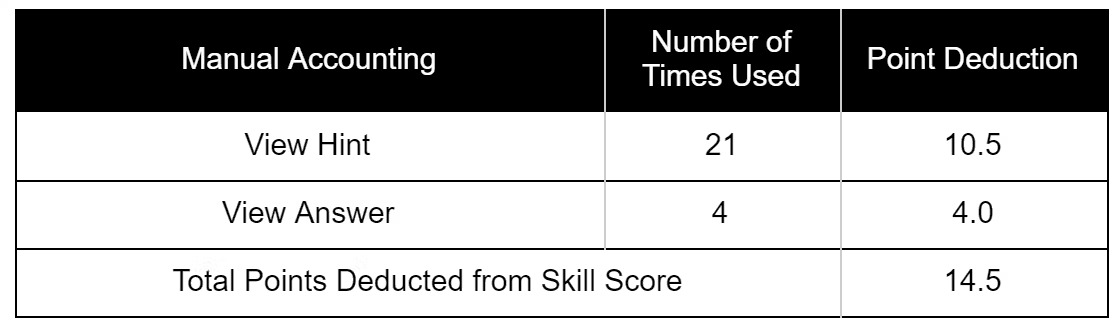

<img src = "https://books.playgoventure.com/u/75bae92ea93c3cb20ebcd9c39dbd7f4d960a827c66569015b89168c899ead58cae7a99445373900db107fddf67b0fa560e976ae4c801485e6e8637cf7ba0879409efc7e31893ca3fd2f15abc65234fd233fe584ef6d515f814642543ace7bba1a6b9d132-9gNJLw.avif" style="width: 85%; display: block; margin: auto;">

**Full Business**

<img src = "https://books.playgoventure.com/u/86218830961be4e35d52a20f425571aa3b377b3e1196efd534c0b3e8775235737a6ecee5588407de5ad68f2594d2ac111925af0f0275b58d445a1aa50c8e9ecdafadced51c4b890ae6aa265ade21ee9e558448bcad9f86b31ff18401340b9f059e1ca2c9-gJJ0st.avif" style="width: 85%; display: block; margin: auto;">

*   **Profit** is Net Profit.
    
*   **Revenue** is gross income.
    
*   **Profit Margin** is Net Profit Margin.
    
*   **Business Reputation** is comprised of Employee Morale, Paying bills on time, Social Responsibility, and Brand Awareness.
    
*   **Health** is based on the number of hours working and commuting versus home time.
    
*   **Customers Served** is the total number of customers who placed and received their order. To calculate points scored, the actual _Average Customers Per Day_ value is adjusted based on the business type. This provides a consistent score for the various business types available.
    
*   **Customer Satisfaction** is based on speed of service, product quality, product price, and your/employee customer service skill.
    
*   **Brand Equity** is comprised of Brand Awareness and Business Reputation.
    
*   **Advertising Effectiveness** is comprised of Targeting Effectiveness, Messaging Effectiveness, and Media Effectiveness.
    
*   **Capacity Planning** is equal to the number of customers lost divided by the number of customers served and lost. Customers may be lost due to lack of space or efficiency of the site, lack of capacity of the equipment, or slow service due to too few people working.
    
*   **Inventory Availability** is measured by the number of times a customer ordered a product and it was available — all inventory items were available to make the product.
    
*   **Inventory Spoilage** is measured by the value (cost of goods) of the items ordered and served to customers as compared to the total value of all items ordered and received by the business.
    
*   **Employee** **Morale** is determined by salary, schedule, benefits, training, productivity, and customer satisfaction.
    
*   **Employee Productivity** is weighted by the number of hours worked by each employee.
    
*   **Employee Turnover** is equal to the number of employees who have left or have been let go, divided by the number of employees hired.

<hr style="margin: 0;">
## 9.7 Team Evaluation

- Have students confidentially assess their teammates after the simulation has ended. 

- If a simulation is run over several days or longer, consider conducting two assessments — one half-way through the simulation and the other at the end, as this provides students the opportunity to improve any deficiencies.  

- Below is a sample evaluation you can copy to create your own document.

<hr style="margin: 0;">
**📝 Team Evaluation**

Copy the text and table below to provide to your participants. You may want to create a printable document.  If you do not have the time or desire to collect or share sensitive feedback with participants, consider having them do the evaluation on themselves for self-reflection — this alone can be a useful exercise.

**Directions**

Evaluate YOURSELF and each of your TEAMMATES using the rating system shown below. Your teammates will be completing a similar evaluation. Your name and responses will be made available to your Simulation Manager (Instructor), who may or may not share this information with others.

<table>
    <tr>
        <th>Rating</th>
        <th>Points</th>
        <th>Description</th>
    </tr>
    <tr>
        <td>Great</td>
        <td>1.5 points</td>
        <td>Your teammate was very good at this, perhaps one of the best on your team.</td>
    </tr>
    <tr>
        <td>Good</td>
        <td>1 point</td>
        <td>Your teammate was good at this and met the expectations of your team.</td>
    </tr>
    <tr>
        <td>Not Good</td>
        <td>0 points</td>
        <td>Your teammate did not meet the expectations of your team.</td>
    </tr>
<tr>
        <td>Unknown</td>
        <td>0 points</td>
        <td>You did not interact enough with your teammate to know how to rate them, or this question does not apply to how your team worked together.</td>
    </tr>
</table>

</body>
</html>

 ![fe0eb41036e697ce881ebf47c48f054cce895aa0221e6bc7701a1b0beb46dd1907c35519556cb13dc5c4619164ef233cead81f6cd0da2f392262e44aaad9a89abf14c62bf6fa0d855398ceb61246c5e90dc4992b6662d3c0c8a9ba961c0bfbb9fb670adb.avif](https://books.playgoventure.com/u/fe0eb41036e697ce881ebf47c48f054cce895aa0221e6bc7701a1b0beb46dd1907c35519556cb13dc5c4619164ef233cead81f6cd0da2f392262e44aaad9a89abf14c62bf6fa0d855398ceb61246c5e90dc4992b6662d3c0c8a9ba961c0bfbb9fb670adb-topjmv.avif)


<hr style="margin: 0;">

# 10. Curriculum Planning Guide
<hr style="margin: 0;">
This **Curriculum Guide** helps instructors with the **scope and sequence** of course planning for **GoVenture Entrepreneur**.  GoVenture can be used as a **supplement** to enhance an existing curriculum for 2, 5, 10, or 20 hours, or it can be used as the **core curriculum** for a course that requires 40 hours or more. 

<img src = "https://books.playgoventure.com/u/d2149cec77e2e59dab5e4b406bdea124cebbb2a02b8b1070ef7b0fb57f384bc1d39955990192d9ef047038d154244c4de53787f6352d92a1bcbc0f1a3bddac49cc74564d924aaa0695368f1b09da293627556f42b4df9b3276ddbc20cbbb7d092e272086-dhbsrf.avif" style="width: 50%; display: block; margin: auto;">

<hr style="margin: 0;">
## 10.1 Curriculum Time

* The primary decision an instructor must make is to determine **how much time** is available for GoVenture.  This includes curriculum and homework time.

* GoVenture is comprehensive and modular and can be configured to match your available time and the learning outcomes to be achieved. GoVenture covers all or nearly all educational standards for business and entrepreneurship. 
    
 *  Instructors that will use GoVenture as the **primary resource** for a full curriculum will likely use all the available resources, particularly the comprehensive Microlearning modules and related PDF Activities.
 <br>   
 * Instructors that only have a **few hours** of curriculum time for GoVenture, may focus primarily on the Simulation.
 <br>   

<hr style="margin: 0;">
## 10.2 Possible Approaches

* GoVenture is a comprehensive program designed to supplement and enhance your existing course, program, or curriculum.  It has been specifically created to provide you with a broad and flexible range of options. You may choose to use GoVenture at the **beginning** of a course, at the **end** of a course, or **throughout** an entire course.

<hr style="margin: 0;">
### 10.2.1 Using GoVenture at the Beginning of a Course

* By using GoVenture at the beginning of a course, students immediately gain practical experience in the decisions that need to be made when running a business. This experience provides them with considerably more insight into what they need to learn and why, making them more likely to participate in class discussion and to ask insightful questions.  Lectures and textbooks become instantly transformed into valued sources of information when connected to the realistic GoVenture experience.

<hr style="margin: 0;">
### 10.2.2 Using GoVenture at the End of a Course

* By using GoVenture at the end of a course, students can apply the knowledge, lessons, and techniques they have learned throughout your course to a highly realistic, simulated business setting.  GoVenture provides students with the opportunity to gain experience and to make the important connection between business theory and practice.

<hr style="margin: 0;">
### 10.2.3 Using GoVenture Throughout a Course

* GoVenture is essentially a business laboratory where your students can go every week, or every day, to apply the information and concepts you are teaching in class. Throughout your course, students can continually use GoVenture to experience and experiment with the knowledge they are gaining. Choosing what is right for you depends upon the amount of time you have available to include GoVenture in your curriculum, and your desire to use the many GoVenture resources that are available.
<br><br>

<hr style="margin: 0;">

## 10.3 Scope and Sequence
    
**Determine the number of hours you would like to use GoVenture resources in your curriculum and review the suggested activities in the table below.**

_DAYS = Simulation Days not calendar days_<br>
_Times (hours) are estimates that may vary in practice_

**Recommendation for Entrepreneur BASIC**
 ![ENB Instructor Guide Scope and Sequence 2026-03-04_18-29-10.png](https://books.playgoventure.com/u/enb-instructor-guide-scope-and-sequence-2026-03-04_18-29-10-yHMTXP.png) 

**Recommendation for Entrepreneur ADVANCED**
 ![ENA Instructor Guide Scope and Sequence 2026-03-04_18-29-10.png](https://books.playgoventure.com/u/ena-instructor-guide-scope-and-sequence-2026-03-04_18-29-10-zClvTx.png) 

**Recommendation for ACCOUNTING Training**
- Follow the scope and sequence in the tables above (all use Automatic Accounting), but also include **Kiosk** with **Manual Accounting** for 30 Days (3 hours) in between the Kiosk Practice and the next Kiosk with automatic accounting.

**Additional Resources & Activities**

<table style="border-collapse: collapse; width: 100%; border: 1px solid black;">
  <tr>
    <th style="border: 1px solid black; padding: 10px; text-align: center; background-color: #f2f2f2;">Resources</th>
    <th style="border: 1px solid black; padding: 10px; text-align: center; background-color: #f2f2f2;">Details</th>
  </tr>
  <tr>
    <td style="text-align: center; font-weight: bold; border: 1px solid black; padding: 10px;">Microlearning</td>
    <td style="border: 1px solid black; padding: 10px;">Provides 5-7 hours of learning based on the number of topics you choose.</td>
  </tr>
  <tr>
    <td style="text-align: center; font-weight: bold; border: 1px solid black; padding: 10px;">Videos</td>
    <td style="border: 1px solid black; padding: 10px;">Provides many hours of learning based on the number of videos you choose.</td>
  </tr>
  <tr>
    <td style="text-align: center; font-weight: bold; border: 1px solid black; padding: 10px;">Lessons & Activities</td>
    <td style="border: 1px solid black; padding: 10px;">Over 50 activities provide 30 hours of learning based on the number of activities you choose. Most activities require 20 - 40 minutes to complete.</td>
  </tr>
  <tr>
    <td style="text-align: center; font-weight: bold; border: 1px solid black; padding: 10px;">Business Learning & Activity Book</td>
    <td style="border: 1px solid black; padding: 10px;">Over 200 pages provide 5 to 10 hours of reading and activities. The same content in this book is presented as videos and quizzes in the Microlearning modules.</td>
  </tr>
  <tr>
    <td style="text-align: center; font-weight: bold; border: 1px solid black; padding: 10px;">Debriefs</td>
    <td style="border: 1px solid black; padding: 10px;">Host live debrief discussions to review student performance and allow students to share their observations and best practices with their classmates.</td>
</td>
  </tr>
<tr>
    <td style="text-align: center; font-weight: bold; border: 1px solid black; padding: 10px;">How Students Can Use AI With GoVenture Simulations</td>
    <td style="border: 1px solid black; padding: 10px;"><a href="https://books.playgoventure.com/15/aiactivity" target="_blank">View Activity</a></td>
</td>
  </tr>
</table>

**Notes**
  
*   This guide is provided as a helpful resource — instructors may choose to use any resources in any sequence desired to best match their instructional objectives. Time allocated to each activity can be expanded using the many resources provided.
    
*   GoVenture Entrepreneur includes three levels of businesses with increasing complexity — _Lemonade Stand_, _Kiosk Business_, and _Full Business_. Everyone should progress in the exact order shown, but instructors may choose to stop at a particular level based on the profile of their students and the time available.
   
*   Play time varies but here is how long it typically takes to play **30 Simulation Days**:
 * Lemonade Stand — 1 Hour
 * Kiosk Business — 1.5 Hours
 * Full Business — 2 Hours

* The first few Simulation Days are played much slower as students do the tutorial walkthrough and set up their businesses.

<hr style="margin: 0;">

# 11. Syllabus Sample
<hr style="margin: 0;">
This is a sample syllabus that instructors can copy and customize for students. Copy the contents to your own document or post on your learning management system.<br><br>

**IMPORTANT ** `This document is missing important information that depends on how you plan to use GoVenture in your curriculum. Be sure to add the missing information (shown as blanks lines ________) and edit the clarifying directions (shown in red).`

<img src = "https://books.playgoventure.com/u/5acf4e9d635810d61494fa124e9c7b14d98b7b835ab6e8bac9292719c1b82c2fa419ed557492c305c44e54b06655ce0585ae70ae2074e23b4c12590533fc5e296e52ca26e82d1727141f1101d20bd0d819cc9c8ff08421c0039748295dbb55617fab3c52-9BZ1Ta.avif" style="width: 50%; display: block; margin: auto;">

<hr style="margin: 0;">
## About GoVenture Entrepreneur

*   We will be playing a realistic business simulation game called **GoVenture ENTREPRENEUR** <span style="color: red;"> **BASIC ? ADVANCED**</span>.
    
*   Each student will be playing on your own and can progress at your own pace, but you are expected to progress through the game by the dates specified in the course syllabus.
    
*   Playing GoVenture comprises <span style="color: red;"> **\_\_\_\_\_% \_\_\_\_\_\_points**</span> of your **grade** — see the _Grading & Assessment_ section further in this document for details.
    
<hr style="margin: 0;">
## Buy Your Subscription

*   Each student has to purchase an online subscription to **GoVenture ENTREPRENEUR** <span style="color: red;"> **BASIC ? ADVANCED**</span> by visiting this website:  <a href="https://buygoventure.com" target="_blank"_><u>BuyGoVenture.com</u></a>
    
*   Cost is <span style="color: red;">**$\_\_\_\_\_**</span> for a 6-month subscription. Payment is made online by credit card or PayPal. Be sure to choose the product listed above and not one of the other GoVenture products.
    
*   Within a few minutes of payment, you will receive a **SUBSCRIPTION KEY** on screen and by email (check your SPAM folder).
    
*   Subscription Keys may also be available for purchase at the school <span style="color: red;">**BOOKSTORE** for **$\_\_\_\_\_**</span>
    
*   The **Subscription Key** is a 32-digit number that will look like this example: 12345678-12345678-12345678-12345678
    
<hr style="margin: 0;">
## Create Your Account

*   Go to <a href="https://playgoventure.com" target="_blank"_><u>PlayGoVenture.com</u></a> and follow the links to **Create Account** using your **Subscription Key**.
    
*   When you create your account, you can choose your **USERNAME** and **PASSWORD**— this is what you will use to log in to GoVenture.
    
*   You no longer need the **Subscription Key** (it cannot be shared or used again).
    
<hr style="margin: 0;">
## Learning GoVenture

*   After you have created your account, log in to GoVenture at <a href="https://playgoventure.com" target="_blank"_><u>PlayGoVenture.com</u></a>
    
*   When you start playing you be guided by a **tutorial**. But you will not be able to play until you join the **Group Number** provided by the instructor— see below.
    
*   To learn more about the gameplay, view the **User Guide** by clicking the help button to access videos and other helpful information.<br><br>
<img src = "https://books.playgoventure.com/u/09963cf0f65effab64b6c12ebf7205ff3dc47e027922ab79498aeb224e46c1a2555de5ba98692d639a498c45278fcc6a2713657ee078ff16cbfca7da46301871a2fcf5bff367b8356d956bde696f1832391336abcae179953d93e73f38fb1a0435f0f70c-PRGXCR.avif" style="width: 20%; display: block; margin: auto;">
<br>

<hr style="margin: 0;">
## Playing GoVenture

*   You can play GoVenture ENTREPRENEUR on a **computer**, **Chromebook**, or **tablet**. (Smartphone displays are too small.) The program plays inside your Internet browser. There is nothing to install. Your progress is saved automatically online (in the cloud).
    
*   When you are ready to play, JOIN this **GROUP NUMBER**: <span style="color: red;">\_\_\_\_\_\_\_\_\_\_\_\_\_\_\_\_\_\_</span><br><br>

<img src = "https://books.playgoventure.com/u/83afc787d4e23640b9f6cc9a97fd53b70f12a4172008420d12d2749dfe7ca65e317c489c2429b002157b2d1eb68ccac4a0830107a7108ae2c95ce0946050a93e160f10e3db70bb4bc57edeaeec5b7f7b83dc2b1c6c79579c5120953ffba7db720c4914ea-nChZ3h.avif" style="width: 50%; display: block; margin: auto;"><br><br>

<hr style="margin: 0;">
## Grading & Assessment

*   Your overall grade is based on \_\_\_\_\_\_\_\_\_\_\_\_\_\_\_\_\_\_\_\_\_\_\_\_\_\_\_\_\_.  
<br>See grading rubric below.
    
*   Your performance in GoVenture will be based on \_\_\_\_\_\_\_\_\_\_\_\_\_\_\_\_\_\_\_\_\_\_\_\_\_\_\_\_\_\_\_\_\_
    
**Group Numbers and Business Types**
    
   **Lemonade Stand**<br>Group Number:  \_\_\_\_\_\_\_\_\_\_\_<br>Start Date: \_\_\_\_\_\_\_\_\_\_\_<br>End Date: \_\_\_\_\_\_\_\_\_\_\_<br>Achievements Required: \_\_\_\_\_\_\_\_\_\_\_<br>Grading Rubric: \_\_\_\_\_\_\_\_\_\_\_<br><br>**Kiosk Business**<br>Group Number:  \_\_\_\_\_\_\_\_\_\_\_<br>Start Date: \_\_\_\_\_\_\_\_\_\_\_<br>End Date: \_\_\_\_\_\_\_\_\_\_\_<br>Achievements Required: \_\_\_\_\_\_\_\_\_\_\_<br>Grading Rubric: \_\_\_\_\_\_\_\_\_\_\_<br><br>**Full Business**<br>Group Number:  \_\_\_\_\_\_\_\_\_\_\_<br>Start Date: \_\_\_\_\_\_\_\_\_\_\_<br>End Date: \_\_\_\_\_\_\_\_\_\_\_<br>Achievements Required: \_\_\_\_\_\_\_\_\_\_\_<br>Grading Rubric: \_\_\_\_\_\_\_\_\_\_\_
    
<hr style="margin: 0;">
## Help

*   If you need technical help, click the HELP button to contact MediaSpark, makers of GoVenture.
    
*   They respond to all requests within 24 hours (often faster).  
    
*   Check your spam folder to make sure you do not miss their reply.
    
*   Please do not contact your instructor for technical help.<br><br><br><br>
    

## Good luck and get started soon!
<hr style="margin: 0;">

# 12 Accounting Features
<hr style="margin: 0;">
GoVenture is ideal for enabling students to directly experience accounting in action. Several features are available to enhance accounting concepts, including a **manual accounting** option where students must post their double-entry transactions. Details below.

But first, watch CWU instructors share their experience with teaching accounting using GoVenture — _Higher exam scores. Better understanding of the value of accounting.  Student success better than imagined._

<iframe src="https://player.vimeo.com/video/843266638" style="border: none; display: block; margin: auto; aspect-ratio:16/9; height:auto; width:80%;" allow="autoplay; fullscreen; picture-in-picture"></iframe>
<div align="center">
<a href="https://player.vimeo.com/video/843266638" target="_blank"_><u>Watch Full Screen</u></a>
</div>

<hr style="margin: 0;">
## 12.1 Accrual or Cash Basis

*   Accounting in _Lemonade Stand_ is cash basis.
    
*   Accounting in _Kiosk Business_ is accrual basis, but functions like cash basis. All payables are immediately paid from cash when incurred and receivables are immediately received in cash when earned.
    
*   Accounting in _Full Business_ is accrual basis. The player chooses when to pay payables. Receivables are automatically and immediately received in cash when earned.
    
<hr style="margin: 0;">
## 12.2 Startup Costs as Assets

*   The _Kiosk Business_ includes purchase of a kiosk and costs for Startup Services, while the _Full Business_ includes leasehold costs and startup documents, services, and related costs. These costs are capitalized and appear as an asset on the Balance Sheet instead of an expense on the Income Statement. The asset account used is _Property, Equipment, Startup._
    
*   This approach is intended to simplify business profit by not starting each business with negative profit. _Full Business_ starts with a small negative profit due to rent expense.
    
*   Depreciation and taxes are not currently used in the Simulation.
    
<hr style="margin: 0;">
## 12.3 Automatic vs Manual Accounting

*   Video of the _Manual Accounting_ option instructos can turn on in Kiosk Business:
    <iframe src="https://player.vimeo.com/video/512101897" style="border: none; display: block; margin: auto; aspect-ratio:16/9; height:auto; width:80%;" allow="autoplay; fullscreen; picture-in-picture"></iframe>
<div align="center">
<a href="https://player.vimeo.com/video/512101897" target="_blank"_><u>Watch Full Screen</u></a>
</div>

*   _Lemonade Stand_, _Kiosk Business_, and _Full Business_, by default, all use automatic accounting where accounting transactions are automatically posted and reports are generated for students to view.
    
*   **Kiosk** Business includes an option for _**Manual Accounting**_ — this is selected in Group settings. With _Manual Accounting_, students are required to post double-entry accounting transactions as they happen — see screenshot below. Students must immediately post each transaction correctly, otherwise they cannot continue playing. _Note that this feature is only available in the Online version of GoVenture, not the locally installed version._
<br>

<img src = "https://books.playgoventure.com/u/32b19488d458d9af3f0ff813fb92b8945da2173065bbfd23c6e992f5c65bcdefcbe203e7fafc3a3892bf30ff0e491bd79a49e67ede1dc4397021e24cfbde756f0401769307273eddbb1b80abfe4372e09ec7d18173387cf194d3a1391fd117c638b01ae2-1uzJoE.avif" style="width: 80%; display: block; margin: auto;">
    
*   Options to _Show Hint_ and _Show Answer_ are provided to assure that students will not get stuck. To deter students from using these help options too frequently, points are deducted from the Skill Score each time a student uses _Show Hint_ (minus 0.5 points) or _Show Answer_ (minus 1.0 points).  The table below appears in the student _Performance Report_ when manual accounting is turned on.

<img src = "https://books.playgoventure.com/u/a1ad1354c882c5562c57860506cd4488f143d4cf297050627247458a6d7007d67eb8f66e905e27a2d98ef8ba9f29670565d51ee07a95bac77d11974a11f504d30128e7049df68c0ad83a75e916094a3b91541aa4b8a450656d5c9103674970bf77d1fa66-Lmg2vf.avif" style="width: 80%; display: block; margin: auto;">
    
*   _Manual Accounting_ provides students with meaningful practice and repetition to learn and understand accounting debits and credits as they apply to a business. Students also have access to a _General Journal_ and other financial reports.
    
*   If you choose to use _Manual Accounting_, you should allow students to play the _Kiosk Business_ with _Automatic Accounting_ before starting a new Kiosk Business with _Manual Accounting_.
    
*   The Accounting option can be changed between _Automatic_ and _Manual_ at any time by using _Edit Group Settings_. Note that if students have the simulation open when the change is made, they should be instructed to refresh their browsers or to close and open their Simulation window for the new settings to take effect.
    
*   Below are the Accounting window and the list of transactions that trigger it. If a student is operating multiple kiosks, only a single entry is made for all kiosks at the same time (not multiple entries for each kiosk).
    
*  List of transactions — several are repeated.
  
<table>
  <tr>
    <th>Transaction</th>
    <th>Timing</th>
  </tr>
  <tr>
    <td>Startup Financing</td>
    <td>Startup</td>
  </tr>
  <tr>
    <td>Startup Services</td>
    <td>Startup</td>
  </tr>
  <tr>
    <td>Buy Kiosk</td>
    <td>When purchased</td>
  </tr>
  <tr>
    <td>Buy Inventory</td>
    <td>When purchased</td>
  </tr>
  <tr>
    <td>Pay Employees</td>
    <td>End of day</td>
  </tr>
  <tr>
    <td>Sales & COGS</td>
    <td>End of day</td>
  </tr>
  <tr>
    <td>Inventory Spoilage</td>
    <td>End of day</td>
  </tr>
  <tr>
    <td>Signage & Appearance</td>
    <td>End of day purchased</td>
  </tr>
  <tr>
    <td>Advertising</td>
    <td>End of day purchased</td>
  </tr>
  <tr>
    <td>Product Quality</td>
    <td>End of day purchased</td>
  </tr>
  <tr>
    <td>Mobile Kiosk Transportation</td>
    <td>End of day moved</td>
  </tr>
</table>

<hr style="margin: 0;">
## 12.4 Financial Statements | Excel Activity

An Excel spreadsheet is available for instructors to assign to students as a supplemental learning activity. The spreadsheet requires a student to build a **Balance Sheet** and **Income Statement** using the **General Ledger** or **Trial Balance** of the business played in the Simulation. 

Once completed, the student can save and submit the Excel spreadsheet to the instructor to validate completion of the activity.  Direct students to send you the file as they would other documents.

The activity takes about **1 hour** of time to complete and it can be assigned multiple times.

📝 <a href="https://app.box.com/s/pa3lv60d5uy69jsyzzg87ldcb0ireisy" target="_blank"_><u>Download the Excel XLSX file</u></a>

**To assign this activity, follow these steps**:

1.  Identify the specific **Group** number for students to use. Use a simulation with the _Balance Sheet_ and _Income Statement_ turned OFF (hidden) — this is a setting that can be set when creating or editing a simulation (instructors can use EDIT GROUP SETTINGS to show or hide the report at any time).
    
2.  Identify the specific **Simulation Day(s)** in the simulation to use — the spreadsheet can accommodate up to 6 periods.  Note that Simulation Day results are cumulative from Day 1.
    
3.  Identify the **Due Date** for the activity to be completed.
    
4.  Give students directions on how to submit the completed Excel file back to you.
    
5.  Download the Excel file and make it available to students.
    

**Additional notes**

*   This is a personally-customized learning activity because it requires students to use financial numbers from their own businesses. Each student will have different numbers.
    
*   Instructors may choose to grade the activity by validating the numbers manually by comparing them to the financial statements found in the student’s _Performance Report_.  
    
*   The Excel spreadsheet is protected so that students can only input the required numbers.
    
<hr style="margin: 0;">
## 12.5 Ratio Analysis | Excel Activity

An Excel spreadsheet is available for instructors to assign to students as a supplemental learning activity. The spreadsheet requires a student to build a **Balance Sheet** and **Income Statement** using numbers from the business played in the Simulation. The student must then use those numbers to complete a number of **financial ratios**.  The spreadsheet is programmed to immediately identify correct and incorrect answers and the student can make unlimited attempts to answer correctly. 

Once completed, the student can save and submit the Excel spreadsheet to the instructor to validate completion of the activity. Direct students to send you the file as they would other documents.

The activity takes about **1 hour** of time to complete and it can be assigned multiple times.

📝 <a href="https://app.box.com/s/aj4i4s911ko1b8nkbd2r9hnin3ylhtva" target="_blank"_><u>Download the Excel XLSX file</u></a>

**To assign this activity, follow these steps:**

1.  Identify the specific **Group** number for the student to use.
    
2.  Identify the specific **Simulation Day(s)** in the simulation to use. Note that Simulation Day results are cumulative from Day 1.
    
3.  Identify the **Due Date** for the activity to be completed.
    
4.  Give students directions on how to submit the completed Excel file back to you. 
    
5.  Download the Excel file and make it available to students.
    

**Additional notes**

*   This is a personally-customized learning activity because it requires students to use financial numbers from their own businesses. Each student will have different numbers and the spreadsheet is programmed to identify correct answers for the ratios. But, note that the spreadsheet does not validate the numbers used to build the Balance Sheet and Income Statement. While not necessary, Instructors may choose to validate these numbers manually by comparing them to the financial statements found in the GoVenture student Performance Report_._
    
*   Instructors can grade students based on the number of correct answers submitted. The **Instructions & Results** worksheet makes it easy for instructors to view this information at a glance. This method of grading takes less than one minute per student.
    
*   The Excel spreadsheet is protected so that students can only input the required numbers and so students cannot see the formulas for the correct answers. However, protecting an Excel spreadsheet is not foolproof and students can find tools to overcome this security.
    
*   It is advisable that students use Microsoft Excel to open the spreadsheet, as using another application may cause unpredictable behavior with the built-in formulas and settings.
    
<hr style="margin: 0;">
## 12.6 Report Visibility

*   Instructors can choose to hide specific reports so that students cannot see them when playing.  
    
*   For example, you may hide the _Balance Sheet_ and _Income Statement_ and have students build their own from data in the _General Ledger_.

<hr style="margin: 0;">

# 13. Report Screenshots

<img src = "https://books.playgoventure.com/u/6426bb69470d9c10e503920b94c9d08798cbd4aec1db81a76234adec20cc5b3a1e44bfc9f8898a8546b0497f4e67ef9ad33fb2e3dd47763333ec3531eb8e3ca75f196b6dd43a5302bff343573e6114ff66ae038c3c94fd3ea07fb93c69d496c4980bec42-dYWrmB.avif" style="width: 75%; display: block; margin: auto;">

<img src = "ttps://books.playgoventure.com/u/cd87bb7448465a2f9c23f2150f49810f4a080ced8a1c2b379193c08a2126cebf4a5fbc2b1d5c9006d5b312918b84ef21dce7c54cec8006533e634cd6ef860308d4d8733e5231a38b0a507143ea1250e2086bab899311753d93e14e33cc4b4ed5a0ba0664-Tq724r.avif" style="width: 75%; display: block; margin: auto;">

<img src = "https://books.playgoventure.com/u/97bd2f8ce74dce046462e8766f8b7d145d022fef08766dddf555e8a9a8e291afe4ac76d024fa01ff2a660f51143d86e97527afea114abe18c76fb930b3bdd6cdcbe865937573602e28b90d92d7e7a747d7d4d065e7f999d5863a0200cd8f203a99afb549-kl12lQ.avif" style="width: 75%; display: block; margin: auto;">

<img src = "https://books.playgoventure.com/u/fed422be0b560552ed2dfa8800a32e1b4cf430799b7d55b293e6110bd6bde6a2795736bbac4312bdd59f288eddd5d14c8173589f4697de4083505faedd90c4f804e9ae02a56e1079a9a74629b1404c4b31fdfc52e7c5954debaa8dc57cf38baaf1f2c744-l6QkNG.avif)" style="width: 75%; display: block; margin: auto;">

<img src = "https://books.playgoventure.com/u/bb5f4f7c17be1e7e7f425102e1bb458ab2e1c8837c92b63c9b9a59c6c06beda8fc70c21c63eda4d44a758a352ba05eb95f51159464cc2d45c3185f9a3d1bee2099d21f8056ee2c8520aa92c8681afaeafb48a6864fcfcc42484582608ef8fc1717a1b85f-yBM7BF.avif" style="width: 75%; display: block; margin: auto;">

<img src = "https://books.playgoventure.com/u/224ee810e238cc4d63a61411722640cc08c80d89093cd106d487a3e7abbfddb2ca49e4733f7c6ae082dba06affffbe03e9642701a2fa4207c603b1b78f49b4586e597346b9767e7e941ed5f67aab5bda0574f96db0f71398d17be0a06239c896d985a651-DRl7TD.avif" style="width: 75%; display: block; margin: auto;">

<img src = "https://books.playgoventure.com/u/8f921a0b1b83b773239f4821a6196ab900cf42a6bb919428e210b0a444532c775f23eddb16cbd69904fb670afb5571be00da6ac429b8bae872a3b2c75d908bd7ad38876923dc70e18d1f32123826ff5c002381f07d9e41ecc3eb85b8c3b22992ffb0c567-SbWqp9.avif" style="width: 75%; display: block; margin: auto;">

<img src = "https://books.playgoventure.com/u/099f105067d52c1e654552f3f9b8628ceb5bc9df7853f7fca0f7818bf6a96ed651ca4a16530b3b05fceb571f453625afee51ad7deced4bd4e1b975bae643eb0887ac00c71ee3603602359b8df5faf7af57070a3d3111037ad9222b3c79fe19fd482d7184-GG77OW.avif" style="width: 75%; display: block; margin: auto;">

<img src = "https://books.playgoventure.com/u/9d851e5e0a64a8ec8a39991d19db51266add686b46b77e6fc4b100ab783555eb74cc396618e511032eb07787ea0608b8dab06fb8189219059a1182ee25fc46fefb53ff2fa0be6eee3d6d954fc927eb48650ff3d87d1aa80c98d36864a17a78ef85368fe4-flByYN.avif" style="width: 75%; display: block; margin: auto;">

<img src = "https://books.playgoventure.com/u/70cb15cf95cb02c2fda3c4d15224151375762d14b38023aecc86ab24fb309c209f273554884bc90a62cc4d8dec559679b36b065eb16e51b7f1646d704b36dc5d040d0137cb4c6a3bef5ff8f0d6b642f6f8860c717c550c01dd4bfc3b1055d1abc0edb0a5-G5VrLQ.avif" style="width: 75%; display: block; margin: auto;">

<img src = "https://books.playgoventure.com/u/26ef4cb4736979dd2a0c4c55408af13ee16a5161ee19aaeb15cd18b97070dbc3484ae7fb391d26a9835d864cb481983f177e231e3fed5280d42eb107c668a78a2510a03d1efe7e8418b993016e96315416ca97bf3926fc15e285e4d60e858afbe4c9ead5-C3fZEa.avif" style="width: 75%; display: block; margin: auto;">

<img src = "https://books.playgoventure.com/u/b6717eac201f5359f80f489ec5b7f19fb2a159554826376e3a36fb94b9e6ec2c8408c4a0ed712d495c052067fbfad416311669be882a53b214734a95e091f06236f3b28a11dadb422cfc7caa81dee9120a065e6d9c113e177cb9f0fb6dbf16132b34d5a2-1MO6tg.avif" style="width: 75%; display: block; margin: auto;">

<img src = "https://books.playgoventure.com/u/79e2335e3831967262ab9ceafa6245e9b04b673eba43160d3e77920bf71de1cace843646d193275a5161d2edba44ba6084d026b78104b0d8f2cc91b0119d99d5aa10408d7302122e7958c52cdbced6ddacae85cd7e7ef20de748f0fbe6a69f10d17e4c8b-ouBpiX.avif" style="width: 75%; display: block; margin: auto;">


# Join Our Educator Community

<a href="https://skool.com/teachingsuperhero" target="_blank"><img src = "https://books.playgoventure.com/u/teaching-superhero-gv-website-high-res-v3Zs8a.png" style="width: 100%; display: block; margin: auto;"></a>

# Questions?
Reply to our latest email or <a href="https://www.formstack.com/forms/mediaspark-contact" target="_blank"_><u>submit our help form</u></a>

<hr style="margin: 0;">

# 14 Hosting a Game Competition Event for Students
<hr style="margin: 0;">

There are two ways that _GoVenture Entrepreneur_ can be used to host a fun game competition for students.  This can be done in short 20-minute sessions or any longer duration.

It is best to use _Lemonade Stand_ or _Kiosk_ for events that are 2 hours or less.  Full Business is too comprehensive for short events.

<hr style="margin: 0;">
## Students Play GoVenture Individually

1. Create a Group for the event.

1. Create as many usernames as you need for each session. For example, if you are working with 100 students but only have 10 students per session, you only need 10 student accounts because you can reset them between sessions.

1. Log in with each username to set up a name and password.  Keep the passwords simple.  Join the Group Number.  This eliminates the need for students to go through these steps and keeps you in control of the names and passwords for each account.

1. Print each username and password on a separate sheet of paper and place it next to each computer/tablet.

1. When students arrive and sit with the device, direct them to log in using the username and password on the sheet of paper.

1. Direct students to play for a specific amount of time. You may also use Group _Play Limits_ to assure students play the same maximum number of Simulation Days.  

1. Award prizes to top performers and/or random draw.

1. Use the RESET STUDENT option to reset all usernames for the next cohort of students to start fresh (but they will use the same username, password, and group).  If you want to keep the results rather than delete them, create a new GROUP for each session (cohort of students).


<hr style="margin: 0;">
## Instructor Plays GoVenture — Group Play

This option is best if you do not have devices for students to play the simulation themselves.

1. Instructor plays GoVenture on a big screen. Informs students that they are the senior management team and must advise the instructor which decisions to make.

1. Instructor is the only one playing the simulation.  Students do not use devices, they simply talk, discuss, direct.

1. Instructor resets the simulation for each new cohort of students.

<hr style="margin: 0;">


## More Options & Details

<div align="center">
<a href="https://www.goventure.net/group" target="_blank"_><u>Hosting Group Learning Events with GoVenture</u></a>
</div>

<hr style="margin: 0;">