---
title: "GoVenture PROJECT MANAGEMENT | Instructor Guide"
author: ""
url: "https://books.playgoventure.com/4/gvpmig"
---
# 👉1. Start Here
1. Watch the 2-minute **video** above.
2. To unlock a GoVenture product, you need a **Subscription Key**. Then follow one of these directions —
* **If you already have a login** for PlayGoVenture.com, click the following link to unlock your product — PlayGoVenture.com/Subscription
* **To create a new account**, go to PlayGoVenture.com and follow the links to CREATE ACCOUNT.
3. **Log in** with your username and password to review the Instructor Dashboard (website). The Subscription Key is now expired and no longer needed.
5. Click **Groups & Reports** then create a new **Group** to keep student performance results separated by class, school, region, or any other grouping that you prefer.
6. If you want to play the game click **Play as Student**.
7. **Student Accounts**
- K-12 Teachers: Use your GoVenture website to generate usernames for each of your students under _Manage Students_. See section 4 for details.
- College and Nonprofit Instructors: You may purchase Subscription Keys (access for students) or direct students to purchase their own. See section 4 for details.
8. Give students your Group Number and describe your expectations for them.
9. Monitor student Performance Reports using your instructor dashboard.
_**Details for all the steps above are described further in this document.**_

 # Questions?
Reply to our latest email or submit our help form
# Questions?
Reply to our latest email or submit our help form
# 2. Your Instructor Account
## 2.1 Instructor Account
* To unlock a GoVenture product, you need a **Subscription Key**. Then follow one of these directions —
* **If you already have a login** for PlayGoVenture.com, click the following link to unlock your product — PlayGoVenture.com/Subscription
* **To create a new account**, go to PlayGoVenture.com and follow the links to CREATE ACCOUNT.
* Log in with your username and password to review the Instructor Dashboard (website). The Subscription Key is now expired and no longer needed.
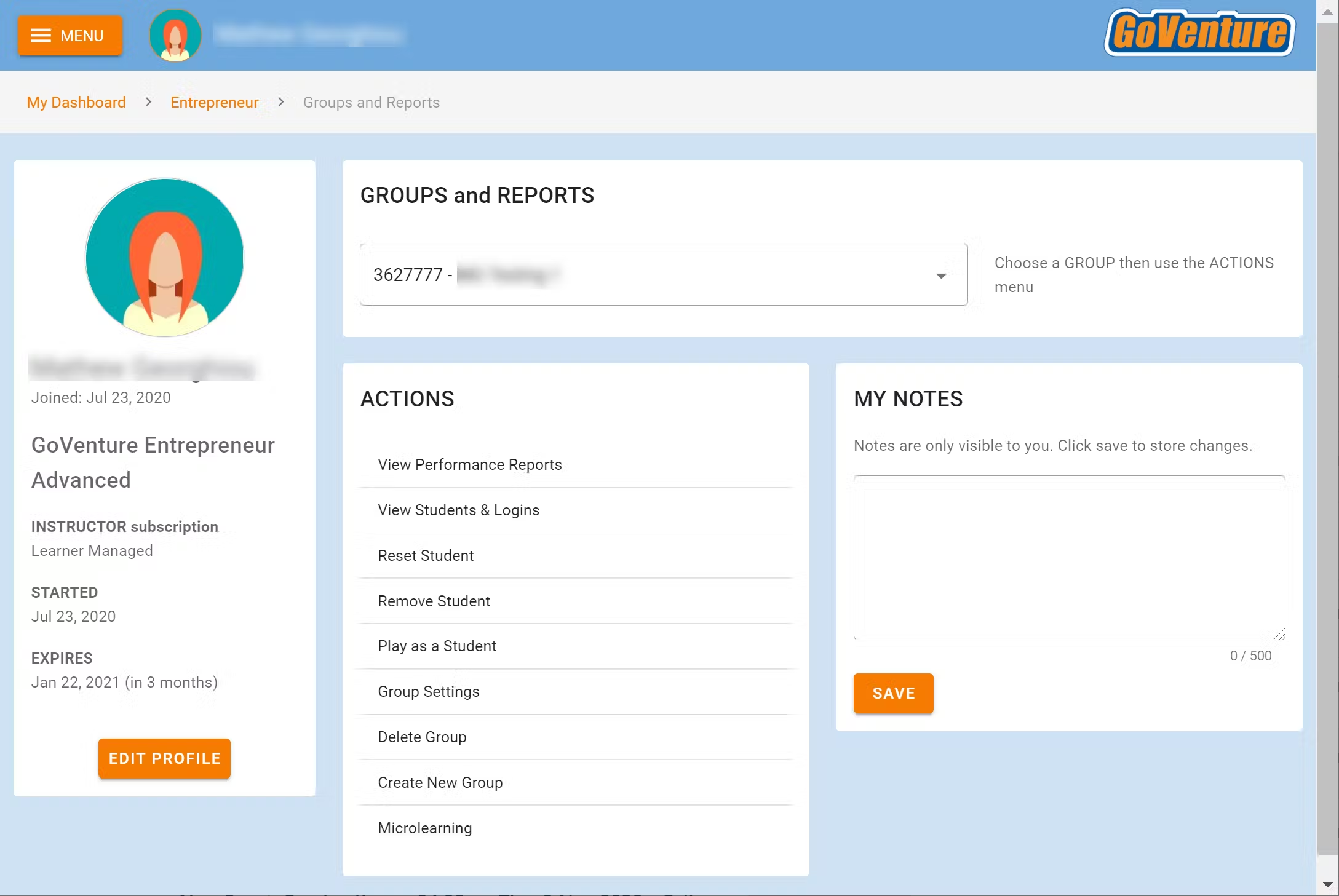
* The Instructor Dashboard allows you to create Groups, monitor student progress and performance, and play GoVenture as a student.
Screenshot of the Instructor Dashboard (website)
## 2.2 Sharing Instructor Accounts
Instructors can share access to their accounts with other instructors or colleagues.
View Sharing Options
# 3. Learning Resources
## 3.1 Project Management Simulation
Product details are at
GoVenture.net/pm
Students can play the Simulation once an instructor gives them a Group number to join. Instructors can use the _Play As Student_ feature to play as a student — but you must first create a _Group_ to play.
**Accessibility for People With Disabilities**
The Simulation includes two interface options — the Default graphical interface and an Assistive interface that works with screen readers, keyboard input, and smartphones. Students choose the interface when starting a new simulation and must continue with the selected interface for the duration of that simulation.
## 3.2 Instructor Guide and Website #
This document you are reading now and an Instructor Dashboard (website) for monitoring student progress and performance.
## 3.3 User Guide
A guide for students that can be accessed from the Dashboard — User Guide
## 3.4 Demo & Tutorial Video
Video to watch before playing the Simulation — available in the User Guide
## 3.5 Book & Glossary

View BookYou must be logged in to view the PDF
**Project Management Superhero Book** includes the video scripts contained within the _Project Management Simulation_. And a full glossary of terms. The book can be used as a learning resource on its own or as a reference when playing the Simulation.
The book is available in the User Guide
## 3.6 Student Experience Report
**Student Experience Report**
After students complete one or more _Project Scenarios_, instructors can pose some or all of the questions below and have students reply with answers presented in a slide deck, written document, discussion forum, or video or live presentation. Be sure to include a maximum limit per answer. Example — 1000 characters or 200 words.
**Questions**
Expand this section — click the black triangle
- Identify the roles and responsibilities of a Project Manager.
- Explain why and how a Project Manager should update the Project Owner.
- If a Project Manager does not have direct experience with a project, describe how to work with subject matter experts to gather the necessary information.
- Identify the key details to obtain from a subject matter expert about a task.
- Identify the three key metrics used to evaluate a task assignee and explain why each is important.
- Explain what reputation means when evaluating an assignee.
- Explain why you may or may not have selected the highest-rated assignees.
- Explain how you determined which tasks to assign to higher-rated assignees and which tasks to assign to lower-rated assignees.
- Identify an unexpected event that delayed a task and explain what you did about it and why.
- Identify an unexpected event that caused a task to go over budget and explain what you did about it and why.
- Explain whether your project management focused more on meeting deadlines, staying within budget, or equally on both.
- Explain the benefits of using a Gantt Chart for project management.
- Explain the benefits of using a Kanban Chart for project management.
- Explain how pleased you were with your performance as a project manager and anything you learned that helped you improve your performance.
- Identify what you might do differently next time you manage a project.
- Identify which aspect of project management took up most of your time.
- Explain the aspect of project management that you found most difficult and why. Identify what could have made this easier.
- Describe what you like most and least about being a project manager.
## 3.7 How Students Can Use AI With GoVenture Simulations
View Activity
# 4. Student Accounts & Onboarding
## 4.1 Student Accounts
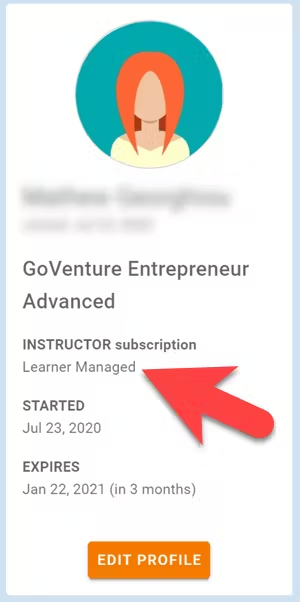
Identify the type of account that applies to you and review the details below. Your type is displayed on your Instructor Dashboard as shown below.
* **Learner Managed** — College, Nonprofit, Business
-or-
* **Instructor Managed** — Primarily for K-12 Schools
### 4.1.1 _Learner Managed_ — primarily for colleges, universities, nonprofits, and businesses
* Students create and manage their own personal login accounts.
* Students create accounts with a **Subscription Key** — a 32 digit number that looks like this: 12345678-12345678-12345678-12345678.
* Students can purchase their own Subscription Keys or organizations can purchase them for students using any combination of these three options:
* Purchase keys individually or in bulk using a credit card or PayPal at BuyGoVenture.com
* Buy with a Purchase Order using our Order Form at GoVenture.net/prices
* Sell through a bookstore — review the information at
GoVenture.net/bookstore
* Give students the **Group** number you want them to play and your **student roster** will build automatically as students join your Group. You do not have to input student names, emails, or any other information — it's all automated.
* Use this Slide Deck to introduce students to GoVenture — copy this content into your own course content and customize it to fit your approach (do not give students the link to this document).
### 4.1.2 _Instructor Managed_ — primarily for K-12 schools
* Watch the **video** above or follow the directions below to see how student accounts work.
* Use this Slide Deck to introduce students to GoVenture — copy this content into your own course content and customize it to fit your approach (do not give students the link to this document).
* Instructor Managed subscriptions do not require students to create full accounts on GoVenture. Students do not have to disclose personally-identifiable information.
* Instructors do not need to input a student roster. This will be done automatically by GoVenture.
* Use the Instructor Dashboard to **create student accounts**.
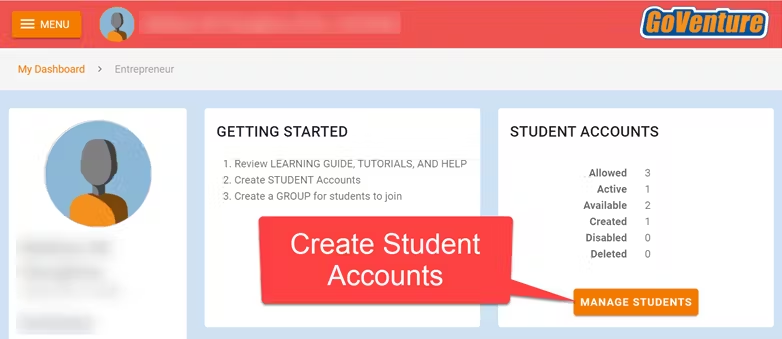 * When an instructor creates a student account, a unique USERNAME is generated for the student. The USERNAME is a multi-digit number that is automatically generated — the instructor cannot choose the number (but can edit it after it is created). Instructors do not have to set the student PASSWORD (but can change it if needed).
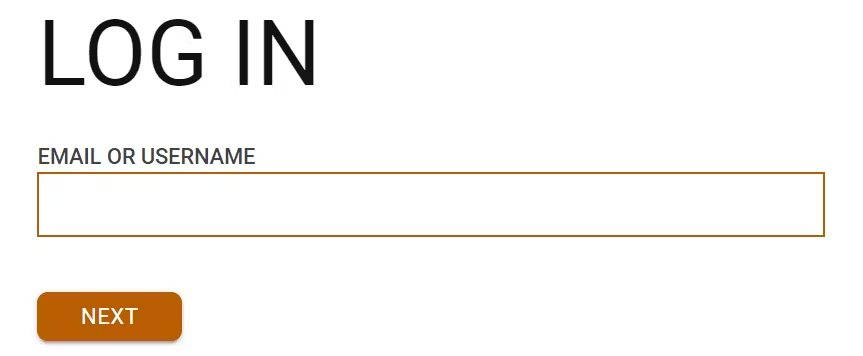
* The instructor provides the USERNAME to the student and directs the student to log in to the GoVenture website at PlayGoVenture.com. Students should _**not**_ use the Create Account option.
* When an instructor creates a student account, a unique USERNAME is generated for the student. The USERNAME is a multi-digit number that is automatically generated — the instructor cannot choose the number (but can edit it after it is created). Instructors do not have to set the student PASSWORD (but can change it if needed).
* The instructor provides the USERNAME to the student and directs the student to log in to the GoVenture website at PlayGoVenture.com. Students should _**not**_ use the Create Account option.
 * Use this spreadsheet to share usernames with students — click the link to view the document then choose FILE > DOWNLOAD for your own copy to edit.
* GoVenture will determine if this is a new USERNAME being used for the first time and prompt the student to set a PASSWORD and their name or student ID or pseudonym (if maximum privacy is preferred).
* No personally-identifiable information is required of students. But, it is important that students use a unique identifier that allows the instructor to know who they are for monitoring and grading purposes.
* Use this spreadsheet to share usernames with students — click the link to view the document then choose FILE > DOWNLOAD for your own copy to edit.
* GoVenture will determine if this is a new USERNAME being used for the first time and prompt the student to set a PASSWORD and their name or student ID or pseudonym (if maximum privacy is preferred).
* No personally-identifiable information is required of students. But, it is important that students use a unique identifier that allows the instructor to know who they are for monitoring and grading purposes.
Alternatively, the instructor can manually record student names with their assigned USERNAMES. _NOTE: If you direct students to enter their full names, you may want to consider directing them to enter their last names first (such as "Smith John" or "Smith, John") so that your Performance Reports can be sorted by last name._
* From now on, the student uses their personal USERNAME and PASSWORD to log in to GoVenture.
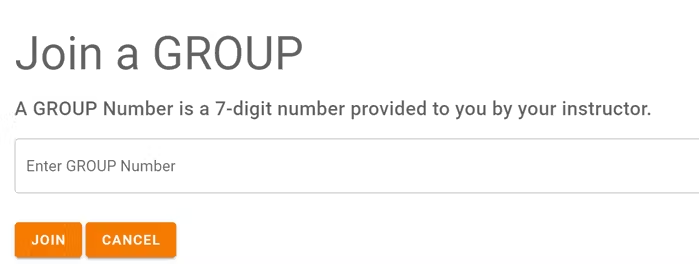
* Once a student logs in to GoVenture, they have access to the User Guide, resources, and other help information. But, students need to join a GROUP Number to play the Simulation. Instructors must provide students a GROUP Number to join.
 **Disable, Delete, Edit Student Accounts**
* Instructors can reset student PASSWORDS if needed.
* Your school or District is assigned a maximum number of instructor accounts and student accounts that can be active at any one time (concurrently).
* Instructors can DISABLE individual student accounts when they are no longer needed (such as at the end of the semester or year, or if a student drops out). Disabling a student account reduces the number of active student accounts, thereby providing room for another student account to be activated. Disabled accounts do not count towards the maximum number of concurrent accounts allowed. Disabling a student account retains all student progress and results, allowing the account to be activated again at any time.
* Instructors can DELETE individual student accounts. Doing so permanently erases all student progress and results and the same student account cannot be activated again.
* Instructors can EDIT student accounts.
* A student account that is created by an instructor but never actually used by a student will not count towards the maximum number of student accounts allowed. (Used means a student has set a password.)
**Disable, Delete, Edit Student Accounts**
* Instructors can reset student PASSWORDS if needed.
* Your school or District is assigned a maximum number of instructor accounts and student accounts that can be active at any one time (concurrently).
* Instructors can DISABLE individual student accounts when they are no longer needed (such as at the end of the semester or year, or if a student drops out). Disabling a student account reduces the number of active student accounts, thereby providing room for another student account to be activated. Disabled accounts do not count towards the maximum number of concurrent accounts allowed. Disabling a student account retains all student progress and results, allowing the account to be activated again at any time.
* Instructors can DELETE individual student accounts. Doing so permanently erases all student progress and results and the same student account cannot be activated again.
* Instructors can EDIT student accounts.
* A student account that is created by an instructor but never actually used by a student will not count towards the maximum number of student accounts allowed. (Used means a student has set a password.)
# 5. Groups
## 5.1 Creating Groups
* For students to begin playing the Simulation, the instructor must create a new **Group**. Groups allow you to keep student performance results separated by class, school, region, or any other grouping that you prefer. Students can join multiple Groups.
* Use the Instructor Dashboard to create a Group.
* Follow the on-screen directions to choose your Group settings — including the specific _Project Scenario_ you want students to play.
* Copy and share the 7-digit Group number with your students. Students will **join** your Group and be able to play the Simulation. Instructors can also use the Group Number to play as a student.
* When students join your Group number, they will automatically appear on your Instructor Dashboard. **Rostering is automated** so you do not have to input student names or other information.
* To allow students to play more than one _Project Scenario_, you must create a new Group for each _Project Scenario_.
* Students cannot play the Simulation until an instructor provides them with a Group Number — you must give students a Group Number. Students can log in to view the Tutorial Video, User Guide, and Book PDF before they receive a Group Number. This allows you to get students set up with their login accounts in advance of having them do a specific activity.
* Instructors can play the Simulation as a student by clicking PLAY AS A STUDENT. It is highly recommended that instructors play GoVenture for a few minutes to experience the options available in the program.
## 5.2 Group Settings
* When creating a Group, you must choose the _Project Scenario_ for students to play.
* To have students play a different _Project Scenario_, create a new Group. You to control when students are allowed to move from one _Project Scenario_ to the other by witholding the Group numbers until you are ready for them to play.
* When creating a Group, various options may be available.
## 5.3 Monitoring Students
* When students join a Group number, their progress and performance will appear on the Instructor Dashboard under _Groups & Reports > View Performance Reports_
* A summary table is provided with student names that can be clicked to view full details for each individual student.
# 6. Duration of Play & Curriculum Planning
* Three _Project Scenarios_ are available to play and instructors can choose to have students play any or all of them —
* **Energy Bar** — In this simulation you will direct the development of a new Energy Bar by a food production company. You will take the project from recipe testing through to the actual production and distribution of the new energy bar.
* **Restaurant Franchise** — In this simulation you will direct the development of a new restaurant within a franchise of health food restaurants. You will take the project from the initial renovation of an existing building through to the grand opening of the new restaurant.
* **Smartwatch Spinout** — In this simulation you will direct the launch of a spinout company that will manufacture a new smartwatch device. You will take the project from the registration of the new company to production and distribution of the smartwatch.
* It is recommended to start by creating a Group to play the practice simulation — **Energy Bar Project**.
* The practice simulation allows students to experience the entire simulation but with a small project that only has a few milestones and tasks. The practice simulation takes 2 to 3 hours to complete (on average).
* A simulation can be played over multiple sessions on any schedule.
* After playing the practice simulation, create a new Group to play a simulation with a larger project. Larger projects each take about 3 to 4 hours to complete (on average).
* Consider playing more than one simulation. The same simulation can also be repeated to give students an opportunity to try again. Always create a new Group for each simulation.
* Book with glossary provides additional learning.
* If you are teaching a project management course, consider having students play GoVenture at the very beginning of the course as this will quickly equip them with the knowledge and wisdom to fully engage with the rest of the course content that you plan to deliver. Then have students play GoVenture again at the end of the course to apply everything that they have learned to improve their results. You may also choose to play throughout the course.
# 7. Saving and Resuming Progress
* Student progress is automatically saved online.
* Students can quit and resume their progress at any time.
* Students will automatically continue from where they stopped playing.
* Groups settings provide instructors the option of allowing students to **reset** their Simulations. Resetting restarts a Simulation from the beginning — all progress for that Simulation in the specific Group is deleted (but has no effect on other Groups the student may be playing). Instructors can use the Dashboard to reset a student at any time, even if the student is not give the option to reset their own Simulation.
# 8. Assessment
## 8.1 Monitoring Student Progress & Performance
* Student progress and performance are tracked automatically and detailed reports are instantly available on the Instructor Dashboard under **Groups & Reports**.
* Instructors can view and compare summary results for all students in a Group. Clicking a student name displays a detailed **Performance Report** for the student.
* Assessment is fully automated as described below.
## 8.2 Grading
To convert the GoVenture assessment into a course grade, compare the estimated hours required for each GoVenture activity to the total number of course hours, including homework. Then assign a grade percentage that reflects this proportion.
- For example, if your course requires 60 total hours and one GoVenture Project Management scenario takes 3 hours, you might assign it at least 5% of the total course grade.
- If a GoVenture activity carries more weight or importance than other course components, consider assigning it a proportionally higher grade percentage.
## 8.3 Performance SCORE — Metrics & Weights
Assessment is fully automated and summarized in a **Performance Score** (0 to 100%) that is weighted across multiple metrics:
Project Completion — 40%
On Time — 25%
On Budget — 25%
Quiz Score — 10%
* _Project Completion_ is the most significant metric because it rewards students for putting in the time and effort to complete the activity. Students who do not fully complete the _Project Scenario_ will have a low _Performance Score_.
* Each _Project Scenario_ (by Group) that students play is assigned a unique score.
## 8.4 Performance Report
* The _Performance Report_ provides a detailed view of student activity, but the only item that is needed by instructors for assessment is the _Performance Score_.
* Students can see their own reports in real time, but not those of other students.

# Join Our Educator Community
# Questions?
Reply to our latest email or submit our help form