

---
title: "GoVenture CEO | Instructor Guide"
author: ""
url: "https://books.playgoventure.com/5/gvceoig"
---

# 👉1. Start Here

<hr style="margin: 0;">
## 1.1 Create Your Instructor Account

- Create your Instructor Account by going to <a href="https://GoVentureCEO.com" target="_blank"_><u>GoVentureCEO.com</u></a> and follow the links to CREATE ACCOUNT — you only need to do this once. Going forward you may log in at any time with your username and password.

<hr style="margin: 0;">
## 1.2 How To Get Started

- Get started quickly by watching this 10-minute video by the founder & CEO of MediaSpark and designer of GoVenture CEO.  

<iframe src="https://www.youtube.com/embed/LWobxZs0flY" style="border: none; display: block; margin: auto; aspect-ratio:16/9; height:auto; width:70%;" allow="autoplay; fullscreen; picture-in-picture"></iframe>
<div align="center"><a href="https://www.youtube.com/watch?v=LWobxZs0flY" target="_blank"_><u>Watch Full Screen</u></a> </div>

<hr style="margin: 0;">
## 1.3 Five-Step Summary

You can do this yourself or book an <a href="https://www.formstack.com/forms/mediaspark-contact" target="_blank">onboarding meeting</a> with a _GoVenture Learning Advisor_.  We will identify the best setup for your curriculum and create a customized Course Plan — there is no cost.

Follow these steps to get started:

1.  Become familiar with **GoVenture CEO** as a student and instructor
    
2.  Determine the **number of hours** of student play and your **Assessment** methodology
    
3.  **Create** your Simulations — or ask us to help by scheduling a **Personal Onboarding Webinar**
    
4.  **Onboard** students with our ready-to-use resources described further in this document.
    
5.  As students play the simulation, consider if and when you want to provide **facilitation** along the way.

<hr style="margin: 0;">
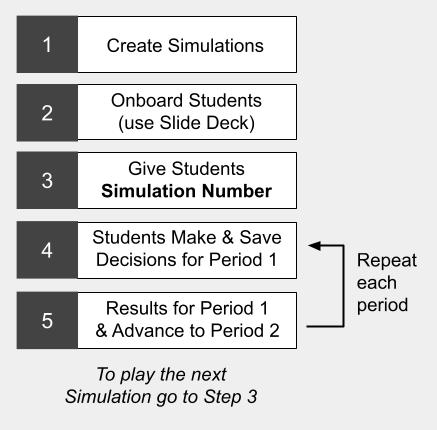
## 1.4 Gameplay Process
<img src = "https://books.playgoventure.com/u/goventure-ceo-process-097qX4.jpg" style="width: 70%; display: block; margin: auto;">

<hr style="margin: 0;">
## 1.5 Subscription Keys & Simulation Numbers

- A **Subscription Key** is a 32-digit number that allows instructors and students to create a personal account on the GoVenture system. Your students may or may not need Subscription Keys, depending on the type of instructor account that you have.

- A **Simulation Number** is one or more numbers generated by GoVenture when you create a Simulation Competition. The Simulation Number enables players to join the specific Simulation Competition that you are managing.

<hr style="margin: 0;">

<a href="https://www.formstack.com/forms/mediaspark-contact" target="_blank"><img src = "https://books.playgoventure.com/u/help-with-setup-Ia4PqI.png" style="width: 100%; display: block; margin: auto;"></a>

<a href="https://goventure.net/certification" target="_blank"><img src = "https://books.playgoventure.com/u/certification-banner-IVzSrn.png" style="width: 100%; display: block; margin: auto;"></a>

<a href="https://skool.com/teachingsuperhero" target="_blank"><img src = "https://books.playgoventure.com/u/teaching-superhero-gv-website-high-res-v3Zs8a.png" style="width: 100%; display: block; margin: auto;"></a>

# Questions?
Reply to our latest email or <a href="https://playgoventure.com/formio/?path=contact" target="_blank"_><u>submit our help form</u></a>

<hr style="margin: 0;">

# 2. Your Instructor Account
<hr style="margin: 0;">

## 2.1 Instructor Account
* Once you have a Subscription Key, go to <a href="http://GoVentureCEO.com" target="_blank"_><u>GoVentureCEO.com</u></a> and follow the links to CREATE ACCOUNT. 

* Once you create your Instructor Account, log in with your username and password to review the Instructor Dashboard (website). The Subscription Key is now expired and no longer needed.
    
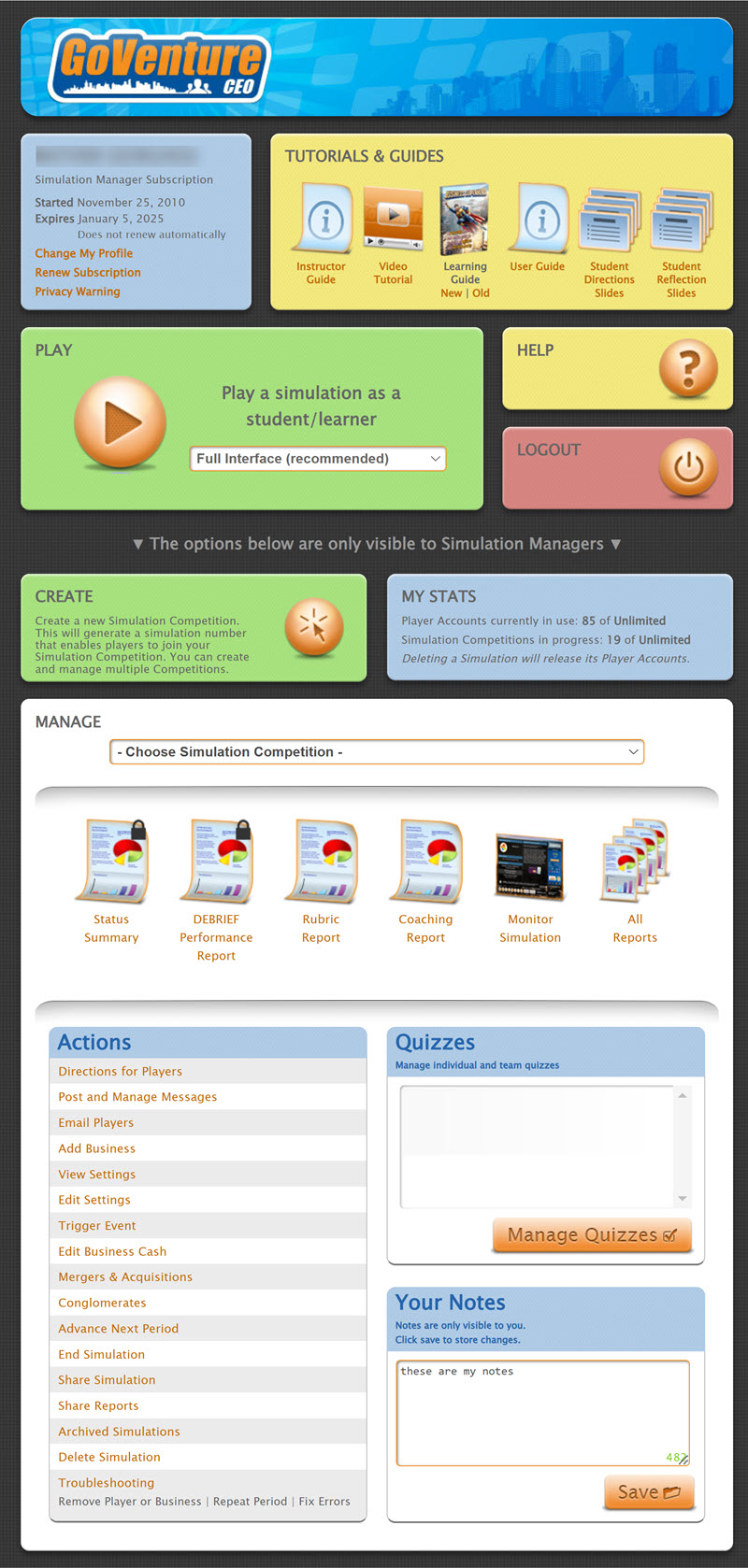
* The Instructor Dashboard allows you to create Simulations, monitor student progress and performance, and play GoVenture as a student.

<div align="center">
<i>Screenshot of the Instructor Dashboard (website)</i>
</div>
<img src = "https://books.playgoventure.com/u/ceo-dashboard-2024-11-15_16-05-12-Jh7ufg.jpg" style="width: 50%; display: block; margin: auto;">
<hr style="margin: 0;">

## 2.2 Sharing Instructor Accounts
Instructors can share access to their accounts with other instructors or colleagues. 

<a href="https://books.playgoventure.com/13/gvsharingaccounts" target="_blank"_><u>View Sharing Options</u></a>


<hr style="margin: 0;">

# 3. Learning Resources
<hr style="margin: 0;">

## 3.1 CEO Simulation
Product details are at 
<a href="https://GoVentureCEO.com" target="_blank">GoVentureCEO.com</a>

Students can play once an instructor gives them a Group number to join.  Instructors can use the _Play As Student_ feature to play as a student — but you must first create a _Group_ to play.

<i>**Accessibility for People with Disabilities**<br>
GoVenture CEO includes two interface options — the Default graphical interface and an Assistive interface that works with screenreaders, keyboard input, and smartphones. Students can switch between the interfaces at any time using the interface selector next to the PLAY button.</i>
<hr style="margin: 0;">

## 3.2 Instructor Guide and Website #
This document you are reading now and an Instructor Dashboard (website) for monitoring student progress and performance.
<hr style="margin: 0;">

## 3.3 User Guide
A guide for students that can be accessed from the Dashboard — <a href="https://coda.io/@mediaspark/user-guide-goventure-ceo" target="_blank">User Guide</a>

<hr style="margin: 0;">
## 3.4 Tutorial Video
Video to watch before playing — available on the Instructor and Student Dashboards and in the <a href="https://coda.io/@mediaspark/user-guide-goventure-ceo" target="_blank">User Guide</a>

<hr style="margin: 0;">
## 3.5 Student Reflection Slides
A Simulation Competition provides many opportunities for discussion, reflection, and coaching. Use the _Student Reflection Slides_ found on the Instructor Dashboard in the yellow _Tutorials & Guides_ tile.

<hr style="margin: 0;">
## 3.6 Competency Quiz
A multiple-choice test personalized for each student. Students must answer questions on business theory and the results from their Simulation. _See section 10_.

<hr style="margin: 0;">
## 3.7 Team Evaluation
Peer evaluation of teammate performance when the Simulation is played in teams. _See section 10_.

<hr style="margin: 0;">
## 3.8 Financial Activities (Spreadsheet)
Excel templates for students to prepare financial statements and ratio analysis using results from the Simulation.  _See section 10_.

<hr style="margin: 0;">
## 3.9 Ethics Report
Students prepare written, live, or video presentations or reports on their ethics strategy while playing the Simulation. Templates are provided — _see section 10_.

<hr style="margin: 0;">
## 3.10 Student Experience Report
Students prepare written, live, or video presentations or reports on their experience playing the Simulation. Templates are provided — _see section 10_.

<hr style="margin: 0;">
## 3.11 How Students Can Use AI With GoVenture Simulations

<a href="https://books.playgoventure.com/15/aiactivity" target="_blank">View Activity</a>

<hr style="margin: 0;">
## 3.12 Business Superhero Book
<img src = "https://books.playgoventure.com/u/business-superhero-cover-250px-pvjTVJ.png" style="width: 25%; display: block; margin: auto;">
<div align="center">
<a href="https://goventureceo.com/Documents/GoVentureCEO_BusinessSuperhero.pdf" target="_blank">View Book</a><br>
</div>
**Business Superhero Book** is a 240-page PDF that covers 145 topics in a format that is easy to read with large text and many examples to make fundamental business concepts easy to understand. Students can use the book as a reference for topics they need help with, or read it from cover to cover to gain practical business wisdom. The book includes fill-in-the-blank tables that students can complete for practice or submit for assessment. The book is available on the Instructor and Student Dashboards.

<hr style="margin: 0;">

# 4 Learning How to Play

<hr style="margin: 0;">
## 4.1 Tutorial Video
The Tutorial Video (30 minutes) is the primary resource for learning how to play GoVenture CEO.  The Tutorial Video is available on the Instructor and Student Dashboards and in the User Guide. Additional learning resources are described below.

<iframe src="https://player.vimeo.com/video/496068519" style="border: none; display: block; margin: auto; aspect-ratio:16/9; height:auto; width:70%;" allow="autoplay; fullscreen; picture-in-picture"></iframe> <div align="center"> <a href="https://player.vimeo.com/video/496068519" target="_blank"_><u>Watch Full Screen</u></a> </div>

<hr style="margin: 0;">
## 4.2 For Instructors (Simulation Managers)

As an instructor (Simulation Manager), the best way to learn GoVenture CEO is to play it as a student (player), as follows:

1. Watch the **Tutorial Video**.

1.  **Create a new Simulation Competition** (click CREATE) and choose a QuickStart. Consider choosing one of the more advanced options with all the business modules turned on so that you can try the various business modules and decide which ones should be used with your students.
    
2.  **Follow the 4 steps** to create the Simulation Competition with these settings:    
  - Turn ON the Computer-Run Businesses so that you have competition.
  - For TIME ADVANCE, choose PLAYER ADVANCE, which allows you to advance the simulation by clicking the SAVE > TIME ADVANCE button in the simulation.
  - For BUSINESSES & TEAMS, choose 1 Player-Run Business.
  - Click CREATE to generate a Simulation Number.
    
8.  **Click PLAY** then join the Simulation Number.
    
9.  **Play the Simulation Competition for a few periods.** While playing, you can switch to your Simulation Manager dashboard to review the various reports and features that are available to instructors.
    
<hr style="margin: 0;">
## 4.3 For Students (Players)

*   Follow the directions in section 7 <i>Onboarding Students<i>.
    
*   The best way for students (players) to learn GoVenture CEO is to watch the **Tutorial Videos** and read the **User Guide**. These resources are available in the yellow _Tutorials and Guides_ tile when students log in to GoVenture CEO.
    
*   The **Winning Strategies** information is particularly useful.
    
*   Students may use the in-game **Help (?)** and call their **Virtual Advisors** while they play.
    
*   Students have access to the **Business Superhero Book** to learn the fundamentals of business and entrepreneurship. 


<hr style="margin: 0;">

# 5. Creating Simulations

_Schedule a meeting with a GoVenture Learning advisor — we can help you choose and set up simulations that best match your needs._

<hr style="margin: 0;">
## 5.1 Creating a Simulation Competition

You must create a **Simulation Competition** before you or anyone can join to play. This should be the first thing that you do. Once a Simulation Competition has been created, you can manage it using the options provided on the Instructor Dashboard. Watch the video below.

<iframe src="https://www.youtube.com/embed/5TLVzGCXNGM" style="border: none; display: block; margin: auto; aspect-ratio:16/9; height:auto; width:70%;" allow="autoplay; fullscreen; picture-in-picture"></iframe>
<div align="center"><a href="https://www.youtube.com/embed/5TLVzGCXNGM" target="_blank"_><u>Watch Full Screen</u></a> </div>

<hr style="margin: 0;">
## 5.2 Individual & Team Play

For options, see section _8 Individual & Team Play_.

<hr style="margin: 0;">
## 5.3 Time Required

- It is up to the Simulation Manager to decide how much time will be provided to players between advances in order to make and save their business decisions. The actual amount of time required to navigate the software to make and save business decisions is very short – generally only a few minutes. However, it is the thinking required that is the most time-consuming, such as reviewing reports and contemplating strategy.

- On average, it may take 15-40 minutes each period for a player acting alone to make thoughtful decisions (or one hour or more for thorough analysis). With team play, at least one hour or more per period is often needed to allow for communication and consensus. It is up to the Simulation Manager to determine how much time pressure will be applied.

<hr style="margin: 0;">
## 5.4 Schedule and Duration of Play

The Simulation Manager controls how quickly a Simulation Competition will progress.

**Automatic Advance**<br>
The Simulation Competition can advance as often as once per day, automatically (at approximately 3AM ET) without any intervention, based on the dates chosen. This is the best option for a Simulation Competition that will span days and weeks. Note that the simulation displays <a href="https://en.wikipedia.org/wiki/Coordinated_Universal_Time" target="_blank">UTC time</a>, not your local time zone.<br>

**Manual Advance**<br>
The Simulation Competition can be advanced at any time with the click of a button by the Simulation Manager. This is the best option for a Simulation Competition that will span a few hours, or one that requires more customized advancing than is provided by the automatic advance option.<br>

**Player Advance**<br>
Players can advance the simulation to the next period by clicking a button. With this option, players compete on their own against computer competitors, but not against human competitors because each player's simulation is independent from the others. This option is useful when you want to allow players to progress through the simulation at their own pace.
<br>

_NOTE: A Simulation Competition that is set to Automatic Advance can also be advanced manually at any time._<br><br>

<hr style="margin: 0;">
## 5.5 Depth of the Experience

When creating a Simulation Competition, there are a number of business modules and features that can be turned ON or OFF to increase or decrease the depth of the experience. The more business modules and features that are turned on, the more difficult the simulation becomes for players because they will be faced with more decisions to make and more factors to consider.   

Consider the following:

1.  To determine which modules should be turned on or off, consider playing a QuickStart simulation to give them a try before creating a Simulation Competition for students to play (see _Getting Started_).
    
2.  It is usually better to start with a simpler Simulation Competition and advance to a more comprehensive Simulation Competition later, if it makes sense to do so. Have students play a basic practice simulation and determine their comfort with a more advanced simulation.
    
3.  Having students play in teams may help students learn from each other. Or, consider allowing students to choose whether to play on their own or in teams of mixed sizes (GoVenture CEO allows teams of any size within the same Simulation Competition).
    
4.  If you have students with varied experience, consider putting them in teams that balance their experience levels.
    
5.  Consider running two different Simulation Competitions simultaneously, one more advanced than the other, and assigning students to each one based on their experience levels, or allow students to choose one on their own.
    
6.  When running a practice Simulation Competition, consider making it identical, or very similar, to the actual non-practice Simulation Competition that will follow. Unlike using a very basic practice Simulation Competition, this approach allows students to experience the same business decisions during and after practice, making it easier for them to transition from one to the other.
    
<hr style="margin: 0;">
## 5.6 Play Several Simulations Instead of Just One

* See section _9 Curriculum Planning_ for recommendations.

*   Hosting several short Simulation Competitions often provides a more thorough learning experience than hosting one long Simulation Competition. Knowing there are multiple Simulation Competitions provides players the confidence and opportunity to experiment with different strategies.
    
*   An approach to consider is to play the first Simulation Competition as practice for only 3 to 7 periods. This provides players the opportunity to get to know the simulation and the decisions that need to be made in preparation for subsequent Simulation Competitions. Subsequent competitions can then run for 6 to 24 periods — 6 to 12 periods is recommended.
    
*   A useful approach when running multiple Simulation Competitions is to assign different objectives to each. For example, one Simulation Competition may have the objective of maximizing Equity/Profit, whereas another might be to maximize Market Share. Having different objectives enables players to better experience the various decisions and compromises that must be made to realize different business objectives.
    

_NOTE: If desired, it is possible to host multiple Simulation Competitions that run at the same time, as opposed to waiting for one Simulation Competition to end before beginning another._

<hr style="margin: 0;">
## 5.7 Simulation Customization

- The person who creates and manages a Simulation Competition is called the Simulation Manager. This is often an instructor or trainer.

- For the Simulation Manager, GoVenture CEO can be set up within minutes, and it will run automatically with no intervention required (unless desired). Every detail is available to the Simulation Manager from a single interface. Simulation Manager account privileges are required to access these features.

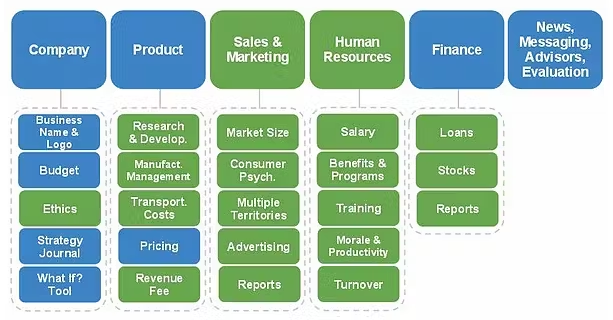
- A high degree of customization is available for the Simulation Manager, allowing the creation of any product in any industry in any market:<br>

<img src = "https://books.playgoventure.com/u/324b3cfd939c4b3faa0fe776ea1b60abbe625eb36bbec55ab46e5148e4bdb0cd3d4d3588529fc478f12f4c92a73fcce637866b12666a9faccb822836ba62db786268238e61bd3ed5ca9b9615e720e9f5053ce33e4aceaf34023c421c3ee00891871421ae-V45eV6.avif" style="width: 85%; display: block; margin: auto;">

<hr style="margin: 0;">
## 5.8 Advanced Features and Activities

The following advanced features and activities can be enabled from the ACTIONS tile:

*   **TRIGGER EVENT** feature allows you to affect a live simulation by modeling weather events that reduce market demand, labor strikes that increase shipping costs, or anything you can think of.
    
*   **EDIT BUSINESS CASH** feature allows you to increase or decrease the money in a business. Use this feature to reward or penalize players based on results from a separate activity, such as a packaging design competition, investment pitch, sales demonstration, or other business activity.

*   **ACCOUNTING** features allow you to provide a more comprehensive accounting experience.
      
*   **CONGLOMERATES** feature allows you to combine the results of two more businesses managed by the same Player in different Simulation Competitions. Players can manage separate businesses in different industries (Simulation Competitions) to model multiple product lines, subsidiaries, or lines of business.

*   **MERGERS & ACQUISITIONS (M&A)** feature allows you to combine the results of individual businesses, similar to how businesses might be combined in the real world of business.

<details>
<summary> <b>Expand this section for M&A details</b> — click the black triangle
</summary>

<ul>
<b>Watch this video to learn how the M&A feature works.</b><br><br>
<iframe src="https://player.vimeo.com/video/1058243343" style="border: none; display: block; margin: auto; aspect-ratio:16/9; height:auto; width:85%;" allow="autoplay; fullscreen; picture-in-picture"></iframe> <div align="center"> <a href="https://player.vimeo.com/video/1058243343" target="_blank"_><u>Watch Full Screen</u></a> </div>
<br>
<li>Use the Mergers & Acquisitions (M&A) feature to enhance the simulation experience for players. The M&A feature allows you to combine the results of individual businesses, similar to how businesses might be combined in the real world of business.</li>
<br>
<li>Combining businesses allows players to work together and align their strategies.</li>
<br>
<li>The combined businesses still operate as independent businesses. Nothing changes with how the simulation operates or the decisions players must make. There is no exchange of money, products, resources, or anything else. The M&A feature simply combines results into a financial report with the merged businesses.</li>
<br>
<li>Any number of businesses within the same Simulation Competition can be combined into a single set of results. (To combine results from different Simulation Competitions, use the Conglomerates feature).</li>
<br>
<li>Players will see the same report shown below in their Performance Reports. (The availability of this report is the ONLY change made by the M&A feature to the Simulation Competition).</li>
<br>
<li>To use the M&A feature, you should inform players that they have the option to merge their businesses and that they must (manually) submit their requests to do so to you. Only the Simulation Manager can merge businesses using this interface. Businesses can be merged and unmerged at any time (and nothing is affected except the report shown below).</li>
<br>
<li>If an exchange of money is desired for a merger or acquisition to take place, the Simulation Manager can use the EDIT BUSINESS CASH feature (in the ACTIONS tile) to take money away from one business and give it to another.</li>
</ul>
<br>
<b>Suggestions for M&A Implementation</b>  
<ul>
<li>Use the M&A feature in a simulation that is set to play for at least 8 to 10 periods.</li>
<br>
<li> After half of the periods have been completed, explain to students that they must find one other business to merge with.  This forces students to have conversations with each other to determine the best fit.</li>
<br>
<li> Require students to create an M&A proposal, which could be a slide deck (“pitch deck”) or document.  Students present their proposals to the instructor and the instructor determines if they will allow the M&A to proceed.</li>
<br>
<li> The same business cannot be included in more than one proposal.</li>
<br>
<li> Do not allow the top X ranking businesses to merge — this forces top-performing businesses to merge with lower-performing businesses.  Choose X based on the number of businesses in your Simulation Competition.</li>
<br>
<li> Continue playing the Simulation Competition for the remaining periods.</li>
<br>
<li> Host debriefs to discuss the M&A strategies proposed by students and the results.</li>
<br>
<li> Keep in mind that the M&A feature has no effect on the individual businesses.  There are no shared costs or economies of scale.  They must be run individually as always, but the merged teams should align their strategies.</li>
</ul>

</details>
<br>

<hr style="margin: 0;">

# 6. Student Accounts 

<hr style="margin: 0;">
## 6.1 Student Accounts
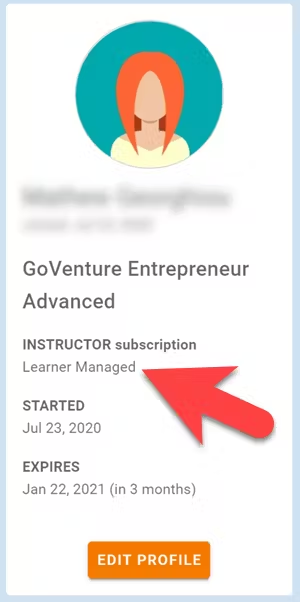
Identify the type of account that applies to you and review the details below.  Your type is displayed on your Instructor Dashboard as shown below.

* **Learner Managed** — College, Nonprofit, Business
<br>-or-<br>
* **Instructor Managed** — Primarily for K-12 Schools

<img src = "https://books.playgoventure.com/u/b0be532ba1a18324f71e7f6d63d616f33fa7ba4dc7658e1fd617a4cbcef7ddff9f0aead410fd2c5daa904bab273092c3eeff78ab6bc69105137b0751d80894141cd96a785caa6d4f3fa5a1d5ccf502c9276eaee129f9c179d05ad166f26590f104a115b2-I8pLQB.avif" style="width: 30%; display: block; margin: auto;">

<hr style="margin: 0;">
### 6.1.1 _Learner Managed_ — primarily for colleges, universities, nonprofits, and businesses

* Students create and manage their own personal login accounts.  
* Students create accounts with a **Subscription Key** — a 32 digit number that looks like this:  12345678-12345678-12345678-12345678.
    
* Students can purchase their own Subscription Keys or organizations can purchase them for students using any combination of these three options:
    
    *   Purchase keys individually or in bulk using a credit card or PayPal at <a href="https://buygoventure.com" target="_blank"_><u>BuyGoVenture.com</u></a>
        
    *   Buy with a Purchase Order using our Order Form at <a href="https://goventure.net/prices" target="_blank"_><u>GoVenture.net/prices</u></a>
        
    *   Sell through a bookstore — review the information at 
<a href="https://GoVenture.net/bookstore" target="_blank"_><u>GoVenture.net/bookstore</u></a>
        
* Give students the **Simulation Number** number you want them to play and your **student roster** will build automatically as students join your Simulation Competition. You do not have to input student names, emails, or any other information — it's all automated.
    
* For helpful instructions and resources, see section _7 Onboarding Students_.
    
<br>
<hr style="margin: 0;">
### 6.1.2 _Instructor Managed_ — primarily for K-12 schools
  
*   Instructor Managed subscriptions do not require students to create full accounts on GoVenture. Students do not have to disclose personally-identifiable information.

* Instructors do not need to input a student roster.  This will be done automatically by GoVenture.
    
*   Students will be prompted to enter a Simulation Number and their name (or student ID or other pseudonym) and password. When you create a new Simulation Competition, you will be given a unique Simulation Number to distribute to each student. Each Simulation Number will be similar but with a few digits added to the end (such as -01, -02, -03, etc).
    
*   If a student forgets their personal Simulation Number, you can retrieve it from ALL REPORTS > BUSINESSES.
    
*   If a student forgets their password, you can reset it using the RESET PASSWORD feature in the ACTIONS tile.
    
*   **Important** — The website students go to is _**not**_ the same as the instructor.  The correct website for students is **GoVentureCEO.com/play** and is listed in DIRECTIONS FOR PLAYERS in the ACTIONS tile.
    
<hr style="margin: 0;">

# 7. Onboarding Students
<hr style="margin: 0;">

<img src = "https://books.playgoventure.com/u/goventure-ceo-process-097qX4.jpg" style="width: 70%; display: block; margin: auto;">

Use one or more of the resources and activities below to prepare your students to play GoVenture CEO.

<hr style="margin: 0;">
## 7.1 Student Accounts
Determine how students will access GoVenture — see _Student Accounts_ section for details.

<hr style="margin: 0;">
## 7.2 Student Directions SLIDES
<img src = "https://books.playgoventure.com/u/184b70e9d580aa0a175601c6c3f7ace6b9dc562de634cbeff61042d54f0c24e65f5e73e289ce8a3603f2774eeab43af0af90c82a0ea1ae278deedd7f095ae278a85cb515f912bca0b3a046b4957d56bbbdb828b3d18aedba0515eb183c3ac2931a01cb00-UMFtqx.avif" style="width: 40%; display: block; margin: auto;">

- Present the Student-Directions SLIDES to students on a big screen or online meeting, or make them available for self-directed viewing.  

- The slides explain everything that students need to know about what GoVenture CEO is and how to get a Subscription Key.  

- This slide deck is available on your Instructor Dashboard and requires minor customizations before you make it available to students. <a href="https://docs.google.com/presentation/d/19Q-xy0naLfFGu0gYFYScXr9tocGqr0R_uKIV50k4sow/edit?usp=sharing" target="_blank"_>View Slides</a>


<hr style="margin: 0;">
## 7.3 Tutorial VIDEOS

- Direct students to watch the TUTORIAL VIDEO (30 min) that is available when they log in to GoVenture CEO and in the USER GUIDE and on GoVentureCEO.com

- The USER GUIDE also includes these two videos that will prepare students for success:
   - BASIC STRATEGY TUTORIAL VIDEO (6 min) 
   - PRODUCT PRICING TUTORIAL VIDEO (4 min)

<hr style="margin: 0;">
## 7.4 Practice Simulation
Playing a practice simulation is highly recommended to assure student success by achieving these three objectives:

1. To become familiar with the simulation interface.

2. To practice making and saving decisions by the set deadlines.

3. To experiment with making business decisions and their consequences.

There are two types of practice simulations that you can offer, or do both:  _Student Play_ and/or _Instructor-Led Play_.

<hr style="margin: 0;">
### 7.4.1 Student Play — _highly recommended_

- Have students play a short practice simulation during class time or on their own time.  

- It is advisable to GRADE this simulation based only on PARTICIPATION. This will motivate students to complete the activity, making them better prepared for the assessed simulations to follow. 

- Individual play is much better than team play for practice as it requires students to learn the fundamentals without relying on teammates.  

- Setting the Strategy Journal to _required_ is recommended.

<hr style="margin: 0;">
### 7.4.2 Instructor-Led Play — _optional but helpful_

- The instructor plays a simulation against computer competitors while explaining the decisions being made as students watch. Progress through a few periods of the simulation, reviewing results and reports. 

- The session can be held in a classroom setting with GoVenture on a big screen, or during an online meeting with screen sharing.  This can accommodate any size audience from a few to thousands.

- The session can be as short as 15-minutes, or last much longer if you choose.

- To make the session more interactive, the instructor can play the role of CEO and request advice from the students who act as the management team. You may also consider assigning CEO duties to a different student each period for an added dynamic.

<hr style="margin: 0;">
### 7.4.3 Instructor-Led Play
- OPTIONAL — With both practice options described above, the instructor may consider showing students the simulation SETTINGS. Students will be introduced to business terminology and discover the parameters and ranges of possibilities for decision-making in the simulation. This is optional because it reveals hidden settings that some instructors may prefer that students discover on their own through experimentation.  

- Note that experimentation can only work if a simulation is set to played for enough periods to allow for sufficient results and analysis — usually 8 or more periods.

- To view simulation SETTINGS, log in to your instructor website and in the ACTIONS tile, choose VIEW SETTINGS.

<hr style="margin: 0;">

# 8. Individual & Team Play

<hr style="margin: 0;">
## 8.1 Individual Play

*   Simulation Competitions can be created to allow one player to run a business on their own, or multiple players to run the same business together as a team.

* It is best to have students play an individual simulation before playing a team simulation. This provides students the opportunity and responsibility to learn how to play on their own without relying on others.  The benefit of doing so is that when the team simulation begins, all students will have a common baseline knowledge and confidence that enables them to better contribute to team collaboration and dynamics.

<hr style="margin: 0;">
## 8.2 Team Play

*   Simulation Competitions can be created to allow for more than one player to run the same business together as a team.
    
*   To set this up, choose the team option when creating a Simulation Competition.
    
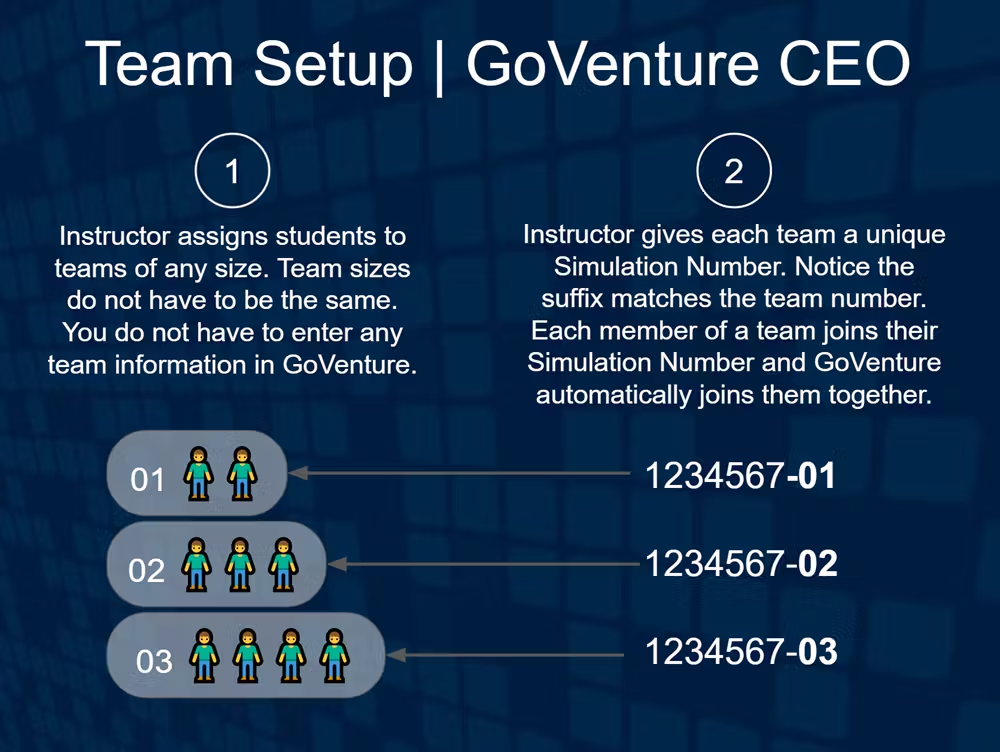
*   The instructor decides who will play on which team.  Teams can be of any size and they all do not have to be the same size.
    
*   You will be provided with multiple Simulation Numbers, one for each team. Players on the same team should all join the same Simulation Number. The last two digits of the Simulation Number identify the team number (1234567-01 means team 01). This process will automatically connect students to their teams — the instructor does not have to input anything into GoVenture about whose on what team.
    
*   If a student joins the wrong team, the instructor should use the _Troubleshooting_ > _Remove Player_ option on your dashboard.

<img src = "https://books.playgoventure.com/u/6636ebebff2866d15defb633b376ae52ec6ccdc3784c1dca03c70bd2b1fc67550f1e944139b8aa1e14e5ae34c73f9844e10793204c4f80d033f4c049903faa4a931a2ac59070b1521a9217e4cf054fa5d72f63682a0a9e5b8755c38d485449d73c64e551-YiD6Dr.avif" style="width: 80%; display: block; margin: auto;">
    
*   **Casual Team Play** — Useful when you want students to play in teams but are not necessarily focused on heavy assessment of team collaboration and evidence-based decision making.**Serious Team Play**Useful when team collaboration and evidence-based decision making are the primary instructional objectives. The experience is similar to being part of a real executive team. Find out more here — <a href="https://coda.io/d/_dmgxQ6T2CgY/_suw7Q" target="_blank">Team Play | Best Practices</a>
    
*   **It is best to have students play an individual simulation before playing a team simulation.** This provides students the opportunity and responsibility to learn how to play on their own without relying on others.  The benefit of doing so is that when the team simulation begins, all students will have a common baseline knowledge and confidence that enables them to better contribute to team collaboration and dynamics.
    
*   **Additional information on how teams work** (included in the _User Guide_ for students):
    

*   Players in teams can log in to the same business at any time and from different locations.  All players have access to all decisions in their business, so teammates must work together.
    
*   SAVING DECISIONS: Players on the same team should designate one person to make and save decisions. WARNING: Be careful not to overwrite decisions made by a teammate. If one teammate makes and saves decisions and then another teammate makes and saves decisions, whoever saved last will overwrite the previous decisions. This is why it is important to designate one teammate to make and save decisions.
    
*   Business decisions can be changed (and Saved) any number of times, up until the decision deadline.
    
*   Players on the same team can communicate asynchronously (not real time) using the built-in Strategy Journal Notes (similar to a Blog). For real-time collaboration, players should consider using their preferred text messaging service or other app.

<hr style="margin: 0;">
## 8.3 Casual Versus Serious Team Play

There are two approaches to team play that instructors can apply with GoVenture CEO:

- **Casual Team Play**
Useful when you want students to play in teams but are not necessarily focused on heavy assessment of team collaboration and evidence-based decision making.

- **Serious Team Play**
Useful when team collaboration and evidence-based decision making are the primary instructional objectives. The experience is similar to being part of a real executive team — very realistic and requires students to invest more time and attention.

<hr style="margin: 0;">
### 8.3.1 Casual Team Play

- Works with teams of any size. Teams do not all have to be the same size.

- Students may or may not be assigned specific roles in the company.

- Requires students to communicate with each other to make business decisions.

<hr style="margin: 0;">
### 8.3.2 Serious Team Play

**Setup**
- Works best for teams of 3 to 5 students. Teams do not all have to be the same size.

- Students are assigned specific roles in the company.

- Requires students to communicate with each other in writing and to provide evidence for all business recommendations.

**Business Roles**
- Students are assigned specific roles in the company. Students may keep the same roles for the duration of the simulation or may rotate through these roles each period so that everyone gets to experience each role.

  - CEO  — makes and saves decisions on behalf of the team in that period.<br><br>

  - Vice President (VP) — other team members are VPs who offer written advice to the CEO about what should be done with their business functions.  VPs can be responsible for one or more of the following business functions that correspond to different modules in GoVenture CEO:<br>

     - Price and Production
     - Research & Development
     - Sales & Marketing
     - Human Resources
     - Finance

- With smaller teams, some students may need to manage more than one business function.

**Team Communications**

- Team members must collaborate to make business decisions. VPs must offer specific evidence-based advice to the CEO about what decisions should be made for their business function in a given period.

- Team members must document all conclusions and recommendations in writing. The instructors can monitor these communications to offer feedback, request more documented evidence to support a decision, or to conduct assessments.

- Students may choose to meet in person or online, but conclusions and recommendations must be documented.

- There are several ways to implement this feature:

  - Use the Strategy Journal Notes feature built in GoVenture CEO. This feature allows team members to communicate asynchronously with text. The amount of text is purposely limited to a small amount of text. Instructors can monitor correspondence but cannot offer feedback.  This option is ideal for Casual Team Play but may be too limiting for Serious Team Play.
<br><br>~or~<br><br>
  - The instructor can create a private meeting space for each team/business in your school’s Learning Management System (LMS). Your LMS may allow you to monitor and assess this correspondence and to offer feedback. Using your own LMS may be more convenient and offer more features than the Strategy Journal Notes feature in GoVenture CEO, such as sharing documents, videos, slide decks, etc.      
<br><br>~or~<br><br>
  - Use collaboration tools like Google Docs or other options.

**Business Data**
- GoVenture CEO allows all team members to access all data for their business and the option to purchase business reports. 

- Team members should agree on a protocol for the purchase of business reports. They may choose to allow any VP to purchase their own reports or the CEO may hold this responsibility.

**Illustrative Example**

- The VP of Price and Production advises that the price this period should be lowered from $150 to $125, as that would make the company more price competitive than its direct competitor who has been priced at $130.  

- And that production should be increased from 175,000 units last period to 200,000 units this period because the Performance Report indicates that the company could have sold another 25,000 units last period based on current competitive position.

- **The CEO is required to follow the advice of the Vice Presidents or provide rationale with supporting evidence in writing that explains why they chose a different direction.**

- In the example above, the CEO might respond as follows:  We will only produce 175,000 units again this period because that is all we can afford after our other investments. Also, because we seem to have a strong competitive position, I will increase our price to $160 to try and earn an additional $10 x 175,000 unit sales = $1.75M in revenue, which will mostly be new profit.

- **Next period the roles change so that each team member gets a chance to be the CEO, and everyone rotates through the various VP roles.**

**Assessment**
- The Serious Team Play option should carry a significant grade, given the effort needed for collaboration and writing.

- The grade should be a combination of one or more of the following measures:

   - **Participation** — Contributing to the decision-making-process each period.<br><br>

   - **Qualitative Analysis** — Quality of VP advice and CEO decisions, based on clarity of communications and quality of evidence.<br><br>

   - **Quantitative Scoring** — GoVenture CEO Rubric Report that provides a holistic measure of business results.<br><br>

   - **Peer Evaluation** — GoVenture CEO Team Evaluation where students assess their teammates.<br><br>


<hr style="margin: 0;">

# 9. Curriculum Planning

<hr style="margin: 0;">
## 9.1 Sample Implementation

- The tables below describe implementations that are commonly used.  

- On average, it may take 15-40 minutes each period for a player acting alone to make thoughtful decisions (or one hour or more for thorough analysis). With team play, at least one hour or more per period is often needed to allow for communication and consensus. It is up to the Simulation Manager to determine how much time pressure will be applied.

- When choosing simulations to play, review the many QuickStarts available to find industries that best match your curriculum. 

- You can start with a basic simulation and move up to more advanced simulations, providing students with increasing challenges and new information to discover.  Or, you may choose to use the same simulation throughout, so that students become more comfortable with the business decisions they must make to be competitive.

- Student onboarding and Assessment options are described elsewhere in this document.

<hr style="margin: 0;">
## 9.2 14-Week Semester

<table>
  <tr>
    <th>Simulation</th>
    <th>Time Advance</th>
    <th>Grading</th>
  </tr>
  <tr>
    <td><strong>#1 Practice</strong>: Students each run their own businesses while competing against each other. Turn ON the Tutorial Quiz and set all Market Research reports to cost $0.</td>
    <td><strong>1-WEEK DURATION</strong>: 7 Periods. Advance once each day for 7 days in a row.</td>
    <td>Participation — 5 points earned by saving in at least 4 periods, otherwise 0 points.</td>
  </tr>
  <tr>
    <td><strong>#2 Individual Play</strong>: Students each run their own businesses while competing against each other.</td>
    <td><strong>5-WEEK DURATION</strong>: 5 Periods. Advance once each week.</td>
    <td>See the Instructor Guide for assessment advice.</td>
  </tr>
  <tr>
    <td><strong>#3 Team Play</strong>: Students work in teams of 3 or 4 to manage the same business while competing against other student teams.</td>
    <td><strong>5-WEEK DURATION</strong>: 5 Periods. Advance once each week.</td>
    <td>See the Instructor Guide for assessment advice.</td>
  </tr>
</table>

<hr style="margin: 0;">
## 9.3 5-Week Course

<table border="1">
  <thead>
    <tr>
      <th>Simulation</th>
      <th>Time Advance</th>
      <th>Grading</th>
    </tr>
  </thead>
  <tbody>
    <tr>
      <td>
        <strong>Simulation #1: Practice</strong><br>
        Students each run their own businesses while competing against each other. Turn ON the Tutorial Quiz and set all Market Research reports to cost $0.
      </td>
      <td>
        <strong>1-WEEK DURATION</strong><br>
        7 Periods. Advance once each day for 7 days in a row.
      </td>
      <td>
        <strong>Participation</strong> — 5 points earned by saving in at least 4 periods, otherwise 0 points.
      </td>
    </tr>
    <tr>
      <td>
        <strong>Simulation #2: Individual Play</strong><br>
        Students each run their own businesses while competing against each other.
      </td>
      <td>
        <strong>2-WEEK DURATION</strong><br>
        5 or 6 Periods. Advance three times each week.
      </td>
      <td>
        See the Instructor Guide for assessment advice.
      </td>
    </tr>
    <tr>
      <td>
        <strong>Simulation #3: Team Play (or Individual Play if preferred)</strong><br>
        Students work in teams of 3 or 4 to manage the same business while competing against other student teams.
      </td>
      <td>
        <strong>2-WEEK DURATION</strong><br>
        5 or 6 Periods. Advance three times each week.
      </td>
      <td>
        See the Instructor Guide for assessment advice.
      </td>
    </tr>
  </tbody>
</table>

<hr style="margin: 0;">
## 9.4 Choose Your Own Duration


<table>
    <thead>
        <tr>
            <th>Simulation</th>
            <th>Time Advance</th>
            <th>Grading</th>
        </tr>
    </thead>
    <tbody>
        <tr>
            <td><strong>#1 Practice</strong>: Students each run their own businesses while competing against each other. Turn ON the Tutorial Quiz and set all Market Research reports to cost $0.</td>
            <td>7 Periods. Advance once each day for 7 days.</td>
            <td>Participation — 5 points earned by saving in at least 4 periods, otherwise 0 points.</td>
        </tr>
        <tr>
            <td><strong>#2 Individual Play</strong>: Students each run their own businesses while competing against each other.</td>
            <td>6 to 12 Periods. Advance 1, 2, or 3 days each week (depending on how much time you want students to focus on the simulation).</td>
            <td>See the Instructor Guide for assessment advice.</td>
        </tr>
        <tr>
            <td><strong>#3 Team Play</strong>: Students work in teams of 3 or 4 to manage the same business while competing against other student teams.</td>
            <td>6 to 8 Periods. Advance 1 or 2 days each week.</td>
            <td>See the Instructor Guide for assessment advice.</td>
        </tr>
    </tbody>
</table>

</body>
</html>

<hr style="margin: 0;">


# 10. Assessment & Monitoring
<hr style="margin: 0;">
Playing a business simulation is one of the most memorable and meaningful educational experiences you can give to students. Complement this experience with an assessment and grading methodology that best aligns with your curriculum.

<hr style="margin: 0;">
## 10.1 Monitoring

<iframe src="https://www.youtube.com/embed/S5o_szUI1V0" style="border: none; display: block; margin: auto; aspect-ratio:16/9; height:auto; width:70%;" allow="autoplay; fullscreen; picture-in-picture"></iframe>
<div align="center"><a href="https://www.youtube.com/embed/S5o_szUI1V0" target="_blank"_><u>Watch Full Screen</u></a> </div>

<hr style="margin: 0;">
## 10.2 Viewing a Simulation as a Student

*   The **Monitor Simulation** feature can be used to view the simulation interface as a student.  This mode is safe and has no effect on the simulation.
    
*   The **View Settings** feature can be used to review the detailed settings of a simulation.
    
*   An instructor can **join and play** the same simulation as students. But this is not normally recommended because it affects the market demand and results of the simulation, and students will see the instructor’s business.
    
*   An instructor can **join and** **play a copy** of the same simulation students are playing. Once a copy is created, the instructor can join the simulation to play. Note that this is a copy of the simulation settings but not the actual simulation students are playing — the copied simulation will not have any results or any other students in it. To create a copy, click the **Create** button then **Copy** and follow the prompts— be sure to turn on Computer-Run businesses.
    
<hr style="margin: 0;">
## 10.3 How to Copy Data Tables to a Spreadsheet

The Rubric Report and some financial statements include a CSV Export option.  All other report data can be copied from GoVenture and pasted into a spreadsheet — watch the video below for directions.

<iframe src="https://www.youtube.com/embed/xiTtPAUsQAA" style="border: none; display: block; margin: auto; aspect-ratio:16/9; height:auto; width:70%;" allow="autoplay; fullscreen; picture-in-picture"></iframe>
<div align="center"><a href="https://www.youtube.com/embed/xiTtPAUsQAA" target="_blank"_><u>Watch Full Screen</u></a> </div>

<hr style="margin: 0;">
## 10.4 Access for Teaching Assistants

Teaching Assistants (TAs) can be given access to an instructor’s simulation to help with student guidance and assessment.  

<details>
<summary><b>Expand this section</b> — click the black triangle </summary>
<br>
There are three ways to work with a TA:
<ol>
<li>You can share your login info (username/password) — this gives the TA full access as if they are you.</li><br>
    
<li>The TA can be set up with their own instructor account using their own login.  You can then use the SHARE REPORTS feature on your instructor dashboard (in the Actions Tile) to give them VIEW access to all of your simulation reports.  The TA does not have any access to your account, they can only view all of the simulation reports.</li><br>
    
<li>The TA can be set up with a student account.  This allows them to play the simulation as a student just like the other students. This also means they will affect the market, which could be problematic.</li>
</ol>
For more details, see section <i>2.2 Sharing Instructor Accounts</i>
<br>  <br>
Contact us to request access for your TA — there is no cost.
</details>

<hr style="margin: 0;">
## 10.5 Assessment Methods | Summary
Choose **one or a combination** of the options in the table below that best match your preferences. Consider creating a rubric that assigns a percentage to each assessment method. The options are listed in no particular order and are detailed further in this document matching the blue numbers.
<hr style="margin: 0;">
### 10.5.1 Simulation Participation and Performance
<table border="1">
  <tr>
    <th>METHOD</th>
    <th>PROS</th>
    <th>CONS</th>
  </tr>
  <tr>
    <td><b>1️⃣<br>Participation</b><br><div style="color: blue;"><i>recommended</i></div></td>
    <td>Maximum fairness with results completely in student control. Fully automated.</td>
    <td>Does not require, measure, or validate level of effort or thoughtful decision making.</td>
  </tr>
  <tr>
    <td><b>2️⃣<br>Performance Metric</b></td>
    <td>More competitive and performance-based (although not fully validated). Fully automated.</td>
    <td>A single metric is not a holistic or reliable measure of skill or effort. Some students could make a good effort and still not score high.</td>
  </tr>
  <tr>
    <td><b>3️⃣<br>Rubric Score</b><br><div style="color: blue;"><i>recommended</i></div></td>
    <td>Provides a more holistic measurement of skill and effort. Fully automated.</td>
    <td>No significant cons. Some metrics may not align with a student’s strategy.</td>
  </tr>
</table>
<hr style="margin: 0;">
### 10.5.2 Written Reports & Presentations
<table border="1">
  <tr>
    <th>METHOD</th>
    <th>PROS</th>
    <th>CONS</th>
  </tr>
  <tr>
    <td><b>4️⃣<br>Strategy Journal</b><br><div style="color: blue;"><i>recommended</i></div></td>
    <td>Likely to improve decision-making and thoughtfulness by requiring students to articulate their strategies.</td>
    <td>Assessment requires instructor or TA to review text-based journal, which takes time and can be more subjective.</td>
  </tr>
  <tr>
    <td><b>5️⃣<br>Student Experience</b><br>Report or Presentation</td>
    <td>Encourages students to reflect on their simulation experience and what they learned, and then organize and present their thoughts.</td>
    <td>Assessment requires instructor or TA to review report, which can be more subjective and time-consuming.</td>
  </tr>
</table>

<hr style="margin: 0;">
### 10.5.3 Tests
<table border="1">
  <tr>
    <th>METHOD</th>
    <th>PROS</th>
    <th>CONS</th>
  </tr>
  <tr>
    <td><b>6️⃣<br>Team Evaluation</b></td>
    <td>Allows teammates to measure individual contributions. Fully automated. Can be repeated.</td>
    <td>Requires review and assessment by instructor or TA. Results can be subjective. Only used with teams, not individual play.</td>
  </tr>
  <tr>
    <td><b>7️⃣<br>Competency Quiz</b><br><div style="color: blue;"><i>recommended</i></div>if time</td>
    <td>Ideal complement to simulation experience. Enhances learning and helps students identify knowledge deficiencies. Fully automated.</td>
    <td>Requires 45 minutes to 2 hours to complete in class or as homework.</td>
  </tr>
</table>


<hr style="margin: 0;">
### 10.5.4 Book and Other Activities
<table border="1">
  <tr>
    <th>METHOD</th>
    <th>DESCRIPTION</th>
  </tr>
  <tr>
    <td><b>8️⃣<br>Learning & Activity Book</b></td>
    <td>Easy to read with many examples to make fundamental business concepts easy to understand.</td>
  </tr>
  <tr>
    <td><b>9️⃣<br>Ethics Report</b></td>
    <td>A useful activity for helping students gain insight into ethical decision making. Requires manual review and grading by the instructor or TA, which takes time.</td>
  </tr>
  <tr>
    <td><b>🔟<br>Financial Statements Activity</b></td>
    <td>A spreadsheet-based activity that requires a student to build a Balance Sheet and Profit & Loss Statement using the General Ledger of the business played in the GoVenture CEO simulation.</td>
  </tr>
  <tr>
    <td><b>1️⃣1️⃣<br>Ratio Analysis Activity</b></td>
    <td>A spreadsheet-based activity that requires a student to build a Balance Sheet and Profit & Loss Statement using numbers from the business played in the GoVenture CEO simulation. The student must then use those numbers to complete a number of financial ratios.</td>
  </tr>
  <tr>
    <td><b>1️⃣2️⃣<br>Accounting</b></td>
    <td>A number of accounting features are available in GoVenture CEO that enable instructors to create their own activities for students.</td>
  </tr>
</table>


<hr style="margin: 0;">
## 10.6 Assessment Methods | Details

<hr style="margin: 0;">
### 1️⃣ Participation


<details>
<summary><b>Expand this section</b> — click the black triangle </summary><br>
Participation means making and saving decisions for each period of the simulation.
<table border="1">
  <tr>
    <th>PROS</th>
    <th>CONS</th>
  </tr>
  <tr>
    <td>Maximum fairness with results completely in student control. Fully automated.</td>
    <td>Does not require, measure, or validate level of effort or thoughtful decision making. Students may not be as motivated to achieve high performance-based results (although there is always some level of social motivation inherent in a multiplayer competition).</td>
  </tr>
</table>

<b>How It Works</b><br><br>

For example, if a simulation is set to advance 10 periods, but a student only saves decisions for 7 periods, the Participation Score would be 70%.

<b>Implementation</b><br><br>
<b>Participation-based grading is ideal for practice simulations. It can also be used as a partial grade for non-practice simulations.</b>

There are two ways that participation-based grading can be implemented:

<ol>
<li>Require students to save decisions every period. Missing a period results in a lower grade. This is the best approach when scheduling is not an issue and students will have plenty of time to make their decisions.</li><br>

<li>Require students to save decisions a minimum number of periods. This is useful if students may not have time to make decisions every period. For example, if a simulation is advanced every day for 6 consecutive days, you may only require a student to save decisions on at least 4 of the 6 days in order to get full marks. This provides students the flexibility to fit the simulation around their schedules. Some students may play only 4 periods while others may play all 6.</li>
</ol>

<b>Playing a practice simulation is highly recommended.</b>  We strongly suggest that you assign a small grade (perhaps 5% of the total) to a practice simulation for PARTICIPATION only. This assures that students will be motivated to play, but not worried about performance.  Individual play is much better than team play for practice.
<br><br>
<b>With a graded simulation</b>, consider setting a percentage of the grade on participation. For example, 40% of the grade is solely based on saving decisions in all periods of the simulation.  This assures students of a strong base grade that is entirely within their control simply by putting some effort into the activity.

<p style="color: blue;">The SAVES MADE & MISSED REPORT automatically tracks the number of periods in which students saved their decisions and you can generate a score automatically, as shown below. Find this report under VIEW ALL REPORTS.  Saves Made is also includd in the RUBRIC REPORT.</p>
<br>
<img src="https://books.playgoventure.com/u/saves-ClgQMK.avif"> 
<br>
<b>Tutorial Quiz</b><br><br>
Simulations can include a Tutorial Quiz which prompts students to answer 13 questions about how to use the simulation. Answers are easily found as the purpose of this quiz is to encourage students to view the Tutorial Video and User Guide before playing the simulation.  Instructors may choose to include the results of the Tutorial Quiz in student grades. Results are visible in the STATUS REPORT and RUBRIC REPORT. Only include the Tutorial Quiz with the first simulation.

</details>

<hr style="margin: 0;">
### 2️⃣ Performance Metric
<details>
<summary><b>Expand this section</b> — click the black triangle </summary><br>

Scores are provided for all key business metrics in the simulation, such as Net Profit or Share Price. 
<ul>
<li>A single overall score is provided for each student based on a scoring metric selected by the instructor, and students are ranked according to this metric.</li><br>

 <li>Scoring metric options include Net Profit, Share Price, Revenue, Units Sold, Market Share, Brand Equity, Advertising Effectiveness, Brand Equity, Human Resources, and Employee Morale.</li><br>

<li><b>Net Profit</b> or <b>Share Price</b> are the recommended scoring metrics.  Other metrics should only be used if a simulation is being used for a specific instructional purpose.</li><br>
</ul>

<table border="1">
  <tr>
    <th>PROS</th>
    <th>CONS</th>
  </tr>
  <tr>
    <td>More competitive and performance based (although not fully validated). Fully automated.</td>
    <td>A single metric is not a holistic or reliable measure of skill or effort. Some students could make a good effort and still score low (some could even score 0%).</td>
  </tr>
</table>


<b>How It Works</b><br><br>

The above metrics are scored on a scale from 0 to 100% where the business with the highest value is assigned 100% and all other business scores are normalized accordingly.  For example, a business with $10 profit is assigned a score of 100% and a business with $3 profit is assigned 30%.  Each score is  updated every period, based on cumulative results for the entire duration of the simulation.<br>

<img src ="https://books.playgoventure.com/u/score-Xt9dMm.avif"> 
<br>
<b>Implementation</b><br><br>
The score described above should not be directly used as a grade, because it is possible for unprofitable businesses to receive a score of 0%, even though they may be applying a reasonable amount of effort.  Instead, the grade should be based on a percentile comparison or other level-based method.  For example, a maximum grade of 5 points for performance could be based upon the following levels:

<ul>
<li>Top 10% earns 5 points</li>
<li>Top 25% earns 4 points</li>
<li>Top 50% earns 3 points</li>
<li>Top 75% earns 2 points</li>
<li>Top 90% earns 1 points</li>
</ul>

<p style="color: blue;">The metrics are visible in a number of reports, including the Status Report, Performance DEBRIEF Report, and Coaching Report.</p>

</details>

<hr style="margin: 0;">
### 3️⃣ Rubric Score
<details>
<summary><b>Expand this section</b> — click the black triangle </summary><br>

The instructor (Simulation Manager) has access to a Rubric Report. The Rubric Report scores student performance on multiple business metrics demonstrated and evaluated in the simulation.

<table border="1">
  <tr>
    <th>PROS</th>
    <th>CONS</th>
  </tr>
  <tr>
    <td>Provides a more holistic measurement of skill and effort (unlike other reports which provide detailed metrics and scores of specific business activity and results). Fully automated.</td>
    <td>No significant cons. Some metrics may not align with a student’s strategy.</td>
  </tr>
</table>

<b>How It Works</b><br><br>
The Rubric Report enables you to generate a balanced score for each business based on a combination of metrics. You may choose a percentage for each metric for a total of 100%.<br>

<img src="https://books.playgoventure.com/u/rubric-ds4yjc.avif">
<br> 

For more details, view the Rubric Report on your Instructor Dashboard.
<br>
<img src="https://books.playgoventure.com/u/rubric-report-manage-tile-cKLT2q.jpg">
<br>

<b>Implementation</b><br>
<ul>
<li>The Rubric Report is automatically generated and can be viewed by the instructor at any time.  Students can view their own Rubric Reports (but not the data for other students) from within the Performance Report.
</li>
<br>
<li>Instructors may also choose to create a custom grading formula by copying GoVenture reports and pasting them into Excel or other spreadsheet.</li>
</ul>
</details>

<hr style="margin: 0;">
### 4️⃣ Strategy Journal
<details>
<summary><b>Expand this section</b> — click the black triangle </summary><br>
GoVenture CEO includes a Strategy Journal where students can identify their strategies.  The Strategy Journal includes a JOURNAL feature and a NOTES feature.<br>

<table border="1">
  <tr>
    <th>PROS</th>
    <th>CONS</th>
  </tr>
  <tr>
    <td>Likely to improve decision-making and thoughtfulness by requiring students to articulate their strategies.</td>
    <td>Assessment requires instructor or TA to review text-based journal, which takes time and can be more subjective.</td>
  </tr>
</table>

<b>How It Works</b><br><br>
The JOURNAL feature (shown below) presents students with a series of options to choose from.  This provides a simple and structured way to help direct students to think strategically.

<img src="https://books.playgoventure.com/u/strategyjournal-Vptib7.avif">
<br>
<img src="https://books.playgoventure.com/u/strategyjournalscreen-9J09lN.avif">
<br>
For example, if selling automobiles, does the student want to sell automobiles with average features at a low price, or does the student want to sell luxury automobiles at a high price?  The JOURNAL helps students identify their intended strategy.  
<br><br>
<b>The JOURNAL does not affect the results of the simulation. </b> The JOURNAL records student intent so that intent can be compared with actual results. Adjustments can then be made to more closely align with an intended strategy, or the strategy can be adjusted. The JOURNAL can be can be set to be optional or required — required is recommended.
<br><br>
The <b>Strategy Journal NOTES</b> feature enables students to blog about their decisions as they play each period of the simulation.  This provides a useful historical record of student thinking and can form part of an assessment.  Past entries cannot be edited.  NOTES can be can be set to be optional or required.
<br><br>
<p style="color: blue;">A maximum of 2,500 characters (approx 400 words) can be entered in the Journal for each period of a particular business. To view student Strategy Journals, in the Manage tile choose ALL REPORTS > Performance Reports and scroll down to the very bottom of the report.<p>
<br>
<img src="https://books.playgoventure.com/u/strategyguide-tu1Rv5.avif"> 
<br>
<b>Implementation</b><br><br>
<ul>
<li>The Strategy Journal is built into GoVenture CEO and students can access it under the MANAGEMENT screen when playing.</li><br>
<li>
Instructors can make the JOURNAL and/or NOTES features optional or required by setting this option when the simulation is being created.  Instructors should also inform students of their expectations.</li><br>
<li>
When a feature is set to required, students are unable to SAVE their decisions in the period unless and until they complete the Strategy Journal.  A warning message is displayed to prompt them to complete the Strategy Journal.</li><br>
<li>
When the NOTES feature is set to required, the simulation can only detect if text has been typed into the NOTES field.  The text is not analysed in any way for quality or minimum quantity. </li><br>
<li>
Instructors can view student Strategy Journals using 

ALL REPORTS > Performance Reports  (scroll to very bottom of report)</li><br>
<li>
Instructors and students can view the COACHING REPORT to assess how aligned business results are to the strategy identified in the Strategy Journal. </li><br>
<li>
A chart shows if each strategic item is On Target, Close to Target, or Off Target.</li><br>
<ul>

<img src="https://books.playgoventure.com/u/coaching-BuMGkH.avif"> 


</details>
<hr style="margin: 0;">
### 5️⃣ Student Experience Report
<details>
<summary><b>Expand this section</b> — click the black triangle </summary><br>
<ul>
<li>Instructors may choose to have students prepare written, live, or video presentations or reports on their experience playing the simulation.  </li><br>

<li>A Student Experience Report template is available for instructors to customize and provide to students. </li><br>

<li>21 questions are included (samples shown below) which can be downloaded, edited, and sent to students (using your school LMS or other method). </li><br>

<li>Consider including limits on the length of each answer or the entire report.  </li><br>

<li>Templates are available for written report and slides. </li><br>

<li>These links are for instructors— do NOT share these links with your students:
<ul>
<div style="text-align: center;">
<a href="https://docs.google.com/document/d/1hPnXi-nWn7yAZs8krcjlDgd6QjhnbsqcSw3bT-itJiw/edit?usp=sharing" target="_blank"_><u>📄REPORT Version</u></a>
<br>
<a href="https://docs.google.com/presentation/d/1Ew8XC6BS69VE_Ih5PBHll4GoGJZGOz6F79B0limSexU/edit?usp=sharing" target="_blank"_><u>📄SLIDES Version</u></a>
<br><br>
<b>How Students Can Use AI With GoVenture Simulations</b>
<a href="https://books.playgoventure.com/15/aiactivity" target="_blank">View Activity</a>

</div>
</details>

<hr style="margin: 0;">
### 6️⃣ Team Evaluation
<details>
<summary><b>Expand this section</b> — click the black triangle </summary><br>
<ul>
<li>If students are playing a simulation in teams, you can have them submit peer evaluations of their teammates' performance using the Team Evaluation. This may be useful for identifying strong and weak contributors for grading or other purposes. Students do not see each other’s evaluations. </li><br>

<li>Instructors may want to consider having students complete the Team Evaluation multiple times so that underperforming students can be made aware of their deficiencies with sufficient time to improve.</li><br>

<li>Instructors must turn this feature on to use it — in the Manage tile, choose Performance Quizzes</li><br>

<li>The Team Evaluation provides a points system an alternative scoring method with 1.5 points for Great, 1.0 points for Good, and 0 points for Not Good or Don't Know.</li><br>
</ul>

<div style="text-align: center;"> 
<a href="https://goventureceo.com/Evaluation/Sample.asp" target="_blank"_><u>📝 View Sample Team Evaluation</u></a>
</div>
<br>

<img src = "https://books.playgoventure.com/u/teameval-Lpe33S.avif" style="width: 70%; display: block; margin: auto;">
</details>

<hr style="margin: 0;">
### 7️⃣ Competency Quiz
<details>
<summary><b>Expand this section</b> — click the black triangle </summary><br>

<ul>
<li>The Competency Quiz is a multiple-choice test created by the GoVenture CEO system. The Competency Quiz is personalized for each student. Students must gather answers from their actual simulation results, in addition to answering questions on business theory.  The Competency Quiz can be required for each unique simulation that is played, but can only be taken by students once the simulation has ended.</li><br> 

<li>Instructors may want to consider including the Competency Quiz after a practice simulation to help students discover early on where they may need improvement. If used for such purpose, a small participation (not performance) grade should be awarded for completing the Quiz.</li><br>

<li>Time Required— The time varies based on the number of question modules enabled. See the type and number of questions in the table below.  On average, 1 minute per question should be allocated for completion.</li><br>

<li>Global Statistics are available to allow instructors to compare their student performance to other students around the world.</li><br>

<li>Instructors must turn this feature on to use it — on the Instructor Dashboard in the Quizzes tile, choose Manage Quizzes.</li><br>
</ul>

<div style="text-align: center;"> 
<a href="https://goventureceo.com/Quiz/Sample.asp" target="_blank"_><u>📝 View Sample Competency Quiz</u></a>
<br>
<br>
<b>Competency Quiz Questions</b>

<table border="1" style="width: 100%;">
  <tr>
    <th style="width: 50%; text-align: center;">Module</th>
    <th style="width: 25%; text-align: center;">Business Theory Questions</th>
    <th style="width: 25%; text-align: center;">Simulation Questions</th>
  </tr>
  <tr>
    <td style="text-align: center;">Budgeting, Revenue, Profit</td>
    <td style="text-align: center;">5</td>
    <td style="text-align: center;">2</td>
  </tr>
  <tr>
    <td style="text-align: center;">Pricing</td>
    <td style="text-align: center;">6</td>
    <td style="text-align: center;">1</td>
  </tr>
  <tr>
    <td style="text-align: center;">Reseller Discount</td>
    <td style="text-align: center;">3</td>
    <td style="text-align: center;">1</td>
  </tr>
  <tr>
    <td style="text-align: center;">Research & Development</td>
    <td style="text-align: center;">2</td>
    <td style="text-align: center;">1</td>
  </tr>
  <tr>
    <td style="text-align: center;">Production & Inventory</td>
    <td style="text-align: center;">6</td>
    <td style="text-align: center;">3</td>
  </tr>
  <tr>
    <td style="text-align: center;">Product Expiration</td>
    <td style="text-align: center;">1</td>
    <td style="text-align: center;">1</td>
  </tr>
  <tr>
    <td style="text-align: center;">Carrying Costs</td>
    <td style="text-align: center;">1</td>
    <td style="text-align: center;">1</td>
  </tr>
  <tr>
    <td style="text-align: center;">Sales & Marketing</td>
    <td style="text-align: center;">8</td>
    <td style="text-align: center;">3</td>
  </tr>
  <tr>
    <td style="text-align: center;">Multiple Territories</td>
    <td style="text-align: center;">1</td>
    <td style="text-align: center;">0</td>
  </tr>
  <tr>
    <td style="text-align: center;">Advertising</td>
    <td style="text-align: center;">3</td>
    <td style="text-align: center;">1</td>
  </tr>
  <tr>
    <td style="text-align: center;">Human Resources</td>
    <td style="text-align: center;">12</td>
    <td style="text-align: center;">1</td>
  </tr>
  <tr>
    <td style="text-align: center;">Financial Statements</td>
    <td style="text-align: center;">0</td>
    <td style="text-align: center;">1</td>
  </tr>
  <tr>
    <td style="text-align: center;">Balance Sheet</td>
    <td style="text-align: center;">2</td>
    <td style="text-align: center;">0</td>
  </tr>
  <tr>
    <td style="text-align: center;">Profit & Loss</td>
    <td style="text-align: center;">2</td>
    <td style="text-align: center;">0</td>
  </tr>
  <tr>
    <td style="text-align: center;">Cash Flow</td>
    <td style="text-align: center;">2</td>
    <td style="text-align: center;">0</td>
  </tr>
  <tr>
    <td style="text-align: center;">Stock</td>
    <td style="text-align: center;">6</td>
    <td style="text-align: center;">1</td>
  </tr>
  <tr>
    <td style="text-align: center;">Loans</td>
    <td style="text-align: center;">5</td>
    <td style="text-align: center;">1</td>
  </tr>
  <tr>
    <td style="text-align: center;">Ethics</td>
    <td style="text-align: center;">1</td>
    <td style="text-align: center;">1</td>
  </tr>
  <tr>
    <td style="text-align: center;">Business Strategy</td>
    <tdn: center;">1</td>
  </tr>
  <tr>
    <td style="text-align: center;">Business Strategy</td>
    <td style="text-align: center;">4</td>
    <td style="text-align: center;">1</td>
  </tr>
</table>

</div>

<img src = "https://books.playgoventure.com/u/compquiz-vlO0g7.avif" style="width: 70%; display: block; margin: auto;">

</details>

<hr style="margin: 0;">
### 8️⃣ Business Superhero Book
<details>
<summary><b>Expand this section</b> — click the black triangle </summary><br>

<img src = "https://books.playgoventure.com/u/business-superhero-cover-250px-pvjTVJ.png" style="width: 25%; display: block; margin: auto;">
<div align="center">
<a href="https://goventureceo.com/Documents/GoVentureCEO_BusinessSuperhero.pdf" target="_blank">View Book</a><br><br>
</div>
<b>Business Superhero Book</b> is a 240-page PDF that covers 145 topics in a format that is easy to read with large text and many examples to make fundamental business concepts easy to understand. Students can use the book as a reference for topics they need help with, or read it from cover to cover to gain practical business wisdom. The book includes fill-in-the-blank tables that students can complete for practice or submit for assessment. The book is available on the Instructor and Student Dashboards.

</details>
<hr style="margin: 0;">
### 9️⃣ Ethics Report
<details>
<summary><b>Expand this section</b> — click the black triangle </summary><br>

Students prepare written, live, or video presentations or reports on their ethics strategy while playing the Simulation. An Ethics Report template is available for instructors to customize and provide to students. 5 questions are included which can be downloaded, edited, and sent to students. Consider including limits on the length of each answer or the entire report.

<div style="text-align: center;"> 
<a href="https://docs.google.com/document/d/1SO66HuGvYuVR0y6MPGAwkzjFcKjZ4I4TRxDWpUYJN4E/edit?usp=sharing" target="_blank"_><u>📝 View Ethics Report</u></a>
<br><br>
<i>Click the link above then click FILE > Download<br>
then edit (if desired) and distribute to students</i>
</div>
<br>
<b>To assign this activity, follow these steps:</b>

<ol>
<li>Identify the specific Simulation Number for the student to use.</li><br>
<li>Identify the Due Date for the activity to be completed.</li><br>
<li>Give students directions on how to submit the completed report file back to you.</li><br>
<li>Download the document and make it available to students.</li><br>
</ol>

<b>Additional Notes</b>
<ul>
<li>It may be best to assign the activity before the simulation ends so that students can check how Ethics affects Operating Costs in the simulation.</li><br>
<li>The activity will take students up to 1 hour to complete.</li>
</ul>

</details>
<hr style="margin: 0;">
### 🔟 Financial Statements Activity
<details>
<summary><b>Expand this section</b> — click the black triangle </summary><br>
An Excel spreadsheet is available for instructors to assign to students as a supplemental learning activity. The spreadsheet requires a student to build a Balance Sheet and Profit & Loss Statement using the General Ledger or Trial Balance of the business played in the GoVenture CEO simulation. Once completed, the student can save and submit the Excel spreadsheet to the instructor to validate completion of the activity. The activity takes about 1 hour of time to complete and it can be assigned multiple times.<br>

<div style="text-align: center;"> 
<a href="https://app.box.com/s/d7x3gpn1evdereiej61al0v2icogfrf1" target="_blank"_><u>📝 Download the Excel XLSX File</u></a>
<br><br>
<i>Click the link above then click FILE > Download<br>
then edit (if desired) and distribute to students</i>
</div>
<br>
<b>To assign this activity, follow these steps:</b>

<ol>
<li>Identify the specific Simulation Number for students to use. Use a simulation with the Balance Sheet and Profit & Loss Statement turned OFF (hidden) — this is a setting that can be set when creating or editing a simulation (instructors can use EDIT SETTINGS to show or hide the report at any time).</li><br>
<li>Identify the specific Periods in the simulation to use — the spreadsheet can accommodate up to 6 periods.</li><br>
<li>Identify the Due Date for the activity to be completed.</li><br>
<li>Give students directions on how to submit the completed Excel file back to you.</li><br>
<li>Download the Excel file and make it available to students.</li><br>
</ol>

<b>Additional Notes</b>

<ul>
<li>This is a personally-customized learning activity because it requires students to use financial numbers from their own businesses. Each student will have different numbers.</li><br>

<li>Instructors may choose to grade the activity by validating the numbers manually by comparing them to the financial statements found in GoVenture CEO > All Reports > Performance Reports (scroll down the report to view the financial statements).  Note that the financial statements have to be set to be ON (visible) using EDIT SETTINGS of the simulation. otherwise they will not appear in the Performance Report. Note also that the Profit & Loss Statement may be offset by a Rounding Adjustment value shown in the statement.</li><br>

<li>The Excel spreadsheet is protected so that students can only input the required numbers.</li><br>
</ul>

</details>
<hr style="margin: 0;">
### 1️⃣1️⃣ Ratio Analysis Activity
<details>
<summary><b>Expand this section</b> — click the black triangle </summary><br>
An Excel spreadsheet is available for instructors to assign to students as a supplemental learning activity. The spreadsheet requires a student to build a Balance Sheet and Profit & Loss Statement using numbers from the business played in the GoVenture CEO simulation. The student must then use those numbers to complete a number of financial ratios.  
<br><br>
The spreadsheet is programmed to immediately identify correct and incorrect answers and the student can make unlimited attempts to answer correctly. Once completed, the student can save and submit the Excel spreadsheet to the instructor to validate completion of the activity. The activity takes about 1 hour of time to complete and it can be assigned multiple times.<br>

<div style="text-align: center;"> 
<a href="https://app.box.com/s/necajejq21h64sm8j8fill0hwlz7j0sq" target="_blank"_><u>📝 Download the Excel XLSX File</u></a>
<br><br>
<i>Click the link above then click FILE > Download<br>
then edit (if desired) and distribute to students</i>
</div>
<br>
<b>To assign this activity, follow these steps:</b>

<ol>
<li>Identify the specific Simulation Number for students to use. </li><br>
<li>Identify the specific Periods in the simulation to use — the spreadsheet can accommodate up to 6 periods.</li><br>
<li>Identify the Due Date for the activity to be completed.</li><br>
<li>Give students directions on how to submit the completed Excel file back to you.</li><br>
<li>Download the Excel file and make it available to students.</li><br>
</ol>

<b>Additional Notes</b>

<ul>
<li>This is a personally-customized learning activity because it requires students to use financial numbers from their own businesses. Each student will have different numbers and the spreadsheet is programmed to identify correct answers for the ratios. But, note that the spreadsheet does not validate the numbers used to build the Balance Sheet and Profit & Loss Statement. While not necessary, Instructors may choose to validate these numbers manually by comparing them to the financial statements found in GoVenture CEO > All Reports > Performance Reports (scroll down the report to view the financial statements).</li><br>

<li>Instructors can grade students based on the number of correct answers submitted. The Instructions & Results worksheet makes it easy for instructors to view this information at a glance. This method of grading takes less than one minute per student.</li><br>

<li>The Excel spreadsheet is protected so that students can only input the required numbers and so students cannot see the formulas for the correct answers. However, protecting an Excel spreadsheet is not foolproof and students can find tools to overcome this security.</li><br>

<li>It is advisable that students use Microsoft Excel to open the spreadsheet, as using another application may cause unpredictable behavior with the built-in formulas and settings..</li><br>

<li>There are three sets of ratios, with one set being Shareholder ratios. To complete these ratios, students must have played a simulation with the STOCKS feature turned on.</li><br>

</ul>

</details>
<hr style="margin: 0;">
### 1️⃣2️⃣ Accounting Features 
<details>
<summary><b>Expand this section</b> — click the black triangle </summary><br>
Instructors who are focused on accounting may want to consider using the following features in GoVenture CEO.
<br><br>
<b>Gameplay</b><br>
<ul>
<b>Accounting Decisions</b><br>
This simulation offers a high-level strategy experience that is focused on budget management and the analysis of market and financial data. Students must manage costing, budgeting, working capital, cash flow, financial statements, and more. Students also compete against each other in the same marketplace to win the same customers. <br><br>

<b>Accounting Videos</b><br>
More than 35 accounting videos are available for students to learn accounting terminology and principles. Instructors can direct students to MediaSparkApps.com/accounting.<br><br>

<b>Financial Reports</b><br>
GoVenture CEO includes all common financial statements and reports used in business.  These reports can be used as a context for assigning a variety of accounting and finance activities.  Reports in the simulation can also be hidden so that students have to build their own reports from other data.  Financial reports include: Balance Sheet, Profit & Loss, Cash Flow, Inventory, General Ledger, General Journal.<br><br>

</ul>

<b>Financial Activities (Spreadsheet)</b><br>
<ul>
See <i>Financial Statements Activity</i> and <i>Ratio Analysis Activity</i> described above.
</ul>
<br>
<b>Financial Line Items</b><br>
<ul>
<b>Income Tax</b><br>
Instructors can set a specific Income Tax rate to be applied in the simulation. Income Tax is the percentage of Profit payable to the government. It is deducted from Cash as an expense each period based on the Profit earned in the period. Income Tax paid does not affect the amount of Budget available or how it is calculated (if based on a percentage of Revenue).<br><br>

<b>Payroll Tax</b><br>
Instructors can set a specific Payroll Tax rate to be applied in the simulation. Payroll Tax is a percentage of Salary payable to the government. For simplicity, it is included in the Salary expense that is shown in the HR module of the simulation (and set by the instructor). Payroll Tax is displayed as a separate line item in the Profit & Loss Statement, General Journal, and General Ledger. For example, if Salary is 2,000 and Payroll Tax is 10%, the 2,000 Salary includes $181 in Payroll Tax (both the employee and employer portions). <br><br>

<b>Depreciation & Amortization</b><br>
Instructors can set a specific rate to be applied in the simulation. Depreciation & Amortization is the reduction in value over time of tangible and intangible assets.  It appears each period as an expense on the Profit & Loss Statement and reduces the value of Property, Plant, and Equipment on the Balance Sheet. <br><br>

<b>HR Costs Related to Production are Posted as COGS</b><br>
There are 5 HR categories of employees in GoVenture CEO:  Production, Operations, R&D, Sales & Marketing, and Management.  The Production employees are posted under Cost of Goods Sold.<br><br>
</ul>

<b>Accrual Accounting</b><br><br>

Instructors can change revenue to accrual-basis accounting instead of cash-basis accounting.  This change includes two features:
<ul>
<b>Cash and Accounts Receivable</b><br>
Instructors can identify the percentage of REVENUE to be deposited in CASH (paid) in each period and the percentage to be posted to ACCOUNTS RECEIVABLE (A/R unpaid).  Must add up to 100% each period.  Five periods can be set and for simulations that are longer than five periods, the settings will be repeated in order:  1, 2, 3, 4, 5, 1, 2, 3, 4, 5 etc. Note that players do not see these values until they are encountered. Example settings are shown below.<br><br>

<table border="1" style="width: 100%; border-collapse: collapse;">
  <tr>
    <th style="text-align: center;">PERIOD</th>
    <th style="text-align: center;">1</th>
    <th style="text-align: center;">2</th>
    <th style="text-align: center;">3</th>
    <th style="text-align: center;">4</th>
    <th style="text-align: center;">5</th>
  </tr>
  <tr>
    <td style="text-align: center;">CASH</td>
    <td style="text-align: center;">70%</td>
    <td style="text-align: center;">60%</td>
    <td style="text-align: center;">85%</td>
    <td style="text-align: center;">80%</td>
    <td style="text-align: center;">50%</td>
  </tr>
  <tr>
    <td style="text-align: center;">A/R</td>
    <td style="text-align: center;">30%</td>
    <td style="text-align: center;">40%</td>
    <td style="text-align: center;">15%</td>
    <td style="text-align: center;">20%</td>
    <td style="text-align: center;">50%</td>
  </tr>
  <tr>
    <td style="text-align: center;">Total</td>
    <td style="text-align: center;">100%</td>
    <td style="text-align: center;">100%</td>
    <td style="text-align: center;">100%</td>
    <td style="text-align: center;">100%</td>
    <td style="text-align: center;">100%</td>
  </tr>
</table>


<b>Accounts Receivable Aging</b><br>
Instructors can identify the percentage of ACCOUNTS RECEIVABLE (A/R) that is deposited (paid) to CASH after the period in which it is earned.  An A/R can be aged to a maximum of 3 periods after the period in which it is earned.  <br><br>

Percentages added under BAD DEBT (BD) will never be paid, and after 3 periods will be moved from an A/R asset on the Balance Sheet to a Bad Debt expense on the Profit & Loss Statement. For simulations that are longer than five periods, the settings will be repeated in order: 1, 2, 3, 4, 5, 1, 2, 3, 4, 5, etc. Note that players do not see these values until they are encountered.<br><br>


<table border="1" style="width: 100%;">
  <tr>
    <th style="text-align: center;">REVENUE</th>
    <th style="text-align: center;">1 PERIOD AGED</th>
    <th style="text-align: center;">2 PERIODS AGED</th>
    <th style="text-align: center;">3 PERIODS AGED</th>
    <th style="text-align: center;">BAD DEBT</th>
    <th style="text-align: center;">TOTAL</th>
  </tr>
  <tr>
    <td style="text-align: center;">PERIOD 1</td>
    <td style="text-align: center;">70%</td>
    <td style="text-align: center;">20%</td>
    <td style="text-align: center;">5%</td>
    <td style="text-align: center;">5%</td>
    <td style="text-align: center;">100%</td>
  </tr>
  <tr>
    <td style="text-align: center;">PERIOD 2</td>
    <td style="text-align: center;">60%</td>
    <td style="text-align: center;">25%</td>
    <td style="text-align: center;">5%</td>
    <td style="text-align: center;">10%</td>
    <td style="text-align: center;">100%</td>
  </tr>
  <tr>
    <td style="text-align: center;">PERIOD 3</td>
    <td style="text-align: center;">80%</td>
    <td style="text-align: center;">10%</td>
    <td style="text-align: center;">10%</td>
    <td style="text-align: center;">0%</td>
    <td style="text-align: center;">100%</td>
  </tr>
  <tr>
    <td style="text-align: center;">PERIOD 4</td>
    <td style="text-align: center;">70%</td>
    <td style="text-align: center;">10%</td>
    <td style="text-align: center;">8%</td>
    <td style="text-align: center;">12%</td>
    <td style="text-align: center;">100%</td>
  </tr>
  <tr>
    <td style="text-align: center;">PERIOD 5</td>
    <td style="text-align: center;">80%</td>
    <td style="text-align: center;">10%</td>
    <td style="text-align: center;">5%</td>
    <td style="text-align: center;">5%</td>
    <td style="text-align: center;">100%</td>
  </tr>
</table>

<b>How to read the tables above</b><br>
In the first table, Period 1, 30% of the Revenue is posted to Accounts Receivable.  In the second table, Period 1, this 30% Revenue is aged as follows:  70% of it will be received in the next period, 20% in the period after that, then 5% in the period after that, and 5% will be posted as Bad Debt.
</ul>
</details>

<hr style="margin: 0;">
## 10.7 Grading
To convert the GoVenture assessment into a course grade, compare the estimated hours required for each GoVenture activity to the total number of course hours, including homework. Then assign a grade percentage that reflects this proportion.

 - For example, if your course requires 60 total hours and one GoVenture CEO simulation takes 5 hours, you might assign it at least 8% of the total course grade.
<br><br>
 - If a GoVenture activity carries more weight or importance than other course components, consider assigning it a proportionally higher grade percentage.

<hr style="margin: 0;">
## 10.8 Asynchronous Online Course
<details>
<summary><b>Expand this section</b> — click the black triangle </summary><br>
Suggestions on how to enhance asynchronous online courses:
<ul>
<li>Doing live debriefs is very useful, but if you are not allowed to do anything live, then consider posting a recorded video of yourself reviewing and commenting on the results of each period (or every few periods).</li><br>

<li>If using a discussion board, post questions from our Winning Strategies (see User Guide) so that students can reflect on their own strategies and perhaps post back.</li><br>

<li>Consider having students submit the Student Experience Report as part of their assessment.  You may also want them to record a video of themselves presenting their report (see above — Section 5 ). </li><br>

<li>If playing in teams, smaller teams of 2 or 3 are better to make student meetings easier to schedule and conduct.  And allow a few days or more in between periods.</li><br>

<li>Review this article and video on building camaraderie with students — 
<a href="https://books.playgoventure.com/3/newsletter/218/creating-student-camaraderie-teamwork-in-online-courses" target="_blank"_><u>Creating Student Camaraderie & Teamwork In Online Courses</u></a>

</li><br>
</ul>

</details>
<hr style="margin: 0;">

# 11. Coaching Students
<hr style="margin: 0;">
## 11.1 From Instructor to Coach

> Instructor — "I'm going to teach you what you need to know."

> Coach — "I'm going to help you discover what you need to know."

Instructors who adopt experiential learning into their courses discover an important change in how they interact with students. They move from being an instructor, or provider of information, to a coach or advisor. A coach who facilitates the learning process and encourages reflection through observations, questions, and discussions. It's an amazing experience — an Aha! moment in teaching.

Watch this video to discover how ...

<iframe src="https://player.vimeo.com/video/638041443" style="border: none; display: block; margin: auto; aspect-ratio:16/9; height:auto; width:70%;" allow="autoplay; fullscreen; picture-in-picture"></iframe>
<div align="center"><a href="https://player.vimeo.com/video/638041443" target="_blank"_><u>Watch Full Screen</u></a></div>

<hr style="margin: 0;">
## 11.2 DEBRIEF Performance Report

Consider showing the **DEBRIEF Performance Report** (found in the white _Manage_ tile) on a big screen in front of the class or on a shared screen in an online meeting. Identify businesses that appear to be improving and ask them to share their thoughts with everyone.

<hr style="margin: 0;">
## 11.3 Coaching Report

Direct students to the **Coaching Report** that helps them discover key information about their performance.  Students can access this report using a link inside of the _Performance Report_. Instructors can access it from the white _Manage_ tile.

<hr style="margin: 0;">
## 11.4 Student Reflection Slides

A Simulation Competition provides many opportunities for discussion, reflection, and coaching. To help with these efforts, use the 📃_**Student Reflection Slides**_ found on the Instructor Dashboard in the yellow _Tutorials & Guides_ tile.

<hr style="margin: 0;">
## 11.5 Sample Discussion Topics

*   **Understanding consumer behavior**. If you do not understand how customers make purchase decisions, you will not know how to best position your business to serve their needs.
    
*   **Generally, a business will not have enough cash to be the best at everything: in the case of a soft-drink business**: price, taste, health, packaging, and brand. Choose a limited number of features to be the best at.
    
*   **Knowing the market demographics/psychographics**. Consumer Profile groups vary in size by territory. Make sure you are targeting a large enough segment of the market to be profitable. For example, if you are running a soft-drink business and you are targeting taste-conscious consumers because your product is the taste leader, make sure this consumer profile group is large enough to make you profitable.
    
*   **Pricing products carefully**. There is no preset price consumers are expecting to pay for your product. Price expectation is based on supply and demand, including how attractive your products are compared to your competition. Make sure to price your products high enough to cover all of your costs (production, distribution, reseller, research and development, sales and marketing), and add an amount of profit that is achievable based on your competitors' prices and product features.
    
*   **Knowing your competition**. Understanding the strengths and weaknesses of your competitors enables you to better position your business. For example, if you are running a soft-drink business and you notice that a large Consumer Profile group is health-conscious but your competitors' products are weak in health benefits, then you may want to consider investing heavily in becoming the health leader.
    
*   **If you are losing money**, it could be for one or more of these reasons: Price is too low; Did not produce enough units to sell; Your product is not as attractive as your competitors'; Too many companies are targeting the same Consumer Profile group; Insufficient Sales and Marketing efforts.
    
*   **Consider being contrarian**. If most competitors are pursuing the largest Consumer Profile groups, the market may become too competitive for profitability (i.e., a big pie that is divided into too many small pieces). Consider pursuing smaller Consumer Profile groups where you may have minimal competition (i.e., a bigger piece of a small pie).
    
*   **Keep in mind that decisions and strategies by competing businesses will directly affect the market conditions and your specific results**. Constant review and adjustment of your strategy is necessary to properly adapt to changing market conditions.
    
*   **Timing and luck matter**. A great strategy may still fail due to bad timing and luck. You never know when an unexpected event may happen, or a competitor may drastically drop price or pursue some other market-changing strategy.
    
<hr style="margin: 0;">
## 11.6 Helping Students with Strategy

<div align="center"><iframe width="560" height="315" src="https://www.youtube.com/embed/FuTUlELTZuQ?si=0W5yy_SwgX348ROG" title="YouTube video player" frameborder="0" allow="accelerometer; autoplay; clipboard-write; encrypted-media; gyroscope; picture-in-picture; web-share" referrerpolicy="strict-origin-when-cross-origin" allowfullscreen></iframe><br>
<a href="https://www.youtube.com/watch?v=FuTUlELTZuQ" target="_blank"_><u>Watch Full Screen</u></a> </div>


<hr style="margin: 0;">

# 12. Competition & Awards
<hr style="margin: 0;">
- An effective way to increase fun and performance is through competition. Use Net Profit, Rubric Score, or other metric to rank students. Here is one possible measure:

  - Top 10% earn 10 points
  - Top 25% earn 7 points
  - Top 50% earn 5 points
  - Top 75% earn 3 points
  - All others earn 0 points

- If you choose to award cash, gifts, or other prizes, we recommend that you choose a larger number of winners for small prizes, rather than a few winners of larger prizes. This will motivate a higher number of participants to do well, while also minimizing any perceived unfairness that could arise with a larger prize.
  
- Prizes should be announced at the beginning of the Simulation Competition, and could be simple inexpensive gifts or even extra marks.

<hr style="margin: 0;">

# 13. Troubleshooting
<hr style="margin: 0;">
GoVenture CEO is a well-refined and tested simulation.  It is rare for problems to arise, but if they do, instructors should direct students to click the HELP button to contact the MediaSpark-GoVenture team.

Below is a list of select issues and how to respond:

<hr style="margin: 0;">
## 13.1 **Student Subscription Key does not work**

*   A Subscription KEY is used to create an account.  
    
*   The KEY is 32 numbers formatted like this: 12345678-12345678-12345678-12345678
    
*   A Subscription KEY can only be used one time to create a new login account. Once a KEY has been used to create a login account, students should log in to GoVenture using their username and password. The KEY is no longer needed and it expires so it cannot be used again.
    
*   Students may forget that they have already used their Subscription KEY or they mistakenly believe they have to use it more than once and they will get a message that they KEY has expired. Students should be advised to check their email for their GoVenture login or click the _**Forgot Username or Password**_ button on the GoVenture login page.

<hr style="margin: 0;">
## 13.2 **Student Forgets Username or Password**

*   Advise student to click the _**Forgot Username or Password**_ button on the GoVenture login page.
    
*   If the student does so and receives a message that their email is not recognized, this is likely because they used a different email address when they created their GoVenture account. Students should be advised to check their email for their GoVenture login. Another possibility is that the student is trying to log in to the wrong GoVenture product.
    
<hr style="margin: 0;">
## 13.3 **Refund or Purchased Wrong Product**

*   If a student purchases the wrong GoVenture product, direct them to click the HELP button to contact the MediaSpark-GoVenture team.  
    
<hr style="margin: 0;">
## 13.4 **Student Joined the Wrong Team**

*   If a student joins the wrong team in a team-based simulation, the instructor should use their dashboard to select the simulation and in the ACTIONS tile click TROUBLESHOOTING > REMOVE PLAYER (not Remove Team).
    
<hr style="margin: 0;">
## 13.5 **Student Missed Saving**

*   If a student does not save decisions for a period, there is no way for them to go back to a previous period.
    
*   In a head-to-head multiplayer simulation, all student decisions affect the results of the simulation, so allowing a student to go back to a previous period would completely change all of the results for all students.
    
*   Even though a student may have missed a period, they can continue to play the current and future periods.
    
*   A student is able to join a simulation late, but they cannot make decisions for periods that have already passed.
    
*   A student cannot join a simulation that has ended.

<hr style="margin: 0;">
## 13.6 **Simulation Did Not Advance**

- This will happen if no students joined the simulation by the first Decision Deadline. You can verify that this is the cause by viewing the _Status Summary_ report to confirm that no students have joined.

- No action is needed as the simulation will continue to advance based on the schedule already set, except that the missed period is now missed. If you want to add another period to account for the missed period, this can be done by editing the simulation settings to add one more period.

<hr style="margin: 0;">
## 13.7 **Change Simulation Time Advance or Schedule**

You can change the schedule on which the simulation advances as follows:

1.  Using your instructor dashboard, select the simulation in the white MANAGE tile.
    
2.  In the ACTIONS tile, choose EDIT SETTINGS.
    
3.  Click the green TIME ADVANCE module.
    
4.  Change the setting to AUTOMATIC or MANUAL.
    
5.  Click DONE.

<hr style="margin: 0;">
## 13.8 **Change Business Name**

*   Use this feature if a player chooses an inappropriate business name or if two players use the same business name. Also useful if a business name contains an unreadable character that prevents the player from joining a simulation.
    
*   Access this feature on the ACTIONS tile > TROUBLESHOOTING
    
<hr style="margin: 0;">
## 13.9 **Repeat or Reprocess a Period**

Two features are available in case something went wrong with your simulation during the previous period and you wish to rewind back to the previous period. The most common reason this may be needed is if many students do not save their decisions in time. 

Using these features is only recommended as a last resort option.  It is better to start a new simulation (_Create Simulation > Copy_) and then invite students to join and play the new Simulation Number.

There are two options available under the Actions tile TROUBLESHOOTING — **Reprocess** and **Repeat**:

*  **REPROCESS PERIOD**— Discard the current period results, rewind back to the previous period, and KEEP all decisions made by players during that period. Use this option when you want to reprocess the results of a period without requiring players to go and make their decisions again. This option is useful if a glitch has caused some bad results and you want to have the period processed again.  Once you implement this option, you may want to immediately use the MANUAL ADVANCE option to move to the next period (otherwise, players could go in and change their decisions).

*   **REPEAT PERIOD**— Discard the current period results, rewind back to the previous period, and DELETE all decisions made by players during that period. You will have to notify players that the simulation has been rewound and that they must make their decisions again. This option is useful when a number of players may have missed saving in a period and you want to give everyone a chance to try again.

*   WARNING: If students have already completed a COMPETENCY QUIZ for this Simulation Competition, the answers may have changed and so you may need to repeat the quiz.
      
<hr style="margin: 0;">
## 13.10 **Problem:  “Unable to Load Simulation Data”**

### About the Problem

*   The above error may occur on rare occasions when many students join a Simulation Number for the first time — and all attempt to do so at exactly the same moment in time.  
    
*   This is most likely to happen in a live class when an instructor reveals a Simulation Number for the first time and students attempt to join it right away.
    
*   If two students join the Simulation Number at exactly the same fraction of a second, the two students may be joined to the same business, even though they are supposed to have their own businesses.
    
*   When this happens, one or both students will receive this error— _Problem:  “Unable to load simulation data.”_
    

### Avoiding the Problem

*   To avoid this problem from happening, consider providing students with the Simulation Number prior to the live session so that they will join at random times.
    
*   If you must provide the Simulation Number during the live session, try to coordinate students to join the Simulation Number at different times — a few seconds of spacing is all that is needed to avoid this problem from happening.
    

### Solving the Problem

**Summary**  

*   The problem business will be removed and the students with the error will join the simulation again.
    

**Details — Step by step:**

*   Simulation Managers (instructors) can fix this problem with a few clicks. Select the simulation and in the ACTIONS tile click TROUBLESHOOTING > FIX ERRORS and follow the directions.
    

NOTE: The removed business will impact the simulation in the period in which it is removed by increasing the market demand during that period (and only that period).  If a business is removed after the simulation has advanced, the history of that business in previous periods will remain, but the business will no longer affect the simulation going forward.

<hr style="margin: 0;">

# Join Our Educator Community

<a href="https://skool.com/teachingsuperhero" target="_blank"><img src = "https://books.playgoventure.com/u/teaching-superhero-gv-website-high-res-v3Zs8a.png" style="width: 100%; display: block; margin: auto;"></a>

# Questions?
Reply to our latest email or <a href="https://playgoventure.com/formio/?path=contact" target="_blank"_><u>submit our help form</u></a>

<hr style="margin: 0;">