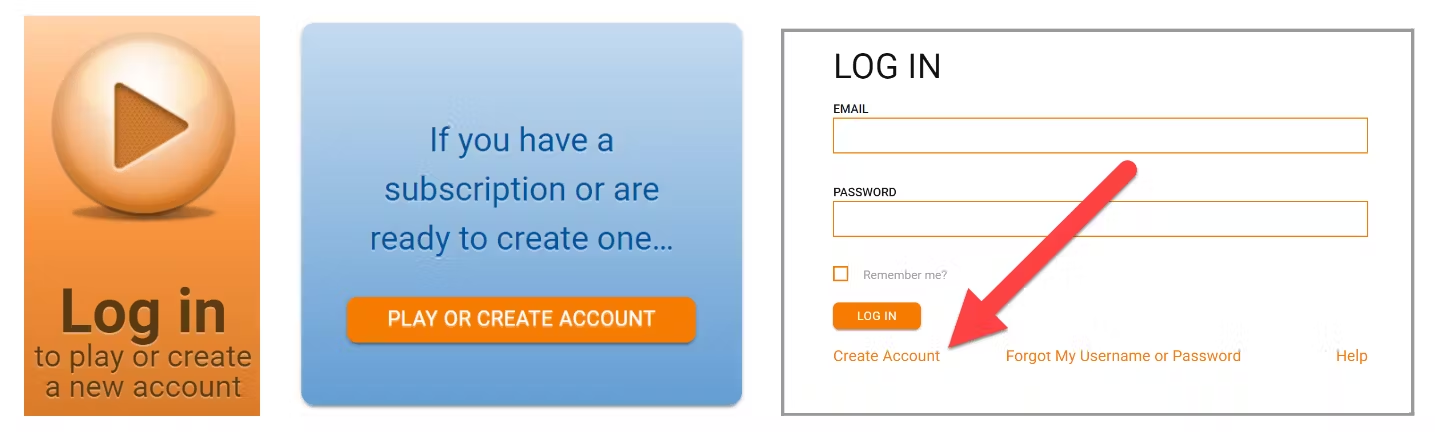
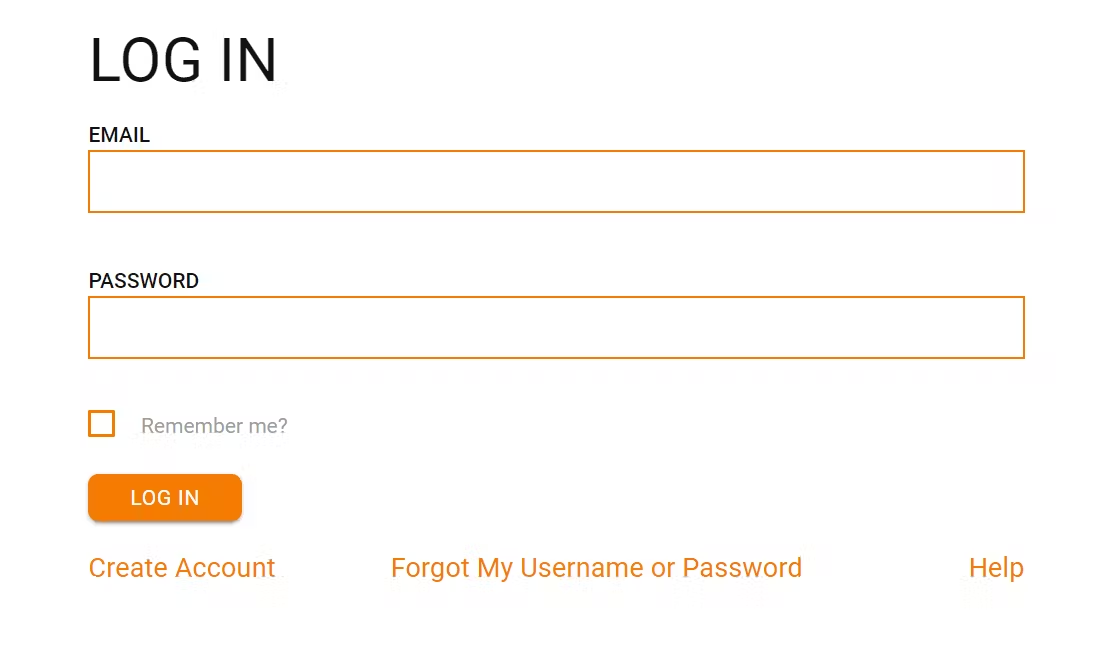
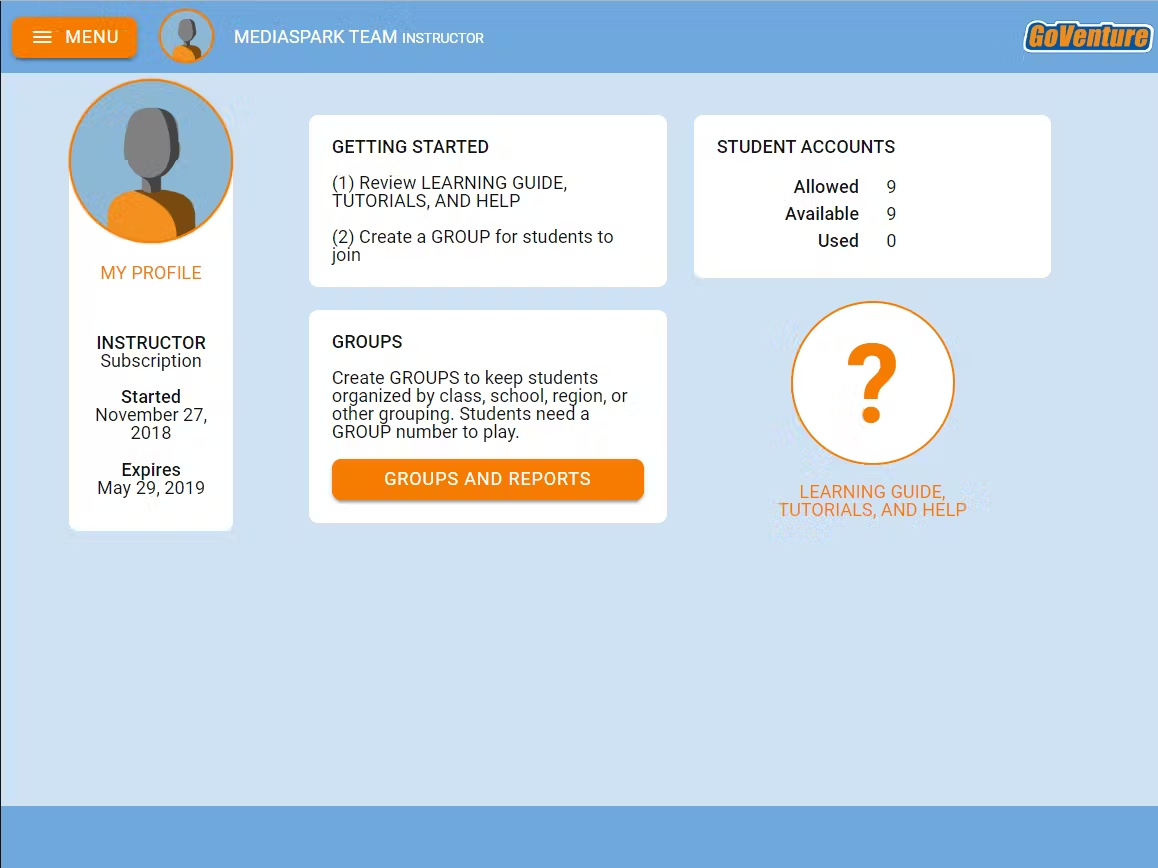
4️⃣
Review & Play
Continue reading this document to discover everything you need to know. If you want to immediately experience GoVenture as a student, click GROUPS & REPORTS then PLAY AS STUDENT and join Group number 3998304.


 # Questions?
Reply to our latest email or submit our help form
# Questions?
Reply to our latest email or submit our help form
# 2. Resources
## 2.1 All Resources GoVenture includes all of the resources described below. The program is modular to give instructors the flexibility to choose the best resources that match your needs.
## 2.2 Online Activities * There are **10** ONLINE Activities that allow students to learn and practice important financial concepts. * Each Activity takes 15 to 60 minutes to complete. * These activities must be turned ON by the instructor by creating a Group (or changing Group settings). Once ON, students can play the Activities by logging in to GoVenture. * Instructors can view student input using the Instructor Dashboard. * Information on how to play each Activity is available to students by clicking the LEARN button in each Activity — the LEARN button links to this webpage
**Instructors can have students play the ONLINE Activities using one of three profiles** — * MO's PROFILE
Mo is a fictional character with a detailed profile that can be used as a context to play all of the activities. It is recommended that students play the activities first using Mo's profile. Directions for completing an activity using Mo's profile are included at the bottom of each activity description/help. Answers for instructors are included in the table below. Read Mo's profile * STUDENT PERSONAL PROFILES
Instructors can encourage students to research the information they need to make the data more personally relevant. * PROFILES PROVIDED BY THE INSTRUCTOR
Instructors can use custom profiles to guide students to discover key information that matches the curriculum.
**The tables below provide a summary list of each ONLINE Activity.** Each activity is numbered for easy reference. See the _Assessment_ section of this document for language skill development and grading rubrics.
## 2.3 PDF Activities * There are over **70 PDF Activities** — printable Adobe PDF exercises that support the content in the Learning Guide. PDF Activities are available at the bottom of each section of the Learning Guide. * Each Activity takes 15 to 60 minutes to complete. * Activities and answers for instructors are available in the table below. * Activity identifiers use the following coding: * The first 2 digits match the section/chapter in the Learning Guide * D = Define Key Terms * L = Listen & Speak * R = Read & Write * K = Knowledge Test
## 2.4 How Students Can Use AI With GoVenture Simulations View Activity
# 3. Instructor & Student Accounts & Onboarding
**Section 3.3** includes a **Slide deck** for instructors to use to onboard students.
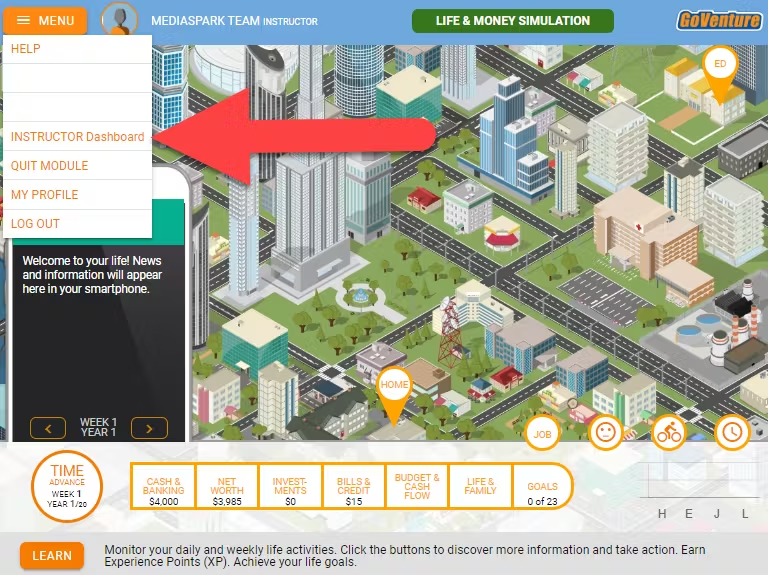
## 3.1 Your Instructor Account * Once you create your Instructor Account (see Section 1), log in to review the Instructor Dashboard (website). * The Instructor Dashboard allows you to create Groups, monitor student progress and performance, and play GoVenture as a student. _Screenshot of the Instructor Dashboard (website) with options for managing a Group_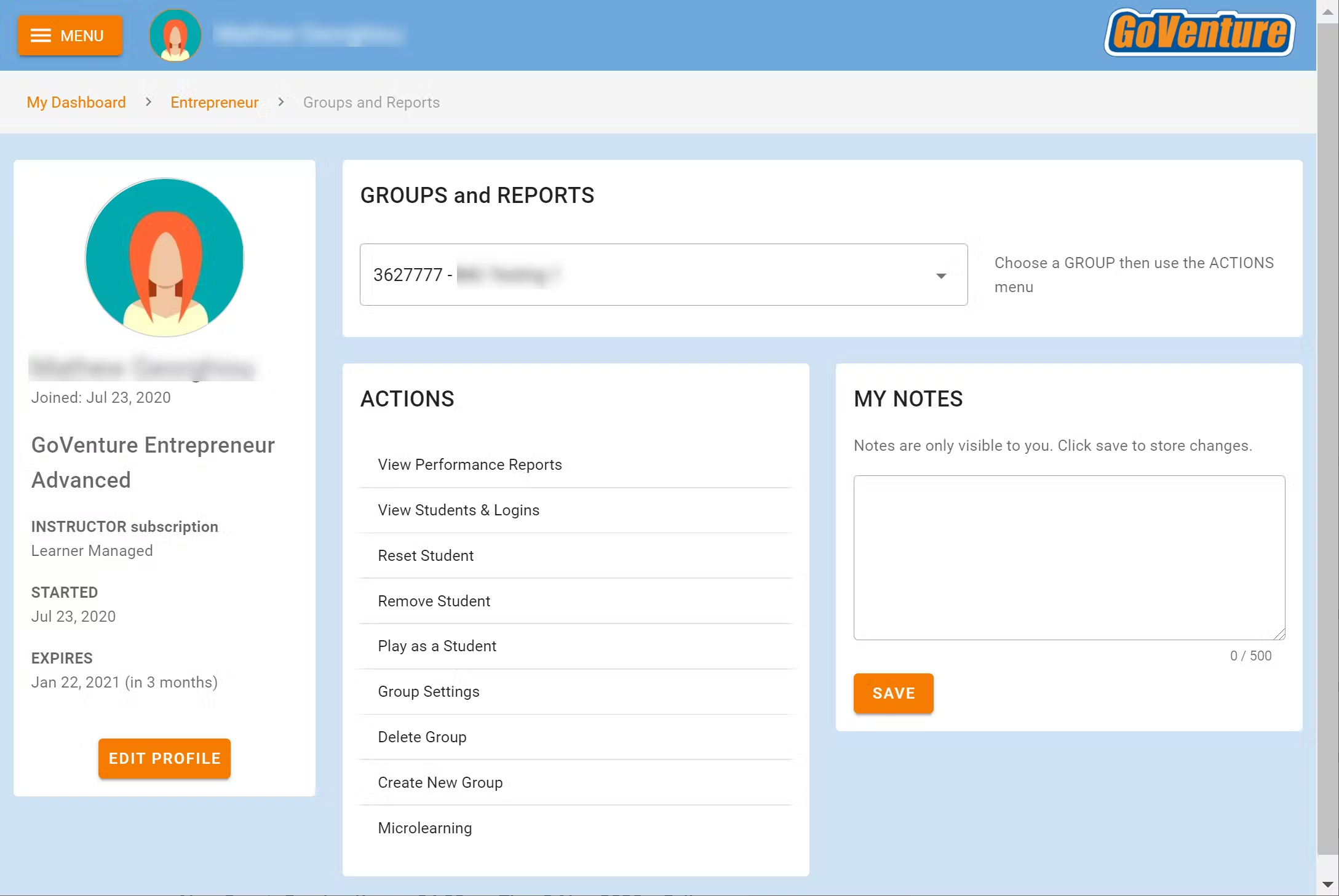
To return to the Instructor Dashboard, click the MENU button.
## 3.2 Sharing Instructor Accounts Instructors can share access to their accounts with other instructors or colleagues. View Sharing Options
## 3.3 Student Accounts Identify the type of account that applies to you and review the details below. Your type is displayed on your instructor dashboard as shown below. * **Learner Managed** — College, Nonprofit, Business * **Instructor Managed** — Primarily for K-12 Schools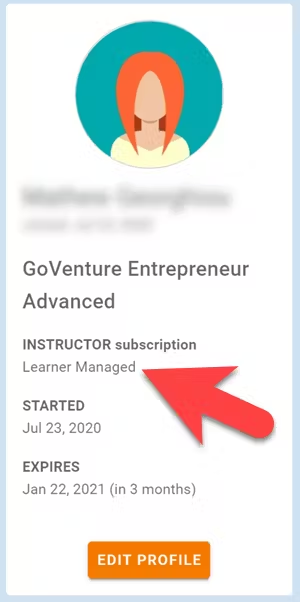
### 3.3.1 _Learner Managed_ account — primarily for colleges, universities, nonprofits, and businesses * Students create and manage their own personal login accounts. * Students create accounts with a **Subscription Key** — a 32 digit number that looks like this: 12345678-12345678-12345678-12345678. * Students can purchase their own Subscription Keys or organizations can purchase them for students using any combination of these three options: * Purchase keys individually or in bulk using a credit card or PayPal at BuyGoVenture.com * To buy with a Purchase Order, use our Order Forms at GoVenture.net/prices * To sell through a bookstore, review the information at GoVenture.net/bookstore * Give students the **Group** number you want them to play and your **student roster** will build automatically as students join your Group. You do not have to input student names, emails, or any other information — it's all automated. * Use this Slide Deck to introduce students to GoVenture — copy this content into your own course content and customize it to fit your approach (do not share this link with students).
### 3.3.2 _Instructor Managed_ account — primarily for K-12 schools * Watch the **video** above or follow the directions below to see how student accounts work. * Use this Slide Deck to introduce students to GoVenture. * Instructor Managed subscriptions do not require students to create full accounts on GoVenture. Students do not have to disclose personally-identifiable information. * Instructors do not need to input a student roster. This will be done automatically by GoVenture. * Instructors use the GoVenture dashboard to **create student accounts** as they need them.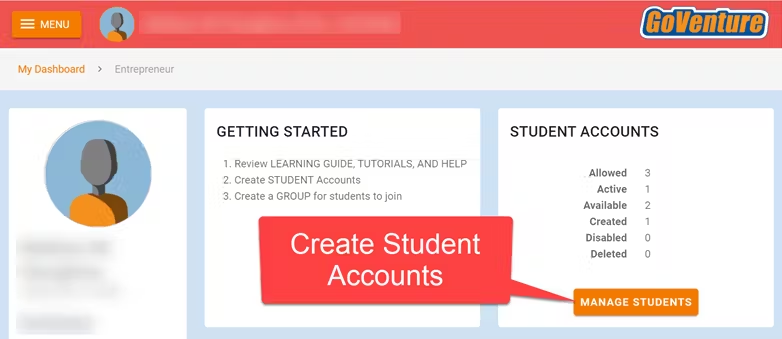 * When an instructor creates a student account, a unique USERNAME is generated for the student. The USERNAME is a multi-digit number that is automatically generated — the instructor cannot choose the number (but can edit it after it is created). Instructors do not have to set the student PASSWORD (but can change it if needed).
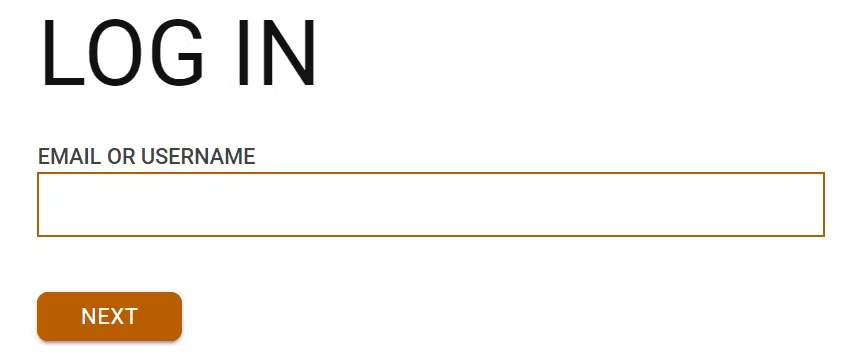
* The instructor provides the USERNAME to the student and directs the student to log in to the GoVenture website at GoVentureLife.com. Students should _**not**_ use the Create Account option.
* When an instructor creates a student account, a unique USERNAME is generated for the student. The USERNAME is a multi-digit number that is automatically generated — the instructor cannot choose the number (but can edit it after it is created). Instructors do not have to set the student PASSWORD (but can change it if needed).
* The instructor provides the USERNAME to the student and directs the student to log in to the GoVenture website at GoVentureLife.com. Students should _**not**_ use the Create Account option.
 * Use this spreadsheet to share usernames with students — click the link to view the document then choose FILE > DOWNLOAD for your own copy to edit.
* GoVenture will determine if this is a new USERNAME being used for the first time and prompt the student to set a PASSWORD and their name or student ID or pseudonym (if maximum privacy is preferred).
* No personally-identifiable information is required of students. But, it is important that students use a unique identifier that allows the instructor to know who they are for monitoring and grading purposes.
* Use this spreadsheet to share usernames with students — click the link to view the document then choose FILE > DOWNLOAD for your own copy to edit.
* GoVenture will determine if this is a new USERNAME being used for the first time and prompt the student to set a PASSWORD and their name or student ID or pseudonym (if maximum privacy is preferred).
* No personally-identifiable information is required of students. But, it is important that students use a unique identifier that allows the instructor to know who they are for monitoring and grading purposes.
Alternatively, the instructor can manually record student names with their assigned USERNAMES. _NOTE: If you direct students to enter their full names, you may want to consider directing them to enter their last names first (such as "Smith John" or "Smith, John") so that your Performance Reports can be sorted by last name._ * From now on, the student uses their personal USERNAME and PASSWORD to log in to GoVenture. * Once a student logs in to GoVenture, they have access to the User Guide, resources, and other help information. But, students need to join a GROUP Number to play the Simulation. Instructors must provide students a GROUP Number to join.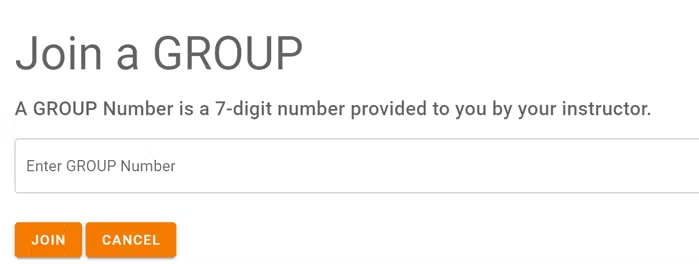 **Disable, Delete, Edit Student Accounts**
* Instructors can reset student PASSWORDS if needed.
* Your school or District is assigned a maximum number of instructor accounts and student accounts that can be active at any one time (concurrently).
* Instructors can DISABLE individual student accounts when they are no longer needed (such as at the end of the semester or year, or if a student drops out). Disabling a student account reduces the number of active student accounts, thereby providing room for another student account to be activated. Disabled accounts do not count towards the maximum number of concurrent accounts allowed. Disabling a student account retains all student progress and results, allowing the account to be activated again at any time.
* Instructors can DELETE individual student accounts. Doing so permanently erases all student progress and results and the same student account cannot be activated again.
* Instructors can EDIT student accounts.
* A student account that is created by an instructor but never actually used by a student will not count towards the maximum number of student accounts allowed. (Used means a student has set a password.)
**Disable, Delete, Edit Student Accounts**
* Instructors can reset student PASSWORDS if needed.
* Your school or District is assigned a maximum number of instructor accounts and student accounts that can be active at any one time (concurrently).
* Instructors can DISABLE individual student accounts when they are no longer needed (such as at the end of the semester or year, or if a student drops out). Disabling a student account reduces the number of active student accounts, thereby providing room for another student account to be activated. Disabled accounts do not count towards the maximum number of concurrent accounts allowed. Disabling a student account retains all student progress and results, allowing the account to be activated again at any time.
* Instructors can DELETE individual student accounts. Doing so permanently erases all student progress and results and the same student account cannot be activated again.
* Instructors can EDIT student accounts.
* A student account that is created by an instructor but never actually used by a student will not count towards the maximum number of student accounts allowed. (Used means a student has set a password.)
# 4. Saving & Resuming Progress
* Student progress is automatically saved online. * Students can quit and resume their progress at any time. * Students will automatically continue from where they stopped playing. * Groups settings provide instructors the option of allowing students to **reset** their _Life & Money_ Simulations. Resetting restarts a Simulation from the beginning — all progress for that Simulation in the specific Group is deleted (but has no effect on other Groups the student may be playing). Instructors can use the Dashboard to reset a student at any time, even if the student is not give the option to reset their own Simulation. Note that the _eWorkbook_ and _Your Story_ simulation cannot be reset.
# 5. Groups
## 5.1 Creating Groups * Watch the video tutorial above on how to create GROUPS and GOALS. * Groups allow you to keep student performance results organized by class, school, region, or any other grouping that you prefer. * Students require a Group number to play these resources: * Life & Money Simulation * Investing Simulation * Online Activities (10) * Students do **_not_** need a Group number to play these resources: * Your Story Simulation * eWorkbook * Learning Guide * Printable Activities * User Guide * Use the Instructor Dashboard to create a Group.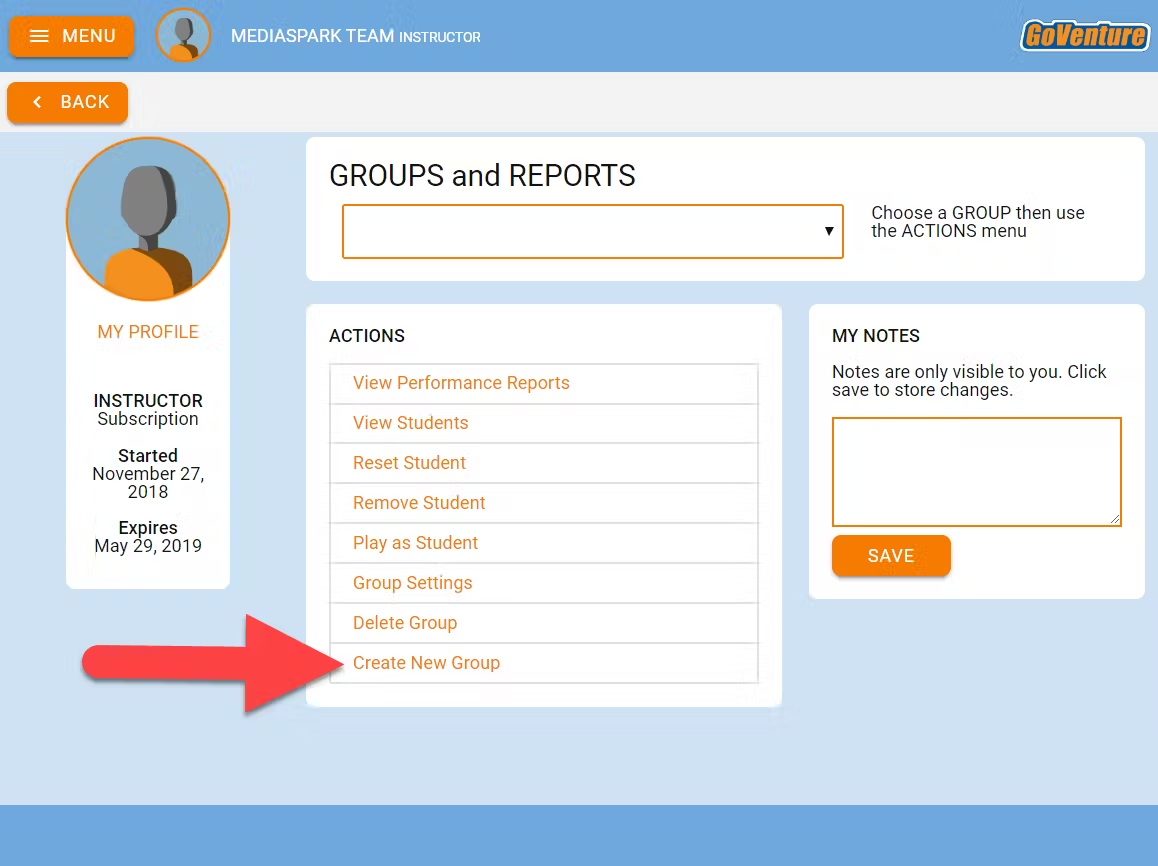 * Students can join multiple Groups. (The instructor can choose if and when to give a Group number to a particular student.)
* Follow the on-screen directions to choose your Group settings.
* Students can join multiple Groups. (The instructor can choose if and when to give a Group number to a particular student.)
* Follow the on-screen directions to choose your Group settings.
* Copy and share the 7-digit Group number with your students. Students will **join** your Group and be able to play the available resource. Instructors can also use the Group number to play as a student.
* When students join your Group number, they will automatically appear on your Instructor Dashboard. **Rostering is automated** so you do not have to input student names or other information.
* Instructors can play as a student by clicking PLAY AS A STUDENT. It is highly recommended that instructors play GoVenture for a few minutes to experience the options available in the program.
## 5.2 Group Settings * When creating a Group, you must choose the resource for students to play. * Instructors have the option to focus students on specific resources. Resources that are not turned ON will be visible but disabled to students who join the Group. Keeping resources OFF helps avoid the possibility of students playing the wrong resource, or playing a resource sooner than planned by the instructor.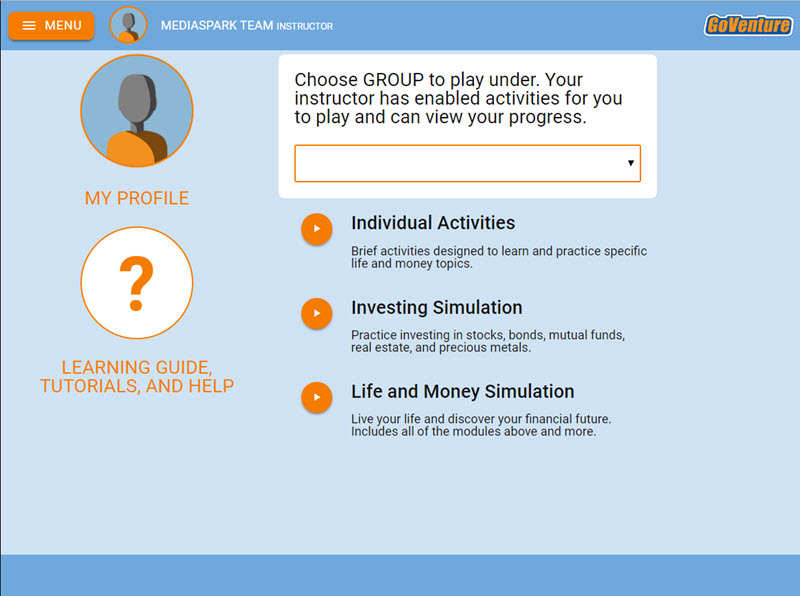
Screenshot of the Student Dashboard/Website with the three modules turned on (Activities, Investing Simulation, and Life and Money Simulation). If a module is turned OFF, the orange button turns grey and is disabled. Resources not shown above cannot be turned OFF.
* To have students play a different resource or repeat the same activity multiple times, create a new Group. You control when students are allowed to move from one resource to the other by witholding the Group numbers until you are ready for them to play. Note that the _eWorkbook_ and _Your Story_ simulation only have one instance per student — these activities cannot be repeated as they are not connected to a specific Group. * When creating a Group, various options may be available. * Groups settings provide instructors the option of allowing students to reset their _Life & Money Simulations_ and _Investing Simulations_. Resetting restarts a Simulation from the beginning — all progress for that Simulation in the specific Group is deleted (but has no effect on other Groups the student may be playing). Instructors can use the Dashboard to reset a student at any time, even if the student is not give the option to reset their own Simulation. If you want to allow a student to play another Simulation without deleting the results of their current Simulation, consider creating a new Group. Note that the _eWorkbook_ and _Your Story_ simulation cannot be reset.
## 5.3 Monitoring Students * When students join a Group number, their progress and performance will appear on the Instructor Dashboard under _Groups & Reports > View Performance Reports_ * A summary table is provided with student names that can be clicked to view full details for each individual student.
# 6. Curriculum Planning Guide
## 6.1 Time Available * Instructors should first consider how much curriculum time is available and which learning outcomes need to be achieved. GoVenture covers all or nearly all educational standards for personal financial literacy. Satisfying hundreds of standards can take dozens of hours of time. * Instructors that plan to use GoVenture as the primary resource for a full curriculum will likely use all the available resources, particularly the comprehensive _Learning Guide_ and related _PDF Activities_. * Instructors who only have a few hours of curriculum time for GoVenture may focus primarily on the _eWorkbook_, _Online Activities_, and the _Life & Money Simulation_. * All resources can be used independently of each other.
## 6.2 Time Required The hours listed below can be completed over multiple session in class or at home. **Your Story Simulation** — 1.5 to 2 hours **eWorkbook** — 2 to 5 hours **Online Activities** x10 — 15 to 60 minutes each **PDF Activities** x70 — 15 to 60 minutes each **Videos** — depends on which ones are assigned **Develop Language Skills** — View Document PDF **Investing Simulation** — 1 to 10 hours depends on the number of simulation years to be played and instructor pacing. This activity can be repeated multipled times. **Life & Money Simulation** — 5 to 15 hours depending on the number of simulation years to be played and instructor pacing. This activity can be repeated multipled times. * Students can take as much time as they want to make decisions in the _Life & Money Simulation_ and the _Investing Simulation_. There is no clock or time limit, except that the Simulation can be played for up to 20 simulation years. The number of years is set by the instructor. * The Simulation advances by weeks (not days) and each year has 48 weeks (not 52). * How quickly a student will progress through the Simulation will depend on how thoughtful their decisions are and the instructor’s requirement for progress, including Goals to be achieved. For example, the instructor may tell students that they must progress through 1 simulation year within the next 30 minutes, thereby providing students an average of 30 seconds to make their decisions each simulation week. * The walkthrough tutorial available when a new simulation is first started takes an estimated 30 minutes to complete. This simulation is required for all new students, but if a student has previously completed the tutorial in another Group, the student will have the option of skipping the tutorial. * The first year of a new simulation may require 30 to 45 minutes to complete (not including the walkthrough tutorial). Each subsequent year will average 30 minutes to complete. Students should be provided between 20 seconds to 1 minute of decision time for each simulation week, plus any additional time needed to periodically evaluate reports in more depth. For a full 20 years of play, the time required can range from 5 to 15 hours, depending on the simulation settings and student pace.
## 6.3 Teaching Students the Fundamentals * The _Life & Money Simulation_ allows students to practice personal finance but does not explicitly teach fundamental concepts and terminology. Instructors should teach the fundamentals before students play the Simulation or can have students play the _Your Story Simulation_ and the _eWorkbook_. These resources are specifically designed to teach the fundamentals with no preparation or prior knowledge required. * Video Tutorials are available for students to better understand all the resources they will play. * When students first play the _Life & Money Simulation_, an in-game tutorial will appear that will walk them through the main components of the Simulation interface and gameplay. * The _Life & Money Simulation_ includes a LEARN button at the bottom of the interface which links directly to section 23 of the _Learning Guide_ for additional guidance. * The _Learning Guide_ provides comprehensive coverage to support a full curriculum. * _Online and PDF Activities_ can be used for practice and grading.
## 6.4 Resource Selection This detailed video will help you understand how all of the GoVenture resources should best be used so that you can be efficient in your learning strategy. This video is for both teachers and students.
## 6.5 Scope & Sequence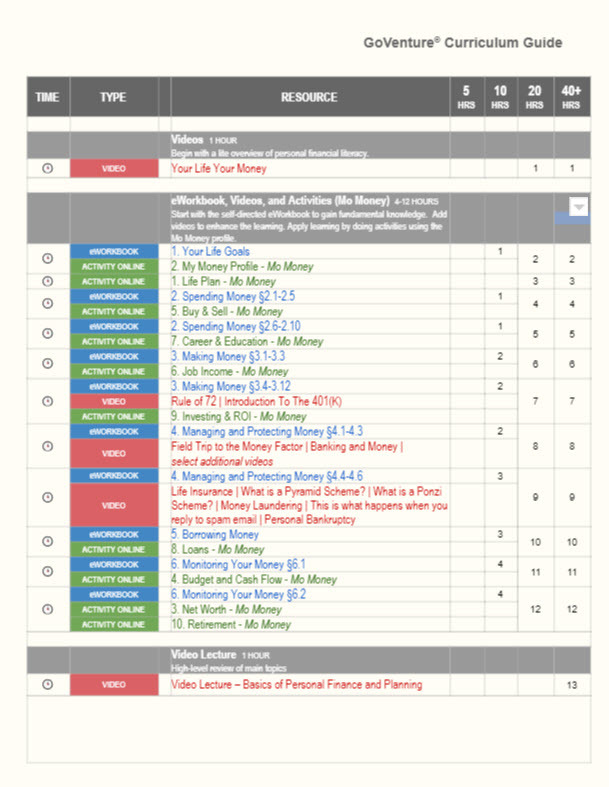 Detailed Scope & Planning options are described in the
Curriculum Guide PDF
Detailed Scope & Planning options are described in the
Curriculum Guide PDF
# 7. Assessment
## 7.1 Sample Assessment Rubric This table provides a sample rubric. Full details are provided below the table.
To convert the GoVenture assessment into a course grade, compare the estimated hours required for each GoVenture activity to the total number of course hours, including homework. Then assign a grade percentage that reflects this proportion.
- For example, if your course requires 60 total hours and one GoVenture activity takes 5 hours, you might assign it at least 8% of the total course grade.
- If a GoVenture activity carries more weight or importance than other course components, consider assigning it a proportionally higher grade percentage.
## 7.2 Life & Money Simulation * The _Life & Money Simulation_ provides many metrics for measuring success. All metrics are available to students through the Simulation and detailed _Performance Report_. * This same data is automatically made available (in real-time) to the instructor through the Instructor Website (there is no need for students to print or manually submit reports). * **Goals**— A Simulation can be set up with specific life and money goals that students must achieve, and this can form the basis of a grading rubric. Goals are added when a new Group is created. The Curriculum Guide describes how goals can be added to a simulation and how points can be awarded to students for achieving the stated goals — View Curriculum Guide PDF. Watch the video tutorial below on how to create GROUPS and GOALS. * **Adding Competition** — An effective way to increase fun and performance is through competition. Use the Skill Score, Net Profit, or other metric to rank students in the same group. Here is one possible measure: * Top 10% earn 10 points * Top 25% earn 7 points * Top 50% earn 5 points * Top 75% earn 3 points * All others earn 0 points
* If you choose to award cash, gifts, or other prizes, we recommend that you choose a larger number of winners for small prizes, rather than a few winners of larger prizes. This will motivate a higher number of participants to do well, while also minimizing any perceived unfairness that could arise with a larger prize.
## 7.3 Investing Simulation * The _Investing Simulation_ can be included as part of the _Life & Money Simulation_ or as a separate activity. Various investment metrics are available which can be used for assessment. * This same data is automatically made available (in real-time) to the instructor through the Instructor Website (there is no need for students to print or manually submit reports).
## 7.4 Your Story Simulation * This is a good introductory learning resource but it does not have any assessment included within it. Students read through the story and make a few simple choices. * Instructors can monitor student progress using the Instructor Website which will show the percentage completed from 0 to 100%. Instructors may consider having a discussion or debrief with students about the experience. * Note — a student account only has access to one Your Story Simulation that is common across all Groups. In other words, there is not a separate Your Story Simulation for each Group. Students can play this activity without joining a Group number, but they must join a Group number for the Instructor to see their progress under _Performance Reports_ (the timing of when a student joins the Group number does not matter). The Your Story Simulation cannot be reset.
## 7.5 eWorkbook * The eWorkbook requires students to read a section and then successfully complete a brief practice exercise. Each exercise can be repeated until successful. Attempts are not recorded or graded. * Students who have fully completed the eWorkbook have demonstrated some level of competency in the subject matter. * Instructors can monitor student progress using the Instructor Website which will show the percentage completed from 0 to 100%. * Note — a student account only has access to one eWorkbook that is common across all Groups. In other words, there is not a separate eWorkbook for each Group. Students can play this activity without joining a Group number, but they must join a Group number for the Instructor to see their progress under _Performance Reports_ (the timing of when a student joins the Group number does not matter). The eWorkbook cannot be reset. * Chapter List * Chapter 1 slides 3-27 * Chapter 2 slides 28-91 * Chapter 3 slides 92-206 * Chapter 4 slides 207-261 * Chapter 5 slides 262-295 * Chapter 6 slides 296-322 * Chapter 7 slides 323-324
## 7.6 Learning Guide * The Learning Guide can be used to learn about specific subjects and as a reference, but has no grading system. The PDF Activities can be used to assess and grade students on the subject matter.
## 7.7 Online & PDF Activities * The instructor can determine the grading system to use for the Activities based on the number of Activities that will be assigned and other resources that will be used in the curriculum. * Scoring rubrics for the Activities are provided here:
Read and Write ACTIVITY Rubric and Listen and Speak ACTIVITY Rubric (Adobe PDF)
## 7.8 Student Experience Report or Presentation * Students prepare written, live, or video presentations or reports on their experience playing the Simulation and achieving their life goals. Encourages students to reflect on their simulation experience and what they learned, and then organize and present their thoughts. * A report template is available in Google Slides, which you can download, edit, and send to students (using your school LMS or other method — do not share this link with students).
View Template * Assessed by instructor.
# 8. Accessibility for People With Disabilities **Individual GoVenture resources may be accessible to students with disabilities, depending on the type and degree of disability.** * All resources are accessible to students who are **deaf** or have a **hearing** or **speech impairment**. * All but one resource is accessible to students with a **physical impairment**, because the resources can be used with either a mouse or keyboard. * Only some resources are accessible with a **screen reader**. Students who are **blind** or **visually impaired** to the degree that they require a screen reader will not be able to use all GoVenture resources — alternatives are provided. Students who are visually impaired but do not require a screen reader will be able to use all GoVenture resources. * A _GoVenture Accessibility Guide_ is available that identifies the requirements of each resource (see link below). When students log in to GoVenture, they are given the option of navigating to the REGULAR version or the ACCESSIBLE version for people with disabilities. If they choose the ACCESSIBLE version, they will be directed to a basic webpage that only lists the GoVenture resources that are fully 100% accessible for all types and degree of disability (hearing, vision, and physical). _Note that instructor logins will always navigate to the REGULAR version even if the ACCESSIBLE version is chosen from the dropdown._ * Depending on the degree of disability, a student may capable of playing additional resources that are not listed on the ACCESSIBLE webpage. Playing additional resources may provide the student with a richer and more comprehensive learning experience. To access the full list of resources, a student can log in to GoVenture by choosing to view the REGULAR version instead of the ACCESSIBLE version — instructor assistance may be required. * Instructors are encouraged to work with students with disabilities to identify which additional resources may work for best them. * **Your Story Simulation** — Serves as an alternative to the _Life & Money Simulation_ for users who are blind or visually impaired and require a screen reader. * **eWorkbook** — An accessible version of the eWorkbook (but without interactive activities) is available as an Adobe PDF file - Download the Accessible eWorkbook (you must be logged in as an instructor to access this PDF file). * View the GoVenture Accessibility Guide * View the ACCESSIBLE webpage that students have access to
# Join Our Educator Community
# Questions?
Reply to our latest email or submit our help form
# Questions?
Reply to our latest email or submit our help form
# 2. Resources
## 2.1 All Resources GoVenture includes all of the resources described below. The program is modular to give instructors the flexibility to choose the best resources that match your needs.
| Resource | Description | Time Required |
|---|---|---|
 Tutorial Video Tutorial Video |
A detailed tutorial video is available that describes all of the resources below and how they can best be used. This video is for both teachers and students. Watch Part 1 | All Resources Included Watch Part 2 | How To Play Simulation |
44 minutes |
 Life & Money Simulation Life & Money Simulation |
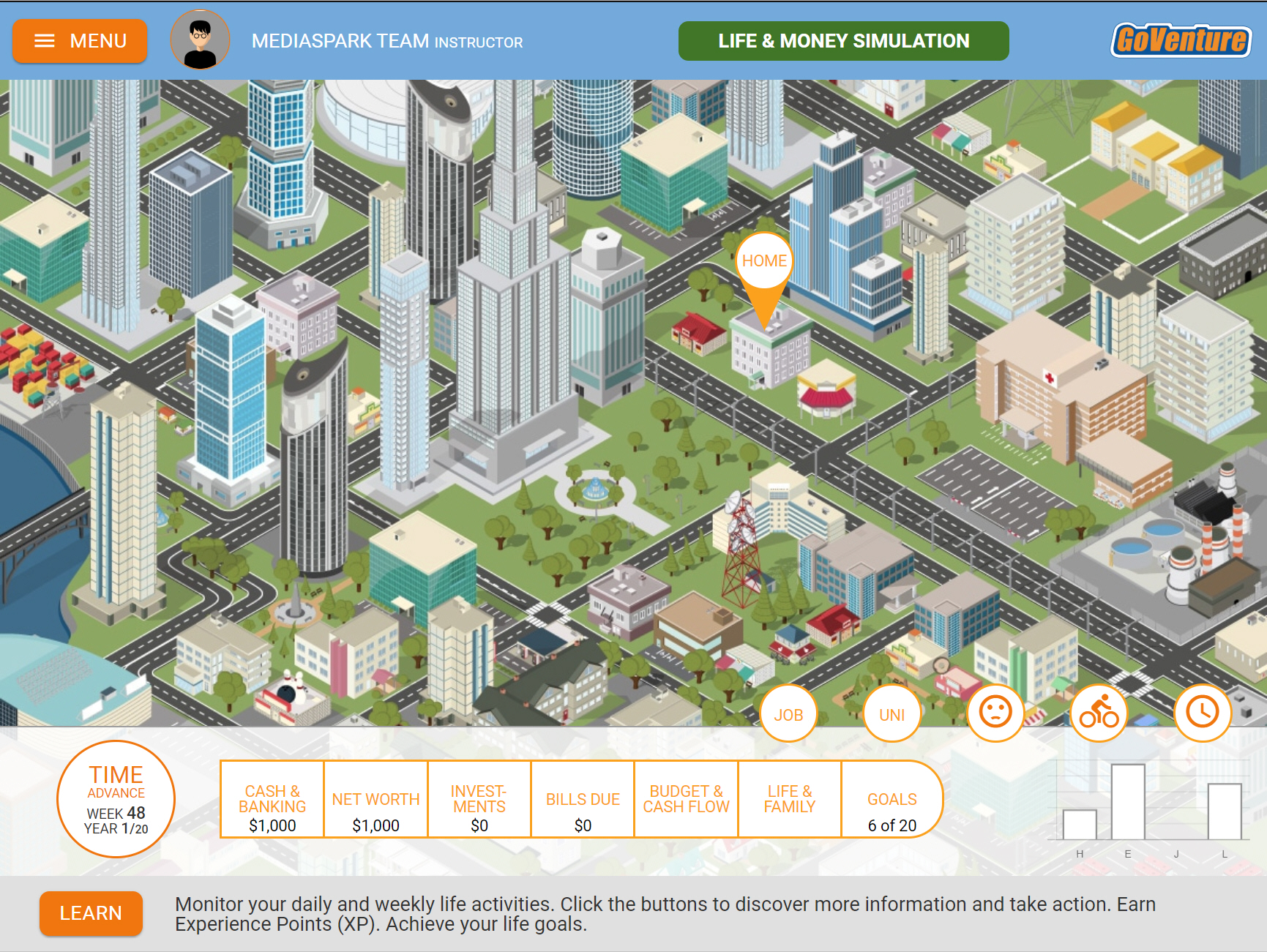
A highly interactive simulation game that enables students to directly experience personal financial literacy and investing by living their lives for up to 20 years. Play Life & Money Simulation |
Can be played for a few hours or dozens of hours. Multiple simulations with different objectives can be played at the same time. |
 Investing Simulation Investing Simulation |
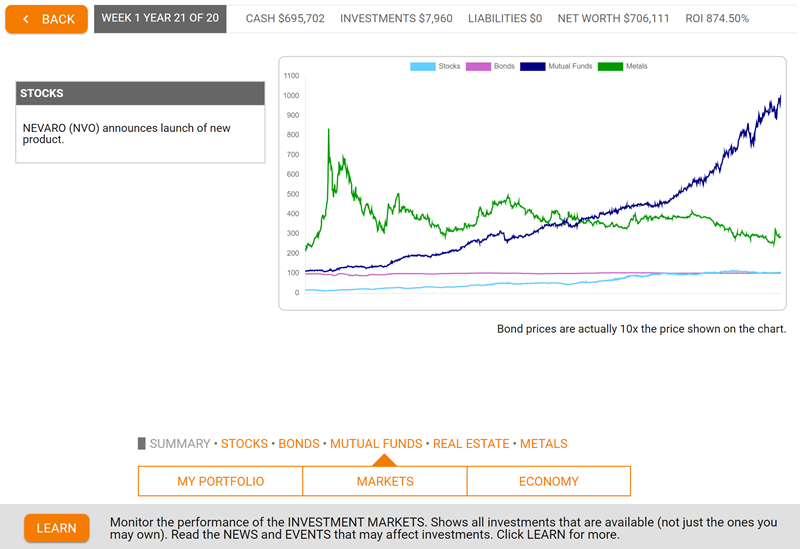
A simulation game that provides students with virtual money to invest in stocks, bonds, mutual funds, real estate, and gold. May be included within the Life & Money Simulation or run as an investing-only simulation |
Can be played for a few hours or dozens of hours. Multiple simulations with different objectives can be played at the same time. |
 Learning Guide Learning Guide |
A comprehensive online guide with text, examples, and figures that explain all the fundamental topics of personal financial literacy and investing. The Learning Guide can be viewed at any time by students and instructors. Direct links to specific topics are also included at the bottom of every screen in the Simulation, making it easy for students to find support information while they play the Simulation. View Learning Guide |
Contains over 70,000 words (equivalent to a 300-page book) and provides comprehensive coverage to support a full curriculum. |
 Your Story Simulation Your Story Simulation |
An engaging text-only story-based simulation. The ideal first activity to introduce students to basic financial literacy concepts. Play YOUR STORY Simulation | Requires 1.5 to 2 hours to complete. Automatically saves and resumes progress so that it can be played over multiple short sessions. |
 eWorkbook eWorkbook |
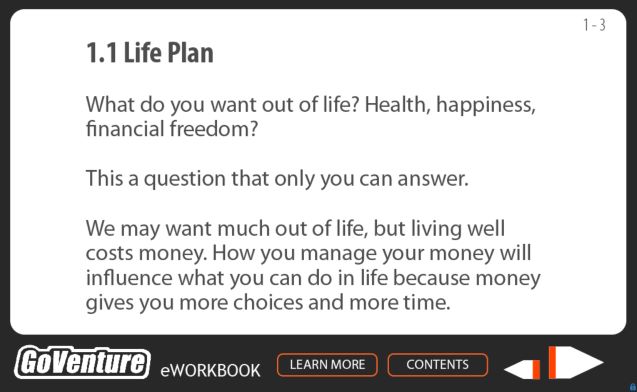
An online workbook that introduces students to the basics of life and money. Content is presented in an easy-to-read summary format, supported with brief practice exercises at the end of each section (which must be completed correctly to continue). Ideal activity to start student learning (after or instead of the Your Story Simulation). Play the eWorkbook |
Requires 2 to 5 hours to complete. Automatically saves and resumes progress so that it can be played over multiple short sessions. |
 Activities ONLINE Activities ONLINE |
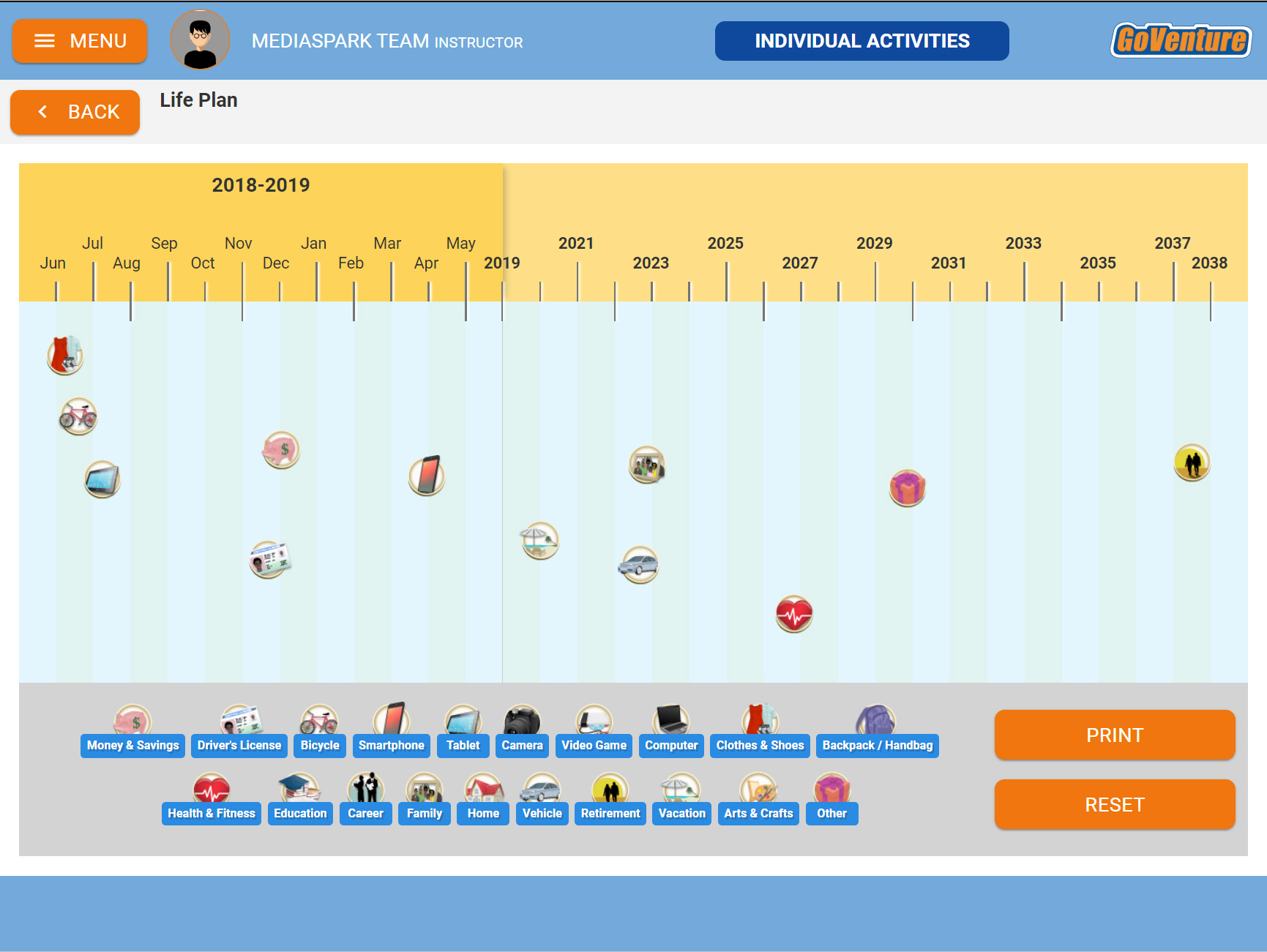
Activities that allow students to learn and practice important financial concepts. These activities must be turned ON by the instructor. Once ON, students can play the Activities by logging in to GoVenture. Instructors can view student input using the Instructor Dashboard. See section 2.2 below for more details. | 10 Activities. Each Activity requires 15 to 60 minutes to complete. |
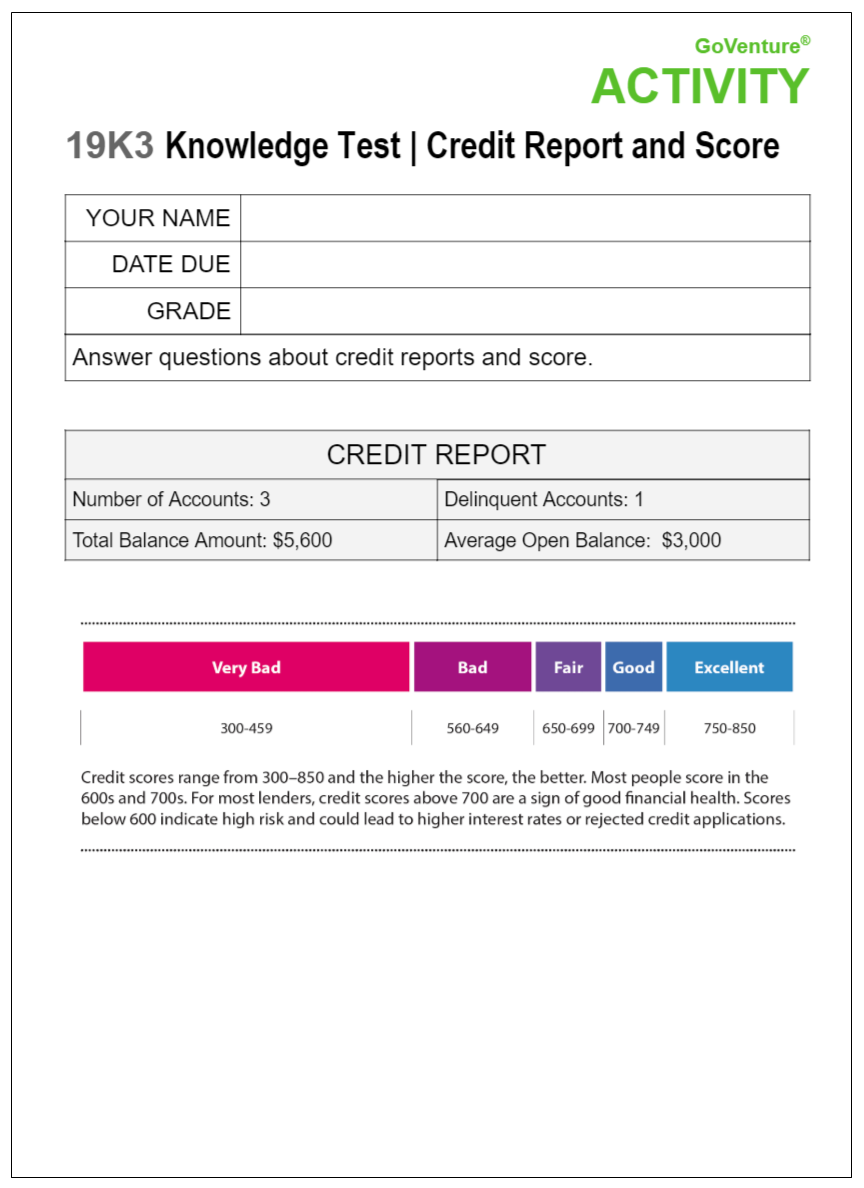 Activities PDF Activities PDF |
Printable Adobe PDF exercises that support the content in the Learning Guide. PDF Activities are available at the bottom of each section in the Learning Guide. See section 2.3 below for more details. | Over 70 Activities. Each Activity requires 15 to 60 minutes to complete. |
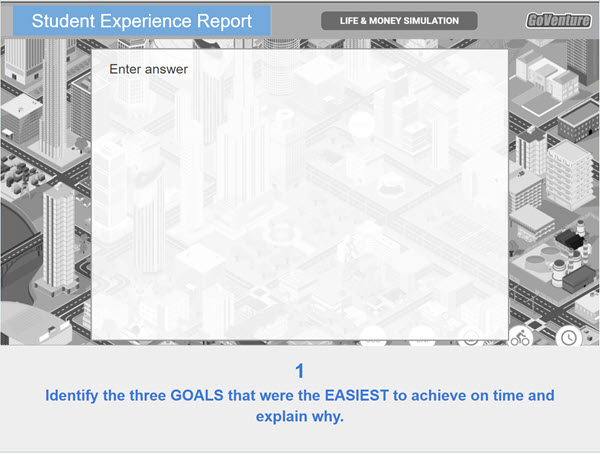 Student Experience Report or Presentation Student Experience Report or Presentation |
Students prepare written, live, or video presentations or reports on their experience playing the simulation and achieving their life goals. View Template |
|
 Videos Videos |
Videos to enhance student learning – curated from around the world. Hundreds are available. View Videos |
Most videos are a few minutes in duration. |
 Tutorials Tutorials |
Video Tutorials for playing the simulation. The Simulation also includes an in-game tutorial. View Tutorial |
50 minutes |
| Curriculum Planning Guide |
Helps instructors with course planning. The duration and sequence of GoVenture resources are presented with options for matching 5, 10, 20, 40+, and 110+ hours of curriculum time. See section 6 of this document. |
|
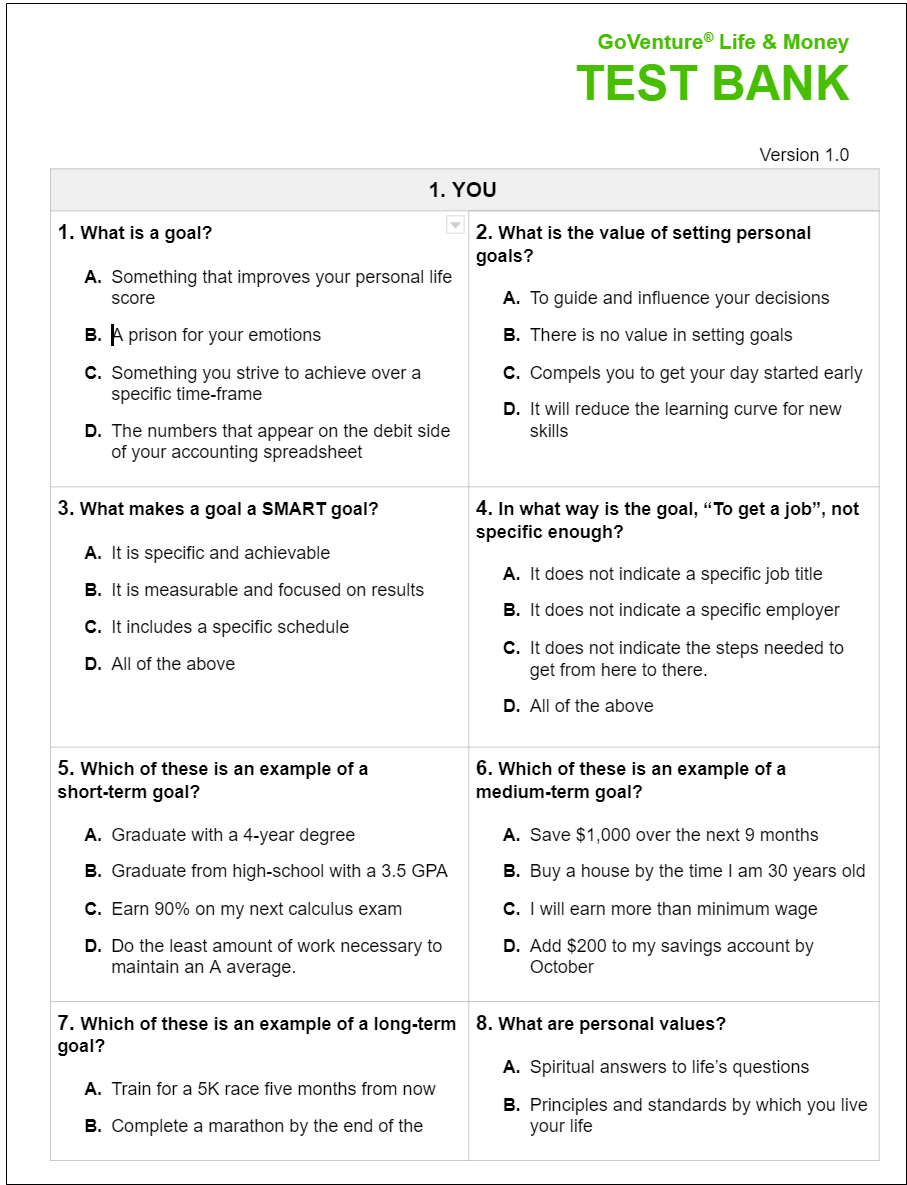 Test Bank Test Bank |
Over 300 multiple-choice questions aligned with the main sections of the Learning Guide. The quiz is available in a document where you can copy and paste questions to build your own printable test. Contact us to request the Test Bank. | |
| Develop Language Skills | A document that describes how GoVenture can be used to develop student language skills. | View Document PDF |
| Accessibility for People with Disabilities | The student resources listed in this table may be accessible to students with disabilities, depending on the type and degree of disability. | See section 8 of this document |
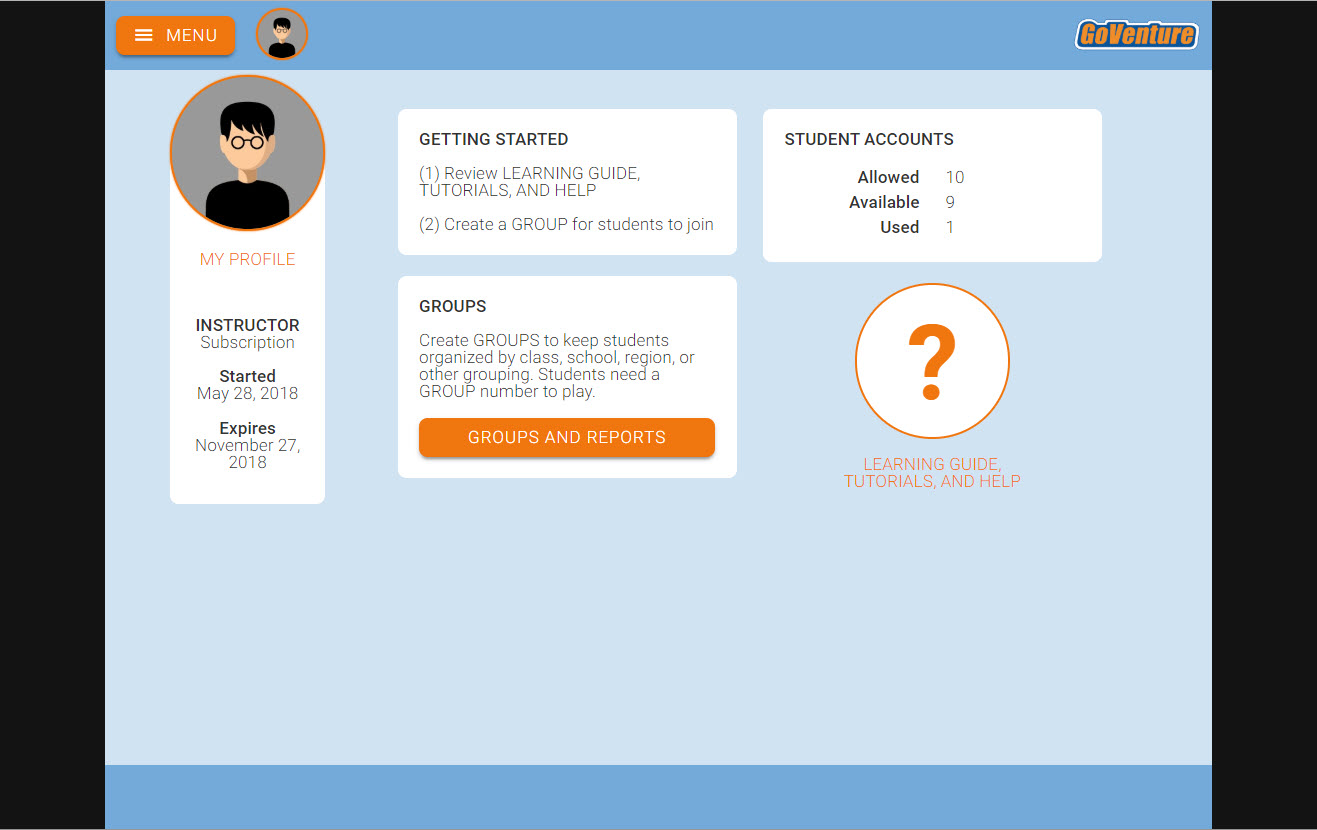 Instructor Dashboard (Website) Instructor Dashboard (Website) |
A website that enables instructors to manage GoVenture and their students. | Students and instructors log in to the same GoVenture website. Instructor accounts are encoded with additional privileges to provide access to a special dashboard. |
## 2.2 Online Activities * There are **10** ONLINE Activities that allow students to learn and practice important financial concepts. * Each Activity takes 15 to 60 minutes to complete. * These activities must be turned ON by the instructor by creating a Group (or changing Group settings). Once ON, students can play the Activities by logging in to GoVenture. * Instructors can view student input using the Instructor Dashboard. * Information on how to play each Activity is available to students by clicking the LEARN button in each Activity — the LEARN button links to this webpage
**Instructors can have students play the ONLINE Activities using one of three profiles** — * MO's PROFILE
Mo is a fictional character with a detailed profile that can be used as a context to play all of the activities. It is recommended that students play the activities first using Mo's profile. Directions for completing an activity using Mo's profile are included at the bottom of each activity description/help. Answers for instructors are included in the table below. Read Mo's profile * STUDENT PERSONAL PROFILES
Instructors can encourage students to research the information they need to make the data more personally relevant. * PROFILES PROVIDED BY THE INSTRUCTOR
Instructors can use custom profiles to guide students to discover key information that matches the curriculum.
**The tables below provide a summary list of each ONLINE Activity.** Each activity is numbered for easy reference. See the _Assessment_ section of this document for language skill development and grading rubrics.
| ONLINE ACTIVITY | DESCRIPTION |
|---|---|
| About Online Activities | Completed Activities with Mo's Profile for Instructors (PDF) You must be logged in as an instructor to view this document. |
| 1. Life Plan | Build your short-term and long-term life plan by adding goals to a visual calendar. |
| 2. My Money Profile | Consider the type of lifestyle you want to have and how comfortable you are with taking financial risks to achieve your goals. |
| 3. Net Worth | Build a Net Worth statement - an indicator of your personal wealth. |
| 4. Budget & Cash Flow | Add up all the money you receive each month and subtract all the money you pay out. |
| 5. Buy & Sell | Discover the cost of common products and how they may lose monetary value over time. |
| 6. Job Income | Determine how much money you can earn with a job, minus employment deductions and taxes. |
| 7. Career & Education | Determine the financial benefits and costs of education for a specific job. |
| 8. Loans | Calculate various loan options. |
| 9. Investment & ROI | Calculate the Return On Investment (ROI) of various investment options. |
| 10. Retirement | Determine how much money you may need when you retire. |
## 2.3 PDF Activities * There are over **70 PDF Activities** — printable Adobe PDF exercises that support the content in the Learning Guide. PDF Activities are available at the bottom of each section of the Learning Guide. * Each Activity takes 15 to 60 minutes to complete. * Activities and answers for instructors are available in the table below. * Activity identifiers use the following coding: * The first 2 digits match the section/chapter in the Learning Guide * D = Define Key Terms * L = Listen & Speak * R = Read & Write * K = Knowledge Test
| LEARNING GUIDE SECTION | PDF ACTIVITY |
|---|---|
| PDF Activities for students are available at the bottom of each section of the Learning Guide. | Completed Activities (Answer Key) for Instructors (Adobe PDF) You must be logged in as an instructor to view this document. |
| 1. You | 01D1 Define Key Terms | You 01K1 Knowledge Test | Setting Goals 01K2 Knowledge Test | Needs and Wants |
| 2. Your Personal Finances | 02D1 Define Key Terms | Your Personal Finances 02L1 Listen & Speak | Your Personal Finances 02R1 Read & Write | Compensation from Employment 02K1 Knowledge Test | Net Worth 02K2 Knowledge Test | Cash Flow & Income |
| 3. Your Assets | 03D1 Define Key Terms | Assets 03L1 Listen & Speak | Assets |
| 4. Your Liabilities | 04D1 Define Key Terms | Liabilities 04L1 Listen & Speak | Liabilities 04R1 Read & Write | Liabilities |
| 5. Your Lifestyle | 05D1 Define Key Terms | Your Lifestyle 05K1 Knowledge Test | Own vs Rent a Home 05K2 Knowledge Test | Own vs Lease a Car |
| 6. Managing Your Assets and Liabilities | 06D1 Define Key Terms | Managing Your Assets and Liabilities 06L1 Listen & Speak | Managing Your Assets and Liabilities 06R1 Read & Write | Managing Your Assets and Liabilities 06R2 Read & Write | Estate Planning Tools 06R3 Read & Write | Impact of Unplanned Spending 06K1 Knowledge Test | Charitable Giving 06K2 Knowledge Test | The Financial System 06K3 Knowledge Test | Retirement 06K4 Knowledge Test | Budget 06K5 Knowledge Test | Cash Management Tools |
| 7. Key Investment Concepts | 07D1 Define Key Terms | Key Investment Concepts 07L1 Listen & Speak | Key Investment Concepts 07R1 Read & Write | Key Investment Concepts |
| 8. Making Your Money Grow | 08D1 Define Key Terms | Making Your Money Grow 08L1 Listen & Speak | Making Your Money Grow 08R1 Read & Write | Making Your Money Grow |
| 9. The Investment Timetable | 09D1 Define Key Terms | The Investment Timetable 09L1 Listen & Speak | The Investment Timetable 09R1 Read & Write | The Investment Timetable |
| 10. Calculating the ROI | 10D1 Define Key Terms | Calculating the ROI 10L1 Listen & Speak | Calculating the ROI 10R1 Read & Write | Calculating the ROI |
| 11. Banking | 11D1 Define Key Terms | Banking 11L1 Listen & Speak | Banking 11R1 Read & Write | Evaluate Savings Options 11K1 Knowledge Test | Reconcile Bank Statement 11K2 Knowledge Test | Write Checks 11K3 Knowledge Test | Debit and Credit Cards |
| 12. Money Market Instruments | 12D1 Define Key Terms | Money Market Instruments |
| 13. Bonds | 13D1 Define Key Terms | Bonds 13L1 Listen & Speak | Bonds |
| 14. Stocks | 14D1 Define Key Terms | Stocks 14L1 Listen & Speak | Stocks |
| 15. Mutual Funds | 15D1 Define Key Terms | Mutual Funds 15L1 Listen & Speak | Mutual Funds |
| 16. Other Equity Investments | 16D1 Define Key Terms | Other Equity Investments |
| 17. Annuities and Types of Life Insurance as Investments | 17D1 Define Key Terms | Annuities and Types of Life Insurance as Investments |
| 18. Insuring and Protecting | 18D1 Define Key Terms | Insuring and Protecting 18R1 Read & Write | Apply Risk Management Strategies 18K1 Knowledge Test | Consumer Protection 18K2 Knowledge Test | Automobile Insurance 18K3 Knowledge Test | Types, Benefits, Costs of Insurance |
| 19. Credit and Borrowing | 19D1 Define Key Terms | Credit and Borrowing 19L1 Listen & Speak | Bankruptcy 19R1 Read & Write | Costs of Borrowing 19K1 Knowledge Test | Credit Worthiness 19K2 Knowledge Test | Credit Decisions 19K3 Knowledge Test | Credit Report and Score 19K4 Knowledge Test | Alternative Methods of Payment |
| 20. Education and Training | 20D1 Define Key Terms | Education and Training 20K1 Knowledge Test | Paying for a Postsecondary Education 20K2 Knowledge Test | Comparing the Costs of Education |
| 21. Taxes | 21D1 Define Key Terms | Taxes |
| 22. Managing a Paycheck and Taxes | 22D1 Define Key Terms | Managing a Paycheck and Taxes 22K1 Knowledge Test | Analysing a Pay Stub |
| 23. Playing the Simulation |
## 2.4 How Students Can Use AI With GoVenture Simulations View Activity
# 3. Instructor & Student Accounts & Onboarding
**Section 3.3** includes a **Slide deck** for instructors to use to onboard students.
## 3.1 Your Instructor Account * Once you create your Instructor Account (see Section 1), log in to review the Instructor Dashboard (website). * The Instructor Dashboard allows you to create Groups, monitor student progress and performance, and play GoVenture as a student. _Screenshot of the Instructor Dashboard (website) with options for managing a Group_
To return to the Instructor Dashboard, click the MENU button.
## 3.2 Sharing Instructor Accounts Instructors can share access to their accounts with other instructors or colleagues. View Sharing Options
## 3.3 Student Accounts Identify the type of account that applies to you and review the details below. Your type is displayed on your instructor dashboard as shown below. * **Learner Managed** — College, Nonprofit, Business * **Instructor Managed** — Primarily for K-12 Schools
### 3.3.1 _Learner Managed_ account — primarily for colleges, universities, nonprofits, and businesses * Students create and manage their own personal login accounts. * Students create accounts with a **Subscription Key** — a 32 digit number that looks like this: 12345678-12345678-12345678-12345678. * Students can purchase their own Subscription Keys or organizations can purchase them for students using any combination of these three options: * Purchase keys individually or in bulk using a credit card or PayPal at BuyGoVenture.com * To buy with a Purchase Order, use our Order Forms at GoVenture.net/prices * To sell through a bookstore, review the information at GoVenture.net/bookstore * Give students the **Group** number you want them to play and your **student roster** will build automatically as students join your Group. You do not have to input student names, emails, or any other information — it's all automated. * Use this Slide Deck to introduce students to GoVenture — copy this content into your own course content and customize it to fit your approach (do not share this link with students).
### 3.3.2 _Instructor Managed_ account — primarily for K-12 schools * Watch the **video** above or follow the directions below to see how student accounts work. * Use this Slide Deck to introduce students to GoVenture. * Instructor Managed subscriptions do not require students to create full accounts on GoVenture. Students do not have to disclose personally-identifiable information. * Instructors do not need to input a student roster. This will be done automatically by GoVenture. * Instructors use the GoVenture dashboard to **create student accounts** as they need them.
* When an instructor creates a student account, a unique USERNAME is generated for the student. The USERNAME is a multi-digit number that is automatically generated — the instructor cannot choose the number (but can edit it after it is created). Instructors do not have to set the student PASSWORD (but can change it if needed).
* The instructor provides the USERNAME to the student and directs the student to log in to the GoVenture website at GoVentureLife.com. Students should _**not**_ use the Create Account option.
* Use this spreadsheet to share usernames with students — click the link to view the document then choose FILE > DOWNLOAD for your own copy to edit.
* GoVenture will determine if this is a new USERNAME being used for the first time and prompt the student to set a PASSWORD and their name or student ID or pseudonym (if maximum privacy is preferred).
* No personally-identifiable information is required of students. But, it is important that students use a unique identifier that allows the instructor to know who they are for monitoring and grading purposes. Alternatively, the instructor can manually record student names with their assigned USERNAMES. _NOTE: If you direct students to enter their full names, you may want to consider directing them to enter their last names first (such as "Smith John" or "Smith, John") so that your Performance Reports can be sorted by last name._ * From now on, the student uses their personal USERNAME and PASSWORD to log in to GoVenture. * Once a student logs in to GoVenture, they have access to the User Guide, resources, and other help information. But, students need to join a GROUP Number to play the Simulation. Instructors must provide students a GROUP Number to join.
**Disable, Delete, Edit Student Accounts**
* Instructors can reset student PASSWORDS if needed.
* Your school or District is assigned a maximum number of instructor accounts and student accounts that can be active at any one time (concurrently).
* Instructors can DISABLE individual student accounts when they are no longer needed (such as at the end of the semester or year, or if a student drops out). Disabling a student account reduces the number of active student accounts, thereby providing room for another student account to be activated. Disabled accounts do not count towards the maximum number of concurrent accounts allowed. Disabling a student account retains all student progress and results, allowing the account to be activated again at any time.
* Instructors can DELETE individual student accounts. Doing so permanently erases all student progress and results and the same student account cannot be activated again.
* Instructors can EDIT student accounts.
* A student account that is created by an instructor but never actually used by a student will not count towards the maximum number of student accounts allowed. (Used means a student has set a password.)
# 4. Saving & Resuming Progress
* Student progress is automatically saved online. * Students can quit and resume their progress at any time. * Students will automatically continue from where they stopped playing. * Groups settings provide instructors the option of allowing students to **reset** their _Life & Money_ Simulations. Resetting restarts a Simulation from the beginning — all progress for that Simulation in the specific Group is deleted (but has no effect on other Groups the student may be playing). Instructors can use the Dashboard to reset a student at any time, even if the student is not give the option to reset their own Simulation. Note that the _eWorkbook_ and _Your Story_ simulation cannot be reset.
# 5. Groups
## 5.1 Creating Groups * Watch the video tutorial above on how to create GROUPS and GOALS. * Groups allow you to keep student performance results organized by class, school, region, or any other grouping that you prefer. * Students require a Group number to play these resources: * Life & Money Simulation * Investing Simulation * Online Activities (10) * Students do **_not_** need a Group number to play these resources: * Your Story Simulation * eWorkbook * Learning Guide * Printable Activities * User Guide * Use the Instructor Dashboard to create a Group.
* Students can join multiple Groups. (The instructor can choose if and when to give a Group number to a particular student.)
* Follow the on-screen directions to choose your Group settings.
* Copy and share the 7-digit Group number with your students. Students will **join** your Group and be able to play the available resource. Instructors can also use the Group number to play as a student.
* When students join your Group number, they will automatically appear on your Instructor Dashboard. **Rostering is automated** so you do not have to input student names or other information.
* Instructors can play as a student by clicking PLAY AS A STUDENT. It is highly recommended that instructors play GoVenture for a few minutes to experience the options available in the program.
## 5.2 Group Settings * When creating a Group, you must choose the resource for students to play. * Instructors have the option to focus students on specific resources. Resources that are not turned ON will be visible but disabled to students who join the Group. Keeping resources OFF helps avoid the possibility of students playing the wrong resource, or playing a resource sooner than planned by the instructor.
Screenshot of the Student Dashboard/Website with the three modules turned on (Activities, Investing Simulation, and Life and Money Simulation). If a module is turned OFF, the orange button turns grey and is disabled. Resources not shown above cannot be turned OFF.
* To have students play a different resource or repeat the same activity multiple times, create a new Group. You control when students are allowed to move from one resource to the other by witholding the Group numbers until you are ready for them to play. Note that the _eWorkbook_ and _Your Story_ simulation only have one instance per student — these activities cannot be repeated as they are not connected to a specific Group. * When creating a Group, various options may be available. * Groups settings provide instructors the option of allowing students to reset their _Life & Money Simulations_ and _Investing Simulations_. Resetting restarts a Simulation from the beginning — all progress for that Simulation in the specific Group is deleted (but has no effect on other Groups the student may be playing). Instructors can use the Dashboard to reset a student at any time, even if the student is not give the option to reset their own Simulation. If you want to allow a student to play another Simulation without deleting the results of their current Simulation, consider creating a new Group. Note that the _eWorkbook_ and _Your Story_ simulation cannot be reset.
## 5.3 Monitoring Students * When students join a Group number, their progress and performance will appear on the Instructor Dashboard under _Groups & Reports > View Performance Reports_ * A summary table is provided with student names that can be clicked to view full details for each individual student.
# 6. Curriculum Planning Guide
## 6.1 Time Available * Instructors should first consider how much curriculum time is available and which learning outcomes need to be achieved. GoVenture covers all or nearly all educational standards for personal financial literacy. Satisfying hundreds of standards can take dozens of hours of time. * Instructors that plan to use GoVenture as the primary resource for a full curriculum will likely use all the available resources, particularly the comprehensive _Learning Guide_ and related _PDF Activities_. * Instructors who only have a few hours of curriculum time for GoVenture may focus primarily on the _eWorkbook_, _Online Activities_, and the _Life & Money Simulation_. * All resources can be used independently of each other.
## 6.2 Time Required The hours listed below can be completed over multiple session in class or at home. **Your Story Simulation** — 1.5 to 2 hours **eWorkbook** — 2 to 5 hours **Online Activities** x10 — 15 to 60 minutes each **PDF Activities** x70 — 15 to 60 minutes each **Videos** — depends on which ones are assigned **Develop Language Skills** — View Document PDF **Investing Simulation** — 1 to 10 hours depends on the number of simulation years to be played and instructor pacing. This activity can be repeated multipled times. **Life & Money Simulation** — 5 to 15 hours depending on the number of simulation years to be played and instructor pacing. This activity can be repeated multipled times. * Students can take as much time as they want to make decisions in the _Life & Money Simulation_ and the _Investing Simulation_. There is no clock or time limit, except that the Simulation can be played for up to 20 simulation years. The number of years is set by the instructor. * The Simulation advances by weeks (not days) and each year has 48 weeks (not 52). * How quickly a student will progress through the Simulation will depend on how thoughtful their decisions are and the instructor’s requirement for progress, including Goals to be achieved. For example, the instructor may tell students that they must progress through 1 simulation year within the next 30 minutes, thereby providing students an average of 30 seconds to make their decisions each simulation week. * The walkthrough tutorial available when a new simulation is first started takes an estimated 30 minutes to complete. This simulation is required for all new students, but if a student has previously completed the tutorial in another Group, the student will have the option of skipping the tutorial. * The first year of a new simulation may require 30 to 45 minutes to complete (not including the walkthrough tutorial). Each subsequent year will average 30 minutes to complete. Students should be provided between 20 seconds to 1 minute of decision time for each simulation week, plus any additional time needed to periodically evaluate reports in more depth. For a full 20 years of play, the time required can range from 5 to 15 hours, depending on the simulation settings and student pace.
## 6.3 Teaching Students the Fundamentals * The _Life & Money Simulation_ allows students to practice personal finance but does not explicitly teach fundamental concepts and terminology. Instructors should teach the fundamentals before students play the Simulation or can have students play the _Your Story Simulation_ and the _eWorkbook_. These resources are specifically designed to teach the fundamentals with no preparation or prior knowledge required. * Video Tutorials are available for students to better understand all the resources they will play. * When students first play the _Life & Money Simulation_, an in-game tutorial will appear that will walk them through the main components of the Simulation interface and gameplay. * The _Life & Money Simulation_ includes a LEARN button at the bottom of the interface which links directly to section 23 of the _Learning Guide_ for additional guidance. * The _Learning Guide_ provides comprehensive coverage to support a full curriculum. * _Online and PDF Activities_ can be used for practice and grading.
## 6.4 Resource Selection This detailed video will help you understand how all of the GoVenture resources should best be used so that you can be efficient in your learning strategy. This video is for both teachers and students.
## 6.5 Scope & Sequence
Detailed Scope & Planning options are described in the
Curriculum Guide PDF
# 7. Assessment
## 7.1 Sample Assessment Rubric This table provides a sample rubric. Full details are provided below the table.
| ITEM | GOAL | GRADE 100% |
|---|---|---|
| eWorkbook and Your Story Simulation | Completion | 20 |
| Activities Online - Mo's Profile | Completion and accuracy (1 point per Activity) | 10 |
| Activities Online - Student Profile | Completion (1/2 point per Activity) | 5 |
| Activities PDF | Completion and accuracy (Points based on number of Activities assigned) | 20 |
| Simulation 1 (Practice) | Life Goals Points (Use "Practice" Life Goals List) | 5 |
| Simulation 2 | Life Goals Points (25-35% based on completion with the remainder on achieving other Life Goals) | 15 |
| Simulation 3 | Life Goals Points (25-35% based on completion, with the remainder on achieving other Life Goals) | 15 |
| Student Experience Report or Presentation | Assessed by Instructor | 10 |
- If a GoVenture activity carries more weight or importance than other course components, consider assigning it a proportionally higher grade percentage.
## 7.2 Life & Money Simulation * The _Life & Money Simulation_ provides many metrics for measuring success. All metrics are available to students through the Simulation and detailed _Performance Report_. * This same data is automatically made available (in real-time) to the instructor through the Instructor Website (there is no need for students to print or manually submit reports). * **Goals**— A Simulation can be set up with specific life and money goals that students must achieve, and this can form the basis of a grading rubric. Goals are added when a new Group is created. The Curriculum Guide describes how goals can be added to a simulation and how points can be awarded to students for achieving the stated goals — View Curriculum Guide PDF. Watch the video tutorial below on how to create GROUPS and GOALS. * **Adding Competition** — An effective way to increase fun and performance is through competition. Use the Skill Score, Net Profit, or other metric to rank students in the same group. Here is one possible measure: * Top 10% earn 10 points * Top 25% earn 7 points * Top 50% earn 5 points * Top 75% earn 3 points * All others earn 0 points
* If you choose to award cash, gifts, or other prizes, we recommend that you choose a larger number of winners for small prizes, rather than a few winners of larger prizes. This will motivate a higher number of participants to do well, while also minimizing any perceived unfairness that could arise with a larger prize.
## 7.3 Investing Simulation * The _Investing Simulation_ can be included as part of the _Life & Money Simulation_ or as a separate activity. Various investment metrics are available which can be used for assessment. * This same data is automatically made available (in real-time) to the instructor through the Instructor Website (there is no need for students to print or manually submit reports).
## 7.4 Your Story Simulation * This is a good introductory learning resource but it does not have any assessment included within it. Students read through the story and make a few simple choices. * Instructors can monitor student progress using the Instructor Website which will show the percentage completed from 0 to 100%. Instructors may consider having a discussion or debrief with students about the experience. * Note — a student account only has access to one Your Story Simulation that is common across all Groups. In other words, there is not a separate Your Story Simulation for each Group. Students can play this activity without joining a Group number, but they must join a Group number for the Instructor to see their progress under _Performance Reports_ (the timing of when a student joins the Group number does not matter). The Your Story Simulation cannot be reset.
## 7.5 eWorkbook * The eWorkbook requires students to read a section and then successfully complete a brief practice exercise. Each exercise can be repeated until successful. Attempts are not recorded or graded. * Students who have fully completed the eWorkbook have demonstrated some level of competency in the subject matter. * Instructors can monitor student progress using the Instructor Website which will show the percentage completed from 0 to 100%. * Note — a student account only has access to one eWorkbook that is common across all Groups. In other words, there is not a separate eWorkbook for each Group. Students can play this activity without joining a Group number, but they must join a Group number for the Instructor to see their progress under _Performance Reports_ (the timing of when a student joins the Group number does not matter). The eWorkbook cannot be reset. * Chapter List * Chapter 1 slides 3-27 * Chapter 2 slides 28-91 * Chapter 3 slides 92-206 * Chapter 4 slides 207-261 * Chapter 5 slides 262-295 * Chapter 6 slides 296-322 * Chapter 7 slides 323-324
## 7.6 Learning Guide * The Learning Guide can be used to learn about specific subjects and as a reference, but has no grading system. The PDF Activities can be used to assess and grade students on the subject matter.
## 7.7 Online & PDF Activities * The instructor can determine the grading system to use for the Activities based on the number of Activities that will be assigned and other resources that will be used in the curriculum. * Scoring rubrics for the Activities are provided here:
Read and Write ACTIVITY Rubric and Listen and Speak ACTIVITY Rubric (Adobe PDF)
## 7.8 Student Experience Report or Presentation * Students prepare written, live, or video presentations or reports on their experience playing the Simulation and achieving their life goals. Encourages students to reflect on their simulation experience and what they learned, and then organize and present their thoughts. * A report template is available in Google Slides, which you can download, edit, and send to students (using your school LMS or other method — do not share this link with students).
View Template * Assessed by instructor.
# 8. Accessibility for People With Disabilities **Individual GoVenture resources may be accessible to students with disabilities, depending on the type and degree of disability.** * All resources are accessible to students who are **deaf** or have a **hearing** or **speech impairment**. * All but one resource is accessible to students with a **physical impairment**, because the resources can be used with either a mouse or keyboard. * Only some resources are accessible with a **screen reader**. Students who are **blind** or **visually impaired** to the degree that they require a screen reader will not be able to use all GoVenture resources — alternatives are provided. Students who are visually impaired but do not require a screen reader will be able to use all GoVenture resources. * A _GoVenture Accessibility Guide_ is available that identifies the requirements of each resource (see link below). When students log in to GoVenture, they are given the option of navigating to the REGULAR version or the ACCESSIBLE version for people with disabilities. If they choose the ACCESSIBLE version, they will be directed to a basic webpage that only lists the GoVenture resources that are fully 100% accessible for all types and degree of disability (hearing, vision, and physical). _Note that instructor logins will always navigate to the REGULAR version even if the ACCESSIBLE version is chosen from the dropdown._ * Depending on the degree of disability, a student may capable of playing additional resources that are not listed on the ACCESSIBLE webpage. Playing additional resources may provide the student with a richer and more comprehensive learning experience. To access the full list of resources, a student can log in to GoVenture by choosing to view the REGULAR version instead of the ACCESSIBLE version — instructor assistance may be required. * Instructors are encouraged to work with students with disabilities to identify which additional resources may work for best them. * **Your Story Simulation** — Serves as an alternative to the _Life & Money Simulation_ for users who are blind or visually impaired and require a screen reader. * **eWorkbook** — An accessible version of the eWorkbook (but without interactive activities) is available as an Adobe PDF file - Download the Accessible eWorkbook (you must be logged in as an instructor to access this PDF file). * View the GoVenture Accessibility Guide * View the ACCESSIBLE webpage that students have access to
# Join Our Educator Community
# Questions?
Reply to our latest email or submit our help form