👉1. Start Here
Instructors — get started quickly by watching the videos or following the step-by-step directions — both are below. Note that Personal Finance and Life & Money are similar products.
1.1 Watch Demo Video For Instructors
Watch this 10-minute video then follow the directions below. A more detailed tutorial video is available further in this document.
1.2 Create Account & Log In
1️⃣
Create your ACCOUNT using the KEY provided to you
Use this direct link: GoVentureLife.com/register
-or-
Follow the full path by going to GoVenturePersonalFinance.com (in Texas) or GoVentureLife.com (rest of the world) and click Create Account
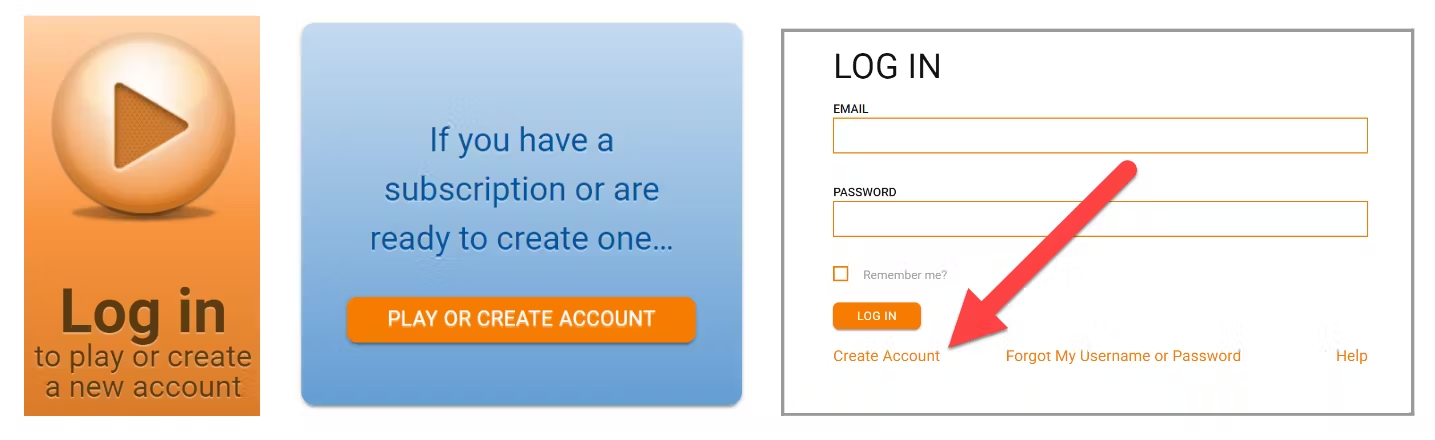
2️⃣
Log In with your Username and Password
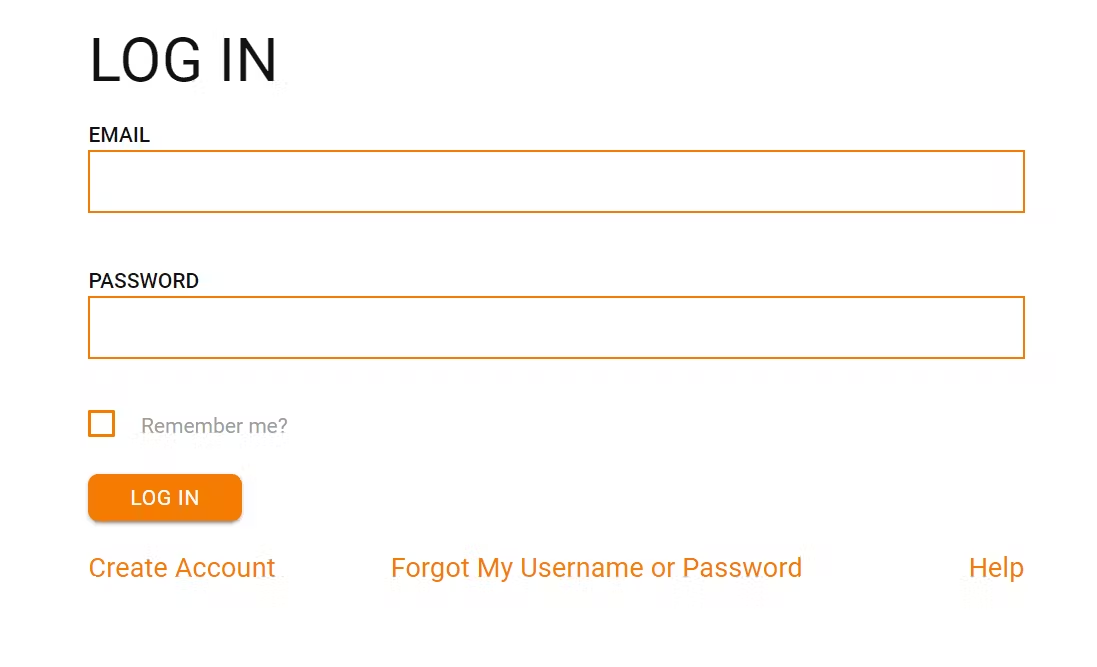
3️⃣
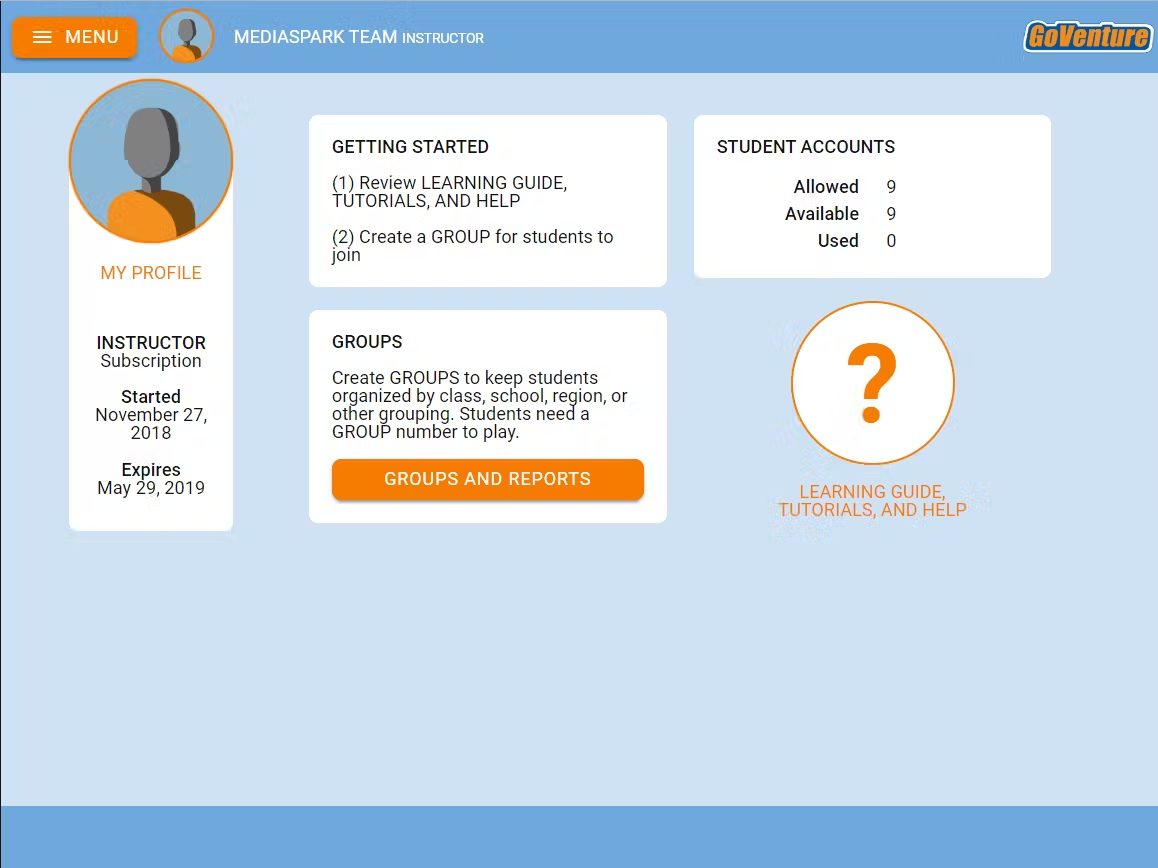
Review the Instructor Dashboard
Clicking the big orange question mark button gives you access to instructor resources including this Instructor Guide.
4️⃣
Review & Play
Continue reading this document to discover everything you need to know. If you want to immediately experience GoVenture as a student, click GROUPS & REPORTS then PLAY AS STUDENT and join Group number 3998304.
5️⃣
Quick Setup for Students
Here's what you need to know to quickly set up students:
It is important for students to learn foundational concepts and terminology before playing the full Life & Money Simulation. Instructors can teach this content using their usual methodology or use the included GoVenture resources — Your Story Simulation and the eWorkbook. These two activities are self-directed and assessment is automated, making them easy to assign and grade. Direct students to log in to GoVenture and click the large orange question mark to access these resources. Students do not need a Group Number to access these two activities. However, providing a Group Number allows instructors to monitor student progress and assessment results.
After students complete the activities described above, instructors can create a new Group for students to play the Life & Money Simulation. Instructors can optionally include the 10 Online Activities.
For step-by-step details, watch the video in section 5. Groups.